- MCP acts as a unified standard for AI models to interact with browsers, GNOME desktop apps, and external services.
- There are MCP servers ready for production (Cloudflare, GitHub, Figma, Docker, Stripe, etc.) and others specific to Linux (Puppeteer, AT-SPI2).
- Developing and deploying your own MCP server in GNOME requires a modular architecture, good security practices, and thorough testing.
- Clients like Claude Desktop or KoboldCpp can share the same MCP server ecosystem, providing flexibility to the Linux workflow.
If you work with advanced AI assistants and Linux desktop environments, you've likely already encountered the Model Context Protocol (MCP) and its integration with GNOME . More and more tools, servers, and platforms are adopting it so that models can communicate with applications, browsers, APIs, and desktop systems in a standardized and secure way.
In this article, we'll take a detailed look at how MCP server support works in a GNOME environment on Linux : from browser automation with Puppeteer and interaction with native applications via AT-SPI2, to integration with platforms like Cloudflare, GitHub, Figma, Docker, and Stripe. We'll also see how to set up your own MCP servers, test them, deploy them, and what role Windows, ChatGPT, Claude, and other tools play in this new ecosystem.
What is MCP and why is it so important in GNOME desktops?
The Model Context Protocol has become something of a "USB-C" for integrating model languages and tools . Instead of creating a separate connector for each application (CRM, database, deployment dashboard, etc.), MCP defines an open standard for LLMs to communicate with servers that expose tools and resources in a consistent way.
In practice, an MCP server is a service that offers tools (actions) and resources (accessible data) according to a well-defined schema, typically using JSON and JSON Schema. AI models can discover these tools, query which parameters they accept, and call them safely, without the developer having to invent a new protocol for each case.
In the context of GNOME and other Linux desktops, MCP fits like a glove because it allows models to connect to specialized servers that understand the graphical ecosystem : X11, Wayland, AT-SPI2 accessibility, Puppeteer-controlled browsers, GTK/Qt/Electron applications, etc. All this without forcing users to change environments or rely on ad hoc integrations.
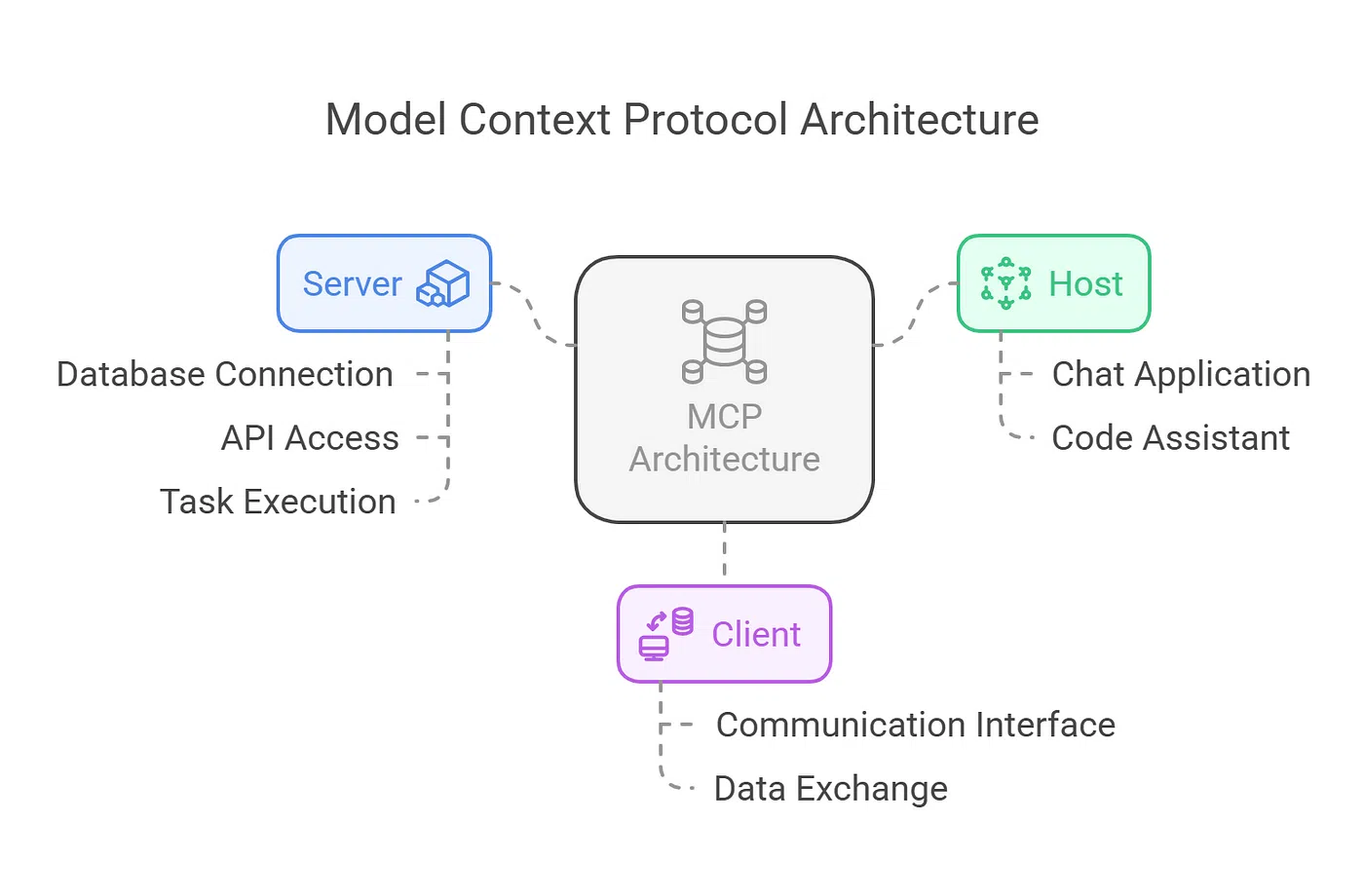
From an architectural perspective, MCP clearly separates the client (the AI assistant or the app that uses it) from the server (the component that interacts with the real world). This separation allows you to change the model, IDE, or cloud provider without having to redo all your integrations , as long as you maintain the same MCP server and the same tools agreement.
MCP support on Windows, questions about the website and desktop usage
One of the most common questions people ask these days when trying MCP is how easy it is to get it working on Windows , especially with Node.js-based servers. Many users have struggled with manual installations, Node paths, PowerShell security configurations, or issues with the AI client's configuration file.
To alleviate this headache, someone decided to ask Claude to generate a PowerShell script capable of managing the installation and updating of MCP serversThe result is a script (hosted in a public gist) that you can download as mcp-install.ps1The idea is very simple: if the package appears in mcp-get.com and is identified by the Node.js icon, the script takes care of downloading it, installing it and making it ready for use.
The typical workflow in Windows involves opening PowerShell and running something like ./mcp-install.ps1 @modelcontextprotocol/server-everythingThis command deploys a sample server to verify that the entire MCP pipeline is working correctly with your client (e.g., Claude Desktop). The screenshots of the process show what to expect and help verify that everything is configured correctly.
One interesting detail is that the script It does not overwrite your file. claude_desktop_config.jsonInstead, check the MCP package entry point and update the configuration incrementally. If the MCP server is already installed, simply update it, respecting your previous settings. This reduces the risk of losing custom configurations or routes to other servers.
On Windows systems with older versions of PowerShell, you may need to run it first. Set-ExecutionPolicy Bypass -Scope Process to allow the script to run. This is a common solution when PowerShell blocks the execution of .ps1 files downloaded from the internet for security reasons.
In parallel, another increasingly frequent question arises: will we see web versions of Claude or ChatGPT with full support for MCP? From an architectural standpoint, there's nothing preventing it: MCP servers already exist, they typically use HTTP or STDIO, and the protocol is well-documented. What holds providers back is usually a mix of security, permissions, resource limits, UX, and governance: exposing MCP on the web means allowing cloud-hosted models to communicate with external, potentially sensitive, systems from a web browser.
Many people envision a future where they open ChatGPT or Claude via the web, with all their personal MCP tools connected (GitHub, Figma, Jira, Docker, etc.) , and launch complex commands without ever touching the terminal. This vision is technically plausible, and in fact, some steps are already being taken, but it will require refined permissions policies, a well-implemented OAuth system, and a user experience that clearly explains what the AI can do at any given time.
Within the Linux ecosystem, one of the most powerful MCP servers is Puppeteer, which automates a real web browser with native support for both X11 and Wayland. This server allows a language model to interact with web pages as if it were a person: opening URLs, clicking on elements, filling out forms, executing JavaScript, capturing screenshots, and reading console logs.
This implementation includes a specific layer for managing the display server on Linux (X11, Wayland, or even XWayland) . The fork described in the documentation adds automatic detection of the graphical environment and dynamically configures the variables that Puppeteer needs to launch the browser smoothly, both on GNOME and KDE, as well as other desktop environments.
Key capabilities of this browser MCP server include: Automatic detection of X11/Wayland, the dynamic configuration of variables such as DISPLAY y XAUTHORITY, support for XWayland as a compatibility mechanism, and a series of fallback routines with robust error handling to prevent the server from crashing in more exotic environments.
In terms of resources, this server offers two very useful types of URIs: on the one hand, console logs accessible via console://logsand on the other hand, the screenshots referenced as screenshot://<name>This provides the model with valuable visual and debugging context when automating E2E flows or inspecting complex web applications.
The available functions cover most typical QA and scraping tasks: page navigation, clicks, form submissions, custom script execution , console reading, and screenshot management. For those working with GNOME, this MCP layer completely abstracts the display server's intricacies, allowing the model to communicate in a high-level language.
MCP support for Linux desktop applications via AT-SPI2
Beyond the browser, there is another very interesting MCP server that handles accessibility interactions with native Linux desktop applications . It uses AT-SPI2 (Assistive Technology Service Provider Interface), the accessibility standard in GNOME and other modern desktop environments, to expose a kind of "semantic tree" of the interface.
This server offers something similar to what some Chrome extensions provide with their references. ref_1, ref_2but applied to GTK windows, Qt, Electron, and any app that publishes its information is accessible.It is capable of detecting roles (buttons, texts, links, menus, etc.), states (focused, enabled, marked, editable) and providing a natural language search of interface elements.
Among its most outstanding tools are features such as desktop_snapshot, which captures the accessibility tree with semantic references, desktop_find to locate items based on descriptions such as "save button" or "search field", desktop_click to click by reference or coordinates, desktop_type to write text, desktop_key to send keyboard shortcuts and desktop_capabilities to check what type of automation is available in each environment.
In GNOME, for all of this to work correctly, it's essential that desktop accessibility is enabled . This is usually done through Settings → Accessibility. KDE also has similar options in the System panel. Most modern desktops enable it by default, but in some cases, you need to restart your session for the AT-SPI2 daemon to start properly.
Regarding compatibility with graphics platforms, this MCP server supports X11, Wayland and XWaylandA table of capabilities shows that AT-SPI detection, click-by-reference, text writing, and the use of tools such as ydotool are fully supported in all three environments, while xdotool It works at full performance in X11 and XWayland, but is not used in pure Wayland sessions.
In the troubleshooting section, the documentation mentions common errors such as “AT-SPI2 not available” or “AT-SPI2 registry not running ,” which are usually due to accessibility not being enabled or the service not starting correctly. It also addresses the “No input backend available” message in Wayland, which is typically resolved by installing and configuring the appropriate input simulation tools. Additionally, it notes that some older or poorly integrated applications may not expose their accessibility tree, so some elements will not appear in snapshots.
MCP as an integration standard for frontend teams
Beyond the desktop, MCP is establishing itself as the go-to platform for integrating critical frontend workflow tools : design (Figma), version control (GitHub, GitLab), deployment (Vercel, Netlify, Cloudflare), observability (Sentry, Chromatic), and work management (Linear, Jira, Notion, Atlassian, etc.).
MCP is often described as the equivalent of a "USB-C for agent and tool integrations" because it allows you to connect design specifications, repositories, deployment pipelines, monitoring, and task management in a single channel that is understood by AI assistants, code editors, and CI/CD systems alike—without the need for custom adapter layers for each tool pair.
There is already a fairly comprehensive list of production-ready remote MCP servers, many of them with OAuth and granular permissions . For example, Cloudflare maintains a catalog of managed MCP servers that integrate with Workers, Pages, KeyV, or R2; Notion offers a server (official or community-owned) for reading and writing documents, tasks, and specifications; and GitHub and GitLab have their own MCP servers for managing issues, pull/merge requests, and automating code review workflows.
Other platforms that have joined the mix include MCP templates and servers that control deployments , environments, domains, and projects, and Supabase, which exposes read-only access to databases and other platform capabilities designed for frontend applications. In the area of work management, Linear and Atlassian (Jira/Confluence) provide remote MCPs that allow users to create issues, update statuses, view sprints, or summarize pages, knowing each user's permissions.
In the realm of observability, Sentry offers an MCP server (with hosted and open-source versions) for checking for errors, providing real-time context for issues, and even generating suggested patches. Stripe facilitates interaction with its payment API and documentation; Chromatic/Storybook exposes tools for visual testing and interface review; and projects like Grep MCP allow for large-scale code searches across public GitHub repositories , combining regular expressions and semantics.
All of this makes MCP a very pragmatic option for a modern frontend team in 2025 and beyond . Instead of maintaining scripts held together with electrical tape, it would be enough to choose the right set of MCP servers (Figma, GitHub/GitLab, Vercel/Netlify/Cloudflare, Sentry/Chromatic, etc.) and let the AI assistant orchestrate the design → code → deployment → monitoring flow within the editor or CI system.
Practical guide: anatomy and development of your own MCP server
If you want to take MCP support in GNOME a step further, sooner or later you'll have to build your own MCP server . Beyond using pre-made servers, creating one from scratch forces you to understand the backend architecture, tool management, and the protocol's message model, giving you complete control over how your AI interacts with your systems.
The typical architecture of an MCP server is modular and is usually divided into four blocks: the main server application , the tools and resources modules, the communication handlers, and the integration points. The application is responsible for opening HTTP/STDIO sockets or endpoints, managing concurrent connections, authenticating clients, and coordinating data flow.
Tool modules are pieces of code that encapsulate specific actions: querying a database, performing a calculation, triggering a deployment, launching an automation playbook, etc. Each tool has a unique name, a clear description, a parameter scheme, and a response scheme, often defined in JSON Schema to ensure validation . The server maintains a record of these tools and, when an MCP message arrives, forwards the request to the appropriate function.
Communication handlers parse incoming messages in MCP format, verify that they conform to the schema, and route each request to the appropriate tool or resource. They also shape the response , populating the fields expected by the client (results, errors, metadata, etc.). Finally, integration points are the external interfaces that allow assistants and apps to connect: HTTP endpoints, WebSockets, STDIO transport, or whatever is defined by the implementation.
The interaction flow is simple: a client sends an MCP request to the server, the handler interprets it, the server executes the specified tool, and the handler packages and returns the response. Thanks to this layered design, you can replace the transport or add new tools without touching the application's core logic.
To develop an MCP server in practice, you usually start by choosing a programming language with good network support such as Python or Node.js. In Python, frameworks like Flask or FastAPI are common; in Node.js, Express fits very well. It is recommended to structure the project with folders for tools (/tools), handlers (/handlers) and a main file (server.py o server.js), in addition to dependency files (requirements.txt o package.json).
In terms of environment, the healthiest thing is to work with virtual or isolated environments: venv in Python, or simply a project with node_modules in Node.js. Version control with Git and a good .gitignore They help keep things clean. Documenting the installation process in a README makes it easier for other developers to replicate your MCP server on their machines.
Tools, resources, testing, and deployment of MCP servers
Defining your tools well is key for a language model to use them reliably. Each tool should perform a single, clearly defined task (the principle of atomicity), with a descriptive name, a clear explanation, and a detailed input/output schema. This allows the server to advertise its capabilities and the client (the model) to understand what it can request and what it will receive.
In code, you typically maintain a toolbar (for example, a dictionary in Python that maps tool names to functions). Adding a new toolbar involves writing the function with its validations, documenting it, and adding it to that toolbar. Resources, on the other hand, are the data or services that these tools interact with: databases, external APIs, file systems, queues, and so on.
The testing phase includes both manual tests (using MCP Inspector, Postman, or cURL) and automated tests. Typically, sample MCP messages are sent to the server endpoint and verified. The responses meet the expected format.including error codes, data structure, and required fields. In Python, pytest It facilitates unit and integration testing; in Node.js, frameworks such as mocha o jest They fulfill that function.
For debugging, a well-designed logging system is vital. Libraries such as logging in Python or winston in Node.js They allow you to record what happens when a request arrives, which tool is executed, what parameters are inputted, and what is output. In development environments, you can use graphical debuggers (VS Code, PyCharm, WebStorm) to set breakpoints and examine variables in detail.
Once your MCP server is running locally, the next step is deployment. Many people opt for Docker containers and platforms like Google Cloud Run, AWS ECS, or Azure App Service , which offer autoscaling, high availability, and built-in TLS certificate management. It's important to move all sensitive configuration (API keys, credentials, etc.) to environment variables and keep secrets out of the code.
Security relies on authentication mechanisms such as API keys or OAuth, limiting access to trusted clients only. It's also advisable to define resource limits and horizontal scaling policies so the server can handle traffic spikes. Monitoring with tools like CloudWatch or Google Operations, and exposing health check endpoints, makes detecting incidents much easier.
Regarding maintenance, it's advisable to regularly update dependencies and the operating system , apply security patches, and use blue/green or rolling deployment strategies to prevent service outages. All of this is equally applicable to an MCP server that automates GNOME as it is to one that integrates Stripe or GitHub.
MCP servers for Docker and AI-controlled Linux sandboxes
Another very illustrative example of what can be done with MCP is the A server that uses Docker Engine to create AI-controlled Linux sandboxesThis type of server creates isolated containers in which tools like Gemini-cli or Claude can execute commands, compile code, edit files, and even open editors like vim, while the user sees everything that happens.
In a typical demonstration, the user asks the AI to write a C program, compile it, and run it within the container, instructing it to use a terminal editor. The MCP server acts as an intermediary: it creates the container, exposes the appropriate tools, forwards the commands, and captures the output . All of this is done with a high degree of visibility, so you know exactly what the model is doing inside the sandbox.
This approach is very useful for experiments, training, or potentially dangerous development tasks, as it keeps the host system safe . The source code for this particular server is available on GitHub, allowing you to study it, adapt it to your needs, or contribute improvements. It's a perfect example of how MCP can connect AI and containers in an extremely flexible way.
In GNOME environments, this type of server makes perfect sense: you can use a desktop MCP client, ask the AI to set up a Docker sandbox environment, and continue working on your graphical applications while the container does its work in the background . The separation between desktop and sandbox provides peace of mind without sacrificing the power of automation.
Furthermore, combining this type of server with browser or desktop automation servers (via Puppeteer or AT-SPI2) opens the door to very advanced workflows : for example, launching an app in Docker, launching an MCP-controlled browser to perform E2E tests, and at the same time letting the model interact with desktop dialogs and windows.
MCP on alternative clients: an example from KoboldCpp
Not all MCP support is limited to commercial clients like Claude Desktop. Tools such as KoboldCpp have incorporated native MCP support in recent versions , aiming to offer a desktop alternative capable of connecting to the same servers you would use with other clients.
In KoboldCpp version 1.106, an “MCP bridge” has been added that can connect to all servers declared in a file mcp.json using the same format as Claude Desktop. This bridge is capable of communicating with both HTTP-based MCP servers and those using STDIO as the transport, automatically forwarding the calls to tools that the AI decides to launch to the correct server.
From the KoboldCpp user interface you can view the list of tools available on all connected MCP servers , activate or deactivate the ones you want the model to be able to use, and even enable an approval system for tool calls, so that you have to confirm before the AI performs certain sensitive actions.
This demonstrates that MCP is not tied to a single vendor; any client implementing the protocol can leverage the same server ecosystem . In practice, if you have a set of MCP servers already configured for your GNOME environment, you can test different clients (Claude, KoboldCpp, editors with MCP plugins, etc.) without having to redo all the integrations.
The community around KoboldCpp has shared screenshots where they can be seen multiple tool servers in action At the same time, showing how the MCP bridge coordinates different capabilities without the user having to touch the configuration much once the mcp.json.
Ultimately, this type of advancement reinforces the idea of MCP as a cross-cutting standard for agents and tools , not as a proprietary add-on for a specific product. This benefits users of GNOME and Linux as much as those on Windows or macOS.
With all of the above, the outlook for MCP server support in GNOME environments is very promising: we have browser and desktop automation with X11/Wayland support, remote servers for virtually all the key tools of a modern development team, detailed guides for building and deploying our own servers, and an increasingly diverse range of clients who understand the protocol. If you combine this with good security practices, enabled desktop accessibility, and a clear strategy for which servers to enable, it's possible to set up a workflow where AI goes beyond a simple chatbot and becomes an operator capable of seamlessly navigating between your GNOME applications, Docker containers, and cloud platforms.