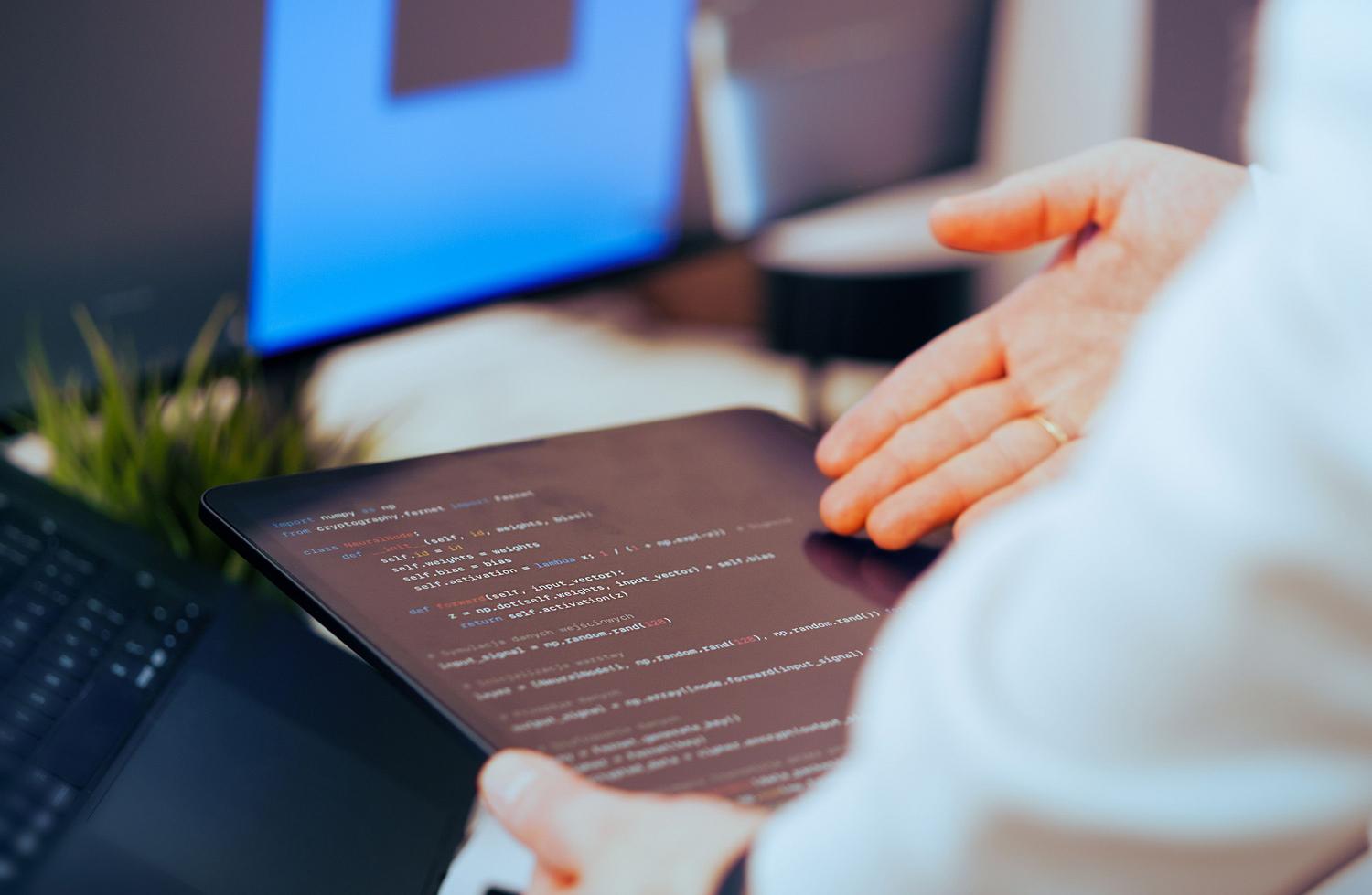
Do you have an Android tablet gathering dust in a drawer, or have you stumbled across an old gem and are curious to see what it can do? Well, transforming that device into a Linux workstation is one of the best ways to give it a second life, escaping Google's limitations and harnessing the power of open source to do things Android can't even imagine.
Whether you're looking to set up a home server, learn to program, or simply want a lightweight, portable device to experiment with the terminal, there are multiple ways to achieve your goals . Best of all, you don't need to be a computer whiz or risk bricking your device, as there are options for those who are intimidated by root access as well as those who want complete control over the hardware.

Why bother installing Linux on a tablet?
The reality is that Android, while very practical, falls short when you want to perform real development tasks or run specific desktop software. By installing a Linux distribution, you can take advantage of Linux's strengths over Android and turn your tablet into a kind of mini-PC capable of true multitasking. It's ideal for those who need cybersecurity tools, web servers (like Apache or Nginx), or simply want to explore the world of free distributions without spending a penny on new hardware.
Options for those who don't want complications (No Root)

If you don't want to void your device's warranty or you're terrified of breaking something, there are methods based on emulation and the use of containers that work perfectly. The most popular combination is the trio of Andronix, Termux, and VNC Viewer . Basically, Termux acts as the terminal, Andronix helps you choose the distribution (like Ubuntu or Debian), and VNC Viewer lets you see the graphical desktop on the screen.
- Andronix and UserLAnd: These are fantastic tools for downloading distributions without modifying the base system. UserLAnd is especially intuitive and compatible with several distributions.
- AnLinux and Debian Noroot: Ideal for those looking for more controlled or lightweight environments, Debian Noroot is a very simple option for older versions of Android.
The general process involves installing these apps, copying an installation command into the Termux terminal, setting a password for remote access, and connecting via the VNC client. This gives you a functional Linux environment without modifying the device's kernel.
For the brave: Installation with root access
If your device is already rooted, or if you decide to root it, the game changes completely because you can access the hardware directly. This is where Linux Deploy shines , an application that allows you to install distributions like Fedora, Arch Linux, or Ubuntu directly onto the internal storage.

Unlike previous methods, this one gives you greater control over the system and generally better performance. All you need is BusyBox installed and a stable Wi-Fi connection to download the distro image. Once the GUI (graphical interface) and VNC server are set up, you can access a much more robust and almost native Linux system.
How to choose the right layout
Not all Linux distributions are created equal, and on a tablet, storage space and RAM are precious. Ubuntu is the top choice for its ease of use and huge community, while Debian is the perfect choice if you're looking for absolute stability and don't want to worry about constant updates.
For those seeking a more refined touch experience, KDE Neon is highly recommended, as it's better optimized for gestures. On the other hand, if your goal is ethical hacking, Kali Linux or Parrot OS are essential tools. If your hardware is very limited (such as older tablets with less than 1 GB of RAM), it's best to opt for lightweight environments like XFCE or LXQt instead of GNOME or KDE, to prevent the system from running sluggishly.
Compatible hardware and native tablets
If you're thinking of buying a device specifically for Linux, pay attention to the architecture. x86 processors (Intel or AMD ) are the most compatible and easiest to configure. ARM -based processors are more battery-efficient but often require custom kernels or specific distributions like Manjaro ARM.

There are ready-made options like the PineTab2 , which comes with Manjaro or Ubuntu Touch, or SINSMART 's industrial tablets , designed to withstand shocks and dust while running Debian or Ubuntu. For a productive experience, it's essential that the tablet supports USB-C with OTG , allowing you to connect keyboards, mice, and even external monitors.
Possible obstacles and limitations
It's not all sunshine and roses; installing Linux on hardware not designed for it can have its headaches. Driver problems are common , especially with Wi-Fi, Bluetooth, and graphics acceleration. Furthermore, on very old tablets with limited RAM, performance can be disappointing if you try to run demanding applications.
Another critical issue is the locked bootloader . If you want a true native installation, you need to be able to flash the device, something many manufacturers prohibit. In extreme cases, such as tablets salvaged from the trash with broken screens, access can be a nightmare, requiring the use of OTG cables and external keyboards to unlock the system before attempting any installation.
Turning a tablet into a Linux machine is an exciting project that allows you to do everything from simply learning to creating professional development and security tools. Depending on whether you prefer the security of not rooting or the power of a deep installation, tools like Termux, Linux Deploy, or specialized hardware make this process accessible to any tech enthusiast looking to optimize their resources.
