Having a laptop is wonderful because of the mobility it gives us, but there's a silent enemy that eventually takes its toll on everyone: battery life. It's normal for battery life to decrease over time, but you don't have to resign yourself to it running out in the blink of an eye if you apply a couple of smart tweaks from day one.
The key isn't using your device less, but knowing how to manage it. We often make basic mistakes, like leaving it plugged in for weeks on end or waiting for it to shut down on its own before charging it, which essentially accelerates the aging of its internal chemical components. Here's everything you need to know to keep your battery looking and performing well for much longer.

The secret of the 20% – 80% range
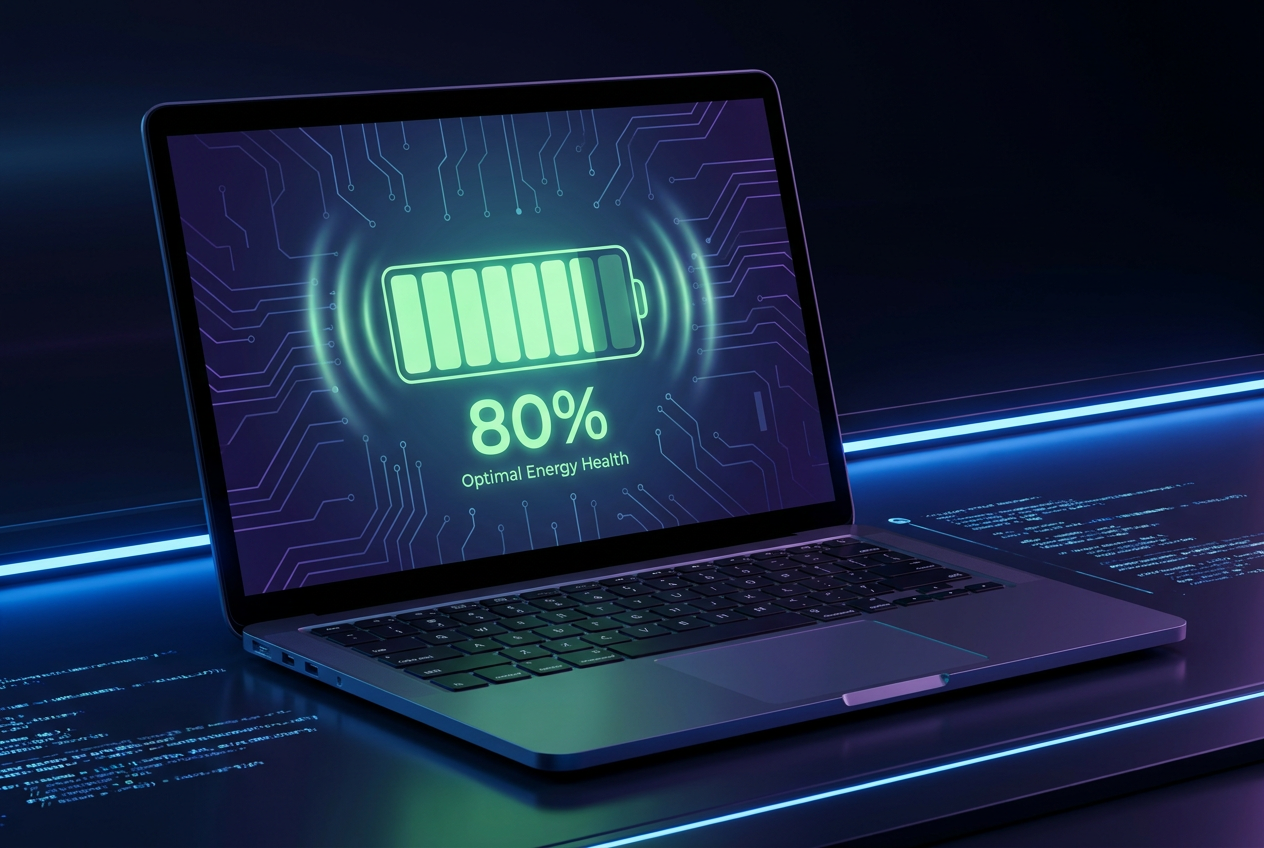
If you want to prevent your battery from degrading prematurely, avoid extremes. Lithium-ion batteries suffer greatly when they are completely empty or when they are forced to reach 100% and remain there. Ideally, you should keep the charge in an intermediate range , specifically between 20% and 80%, which is where the battery feels most comfortable and experiences the least stress.
When we charge the device beyond 80%, the charging speed drops drastically and heat increases as it tries to fill those last few percentage points, leading to greater chemical wear . Therefore, limiting the maximum charge is the best strategy for extending the battery's lifespan in the long run.

How to limit charging based on your laptop brand
Since Windows 11 doesn't include a universal built-in option to limit file usage, each manufacturer has created its own tool. Sometimes these come pre-installed (though they may seem like bloatware, these are the only ones that are truly worthwhile), or you have to download them from the official website.
- Lenovo: The app is used Lenovo VantageWithin the energy section, look for the "Battery charging threshold" to set the limit between 75% and 80%.
- ASUS: Through MyASUSIn the customization section, you can choose either "Balanced Mode" (80%) or "Maximum Lifespan Mode" (60%).
- HP: Here things change, since it is usually managed from the BIOS / UEFIAfter restarting, press F10 and look for "Adaptive Battery Optimizer". You can also check its status by entering the diagnostic menu with F2.
- Acer: you must enter Acer Care CenterGo to the Check tab and activate the "Battery charging limit" option.
- MSI: Using Dragon Center or MSI Center, in Battery Master, you can choose the "Balanced" mode for 80% or the "Best for Battery" mode for 60%.
- Dell: The tool is dell power managerIn the battery settings, select "Primarily AC power" to have the system automatically limit charging.
- LG: Use LG Smart Assistantwhere you can activate the option to extend battery life by setting the limit to 80%.
- Microsoft Surface: These tablets/laptops include the Smart ChargingIt learns your habits and limits the charge to 80% if it detects that you are always plugged in.
Mortal enemies of autonomy
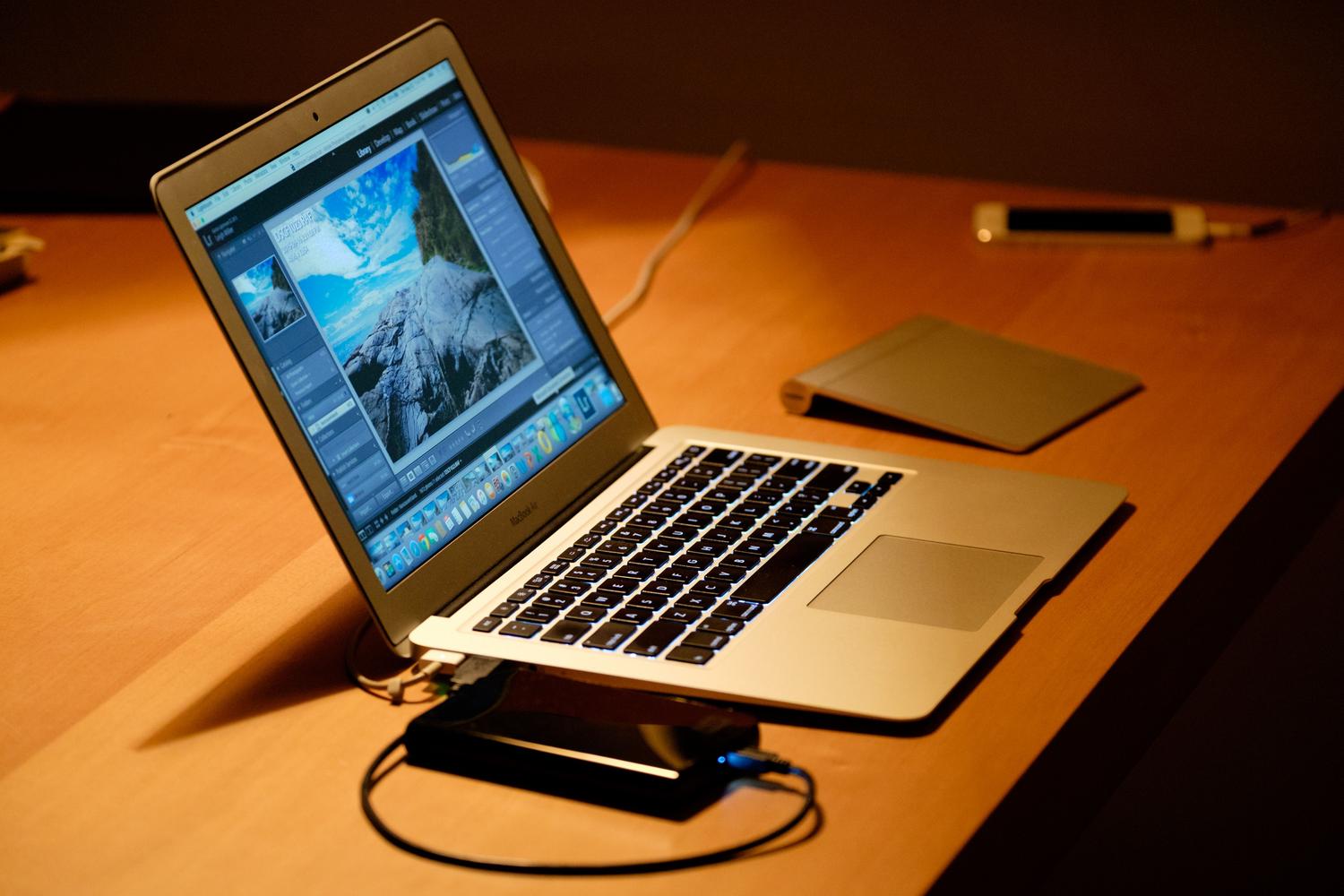
It's not all about the battery percentage; external factors can destroy your battery in record time. The first and most dangerous is heat. High temperatures accelerate chemical degradation . That's why using your laptop on the bed, blankets, or cushions is a huge mistake, as it blocks the ventilation grilles and traps the heat.
To avoid this, it's best to always use flat, hard surfaces. If you play demanding games or edit video, investing in a cooling pad isn't a luxury, but a necessity to maintain the temperature between 0 and 35 °C.

Extra tips to optimize daily consumption
Besides limiting battery life, there are small actions that significantly improve battery life. For example, reducing screen brightness by even 20% makes a real difference. It's also wise to turn off Bluetooth, Wi-Fi, or the keyboard backlight when you're not using them, and to close those browser tabs that have been open for days and are consuming RAM and power in the background.
Regarding software, always keep your drivers and system up to date . Firmware updates often optimize power management, making your hardware more efficient. If you notice the battery percentage fluctuating or inaccurate, you can try a monthly battery calibration : charge it to 100%, let it drain completely until it shuts down, and then fully charge it again without interruption.
For those who need to replace their battery, avoid cheap, generic copies. Always opt for original components or those from well-known brands , as poor-quality batteries not only last less time but can also cause dangerous overheating for the rest of the device.
Taking care of your battery's health involves avoiding extreme charging, combating excessive heat through good ventilation, and relying on each manufacturer's management tools to keep the percentage around 80%, combining this with conscious use of brightness and background processes.
