- Calibration synchronizes the actual load percentage with the operating system reading.
- It prevents unexpected shutdowns and allows you to optimize the lifespan of the chemical components.
- The process basically consists of performing a complete cycle of full charging and discharging.
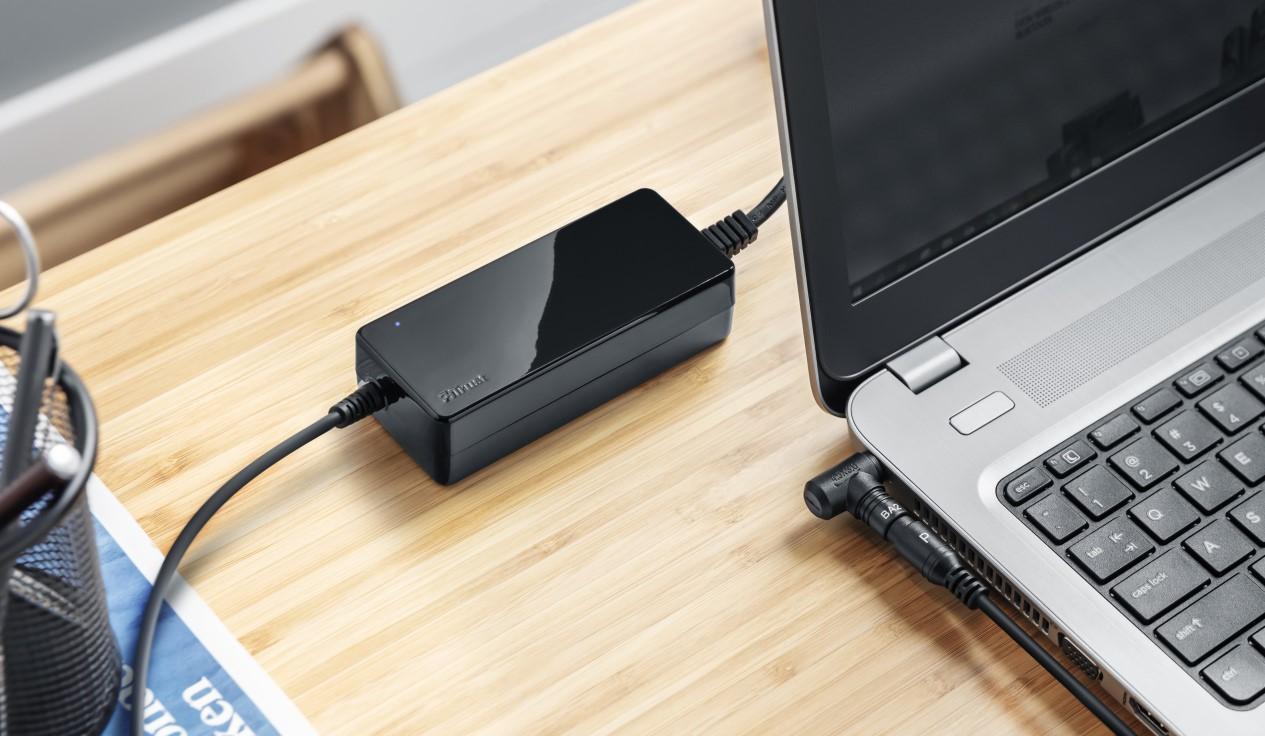
I'm sure it's happened to you before: you're working flat out and, suddenly, your computer shuts down without warning, even though the indicator showed you had 30% or 40% battery remaining. It's a frustrating situation that usually leaves anyone bewildered, but it doesn't necessarily mean your computer is broken; it just means the power meter has become inaccurate.
This phenomenon occurs because modern batteries rely on a small microprocessor to estimate the remaining charge. However, due to the natural wear and tear of the chemical compounds and daily use, this reading can become inaccurate. To fix this problem, we need to use a process called recalibration, which essentially aligns the hardware with the Windows software.

What is the real purpose of calibrating the battery?
When we talk about calibration, we're not referring to increasing the battery's physical capacity (because that's impossible, since wear and tear is inevitable), but rather to adjusting the reading levels . By doing this, you ensure that the percentage you see in the taskbar is accurate, preventing your laptop from shutting down abruptly while you're writing an important document.
Besides preventing unexpected problems, keeping your battery calibrated helps extend the device's lifespan . Knowing exactly how much charge is left allows you to prevent the battery from repeatedly dropping to critically low levels, which is very damaging. Ideally, experts recommend keeping the charge between 40% and 80% to avoid stressing the cells and improve your laptop's battery life.


Detailed methods for performing the calibration
There are several ways to do this depending on your device brand or Microsoft's recommendations. However, the basic principle is always the same: perform a complete charge and discharge cycle . Here are the most effective methods to achieve this.
The standard and general method
- First, plug in the charger and Charge the device to 100%Once it reaches its maximum charge, leave it plugged in for a couple more hours to ensure it is fully charged.
- Configure the power plan so that the computer Do not enter sleep mode nor turn off the screen automatically while downloading.
- Disconnect the cable and use the laptop normally until the battery is very low (around 5%).
- Let the computer shut down completely and the device rests for about 5 hours without touching it.
- Reconnect it to the power supply and charge it to 100% without interruption.
The advanced process using Safe Mode
Some manufacturers, such as HP and Dell, suggest that for a more linear and effective discharge, it should be done in Windows Safe Mode . To do this, turn on your computer and repeatedly press the F8 key (on older versions) or follow the Windows 10/11 recovery path to enter Safe Mode. Once there, disconnect the power and let the laptop shut down automatically . Then, fully charge it while the computer is off.

How to check the actual wear and tear on your battery
Before and after calibration, it's very useful to know how much battery life is left. Windows has a powerful hidden tool for this. Just open PowerShell or Command Prompt by right-clicking the Start button.
Write the command powercfg /batteryreport and press Enter. The system will generate an HTML file that you can open in your browser. In the section "Installed batteries" You'll see the original design capacity versus the current charging capacity. If the difference is very large, the battery is likely physically degraded and the calibration is just a temporary fix; in that case, the replacement of the part That would be the only real solution, being able to consult one portable battery guide to choose the correct one.
Recommended Tools and Apps
If you don't want to do the whole process manually, there are programs that make monitoring easier. BatteryCare is a very popular free option that notifies you when you've completed enough charge cycles to need recalibrating. On the other hand, if you have a gaming PC, like those from MSI, the Dragon Center software usually includes a built-in option for managing and calibrating power.
There's also BatteryMon , a simple application that lets you view real-time battery consumption graphs. Comparing BatteryMon's data with Windows data will help you determine if the calibration worked or if the operating system is still misrepresenting battery life.

Extra tips to take care of your autonomy
Calibrating every two or three months isn't enough; daily use has a significant impact. To prevent battery damage, it's crucial to avoid extreme temperatures . If your laptop gets too hot (over 30-35 degrees Celsius), the internal chemistry degrades much faster. Avoid using your laptop on your bed or on surfaces that obstruct ventilation.
Also, check which programs are consuming resources in the background, as intensive CPU use heats up the battery and drains power quickly. Adjusting screen brightness to moderate levels and turning off Bluetooth or Wi-Fi when you don't need them are simple tricks that extend your battery life.
Performing a full charge and discharge cycle periodically, along with monitoring through energy reports and the use of specialized software, allows the Windows meter to be reliable and keeps the hardware in an optimal state, thus preventing the computer from shutting down unexpectedly and prolonging battery life.
