- Docker allows application virtualization using lightweight containers that share the host system kernel.
- Installation on Windows can be done via Docker Desktop using the WSL 2 or Hyper-V backends.
- It is essential to meet the hardware and operating system version requirements to ensure the stability of the environment.
- There are advanced alternatives by installing Docker directly on a Linux distribution in WSL 2 without using the desktop interface.

If you're curious about the world of containers, you'll have noticed that Docker is the leading tool for efficiently virtualizing applications . Unlike traditional virtual machines , which consume resources by emulating an entire operating system, Docker isolates only the application and its dependencies, making everything much lighter and faster to deploy.
For those of us who use Windows, the landscape has changed dramatically, and we now have powerful options for setting up our own environment. Whether you want to experiment with web servers, databases, or firewalls , having Docker properly configured on your PC will allow you to work in a professional environment without worrying about file compatibility.

Before we start installing, it's vital to know that Docker Desktop isn't free for everyone. If you work for a company with more than 250 employees or that generates more than $10 million in annual revenue, you'll need a paid subscription. For everyone else, such as students, open-source projects, or small businesses , the software is completely free.
System Requirements
To avoid any surprises during installation, make sure your computer meets the following requirements. For Windows 10, you need the 64-bit version (Enterprise, Pro, or Education) 22H2. If you have Windows 11, look for version 23H2 or higher. Additionally, it is essential that the Windows Server service (LanmanServer) is enabled and configured to automatic mode.


Depending on the engine you choose, the requirements vary slightly. If you opt for Hyper-V, you'll need to enable the Containers and Hyper-V features from the control panel. On the other hand, if you prefer the modern approach of WSL 2, you'll need it to be version 2.1.5 or later to avoid compatibility issues with the latest features.
Steps for Interactive Installation
The easiest way to get started is by downloading the official installer. First, download the Docker Desktop Installer.exe file from the Docker website. When you run it, the system will ask you which installation mode you prefer: per-user mode (which saves to %LOCALAPPDATA% and doesn't require administrator privileges ) or all-user mode, which does require elevated privileges.
During the process, you'll see a crucial checkbox: "Use WSL 2 instead of Hyper-V ." We strongly recommend checking this box, as WSL 2 is the current standard and offers superior performance. Once the wizard finishes, close the application and restart your computer for all kernel changes to take effect.

After restarting, open Docker Desktop and accept the Subscription Service AgreementIf you do not accept the terms, the engine will not start. To check that everything is working correctly, open a terminal of PowerShell and writes docker run hello-worldIf you see a success message, it means Docker was able to Download the image and run the container. smoothly.
WSL 2 Configuration
Sometimes, Docker will warn you that WSL 2 isn't fully ready. You have two ways to fix this. The quickest is to open PowerShell as administrator and run the command `wsl --install` , which automates the download of the Ubuntu distribution and the Linux kernel. If the Microsoft Store is blocked for some reason, you can go to the WSL GitHub repository and download the .msi package manually.
It's important to remember that WSL 2 allows Windows to manage Linux processes natively . If you're an advanced user, you can even do without Docker Desktop by installing Docker directly within an Ubuntu distribution running WSL 2. This avoids the overhead of the graphical interface and allows you to manage disks using mount points like /mnt/c , making it easier to access your NTFS files.

Advanced Options and Command Line
For those who prefer not to use the mouse, Docker allows installation via the terminal. You can use flags like `--quiet` for a silent installation or `--accept-license` to skip the license agreement at startup. If you need to change the installation path, the `--installation-dir` flag is your best friend to avoid filling up your C: drive.
In server environments, such as Windows Server 2019 or 2022, management is different. Here, the engine is typically configured through a file called daemon.json located in C:\ProgramData\Docker\config\. From there, you can define the data storage (data-root) or configure the proxy using environment variables like HTTP_PROXY so that the system can download images over corporate networks.
Container and Network Management
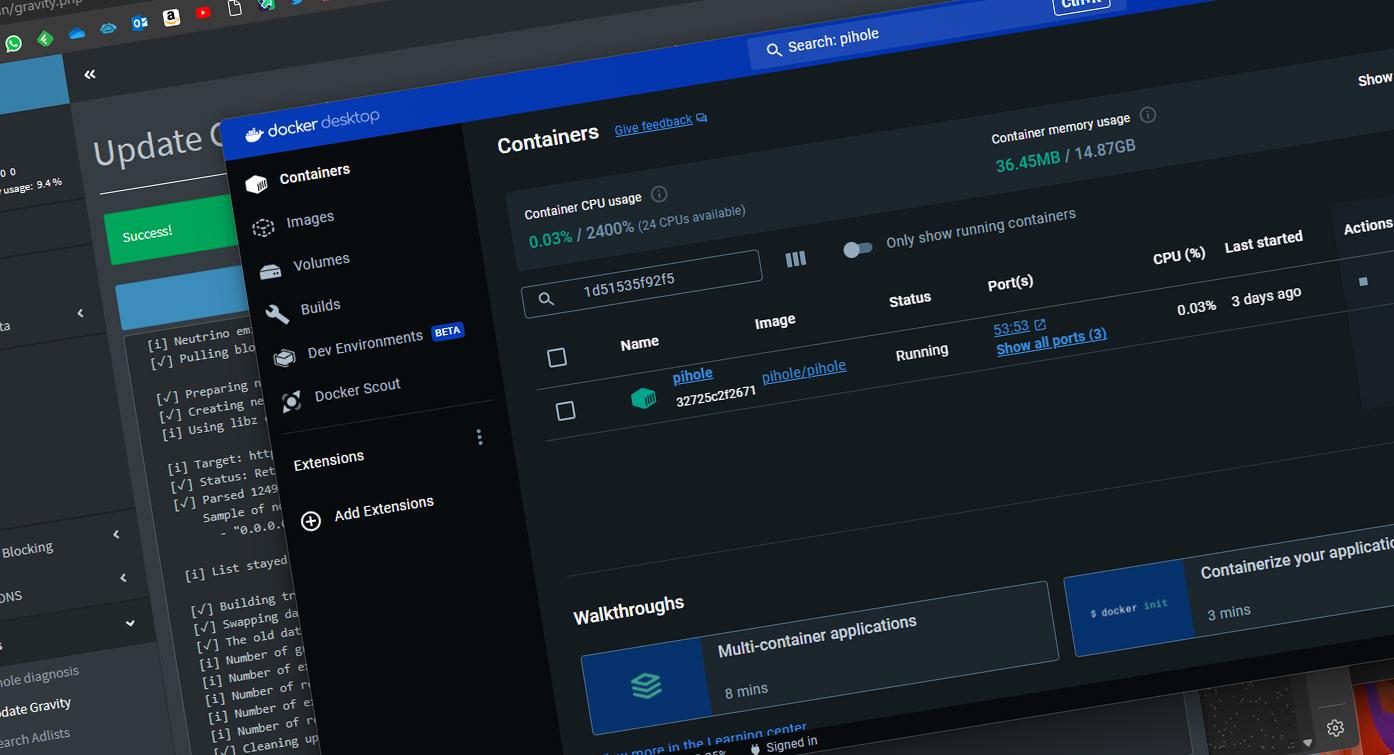
Once installed, you can use the Docker interface search function to perform a "pull" of images directly from Docker Hub. If you're looking for something more technical, commands like docker image ls --all They will help you see everything you have stored, while docker ps -a will show you the status of all your containerswhether they are active or detained.
If you go the pure WSL 2 route, you'll find that Windows creates a virtual network adapter using Hyper-V. To avoid connection problems, especially with IPv6 protocols that sometimes fail , you can edit the /etc/gai.conf file in Linux to force the use of IPv4. This is vital when deploying complex service stacks that depend on databases like MariaDB.

Having a well-optimized container environment on Windows requires knowing how to balance resources. It's advisable to monitor RAM and CPU usage from the Docker control panel, as even lightweight containers can slow down your system. Remember that you can switch between Linux and Windows containers from the dropdown menu, although the vast majority of the community uses Linux containers due to their versatility.
Mastering Docker on Windows requires understanding the interaction between the host system and the virtualization layer, whether through the convenience of Docker Desktop or the raw power of WSL 2. By correctly configuring disk permissions, network, and hardware requirements, you can transform your PC into a professional development workstation capable of running any modern service with minimal resource consumption and amazing stability.
