- Detailed control over mobile data and Wi-Fi usage per application.
- Using Samsung's native tools and energy saving options.
- Implementation of external firewalls for total and strict blocking.

Sometimes we come across apps that, while useful, go overboard by consuming data in the background or sending constant notifications we don't want. If you have a Samsung device, you'll probably want to take control of your connection to avoid surprises on your phone bill or simply for some peace of mind.
The truth is that, depending on the Android version or the exact model, as is the case with the new S24, some options that were previously visible have changed location or been modified. Don't worry, even if it seems like the function has disappeared, there are always ways to disable an app's internet connection , either through system settings or by using an external tool.
Background data management
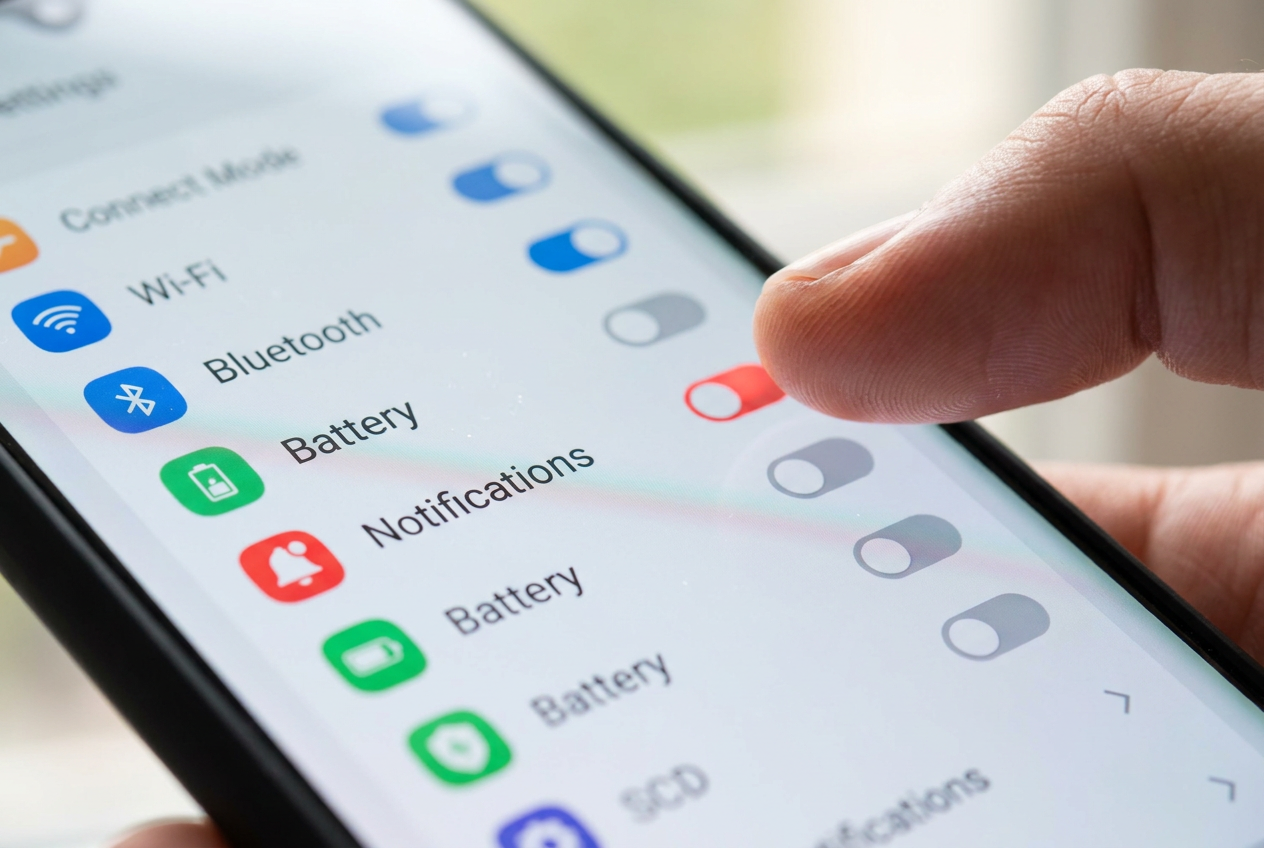
The first line of defense in One UI is the ability to prevent apps from communicating with the server when you're not using them. To do this, go to your phone's settings, find the apps section, and select the app that's causing the problem. Once there, go to the mobile data section and turn off the switch to allow background data usage.
With this setting, the app will only be able to browse the internet when it's open and you're actively using it. It's a great way to save battery and data , but keep in mind that it's not a complete block, as opening the app will immediately restore its internet access.
Limitations through energy saving
If you're looking for slightly more aggressive control, you can experiment with battery optimization features. By putting an app in background restriction mode , the operating system becomes much stricter with the processes the app tries to run when it's not on screen. This usually cuts off most automatic connections.
To do this, go to Settings, then Device maintenance, and then Battery. Look for the Background usage limits option and add the app to the list of apps in deep sleep mode . This will essentially freeze the app, preventing it from connecting to the internet on its own until you manually launch it.
Use of Firewall for total blocking
If you have a modern device like the S24 and find the built-in options insufficient, or if you simply want to prevent an app from accessing the internet even when it's open , then you need a firewall. Since Samsung doesn't include a dedicated "turn off internet" button for specific apps across all its interfaces, third-party apps are the ultimate solution.
There are tools like NetGuard that don't require root access. These apps create a kind of local VPN that filters all incoming and outgoing traffic on your device. Simply install it, grant the necessary permissions, and check the box to block Wi-Fi and mobile data for the specific app. It's the most effective way to ensure an app is completely cut off from the internet.
It's crucial to remember that when using this method, some app features may stop working altogether, or the program may close if it detects no network connection. However, this is the price to pay for complete digital isolation of all software on your Galaxy device.
To keep your Samsung device under control, you can switch between background data restrictions for light savings, deep sleep mode to optimize power, or an external firewall if you need an impenetrable barrier. Mastering these three options allows you to manage your device's privacy and data usage with ease.