- The Ntfs.sys failure is usually caused by physical damage to the hard drive, bad sectors, or outdated storage controllers.
- There are two main variants of the error: NTFS_FILE_SYSTEM, linked to the hardware, and SYSTEM_SERVICE_EXCEPTION, related to corrupt files.
- The repair involves using native Windows tools such as SFC, DISM, and CHKDSK, in addition to managing drivers and RAM.

Imagine you're in the middle of something important and, suddenly, your computer decides to go on strike and throws up a blue screen with the dreaded NTFS.sys message . It's a frustrating situation, but don't panic, because it's basically telling us there's a communication problem between the operating system and the hard drive, specifically with the controller that manages reading and writing data.
This problem can range from a simple software error to a warning that your hard drive is nearing the end of its life. The good news is that there are several solutions depending on whether the issue is a corrupted file, an outdated driver, or a physical failure in the disk sectors. Let's analyze it thoroughly so you can regain control of your computer.
Understanding the difference between error codes

Not all NTFS.sys errors are the same. To avoid guessing, first check the stop code displayed on the blue screen. If you see NTFS_FILE_SYSTEM , the problem is most likely hardware-related, such as bad sectors or a damaged disk controller. On the other hand, if the message is SYSTEM_SERVICE_EXCEPTION , it's very likely that you have a corrupted system file or a conflict with your antivirus software.
Preliminary steps: Accessing Safe Mode

When your PC won't start normally, you need to enter the recovery environment (WinRE) . To do this, force the computer to shut down by holding the power button for 10 seconds as soon as the manufacturer's logo appears; repeat this three times, and Windows will enter automatic repair mode. From there, go to Troubleshoot > Advanced options > Startup Settings and choose option 5 to enable Safe Mode with Networking.
Repairing system files and Windows image
If we suspect corrupted files, the best tool is the Command Prompt (CMD) run as administrator. First, it's recommended to use the DISM tool to clean up the system image with the command DISM.exe /Online /Cleanup-image /Restorehealth . Once finished, we should run the System File Checker with SFC /scannow , which will automatically scan for and replace any corrupted files.
For deeper maintenance, there are other DISM commands that help clean up old components or check system health, such as /Scanhealth or /CheckHealth , ensuring that the Windows foundation is spotless.
Troubleshooting hard drive problems and bad sectors
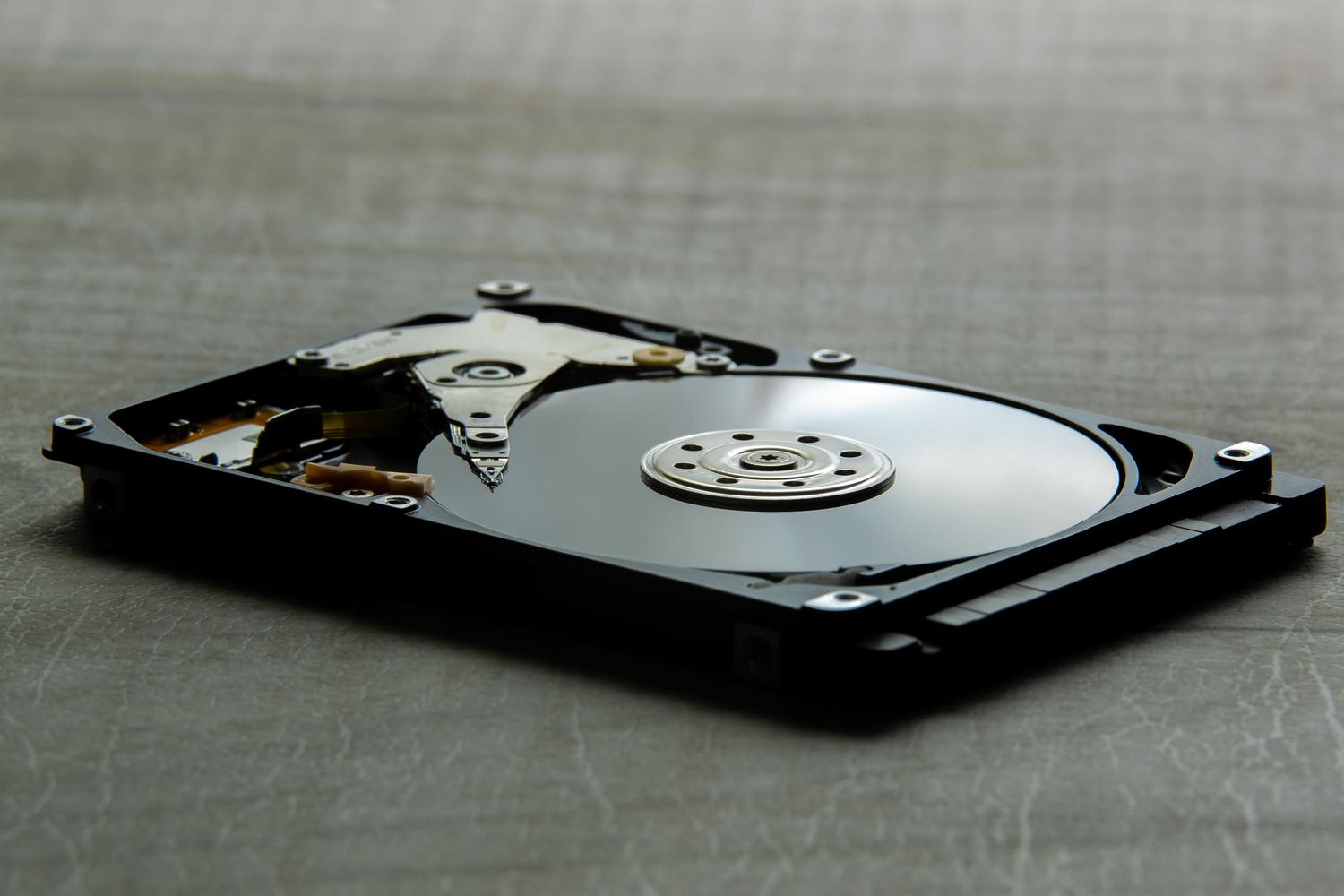
If the error persists and points to disk failures, we should use the utility CHKDSKWhen typing in the console chkdsk f: /f (replacing the letter with your drive letter), Windows will scan the file system for errors and attempt to repair them. Keep in mind that this may mark bad sectors so the system cannot write to them, which is vital to prevent the error from recurring.
You can also do this more visually by right-clicking the drive in File Explorer, going to Properties > Tools , and selecting the checkbox. It's crucial to ensure the disk has at least 10% to 15% free space , as insufficient space can prevent the system from creating swap files properly.
Driver and conflicting software management
Sometimes the culprit is a video or storage driver that isn't compatible with the current version of Windows. In Device Manager , locate the display adapters or disk controllers, right-click them, and select Update driver. If the problem started after installing antivirus software like BitDefender or Webroot , try temporarily uninstalling them, as some security programs can conflict with kernel processes.
Analysis of RAM and the non-paged pool
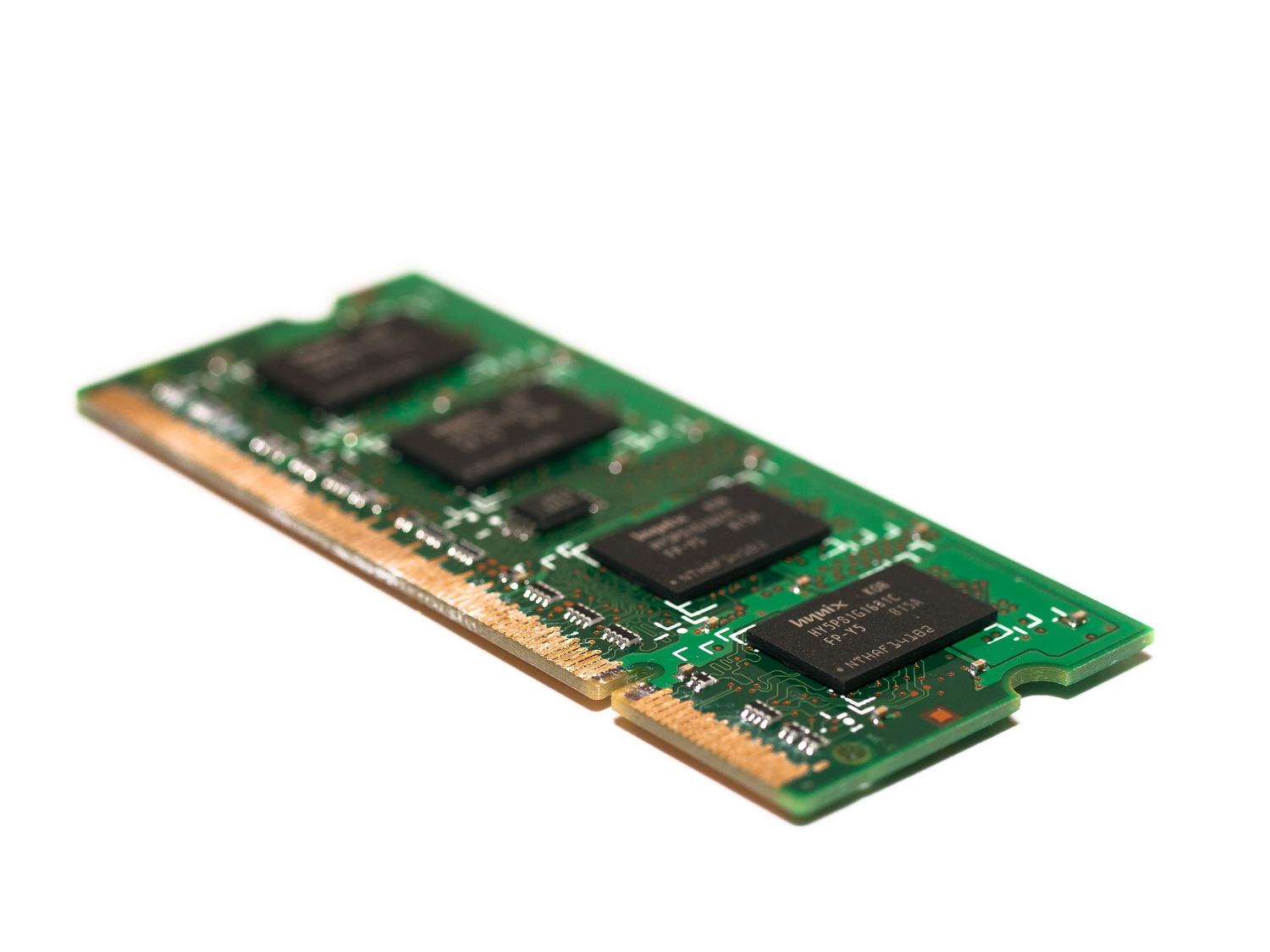
A less common but possible problem is exhaustion of the non-paged pool memory . If the system runs out of this physical memory space, it can throw the Ntfs.sys error. To rule out hardware memory failures, run the Windows Memory Diagnostic tool and restart your computer to complete the full test. If you find that the hardware is fine, check in the BIOS that the RAM frequencies and timings are as recommended by the manufacturer.
If none of this works and you have critical data, the wisest course of action is to use data recovery software before attempting a hard format. Once your data is backed up, you can try restoring your system to a previous point or, as a last resort, reinstalling Windows from external installation media.
Resolving this conflict involves first ruling out software failures through repair commands and driver updates, and then delving into the physical condition of the hard drive and RAM, always ensuring that the system has enough space to breathe and operate without read errors.

FAQ
What exactly does the NTFS.sys error mean?
It is a fault related to the NTFS file system driver that allows Windows to read and write data on the hard drive.
How do I enter Safe Mode if Windows won't start?
You must force the computer to shut down three consecutive times during startup to activate the recovery environment and access the startup settings.
What is the purpose of the SFC /scannow command in this case?
This tool scans essential operating system files and automatically repairs any that are corrupt or missing.
Can the CHKDSK command delete my files?
Although its function is to repair the disk, by marking defective sectors there is a risk of losing data stored in those damaged areas.
Can an antivirus cause the NTFS.sys blue screen error?
Yes, some third-party security programs can conflict with the Windows kernel and cause this specific error.
What to do if the error occurs after changing the SSD drive?
It is necessary to verify that the boot partition is active and, sometimes, repair the boot record using commands such as bootrec.
How does RAM affect this failure?
Insufficient memory in the non-paged group or incorrect RAM frequency settings can trigger the system error.