- Windows 11 includes numerous hidden and experimental features that are progressively activated through internal flags.
- ViVeTool allows you to enable or disable these hidden features using specific numeric identifiers.
- In addition to ViVeTool, Windows 11 hides many useful productivity, personalization, and performance settings accessible from Settings.
- With backups and some care, it is possible to get ahead of the official rollout and take advantage of the system's most advanced features.

If you use Windows 11 daily and feel like you're only scratching the surface, you're right: The system is packed with hidden functions, advanced tricks, and experimental features. Microsoft is rolling out these features gradually and only to some users. The good news is that, if you know where to click, you can get ahead of everyone else and enjoy many of these new features and more right away. Windows tricks to master your PC.
In this guide you will find two types of “secrets”: on the one hand, the hidden features now available on any updated Windows 11 (focus modes, start menu tricks, virtual desktops, etc.), and on the other hand, the Experimental features that Microsoft is still rolling out and that you can unlock with ViVeToolEverything is explained step by step, in Spanish (Spain) and with clear examples so you don't have to be a computer guru to apply it. tricks for computer programs.
What is ViVeTool and why is it the key to Windows 11's hidden features?
In the latest versions of Windows 10 and, especially, in Windows 11, Microsoft has changed the way it rolls out new features. Many features are initially hidden within the system itself and are gradually activated through A/B testing.This means that two computers with exactly the same version and update may display different options.
That's where ViVeTool comes in. ViVeTool is a open source tool that works via command line and it communicates directly with the Windows feature management system. Instead of installing anything new, it does the following: change the state of some internal “flags” (feature flags) identified by a numeric IDallowing you to activate, deactivate, or restore functions that are already within the system, but which Microsoft keeps turned off by default.
Each experimental or tested feature has one or more unique identifiers. ViVeTool allows sending commands to the system such as “enable ID 47205210” or “restore ID 56328729”, thus forcing the appearance of new interfaces, menus, AI options, visual changes in File Explorer, widget redesigns, or adjustments in the taskbar.
For it to work, however, it is essential that Your version of Windows 11 has already downloaded the code for those features (via Windows Update). ViVeTool doesn't install anything magical: It only turns on or off what's already in your buildThat's why you'll often see requirements like "having update KB5068861 installed" or "build 26200.7171 / 26100.7171" or, in the case of branch 25H2, "build 26100.4770 or later".
How to download and install ViVeTool correctly
Unlike other programs, ViVeTool does not have a graphical installer or setup wizardIt's simply an executable file that you need to place in a folder and run from the console. The recommended process is very simple:
1. Go to the official ViVeTool repository on GitHub. Inside the section of Releases You will find several compressed files. You must download:
- IntelAmd.zip for the vast majority of PCs with Intel or AMD processors.
- SnapdragonArm64.zip If you have an ARM device, such as some laptops or Copilot+ devices based on Snapdragon.
2. Extract the contents of the ZIP file to a short, easy-to-remember path, for example C:\ViVeToolAvoid leaving it buried in downloads or endless subfolders, because you'll have to type that path into the console.
3. Check that the key files are in that folder.You will normally see ViVeTool.exe and a library like ViVe.dllIf they appear, you already have the tool ready to use from the Command Prompt or Windows Terminal.
From Windows 10 build 18963 onwards (and throughout the Windows 11 lifecycle) the feature mechanism is compatible with ViVeTool, so The tool is primarily designed for current versions of Windows 11, including builds 23H2 and 25H2..
Activate hidden Windows 11 features with ViVeTool step by step
Once ViVeTool is downloaded, all the work is done from the console (see commands for CMD). There is no graphical interface or buttons, only text commands.This sounds more intimidating than it actually is.
First you need Open a terminal with administrator privileges:
- Press the Windows key, type Symbol of the system o CMD.
- Right-click on the result and choose "Execute as an administrator".
Then Navigate to the folder where you placed ViVeToolFor example, if you put it in C:\ViVeTool:
cd C:\ViVeTool
The command line will change to display that path. To verify that everything is working correctly, you can simply type:
vivetool
If you see a list of parameters and help, it means that The tool is correctly installed and ready to use.
The basic structure for turning on a function is very simple: vivetool /enable /id:NÚMERO. Parameter /enable indicates that you want to activate, and /id: This is followed by the numerical identifier of the feature you want to access. Some practical examples:
- To enable a single function:
vivetool /enable /id:12345678 - To activate several at once:
vivetool /enable /id:11111111,22222222
In practice, this is what has been used to to bring forward features like Windows Copilot back in the day, or the new Start menu in Windows 11For example, it has been identified that the New single-page Home menu design without a recommendations feed is associated with the ID:
47205210
To force it, all you would need to do is:
vivetool /enable /id:47205210
Remember It is mandatory to restart the computer after enabling or disabling features. For the changes to actually take effect, you need to restart. If you don't, many of these new features simply won't appear.
ViVeTool codes to unlock the new features of Windows 11
In the most recent builds of Windows 11, especially in the 25H2 branch, Microsoft is rolling out a good number of changes behind the scenes. Thanks to ViVeTool and communities like Windows Latest or Windows Insider, we have already identified many IDs that correspond to specific functions.
Some of the most interesting ones you can try are:
- New unified Home menu (one page and no recommended feed):
vivetool /enable /id:47205210 - New battery icon with percentage and color changes according to level:
vivetool /enable /id:56328729 - AI actions in File Explorer (for example, processing content or using smart functions on files; query) file management in Windows):
vivetool /enable /id:54792954,55345819 - Administrator protection and emoji button in the taskbar:
vivetool /enable /id:57048231
For the Administrator Protection feature, it may also be necessary to activate the corresponding mode in the Local Group Policy Editor. - Widget redesign:
vivetool /enable /id:59162732,55994763 - New automatic hiding feature in the taskbar:
vivetool /enable /id:41356296 - Searching for files in the cloud from Explorer:
vivetool /enable /id:4569026 - Share any window from the taskbar icon:
vivetool /enable /id:57882334
In build 25H2 (for example 26100.4770 or higher) a combined command has also become popular that It suddenly unlocks a whole bunch of hidden upgrades such as the new Home screen, lock screen widgets, notification settings, accessibility improvements, and design changes in Settings and Explorer:
vivetool /enable /id:47205210,49221331,49402389,48433719,49381526,49820095,55495322,57048216,49453572,52580392,50902630
If everything is working correctly, the console will display messages like “Successfully set feature configuration” for each of the IDs. After restarting you should notice:
- Redesigned Home Menu and cleaner.
- Widgets on the lock screen (climate, calendar, etc.).
- New accessibility options, such as a custom pointer or mouse visibility enhancements.
- File explorer with layout changes and folders that persist after restarts.
- Taskbar icon size settings and visual changes in the settings panel.
- Extracting text from images using the snipping tool, taking advantage AI capabilities.
Note that, as Microsoft officially integrates these features into the stable channelSome IDs become ineffective or change their behavior. The community typically updates lists of codes on forums and specialized websites (Reddit, Windows blogs, etc.).
How to disable or restore enabled features with ViVeTool
A key advantage of ViVeTool is that Almost everything you do is reversibleIf a feature doesn't convince you, causes errors, or you simply no longer need it, you can:
- Restore to Microsoft's default state to
/reset. - Force its explicit deactivation to
/disable.
For example, if you no longer want the new Start menu with ID 47205210:
- To return it to the state that Microsoft defines by default in your build:
vivetool /reset /id:47205210 - To force it to remain disabled, even though the default value is to enable it:
vivetool /disable /id:47205210
If you've used the bulk command with many IDs and something goes wrong, you can reverse everything at once by changing /enable by /disable in the same list:
vivetool /disable /id:47205210,49221331,49402389,48433719,49381526,49820095,55495322,57048216,49453572,52580392,50902630
As always, Restart after any of these operations to ensure that the system applies the new feature settings.
Safety recommendations when using ViVeTool
Manipulating experimental functions has its risks. Many of these features are not yet finished or intended for general useSo it's easy for some of them to cause crashes, strange behavior, or simple visual bugs.
To minimize problems, it is advisable to follow a few basic guidelines:
- Always create a backup or restore point before touching anythingIn case of serious disaster or instability, you will be able to revert to a previous state without losing your files.
- Make sure your build is compatible with the IDs you're going to use. Code designed for a very advanced Insider build might not even exist in a previous stable version and cause inconsistencies.
- Activate features one at a time whenever possibleEnable one ID, restart, check how the system responds, and if everything is fine, move on to the next. If you activate ten changes at once and something goes wrong, it's much harder to figure out what failed.
- Keep a list of the IDs and commands you useThis way you'll have the command handy.
/reseto/disablefor that same identifier if you have to go back quickly. - Keep ViVeTool updatedThe way Windows handles functions internally changes with major updates. If something that previously worked stops working after a Windows patch, check the ViVeTool GitHub repository and download the latest version or consult [link to relevant documentation]. Useful scripts for Windows 11.
With these precautions, You can enjoy the novelties of the "future" without too many surprisesespecially if you combine the changes with a good backup habit.
Hidden and little-known features of Windows 11 without using ViVeTool
Beyond the experimental aspects, Windows 11 comes standard with a lot of options that They remain largely unknown even to users who have been using the system for months.Many are hidden in Settings, in the Start menu, or in small keyboard shortcuts that are worth memorizing.
The visual highlight of Windows 11 is the new centered Start menu, but You can get it almost like it was in Windows 10 in a matter of seconds.:
- Go to Settings > Personalization > Taskbar.
- Sign in Taskbar behavior.
- Change Taskbar alignment de centered a Left.
Inside the Home screen, there are no longer tiles, but a anchored applications gridYou can keep the menu clean by pinning only what you actually use:
- Right-click on a pinned app to unanchor it from Start.
- Sign in All applicationsRight-click on the one you're interested in and press Pin to Start.
If you have many apps installed, the complete list can be chaotic. Windows 11 includes a “hidden” index in the All Apps listClick on one of the letters in the heading and an alphabetical index will open so you can jump directly to the letter you want.
Also, you can Add shortcuts to system folders at the bottom of the Start menu (next to the power button):
- Sign in Settings > Personalization > Home.
- Press on Folders and activate the ones you want (Downloads, Documents, Images, etc.).
If you don't like the recent document suggestions and recommended apps that appear on Home, you can also disable recommendations from that same Home section, gaining a cleaner and more private environment.
Visual customization: themes, dark mode, and night light
In terms of appearance, Windows 11 offers much more than it first appears. Settings > Personalization > Colors You can choose between light and dark mode, enable or disable transparency, and adjust the accent color used in menus, buttons, and the taskbar. You can also enhance customization with tools like power toys.
The system Themes It allows you to apply backgrounds, sounds, colors, and even mouse pointer styles all at once. Settings> Personalization> Themes you can:
- Use the pre-installed themes.
- Modify background, color, sound and pointer to create your own theme.
- Download additional themes from the Microsoft Store using the button Explore topics.
If you spend many hours in front of the screen, the function of Night light It can help reduce eye strain. Go to Settings > System > Display > Night light y:
- Flip the switch.
- Adjust the intensity of the warm tones with the bar.
- Schedule the times you want it to activate and deactivate.
Productivity: split screen, virtual desktops and dictation
One of the major productivity improvements in Windows 11 is the new split-screen systems Snap Layouts and Snap GroupsWhen you hover your mouse over a window's maximize button, a menu appears with different layouts (half and half, three columns, four squares, etc.) to quickly tile your apps.
Once you have several apps snapped into a Snap Layout, Windows remembers them as snap groupmaking it easier to switch between application sets without having to constantly rearrange windows.
To better organize your digital life, the virtual desktops They are another underutilized gem:
- Balance Windows + Tab to see the desks.
- Create new desktops, rename them, and assign a different background to each one.
- Switch desktops with Ctrl + Windows + Left/Right Arrow.
- Drag windows between desktops from Windows + Tab view.
So you can have, for example, one desk just for work, another for leisure, and another for studyingwithout mixing windows or distractions.
If you're too lazy to type, the voice dictation The built-in feature can get you out of more than one tight spot. Press Windows+H To open the dictation tool, tap the microphone icon and start speaking. In its options, you can activate the... automatic scoringso that Windows tries to place commas and periods based on your pauses.
Window, notification, and widget management
Windows 11 includes a curious gesture called “shake to minimize”When you grab a window's title bar with your mouse and shake it, all other windows are minimized. This is enabled in... Settings > System > Multitasking > Shake title bar.
The new notification panel It also provides more control:
- You can enter Settings > System > Notifications and decide which apps can notify you, if you want sounds, and what priority they have.
- From the notification itself, using the three-dot button, you can disable notifications from that app or quickly adjust them.
- In compatible apps (messaging, email) you can reply or interact directly from the notification.
If you don't want interruptions, the concentration assistant This allows you to define periods or situations in which only important notifications will be displayed (or none except for alarms). It is configured from... Settings > System > Concentrationwhere you can also schedule times or associate it with the opening of certain apps.
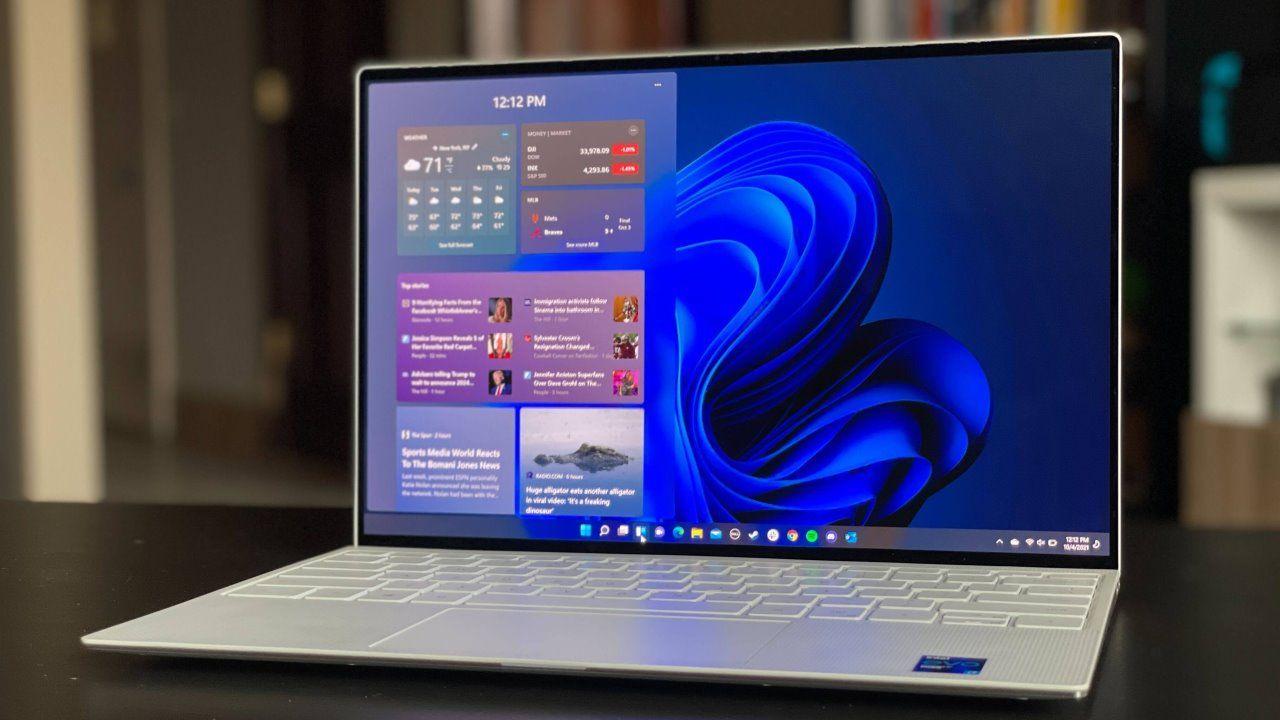
The widgets, accessible with the taskbar button or the shortcut Windows+WIt offers news, weather, calendar, to-do lists, and other modules in a side view. You can add widgets using the button. Add widgets and configure each one with its cogwheel.
Advanced tools: Windows Terminal, screen recording, and more
Windows 11 incorporates Windows TerminalThis application unifies multiple console tabs into a single window: PowerShell, Command Prompt, and even Azure Cloud Shell. Simply search for "Windows Terminal" and, using the down arrow button next to the new tab icon, choose which console type to open.
To record what happens on the screen without resorting to third-party programs, you can still use the Xbox game bar. Press Windows + G To open it, activate the widget. Capture and start recording the window of the application you want (the desktop and File Explorer are excluded by design).
Another very useful function is the clipboard historyInstead of pasting only the last copied item, Windows 11 can store multiple items so you can choose which one to paste at any given time:
- Balance Windows + VThe first time you will need to activate the history.
- From there, you'll see a list of recent texts and images that you can paste.
- If you want, you can even sync this history across devices with the same Microsoft account.
If you usually take screenshots, you can assign the Print Screen key to the Snipping Tool (instead of automatically capturing to the clipboard):
- Go to Settings > Accessibility > Keyboard.
- Activate the option Use the Print Screen button to open the crop tool.
Also, you can Hide all desktop icons without deleting them (Ideal for sharing your screen without showing your "chaos"): Right-click on the desktop background, menu View and uncheck Show desktop icons.
Performance, storage, and permissions in Windows 11
When your PC is slow, the first thing to do is check what's using up resources. Open the Task Manager to Ctrl + Alt + Delete and select “Task Manager”. If it's displayed in compact mode, tap More details. On the tab Processes You'll see which applications consume the most CPU, memory, disk, or network.
In the Home From the Task Manager you can Disable programs that open automatically when Windows startsThe more you disable (without overdoing it), the faster the system will start.
Regarding disk space, go to Configuración> Sistema> Almacenamiento to see at a glance how much space your apps and files are taking up. From there you can:
- OPEN Applications and features to see the list of programs ordered from most to least space used, and uninstall the ones you don't want.
- Walk into Temporary files and select which types of temporary files to delete with a single click Remove files.
If you have apps that are behaving strangely, another option before uninstalling is reset them:
- Go to Settings > Apps > Apps & features.
- Click on the three dots in the app and enter Advanced (mostly available in apps from the Microsoft Store).
- Use Repair o Resetting according to what you need.
Regarding privacy, it's advisable to take a look at Settings > Privacy and security > App permissionsThere you'll see categories like Location, Camera, Microphone, etc., and for each one you can decide which applications have access and which do not.
Connectivity, internet sharing, and "mobile"-like features
Windows 11 inherits several features from the mobile world. For example, mobile hotspot It allows you to share your network connection with other devices, as if your laptop were a WiFi router:
- Go to Settings > Network & Internet > Mobile Hotspot.
- Choose which network adapter you want to share your connection from.
- Configure the network name and password in Properties.
- Flip the switch Mobile hotspot.
Another very useful tool is Find my devicewhich periodically sends your device's location to your Microsoft account, similar to what mobile phones do:
- Sign in Settings > Privacy & Security > Find My Device.
- Activate the switch to allow tracking in case of loss or theft.
You can also add third-party email and calendar accounts (Google, Apple, etc.) to have everything integrated into native Windows apps:
- Go to Settings > Accounts > Email & accounts.
- Press on add accounts and the wizard continues.
Finally, if you don't have a Windows license but want to tinker without paying upfront, there's the Windows Insider ProgramRegistering from Settings > Windows Update > Windows Insider ProgramYou can install trial builds of Windows 11 that don't require activating the same key as a commercial system, in exchange for living with more bugs and sending telemetry that helps Microsoft polish the system.
Keyboard shortcuts and quick tricks worth memorizing
Windows 11 comes loaded with Keyboard shortcuts that greatly speed up daily use and ALT codes and symbolsSome of the most useful ones are:
- Windows+W: opens the widgets panel.
- Windows+N: displays the notification panel.
- Windows+A: Opens quick settings (WiFi, Bluetooth, brightness, etc.).
- Windows+Z: Displays the Snap Layouts.
- Windows +.: opens the emoji selector.
- Windows + V: opens the clipboard history.
Other less well-known but equally practical shortcuts:
- Ctrl + Shift + N (in File Explorer): Creates a new folder instantly.
- Alt + P: Shows or hides the preview pane in the Explorer.
- Ctrl + L: focuses the Explorer's address bar to quickly type a path.
- Middle-click on an app icon in the taskbar: opens a new instance of that application.
The search function integrated into the Start menu can also function as Quick calculator and easy translatorType in a mathematical operation and you'll see the result instantly, or try phrases like "house in English" for a quick translation without leaving the menu.
Overall, Windows 11 is much more than a facelift: between its native functions and what you can unlock with ViVeToolYou have at your fingertips a highly flexible system, ready for productivity, gaming, and experimentation. With a little curiosity, a few backups, and the right commands, your team can enjoy many of the features today that others will see months later.
Table of Contents
- What is ViVeTool and why is it the key to Windows 11's hidden features?
- How to download and install ViVeTool correctly
- Activate hidden Windows 11 features with ViVeTool step by step
- ViVeTool codes to unlock the new features of Windows 11
- How to disable or restore enabled features with ViVeTool
- Safety recommendations when using ViVeTool
- Hidden and little-known features of Windows 11 without using ViVeTool
- Advanced tools: Windows Terminal, screen recording, and more
- Performance, storage, and permissions in Windows 11
- Connectivity, internet sharing, and "mobile"-like features
- Keyboard shortcuts and quick tricks worth memorizing