- The P2V process allows you to transfer the operating system, applications, and files from a physical computer to a virtualized environment without reinstalling anything.
- There are various specialized tools such as Disk2VHD, VMware Converter, or backup solutions such as AOMEI and EaseUS.
- The choice of hypervisor (Hyper-V, VMware or VirtualBox) and the configuration of the VM generation are critical for system boot.
- Managing driver compatibility and partition space is essential after completing the migration.
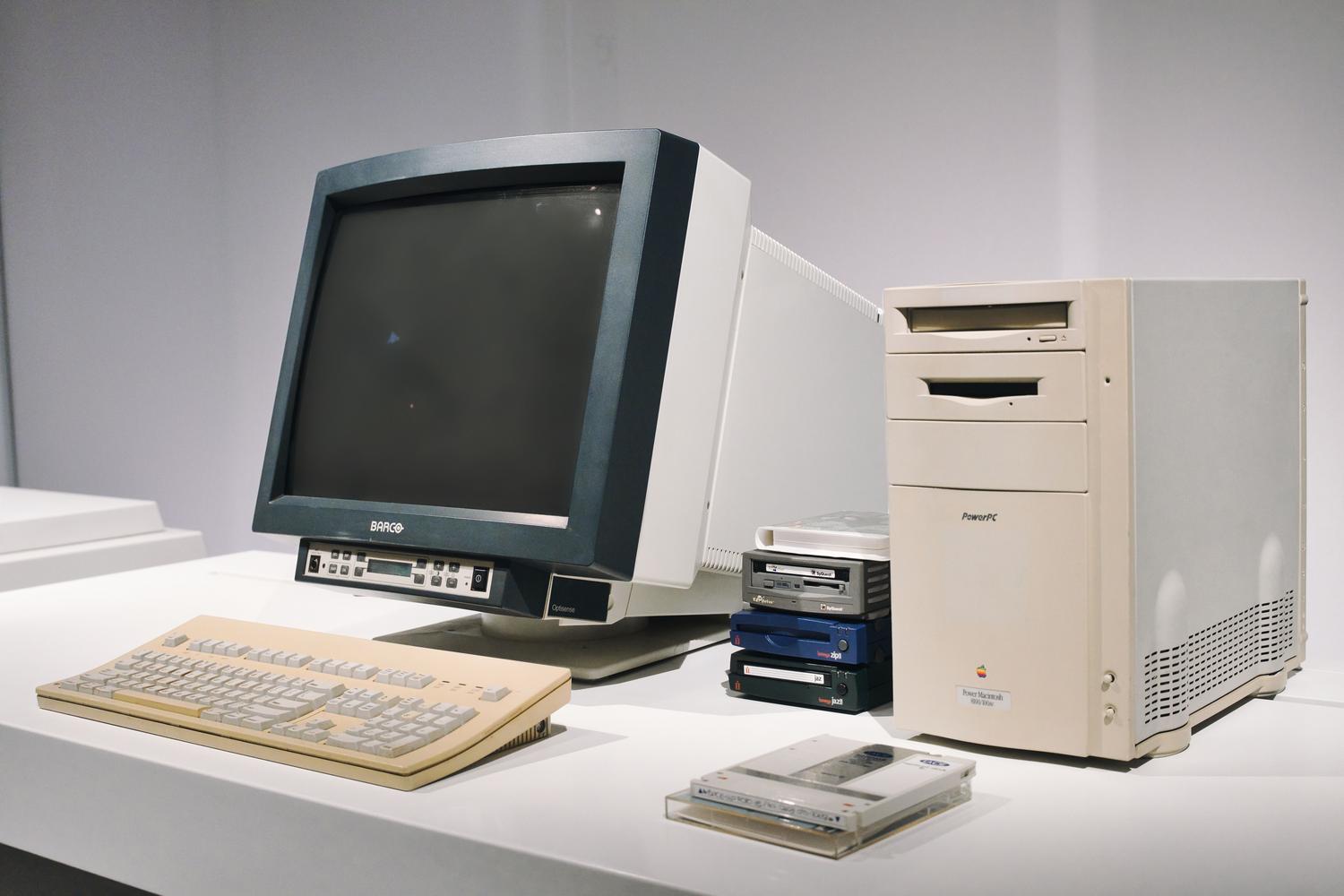
Sometimes we face the dilemma of having an old computer with outdated programs or critical configurations we don't want to lose, but the hardware is starting to fail. This is where P2V (Physical to Virtual) virtualization comes in , a technique that allows us to literally "clone" everything on a physical PC so that it runs within a virtual environment, avoiding the headache of having to reinstall each application from scratch.
Making this leap not only saves legacy software, but it's also a masterstroke for isolating dangerous processes , creating realistic test environments, and building a robust disaster recovery plan. Essentially, we turn our operating system into a file that we can move from one computer to another, ensuring that the software remains functional even if the original machine fails.
Why make the leap to virtualization?
There are several compelling reasons not to rely solely on physical hardware. For one, it allows you to preserve entire environments with their original licenses and configurations when replacing an old PC with a new one. Furthermore, it's the safest way to test significant system changes; if something goes wrong, you simply delete the VM and start over without having broken anything on the real machine.
From a business perspective, migrating to virtual servers helps reduce operating costs and minimize the risk of downtime. By not depending on a single piece of specific hardware, flexibility increases considerably, allowing the operating system to thrive in an isolated and controlled environment.
Methodologies and tools for migration
Depending on what we're looking for and the hypervisor we're using, we have different options. If we're talking about Hyper-V, one of the lightest options is Disk2VHD . This Microsoft utility doesn't require installation and creates a VHDX file, which is the evolution of the traditional VHD, offering greater capacity and less risk of data corruption.
For those who prefer the VMware ecosystem, the combination of VMware Converter and VMware Player is a safe bet. The Converter analyzes the powered-on machine and generates a virtual image where you can adjust the RAM and hard drive size before finalizing the process, making it easy for the system to boot into the Player without complications.
The path through backups
Another very effective method is to use professional backup software. Tools like EaseUS Todo Backup or AOMEI Backupper allow you to create a complete system image and then restore it to a virtual machine. This method is especially useful when the VM will reside on a different computer than the original one, since you only need to transfer the image file and a bootable ISO using a USB drive or a NAS.
In the case of AOMEI, a key point is enabling Universal Restore . This option is vital because it adjusts the basic drivers so that the operating system can boot on the virtual hardware, preventing the dreaded blue screen caused by incompatible storage drivers.
Specific configuration for Hyper-V
If you decide to use Hyper-V, you must pay close attention to the virtual machine generation . Generation 1 is the most compatible, while Generation 2 is for more modern systems (Windows 8 or Server 2012 and later) and uses UEFI. If you choose the wrong generation, the VM simply won't boot.
The typical process involves creating the VHDX file with Disk2VHD, transferring that file to the Hyper-V host, and then creating a new virtual machine by connecting to the existing disk instead of creating a new one. Once this is done, the system will perform a somewhat slow initial boot while it adapts the virtual hardware configuration.
Solutions to common post-migration problems
It's not all smooth sailing; sometimes, after the migration is complete, the C: partition runs out of space even if the virtual disk is large. This happens because the partition layout of the physical disk doesn't always fit perfectly within the VHDX. To fix this without repeating the entire process, you can use a partition manager like AOMEI Partition Assistant to move free space to the system drive.
Another recurring problem is Windows reactivation . When you switch from physical to virtual hardware, the system will likely detect the change and ask you to validate the license again. It's also crucial to check Device Manager to remove any outdated orphaned drivers that might be causing instability.
Important warnings before you begin
Not all systems should be migrated this way. For example, converting Domain Controllers (DCs) directly is not recommended; ideally, a clean VM should be set up and promoted to a DC. In the case of heavyweight databases like SQL Server or Exchange, it is essential to stop the services before the conversion to ensure data consistency and prevent write errors.
To achieve a successful migration, simply choose the appropriate tool for the destination, ensure boot compatibility through universal restore or the correct generation selection in Hyper-V, and make the necessary storage adjustments once the operating system is up and running in its new virtual home.

FAQ
What exactly is the P2V process?
It is the migration from a physical system to a virtual one, which consists of transferring the operating system, applications, and data from a real server or PC to a virtual machine.
Can I migrate an old PC to save software that is no longer sold?
Yes, it is one of the main applications of virtualization, allowing you to run obsolete programs in an isolated environment without depending on the original hardware.
What is the difference between VHD and VHDX in Hyper-V?
The VHDX format is more modern, supports capacities up to 64 TB, and has an internal log that significantly reduces the possibility of data corruption.
What do I do if the virtual machine does not start after the migration?
This is usually due to incompatible drivers, so it is recommended to repeat the restoration by activating the Universal Restore option or check if the VM generation matches the original boot mode.
Is it advisable to migrate a Domain Controller using P2V?
This is not advisable; the correct approach is to create a virtual machine from scratch, activate the Domain Controller role, and synchronize it with the main server.
How do I fix the lack of space on the C: drive of my VM?
A partition manager can be used within the guest system to allocate free space from other partitions on the same virtual disk to the C: drive.
Which tools are best for migrating to VMware?
The combination of VMware Converter to generate the system image and VMware Player to run it is the most efficient and widely used option.