- Browser profiles allow you to completely separate histories, bookmarks, passwords, and settings between work, personal use, and other environments.
- Chrome offers a very simple visual management of creating, changing, customizing and deleting profiles, with optional synchronization with your Google account.
- In enterprises, Chrome Enterprise allows centralized policies to be applied to user profiles on any device, strengthening security and control.
- Using separate profiles makes it easier to manage multiple accounts on online services (email, accounting, networks) without mixing sessions or losing privacy.
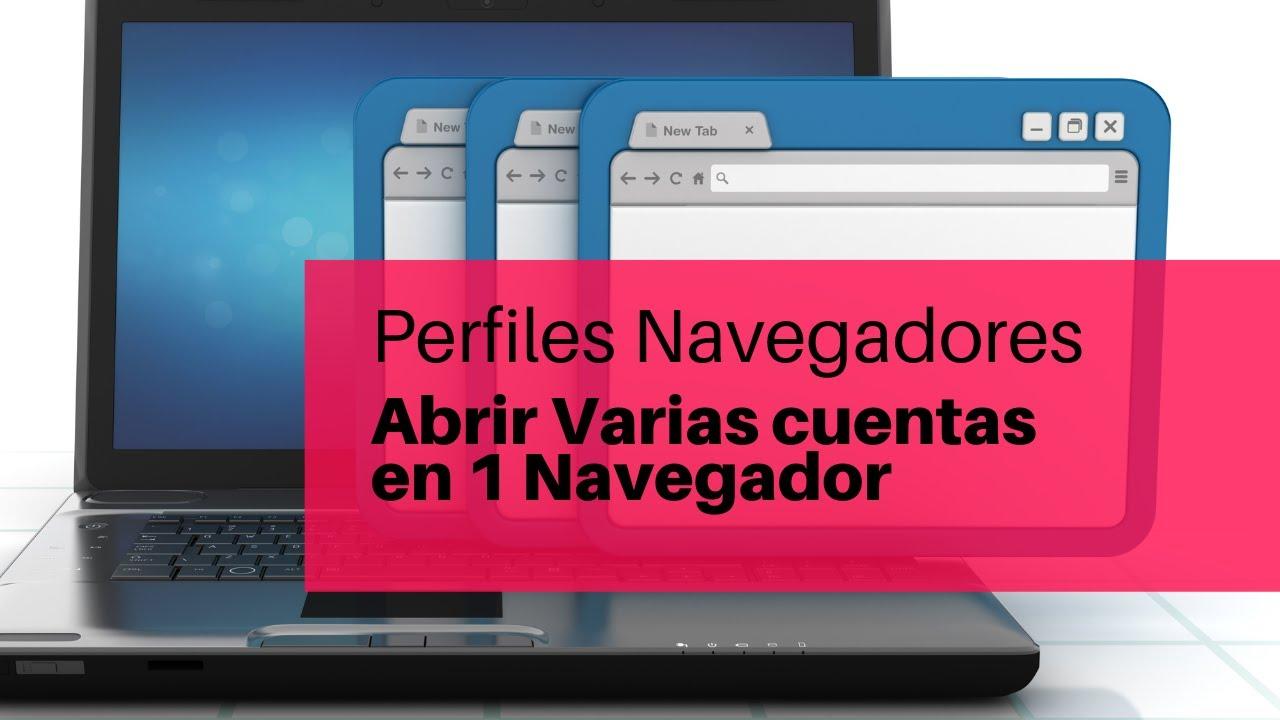
If you spend your day jumping between work emails, online shopping, and your personal social networks, you've probably already realized that use a single browser profile for everything It's chaos.You mix up histories, bookmarks, Google sessions, and even run the risk of leaving your account open on a computer that isn't yours.
Fortunately, nowadays most major browsers allow you to create completely separate user profilesThese profiles are designed to differentiate between work and leisure, or even to allow multiple people to share the same computer without overlapping accounts or data. Let's take a detailed look at how these profiles work, their advantages, how to manage them in Google Chrome, and what alternatives exist if you're looking for something more powerful or if you prefer... use multiple browsers for more privacy.
A browser profile is basically like having multiple independent browsers within the same programEach profile saves its own history, bookmarks, passwords, extensions, settings, color theme, and even its own photo or icon.
In Google Chrome, for example, each profile maintains your own dataset and settingsFavorites, browsing history, cookies, saved passwords, payment methods, installed extensions, and visual preferences are all stored in your browser profile. None of this data is mixed with what you have in another profile within the same browser.
This is especially useful when you want separate your personal life from your professional lifeManage multiple businesses from the same computer or share a computer with others without them seeing your information. It's not simply a matter of switching tabs: each profile is an isolated environment with its own user sessions.
Additionally, if you enable synchronization with your Google account in Chrome, Everything associated with that profile is replicated On other devices where you sign in with the same account: bookmarks, history, passwords, and other settings go with you whether you're on Windows, macOS, Linux, Android, or iOS.
Finally, for those who are particularly concerned about privacy, profiles allow limit who can see what when you share a device, or alternate with the incognito modeYou can have a "clean" profile to show something to someone else or for occasional use, and keep your main profile well protected.
A browser profile is basically like having multiple independent browsers within the same programEach profile saves its own history, bookmarks, passwords, extensions, settings, color theme, and even its own photo or icon.
In Google Chrome, for example, each profile maintains your own dataset and settingsFavorites, browsing history, cookies, saved passwords, payment methods, installed extensions, and visual preferences are all stored in your browser profile. None of this data is mixed with what you have in another profile within the same browser.
This is especially useful when you want separate your personal life from your professional lifeManage multiple businesses from the same computer or share a computer with others without them seeing your information. It's not simply a matter of switching tabs: each profile is an isolated environment with its own user sessions.
Additionally, if you enable synchronization with your Google account in Chrome, Everything associated with that profile is replicated On other devices where you sign in with the same account: bookmarks, history, passwords, and other settings go with you whether you're on Windows, macOS, Linux, Android, or iOS.
There are situations where having multiple profiles is not only convenient, it's almost essential. maintain order and privacySome very common examples:
If you share a computer with family members, roommates, or friends, profiles allow you to each person has their own browsing spaceEach person logs in with their account, saves their bookmarks, history, and passwords, without the rest seeing any of that or having to fight over switching Gmail or social media sessions.
If you run one or more businesses, or work for someone else, it's very practical to create a separate profile for work and another for personal use. This way you can separate emails, management dashboards, Amazon for business, collaborative tools and so on, without mixing them with Netflix, personal networks or banks.
It's also ideal if you manage multiple accounts on the same service (For example, multiple Gmail, Drive, Amazon, or accounting tool accounts like Alegra). Assigning a profile to each work environment prevents you from constantly logging out and logging in, and reduces many errors caused by working with the wrong account.
Finally, for those who are particularly concerned about privacy, profiles allow limit who can see what When you share a device: you can have a "clean" profile to show something to another person or for occasional use, and keep your main profile well protected.
Although profiles separate data, it's important to be clear that Anyone with physical access to your computer can change profiles in Chrome if there are no additional measures (such as separate accounts in the operating system or session lock).
If someone opens your Chrome profile instead of their own, they will be able to see your complete browsing history, your bookmarks, your open tabs and even sessions started on websites where you don't log out, such as Gmail, Drive, social networks, or work platforms.
Therefore, if you share equipment, it's best to do so only with trusted people and, whenever possible, for each user to have their own computer. your own Windows, macOS, or ChromeOS accountThis way, not only are browser profiles separated, but also the files and settings of the entire system.
Chromebooks offer the option to log in with multiple accounts at the same timeso that each user maintains their profile and applications, but the administrator can still control policies and access if the device is managed by an organization.
How to create a new profile in Google Chrome
In day-to-day use, Chrome is one of the browsers that best handles profiles, because it allows create and manage them in a very visual and quick wayThe user button appears in the upper right corner, next to the extensions icons and the main menu.
To add a new profile in Chrome from your computer, simply open the browser and tap on the Profile icon Located at the top right. From there you can choose the option to add a new profile, which guides you through a few steps to get it ready.
During the creation of the new profile, Chrome will ask you if you want to Sync with a Google accountIf you do this, the profile name will automatically be assigned to that account name, and all your data (bookmarks, history, passwords, and more) will be synced across devices.
If you choose not to sync, the profile will remain fully functional on your current device, but It will not replicate your data on other devices.Next, you can choose a personalized name, a photo or icon, and a color scheme to easily distinguish it.
Ideally, you should choose a name and appearance that will help you to Don't get confused between profiles.For example: "Work," "Personal," "Company A," "Company B," or the name of the person who will be using it. You can also use different color themes to identify them at a glance.
Quickly switch between profiles in Chrome
Once you have created multiple profiles, switching between them is very easy. Simply Open Chrome and click on the Profile icon again. in the upper right corner of the window.
Clicking on that icon will show you a list with all available profiles on that deviceSimply select the one you want to use at that moment. Chrome will open a separate window associated with that profile, displaying its appearance and data.
This system allows you to even have multiple windows open with different profiles at the same timeFor example, you can have one window with your personal profile and another with your work profile, each with its own tabs and independent user sessions.
Note that on Chromebooks, in addition to Chrome profiles, you can also keep running multiple accounts within the systemThis adds another layer of separation between personal and professional environments or between different users.
If you tend to work with many tabs, combining Chrome profiles with the ability to split the screen or use windows side by side It will help you have, for example, the email for each business or each Google account in a different place without juggling tabs.
Manage and display Chrome profiles on startup
Chrome includes a profile management section from which you can View all configured profiles, add new ones, delete them, or change their behavior when opening the browser.
To access this setting, open Chrome on your computer, click on the Profile icon, and in the "Other Chrome profiles" section, choose the option to manage profilesFrom here you can control which profiles are on the team and how they are displayed.
One of the most useful options is to activate the box that allows show the profile selector at startupBy selecting this option, every time you start a new Chrome session you will see a panel where you can choose which profile you want to open the browser with.
This home screen is very practical when several people are working on the same device or when you are using it yourself. different profiles for business, studies and personal useYou avoid always opening the same default profile and then having to change it manually.
From the administration section you can also log out, open windows as a guest, or review How many tabs does each profile have open?This is useful for detecting when a specific environment is becoming cluttered with windows and needs to be tidied up a bit.
Personalize the name, photo, and color of each profile
In addition to separating data, Chrome allows each profile to have a name, an icon, and a visual theme of their ownThis makes it easy to distinguish them at a glance, especially if you alternate between several throughout the day.
To edit these items, open Chrome, click the Profile icon, and then go back to "Manage Chrome profiles." There you'll see a card for each profile with its name and image, and in the upper right corner you'll find the button. More > Edit to modify it.
From that option, you can write a new name for your profile or choose a different photo or icon from those offered by Chrome. You can also select a different color theme that changes the overall appearance of the window associated with that profile.
The changes are saved automatically, so as soon as you close the editor, you'll see the new look applied to the profile card and the window when you open it. It's a good idea to use distinct names and colors for your most important profiles.
If you want to change the name, photo, or color of the profile you're currently using, you can also do so directly from the Profile icon itself, using the option to customize profile without needing to enter the management overview.
How to safely delete a Chrome profile
At some point, you might no longer need a particular profile, for example, when you stop managing a client's account, close a project, or have used a shared computer and want to delete your data. In these cases, Chrome allows you to completely remove a profile from the device.
To do this, open Chrome, click on the Profile icon, and go to "Manage Chrome profiles." Once there, select the profile card you want to remove and click the button. More > Delete in the upper right corner of that card.
Chrome will ask for confirmation before permanently deleting them. If you accept, they will be deleted from your computer. all bookmarks, history, saved passwords, and associated settings to that profile, so that no local trace of its use will remain.
This process is especially important when You have logged in to your account on a computer that is not yours.such as on a shared work computer, at someone else's house, or on a public computer. Deleting your Chrome profile ensures that no one will be able to see your activity or access your accounts later.
If the profile was synced with your Google account, remember that your data will still be saved in the cloud and on other devices where you use that same profile, but They will not remain on the computer from which you deleted them.which is precisely what is of interest in shared environments.
When we talk about companies or organizations, the concept of a browser profile becomes even more powerful when combined with Chrome's centralized administration tools, such as Chrome Enterprise Core or Chrome Enterprise licenses.
With these solutions, administrators can access a full list of managed profiles from the Google admin console, with detailed views and advanced options to monitor usage and enforce policies.
The great advantage is that you can set policies that apply when users They log in to the Chrome browser from any device.whether it's Windows, Mac, Linux, Android or iOS, and not just from company-owned equipment.
This allows managing browsers at the user level, controlling profile reports, work app synchronization, home pages, themes and other adjustments relevant to the company, even if the employee uses a personal computer or mobile device.
Furthermore, Chrome Enterprise allows you to synchronize complete work environments (applications, pinned tabs, security settings, etc.) ensuring that, when logging into Chrome, the employee always finds themselves in the same corporate environment, without having to configure it manually each time.
Requirements and steps to configure profile management in companies
For organizations that want to take advantage of advanced profile management, it is necessary to have Chrome Enterprise Core, Google Workspace, enterprise support for Chrome or specific Chrome Enterprise or Cloud Identity licenses associated with the devices or users.
Once these licenses or services are available, the IT administrator can follow a series of basic steps from the administration console to Implement centralized browser management and associated profiles.
The first step is usually to organize the users into organizational units (OU) within the console. This is optional, but highly recommended to be able to apply different policies depending on departments, locations, or types of employees.
Next, it's advisable to activate the Chrome browser management on Android and iOS devicesso that the organization's mobile phones and tablets also fall within the scope of control and receive the usage policies established for the profiles.
Another key step is to enable the report or complaint of profilesThis generates useful information for auditing, regulatory compliance, and security analysis, helping to understand how browsers are being used within the company.
The organization can also decide whether it wants to require users to Log in to the Chrome browser To use it, you must always work with an authenticated profile and under corporate policies. This is optional, but very useful in environments with sensitive information.
Finally, the time comes to define user-level policies in the administration console, tailored to each organizational unit: which extensions are allowed or blocked, which pages open on startup, which privacy settings are enforced, etc.
Once everything is configured, the policies defined in the managed Google accounts will be mandatory when users Sign in to Chrome with your corporate account from any compatible device.
If there is a conflict between a user policy set in the console and a device policy applied by other means (for example, a Windows group policy), Device policy usually takes priorityTherefore, it is important to coordinate the different management layers.
One of the most practical uses of browser profiles is to manage multiple accounts on the same online platform without having to keep logging out and without mixing data.
In the accounting field, for example, tools like Alegra allow the management of several companies or clients, and it is common for the same professional to have multiple Alegra accounts under your responsibility. Creating a separate Chrome profile for each account makes daily tasks much easier.
The idea is simple: you create a new profile in Chrome, log in to the corresponding Alegra account, and dedicate it exclusively to that company or user. This way you can have multiple sessions open at the same time in different profiles, each with its own history and credentials.
This way you avoid typical errors, such as issuing invoices from the wrong account or mixing up information between clients, because Each profile acts as if it were a completely different browser.even though everything is running under the same Chrome browser.
This same logic applies to other platforms: Google accounts, social networks, project management tools, online store admin panels, or banks. Assigning a profile to each environment saves you time and It greatly reduces the risk of confusion..
If you're unsure which browser to use for your daily tasks with multiple profiles or "containers", it's important to be clear about your priorities: stability, true session separation, synchronization and privacy These are usually the key factors.
Firefox, for example, has the feature of Multi Account ContainersThis allows you to isolate cookies and sessions by tab or container. It's a very powerful solution in terms of privacy and separation, especially if you switch between multiple Google or Amazon accounts.
However, if you're looking for something highly visual and easy to manage, Chrome and Chromium-based browsers usually offer a more polished and stable profile experience, with solid synchronization between computer and mobile, and a huge ecosystem of extensions.
Some alternative browsers have tried to go further with advanced workspaces, split tabs, and experimental features. But it's common that, in early versions, These characteristics may not be stable enough For intensive work use, with failures when maintaining sessions, moving tabs, or applying customizations.
If you need a reliable environment, the most sensible approach is usually to rely on proven solutions like Chrome profiles or Firefox containers, and reinforce them with good organizational practices (for example, one profile per business and another personal one, specific extensions in each, and synchronization only where you really need it).
In any case, the key is that the browser you choose actually maintains isolated accounts and cookies between profilesthat doesn't disconnect you from your services for no reason when closing, and that offers a smooth experience on both PC and mobile if you're going to use it on multiple devices.
Ultimately, browser profiles have become an essential tool for anyone managing multiple accounts, sharing devices, or simply wanting to keep their digital life a little more organized. Understanding how they work in Chrome, how they integrate into business environments, and how they can help you with applications like Alegra or other online services makes things much easier. to set up a comfortable, safe and flexible work system that fits into your daily life without wasting your time or privacy.
Table of Contents
- What is a browser profile and why should you be interested in using it?
- Practical examples: when to use multiple browser profiles
- What can other people see when you share your browser?
- How to create a new profile in Google Chrome
- Quickly switch between profiles in Chrome
- Manage and display Chrome profiles on startup
- Personalize the name, photo, and color of each profile
- How to safely delete a Chrome profile
- Browser profiles and enterprise management with Chrome Enterprise
- Requirements and steps to configure profile management in companies
- Browser profiles and working with multiple accounts in online tools
- How to choose a browser to work with multiple profiles