- QTTabBar integrates tabs, extra views, and shortcuts directly into Explorer to help you work faster.
- Allows you to customize the interface, add command bars, and use mouse-over previews.
- It is free, open source, and compatible with Windows 7, 8, 10, and 11.
- It offers alternatives if you're looking for more features, but stands out for its native integration.
If you use Windows Explorer daily, adding tabs, dual views, and shortcuts is a game-changer. With QTTabBar, you can achieve this without paying or complicating things, integrating these features directly into the Windows folder window. It's a long-standing utility that many advanced users have been leveraging for years to work more efficiently and efficiently.
Developed by QuizoApps and offered as free and open-source software , QTTabBar extends Explorer's native capabilities with features like tabbed browsing , mouse-hover previews, keyboard shortcuts, and extra command bars. In other words, it transforms Explorer into a much more flexible file manager , while maintaining its familiar look and feel without requiring you to switch programs.
What is QTTabBar and what does it do for Windows Explorer?
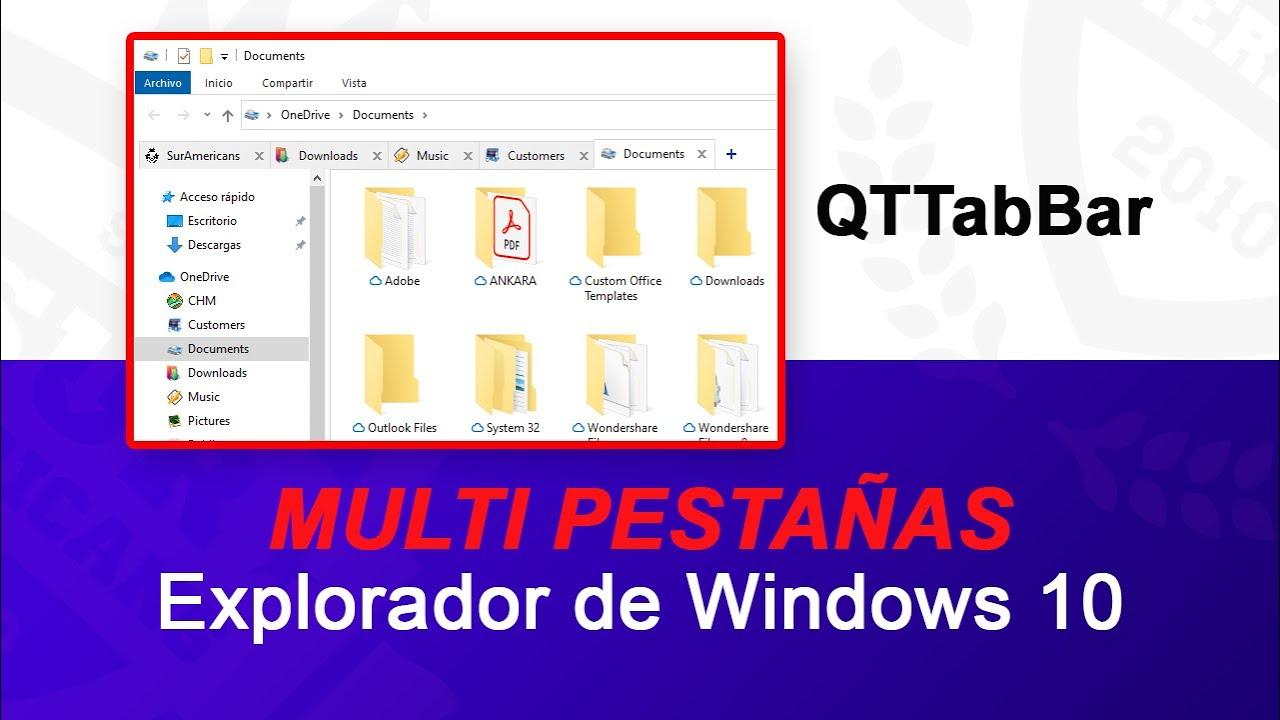
QTTabBar is a shell extension that embeds itself in Windows Explorer windows to add tabs and other utilities. By enabling its toolbars, Explorer itself incorporates a tab bar at the top and various optional panels for working with files and folders without opening dozens of windows.
The magic happens because QTTabBar installs certain hooks on the Explorer and safely modifies its behavior to offer features like middle-clicking folders to open them in a new tab or preview tooltips when you hover over images, text, or videos. Everything is seamlessly integrated and controlled with familiar controls.
This tool shouldn't be confused with a web browser: tabs belong to File Explorer , not Internet Explorer or Edge. The advantage is that it brings together several system locations in a single window, reducing the clutter of multiple windows and significantly speeding up operations like copying, sorting, or comparing content.
In addition to tabs, QTTabBar adds details that make a real difference: for example, you can change the color of a file name to highlight it, or hover over a folder icon to see a small square with a blue arrow to instantly open its contents without opening the folder. These are tiny shortcuts that add up to constant time savings.
It's worth noting that, while there are also paid tools like Groupy that mimic the browser-style tab concept, QTTabBar offers a free and very mature alternative focused on Explorer, with options that Windows doesn't include by default and that many users have been missing for years.
Key features and practical tips
The star of the show is tabbed browsing . You can open multiple folders in a single window and jump between them with a click, just like in your browser. This makes repetitive tasks, such as comparing paths or dragging files, much faster and cleaner.
Another key advantage is its customizable interface . You can adjust the colors, size, and location of the tabs, as well as decide how they are displayed and grouped. The folder grouping feature shines here , ideal for keeping sets of related locations readily available and organized.
Keyboard and mouse shortcuts are a goldmine. A very practical example: middle-clicking on a folder icon opens it in a new tab; double-clicking in an empty space within the window takes you back to the previous folder (as if you were pressing Back). These are small aids that speed up navigation without changing your habits.
For those who review many files, the preview panel and dynamic tooltips are incredibly convenient. By hovering the mouse over them, you can see previews of images, text, or videos without opening them, avoiding interruptions and saving you from constant clicking.
You can also create favorite folders for quick access to frequently used locations, view your recent location history , or group and separate tabs with separators. This combination of features covers most advanced needs without requiring a separate file manager.
Interface, customization, extra views and command bars
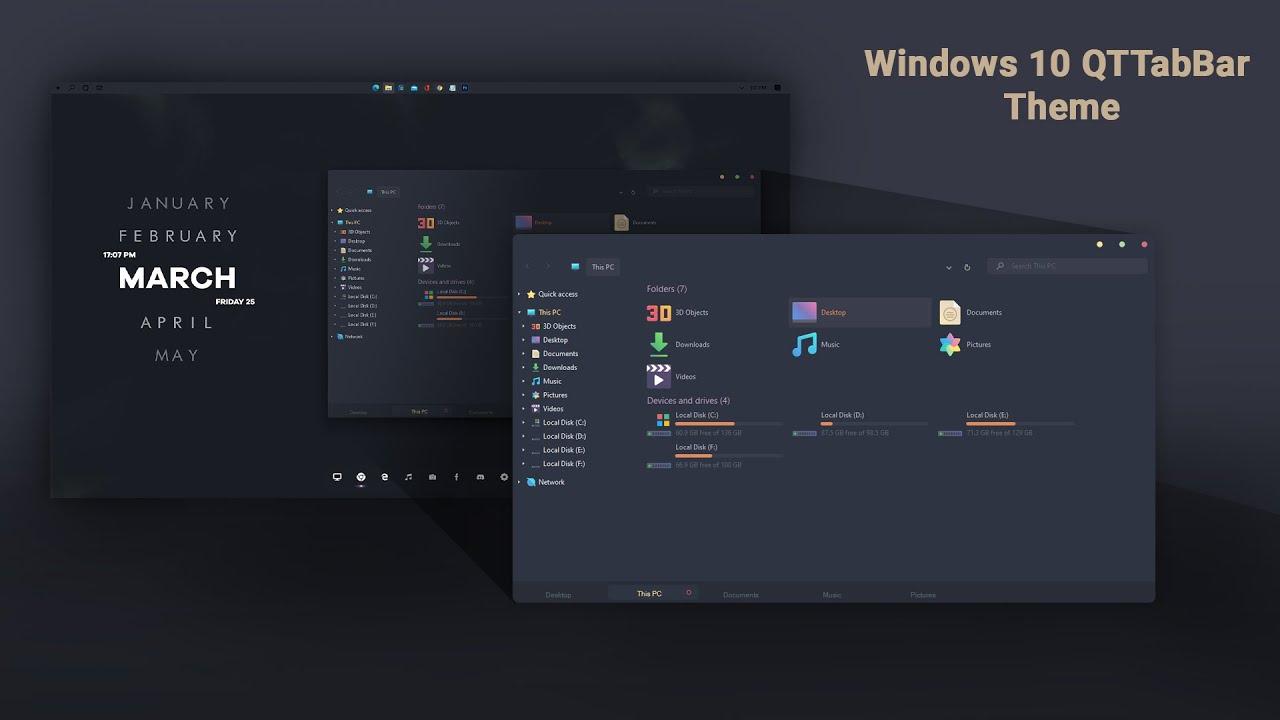
Once activated, QTTabBar integrates seamlessly into the Explorer . You'll see the tab bar at the top, and if you like, you can move it or place it at the bottom of the window to better suit your preferences or screen layout.
The Extra View system is another of its strengths. It allows you to open a second folder view within the same window, either on the left or at the bottom. This lets you work with two folders simultaneously, each with its own tabs, and move files between them seamlessly.
If you need buttons at your fingertips, activate QT Command Bar 1/2 . These are two fully customizable command bars where you can add action buttons and plug-ins , shortcuts, or frequently used functions, all without cluttering the main view. It's ideal for building a micro-productivity panel tailored to your workflow.
Customization is extensive: from tab behavior to panels, shortcuts, and overall appearance. In the options menu, you can adjust virtually every detail, such as middle-click actions, keyboard shortcuts, colors, or visual rules to highlight relevant file names.
A practical note: some content found on wikis includes editing blocks from the site itself (links to edit the page, view attachments, etc.). These elements are external to QTTabBar and should be ignored, as they are not part of the program's functionality.
Step-by-step installation, activation and basic use
Installation is straightforward: download the installer from the official website or FileHorse and follow the on-screen instructions. After installation, restart Windows so that Explorer loads the components. Some packages require you to double-click RegisterQTTabBar.exe to register the extension ; this quick step gets everything ready.
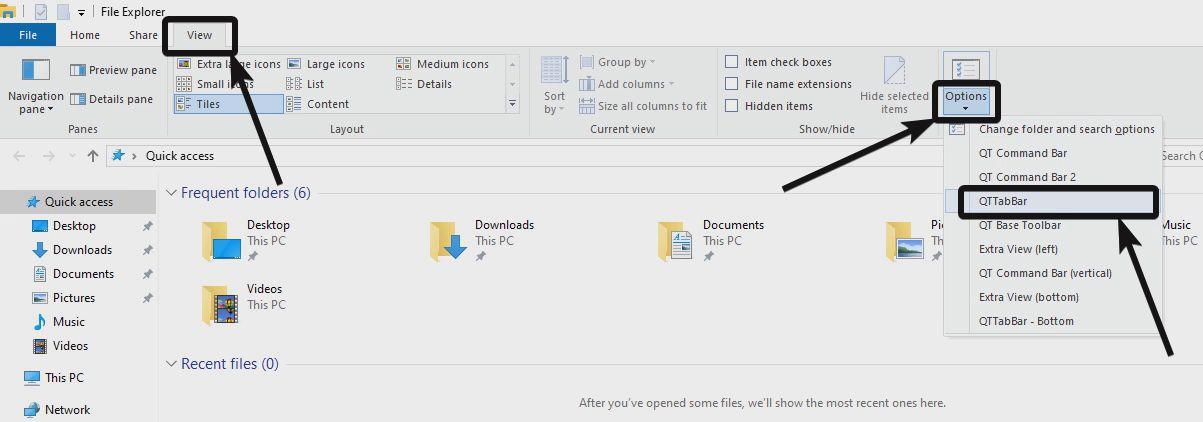
To activate tabs, open any Explorer window and expand the Ribbon. On the View tab , select the QTTabBar option ; you'll see the tab bar appear at the top. If you prefer, you can also move it to the bottom to maintain the classic look of your desktop.
Using tabs is quick and easy: right-click on a folder and choose Open in new tab , or use the shortcut Ctrl + T. If you prefer the mouse, simply click the middle mouse button on the folder icon to open it in another tab instantly.
For Extra View, go to Explorer options and enable Extra View by choosing its position: left or bottom. Each view works independently with its own tabs , like two windows within one, ideal for copying or comparing without changing context.
These are some clever tricks: when you hover over a folder, you'll see a box with a blue arrow to access its contents without opening it. Hovering over a file displays instant previews (images, text, video), and double-clicking an empty space in the folder takes you back. To highlight important documents, you can change the color of their names and easily find them.
If you mess around with settings and something goes wrong, causing your Explorer to become unstable, QTTabBar creates a shortcut in the Start menu to open Explorer in "safe mode" (without add-ons). It's a safety net that lets you revert or review the configuration without any hassle.

Compatibility, requirements, licensing, advantages, disadvantages, alternatives and project status
QTTabBar works on 32-bit and 64-bit Windows and is compatible with Windows 7, 8, 10, and 11. Its installer is simple and the integration is seamless: after installation, Explorer detects the extension and you can use it immediately with the options enabled.
In terms of resources, a modest computer will have more than enough: a 1 GHz CPU , 1 GB of RAM for 32-bit (2 GB for 64-bit), and the disk space required by Windows (16 GB for 32-bit, 20 GB for 64-bit) are general compatibility guidelines. In practical terms, any modern PC will be able to run it without breaking a sweat.
The project is distributed as free and open-source software , so you can use it at no cost. Many download pages and descriptions on portals like FileHorse are translated by its team , making it easier to understand its features even if you don't speak English.
Clear advantages: it adds tabs to Explorer, offers a highly customizable interface , supports keyboard and mouse shortcuts, is free, and runs on various versions of Windows. On the downside, its advanced management capabilities don't extend as far as some professional file managers, although this won't be a problem for most users.
Among the alternatives, you have several options: Directory Opus (a professional suite with tabs and an arsenal of features), Total Commander (a classic with a dual panel and high customization), XYplorer (tabs and settings galore), FreeCommander (simple and convenient), and Multi Commander (a multi-tab browser and Explorer replacement). All offer similar solutions, but QTTabBar stands out for integrating all of this into the Explorer without forcing you to switch tools.
Regarding current maintenance , historically there have been periods of frequent updates and others with less activity, which is common in niche projects. If you already have it installed and want a more stable or recent version, the safest option is to check the developer's official website or trusted repositories and portals like FileHorse, avoiding downloads from dubious sources. As for Clover , it was also popular for adding tabs, although its pace of development has been uneven; if it worked well for you, you can assess its current status by visiting its official channels.
Finally, remember that QTTabBar includes tab options accessible by right-clicking on each tab to fine-tune its behavior and visual appearance. With a little initial setup, you can customize it to your liking and work with the Explorer at a whole new level.
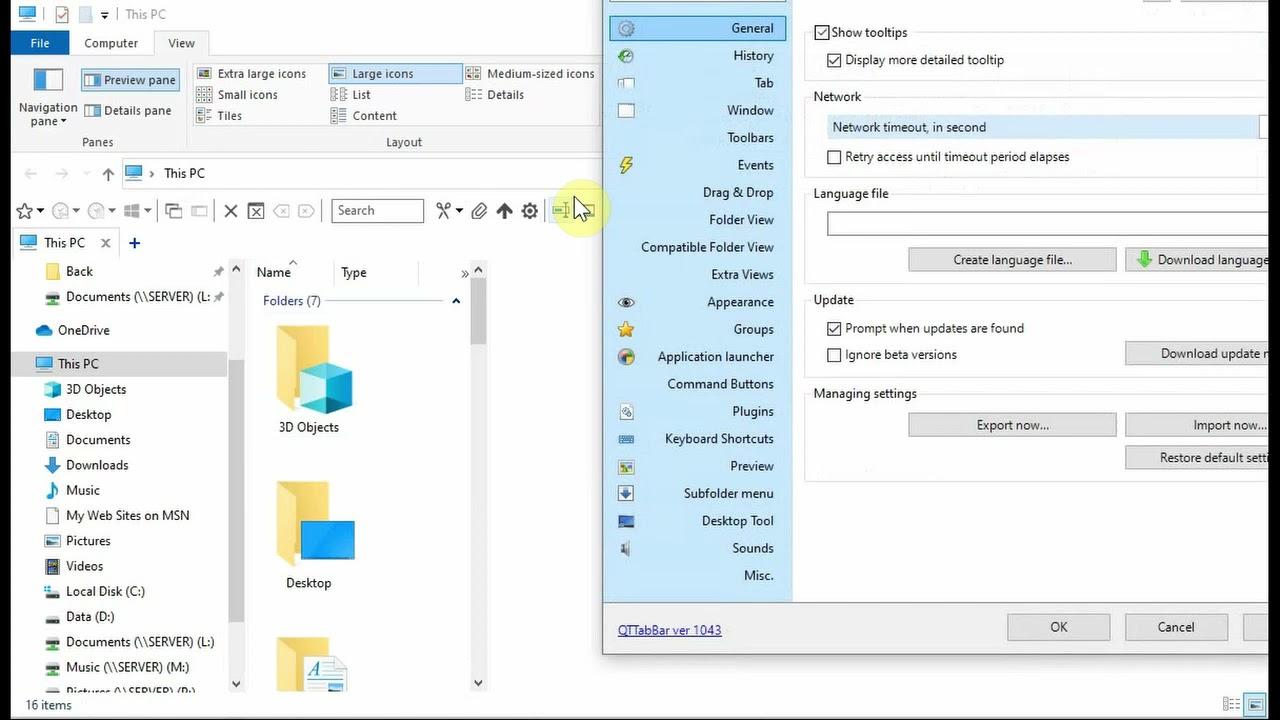
QTTabBar is a sure bet if you're looking for tabs, extra views, and shortcuts directly within Windows Explorer, with features like hover previews, folder grouping, favorites, history, and plugin-enabled command bars. All of this comes in a free, flexible, and well-integrated tool that, with just a few tweaks, makes your daily workflow smoother and more organized without changing your habits.
