- Sublime Text stands out for its speed, stability, and cross-platform customization.
- It allows multi-line editing, multi-selection, advanced project management, and support for thousands of plugins.
- It is an ideal choice for programmers, writers, and any user who handles large volumes of text.
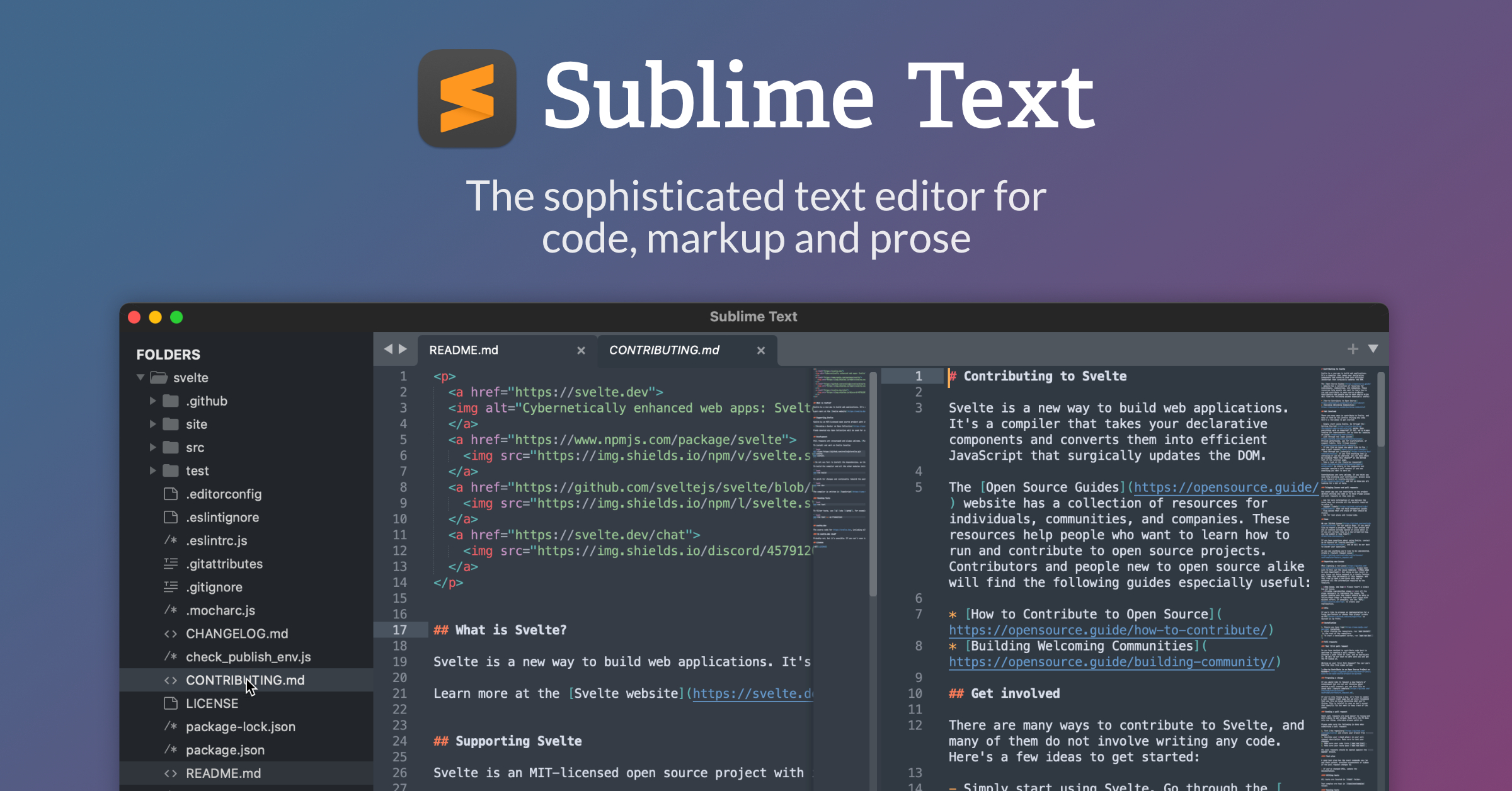
Have you ever wondered why Sublime Text is the preferred choice for so many developers and digital content creators? It's not just a matter of trend: behind its minimalist appearance lie features, speed, and customization that make it one of the most powerful and versatile code editors available today.
This article provides an in-depth look at what Sublime Text is, what it's used for, all its features and key advantages, how to customize it, and why you should consider it your primary tool for programming, writing, and organizing projects of any size . Get comfortable, because here you'll find the most comprehensive guide to Sublime Text, designed for users in Spain and tailored to today's needs.
What is Sublime Text and where does it come from?
Sublime Text is a sophisticated, cross-platform text editor designed for working with source code, markup, and prose. Its development began in 2008 under the authorship of Jon Skinner, with the goal of providing a clean, fast, and efficient editing environment that inherited the power of Vim but with a more user-friendly and modern interface.
Sublime Text is currently distributed for Windows, macOS, and Linux, and is known for being lightweight, stable, and extremely fast, even when handling large amounts of code or opening dozens of files and projects simultaneously. Since its inception, it has evolved into a benchmark for developers, digital content writers, and any professional who works extensively with text and code.
Sublime Text is not free software, but it can be tried for free indefinitely. If you'd like to remove purchase reminders and access additional benefits, you have the option to purchase a personal or enterprise license.

Main functionalities and technical characteristics
The true value of Sublime Text lies in its balance of simplicity and power . Its most relevant features are listed below:
- Minimalist and customizable interface: The workspace is clean by default, with no unnecessary, distracting toolbars. Colors, themes, and visual appearance are fully customizable.
- Outstanding performance: Sublime Text performs actions like opening files, searching and replacing, and moving between projects instantly.
- Advanced syntax highlighting: It offers native and extensible support for dozens of programming languages (Python, HTML, CSS, JavaScript, PHP, C++, Java, SQL, among others), highlighting keywords, comments, and structures with different color schemes.
- Multi-line and multi-select editing: Allows you to select multiple lines or words and edit them simultaneously, saving time and reducing errors.
- Plugin and snippet support: Thanks to its API in Python and management through Package Control, it is possible to install thousands of packages and plugins to increase its functionality.
- Minimap of the code: A side view that allows you to quickly navigate through long files by viewing a thumbnail of the entire document structure.
- Multi-layout and split windows: You can divide the workspace into multiple columns or grids and drag tabs between them to work with multiple files at the same time.
- Command Palette (Command palette): Ultra-fast access to any Sublime Text command, function, or setting using a contextual search (Ctrl+Shift+P).
- Auto-completion and closing braces/parentheses: It makes writing code easier by reducing syntax errors.
- Project and file management: Organizes folders and files, making it easier to navigate between them and allowing you to save specific configurations for each project.
- Search and replace with regular expressions (regex): Powerful tool for locating and replacing complex patterns in one or more files.
- Full customization via JSON configuration files: All configuration is managed in text files, allowing full control and portability.
Furthermore, Sublime Text stands out for its ability to handle large volumes of data or large files without losing speed , making it a very solid alternative to other editors such as Visual Studio Code, Atom, or Notepad++.
Who is Sublime Text for?
Sublime Text has earned the preference not only of developers, but also of technical writers, scientists, bloggers, digital marketing professionals, and educators . Its versatility makes it suitable for:
- Professional or amateur programmers looking for an efficient and extensible editor.
- Front-end and back-end developers working with various languages and frameworks.
- Writers and editors who need to organize long-form content into multiple files or categories.
- Students and teachers in science and engineering, for its ability to highlight syntax and manage large volumes of text.
- Users who want to automate repetitive tasks using snippets or macros.
Its adaptability is also evident in its compatibility with operating systems, offering a consistent experience on Windows, macOS, and Linux.

Installation and first steps
Installing Sublime Text is extremely simple. The software can be downloaded from its official website (sublimetext.com) , where you can choose the version corresponding to your operating system. On Windows or macOS, simply follow the graphical installer. On Linux, you typically extract the file to /opt or use a package manager.
Although Sublime Text can be used for free indefinitely, a window will occasionally appear reminding you of the option to purchase a license . The free version is fully functional and performs all basic tasks without limitations, so you can explore it freely and decide later whether to upgrade to the paid version.
Once installed, the first impression is of a spartan and clean environment. However, behind that facade, you'll find a world of possibilities:
- Access to sidebar to manage projects and files.
- Navigate between files with shortcuts such as Ctrl+P (go to file), Ctrl+G (go to line), @ (go to symbols), # (search in file).
- Customize the appearance using “Preferences > Color Scheme” to change themes and color schemes.
Customization and advanced configuration
One of Sublime Text's greatest strengths is its comprehensive customization . Almost every aspect of the editor can be configured using JSON files, making it easy to export and replicate settings across different computers.
To edit the settings, simply go to "Preferences > Settings". Here you'll see a split panel: default settings on the left, and custom user settings on the right. It's recommended to never modify the default settings directly , but rather overwrite only the necessary changes in the user section to maintain stability and ensure changes are reversible.
Some examples of common customizations:
- Adjust the font size (
"font_size": 14). - Modify the margins (
"margin": 6). - Turn line numbering on or off (
"line_numbers": true). - Change the background color or syntax schemes.
Use online tools like JSONLint if you have doubts about the validity of the syntax before saving your changes.
Professional-level project and file management
Project management in Sublime Text lets you organize folders, files, and resources hierarchically and visually. You can drag entire folders to the sidebar to manage complex projects.
Projects in Sublime Text are saved with an extension .sublime-project y .sublime-workspace, allowing you to maintain independent preferences and sessions for each one. Management is flexible: you can create new files, rename, duplicate, move, delete, and organize folders right from the editor.
Advanced features and tricks for demanding users
As you gain experience with Sublime Text, you'll discover advanced features that clearly set it apart from the competition:
- Multi-line and multi-cursor editing: Select multiple words, lines, or blocks of text and edit them all instantly. For example, use Ctrl+D to select the next occurrence of a word, or Ctrl+L to select entire lines.
- Advanced search and mass replace: Toggle between simple search (Ctrl+F), search in multiple files or folders (Ctrl+Shift+F), and use regular expressions to find complex patterns. Bulk replace returns a summary of the affected files before saving changes.
- Minimap: A sidebar that displays a visual summary of the entire file, ideal for quickly navigating through long documents.
- Multi-layout and tabs: Organize your workspace into columns, rows, or grids to compare and edit multiple files simultaneously.
- Quick file view: Preview the contents of any file without having to open it completely by scrolling through the code in the sidebar or using “Go to Anything.”
- Automatic indentation settings (Reindent): Keep your code tidy by selecting blocks and applying the "Reindent" option to easily correct the structure.
- Code collapse: Hide entire blocks of code or text to focus on the relevant parts at any given time.
- Snippets and code fragments: Create reusable templates that are inserted by typing a keyword and pressing Tab. You can customize activation parameters and scopes (by language, extension, etc.).
- Custom commands and keyboard shortcuts: Customize keybindings or shortcuts to optimize your workflows.
- Split panes and side-by-side windows: Work in parallel with multiple files, references, and definitions without losing context.
Plugins, extensions, and the Package Control ecosystem
The true potential of Sublime Text lies in its ecosystem of free plugins and packages . The Package Control manager allows you to easily install, update, and remove extensions.
Some of the top-rated plugins include:
- Markdown Editing: Essential tool for those who write in Markdown format.
- Emmet: Speed up HTML and CSS writing with smart shortcuts and expansions.
- Formatter: Automatically formats source code based on the language used (HTML, CSS, JS, Python, etc.).
- GitGutter: Displays unsaved changes to the Git repository in real time.
- AutoFileName: Autocompletes file names and paths based on the current project.
- Linter: Highlights errors and areas for improvement in the code according to the rules of the selected language.
Installing new plugins requires enabling Package Control (Ctrl+Shift+P > “Install Package Control”). From there, you can search for any extension and activate it in seconds.
Comparison with other editors and competitive advantages
Sublime Text competes with alternatives like Visual Studio Code, Atom, Notepad++, and other free and paid editors. However, its speed, stability, low resource consumption, and customization capabilities make it a top choice for those seeking efficiency and productivity.
- It does not require a user account or Internet connection to operate or install extensions.
- Load huge files faster than most modern editors.
- It does not incorporate telemetry or collect personal data.
- It allows complete control of your work environment, adapting to each workflow, whether you're a writer, programmer, scientist, or teacher.
- It works similarly across all supported systems, making cross-platform work easier.
Price, licenses and support
Sublime Text is available under a shareware model: you can download and use it without time limits or feature reductions . You may occasionally see a message suggesting you purchase a license, but there are no restrictions on key features.
If you want to purchase a license, the current cost is around $99 for individual users, covering updates for three years. Enterprise licenses have tiered pricing based on the number of users.
Purchasing the license offers:
- Removing purchase reminders
- Access to development versions and update notifications
- Preferential support for incidents and technical questions
Practical use cases: developers, writers, and more
Sublime Text isn't just for programmers . Among the many scenarios where this editor shines are:
- Cross-platform software development: Thanks to support for dozens of languages and the ease of creating custom build systems.
- Web project management: Easy folder navigation, code execution, and fast debugging and editing of HTML, CSS, and JS files.
- Writing and editing large volumes of text: Ideal for writing books, long articles, or documentation, dividing the work into multiple files and folders according to chapters or sections.
- Customizing workflows and automation: Implement shortcuts, snippets, and macros to reduce manual effort on repetitive tasks.
- Refactoring and code cleanup: The advanced search and multi-edit feature makes it easy to update variables, functions, or terms in large projects.
Frequently asked questions and recommendations for new users
If you're thinking about trying Sublime Text, here are some common questions answered:
- Can it be used for free for life? Yes, the trial version does not expire and does not limit critical functionality.
- Can I install Sublime Text on multiple computers with a single license? The personal license allows use on all of the holder's devices, regardless of the platform.
- Is there official support or community? Yes, there is a very active community, forums, documentation in Spanish (such as sublimetext.info/docs/es), and official support through the Sublime Text website.
- Is it safe and stable? Absolutely. Sublime Text is known for its reliability, low memory usage, and low crash tendency.
- Can you learn quickly? Yes, the interface is simple, and there are dozens of tutorials, articles, and courses to help you get the most out of it quickly.
Therefore, whether you're an experienced programmer, a student, or a digital writer, Sublime Text can easily adapt to your needs and help you be more productive, organized, and efficient in your daily work . Discovering its possibilities is simply a matter of dedicating a few hours to it and customizing it to your workflow—you'll be surprised how far such a seemingly simple tool can take you!
