- Widgets make it easy to access relevant and customizable information from the taskbar in Windows 11.
- You can add, remove, and reorder widgets to adapt the dashboard to your daily routine.
- The widget panel allows you to customize notifications and the news feed based on your interests.

Windows 11 brought with it a significant interface overhaul, offering new ways to personalize the desktop and quickly access relevant information . Among the most interesting new features are widgets, small panels that display dynamic and useful information directly from the taskbar, without needing to open additional applications. Many users are intrigued by the possibilities these widgets offer, but they may also have questions about how to add, customize, and get the most out of them in their daily use.
In this article, you'll learn how to add widgets to your Windows 11 desktop and fully customize them to suit your preferences. We'll also explain all the tips, options, and details so you can configure your experience exactly how you want it and take full advantage of the features Microsoft offers. If you've ever wondered how to get the most out of Windows 11 widgets, you've come to the right place.
What are widgets in Windows 11 and what are they for?
Widgets in Windows 11 are built-in tools that provide real-time information directly on your desktop or taskbar . Their purpose is to make your life easier, allowing you to check news, weather forecasts, upcoming calendar appointments, sports scores, traffic information, and much more with a single click or quick access via keyboard shortcuts.
These widgets are not only designed to show you useful information, but they can also be customized to your needs , making it easy to receive only the information that matters most to you without cluttering your screen. Furthermore, their integration with the taskbar ensures they remain visible and up-to-date at all times.
How to access the widgets panel in Windows 11
Microsoft has made it easier to access widgets to maximize their usefulness. You have several ways to open the widget panel:
- You can click on the widgets icon Located on the taskbar, next to the Start menu. This icon usually looks like a square divided into several sections.
- Another quick and direct way is pressing the Windows + W keys on your keyboard, which will instantly open the widget panel.
- On touchscreen devices, you can swipe from the left to display the widget panel.
When you open the dashboard, you'll immediately see several pre-configured widgets, including weather, daily news, and other suggestions based on your interests or Microsoft account.
Add widgets to the Windows 11 desktop
Adding new widgets is very intuitive and quick . Follow these steps to expand the functionality of your widget panel:
- Access the widget panel using any of the methods described above.
- Go to the top right of the window and press the “+” button (Add widgets).
- You will be shown a list with the available widgets at that time, which may include weather forecasts, calendars, traffic, sports scores, personalized news, stocks, to-do lists, and many more.
- Click on the “+” symbol that appears next to each widget you want to add to your dashboard.
- Once selected, closes the widget list to see the changes reflected. The new widgets will appear on the dashboard and begin displaying relevant information.
It's a good idea to review this list periodically, as Microsoft adds new widgets over time, and you may find useful features you weren't aware of before.
Customize widgets and the widget panel
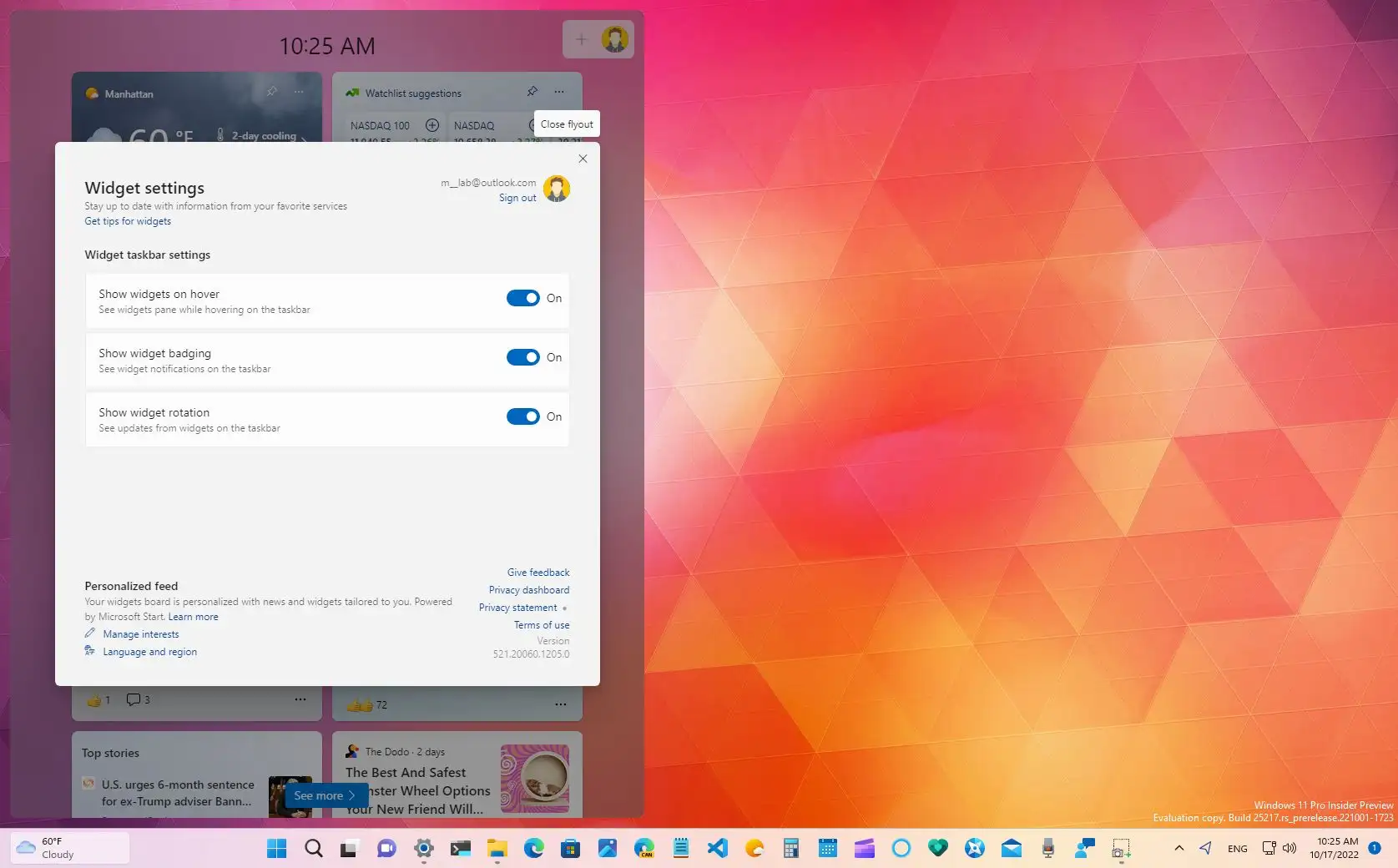
One of the strengths of this feature is its high degree of customization . You can adjust the widget content, their layout, size, and even their presence on the panel. Furthermore, you can modify the settings to fully adapt the panel to your workflow and preferences.
Change the content and preferences of a widget
- Locate the widget you want to customize in the widget panel.
- Click on the three dots that appear in the upper right corner of that widget.
- Select option “Customize widget”.
- Configure the information you want to display based on the options offered by that widget (for example, change your location over time, interests in sports news, actions to monitor, etc.).
- Save the changes so that the widget starts displaying content according to your preferences.
Resize widgets
Each widget offers several size options: small, medium, or large . To modify it:
- Access the widget's three-dot menu.
- Select the size you prefer. For example, you can make the time zone take up more space if it's what you check most.
Reorder widgets on the dashboard
- Hover over the widget header area until you see the cursor change to a hand shape.
- Click and drag the widget to the desired position within the panel.
Pin or remove widgets from the dashboard
- In the options menu of each widget (three dots) you can find “Pin” or “Remove widget”.
- If you choose to delete it, it will disappear from the panel and stop displaying information.
- If you want to pin it so it remains visible on your dashboard, select the pin option.
Manage and identify widget notifications and ads
Widgets can display relevant notifications and small ads directly in the taskbar. For example:
- The weather icon changes to show important alerts, such as storms or sudden changes in the weather.
- Sometimes you will see badges or banners that provide breaking news, financial alerts, or relevant information from other installed widgets.
The taskbar dynamically cycles through these ads to avoid cluttering your experience. If you don't interact with them, you'll soon return to your usual status, such as the daily weather forecast.
Configure widget notifications
- Open the widgets panel.
- Click the button setting at the top of the panel.
- Enter the section Notifications and decide if you want to see notification badges in the taskbar and relevant ads. You can enable or disable these options according to your preferences.
- From the same Notifications tab, choose what type of alerts you want to receive, if you only want to see weather information or also news and featured events.
Customize your news feed and interests in widgets
The widgets panel shows you a news feed curated based on your interests , meaning you can see relevant headlines on topics that genuinely interest you. To customize it:
- Within the widgets panel, access the section Widget settings.
- Choose “Personalized Feed” to start adjusting your preferences.
- Click on “Manage interests”, which usually redirects you to a special page in Microsoft Edge called “My Interests.” Here you can browse between topics (sports, technology, business, entertainment, etc.) and follow or unfollow categories according to your tastes.
- If you no longer enjoy a category, you can easily remove it from your feed by blocking or disabling it.
Remove widget icons from the desktop or taskbar
If at any time you prefer that the widgets panel is not accessible from the taskbar, you can remove its icon by following these simple steps:
- Go to Settings of the system (you can access it from the start menu or by pressing Windows + I).
- Select the tab Personalization. and access Taskbar.
- In section Taskbar items locate the option Widgets y turn it off. This way, the shortcut will no longer appear on the taskbar.
Remember that Microsoft offers official documentation and help through its website, as well as personalized support in case of problems or issues, so you can get the most out of widgets and improve your experience in Windows 11.
