- Windows 11 improves window usability with Snap Assist and snap layouts
- You can split the screen into two, three or four sections by simply dragging
- There are multiple keyboard shortcuts that make multitasking easier in Windows.
- Split screen increases productivity and efficiency of the workspace
Working with multiple applications simultaneously is one of the great advantages of modern operating systems. In Windows 11, Microsoft has significantly improved window management so you can make the most of your screen space . Whether you're using a laptop or an external monitor, splitting your screen into two or more parts can completely change the way you work.
Split-screen mode is an ideal tool for those who need to consult information while writing, compare documents, or simply keep several tasks in view at once. In this article, you'll discover how to easily split your screen in Windows 11 , using both visual methods and keyboard shortcuts. We'll also show you how to customize this feature and give you tips for getting the most out of it.
What is split screen for in Windows?
By using the split-screen feature, you can display multiple applications simultaneously without constantly switching between windows . This not only improves your productivity but also reduces the mental fatigue associated with multitasking.
- More productivity: You can work with two or more programs open side by side without wasting time switching between them.
- direct comparison: Ideal for comparing spreadsheets, documents or images.
- Smooth Workflow: You can drag information from one app to another visually and immediately.
- Efficient use of space: If you have a large screen or an external monitor, you can take full advantage of it.
Key Split Screen Features in Windows 11
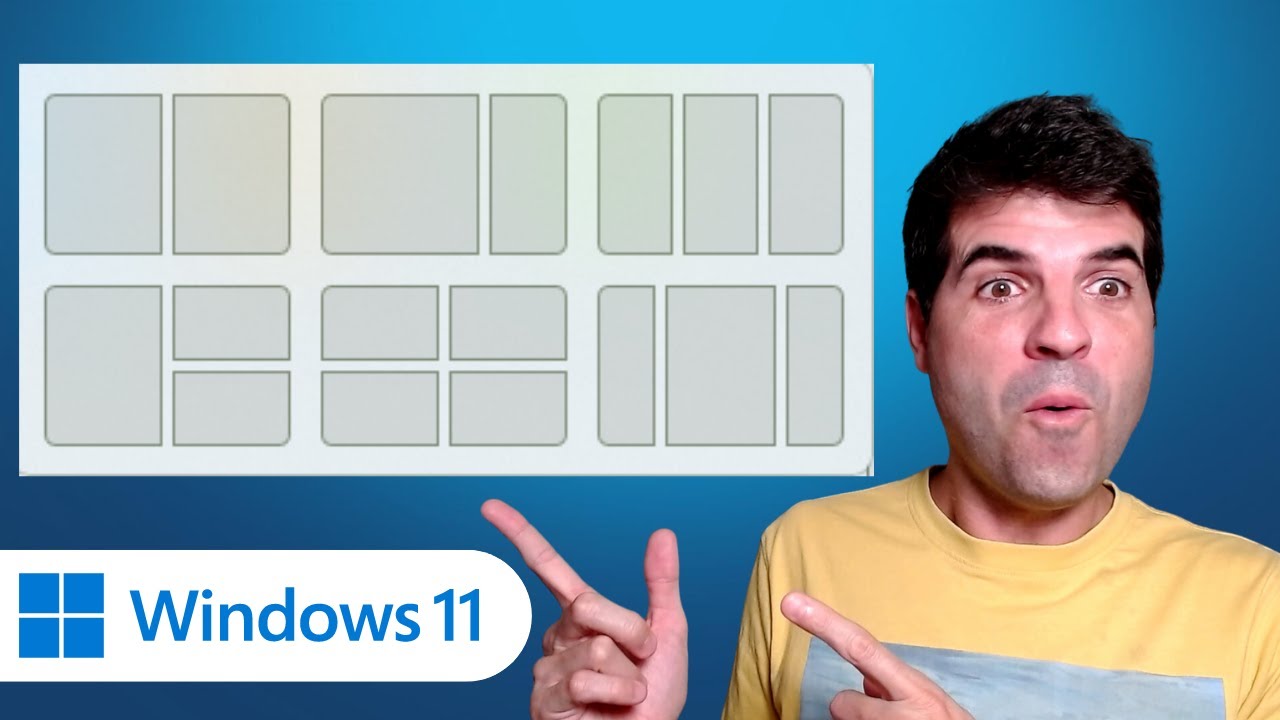
In Windows 11, multitasking features have evolved thanks to Snap Layouts and Snap Assist . These tools allow you to organize windows visually and flexibly.
Snap Layouts: Automatic split-screen layouts
When you hover over a window's maximize button, you'll see a pop-up menu with several layout options . You can choose to display two, three, or four applications on screen, arranged in different proportions. It's a quick and intuitive way to configure your workspace.
- Two equal columns: divides the screen into halves.
- Main column and secondary column: ideal for using one app as the main one and others as backup.
- Quadrants: to display up to four applications at the same time.
Clicking on a section of the layout will fill that area with the current app , and you'll be prompted to choose other open apps to complete the rest of the layout. You can move the dividers between windows to adjust their size as needed.
Snap Assist: Help to complete split screen
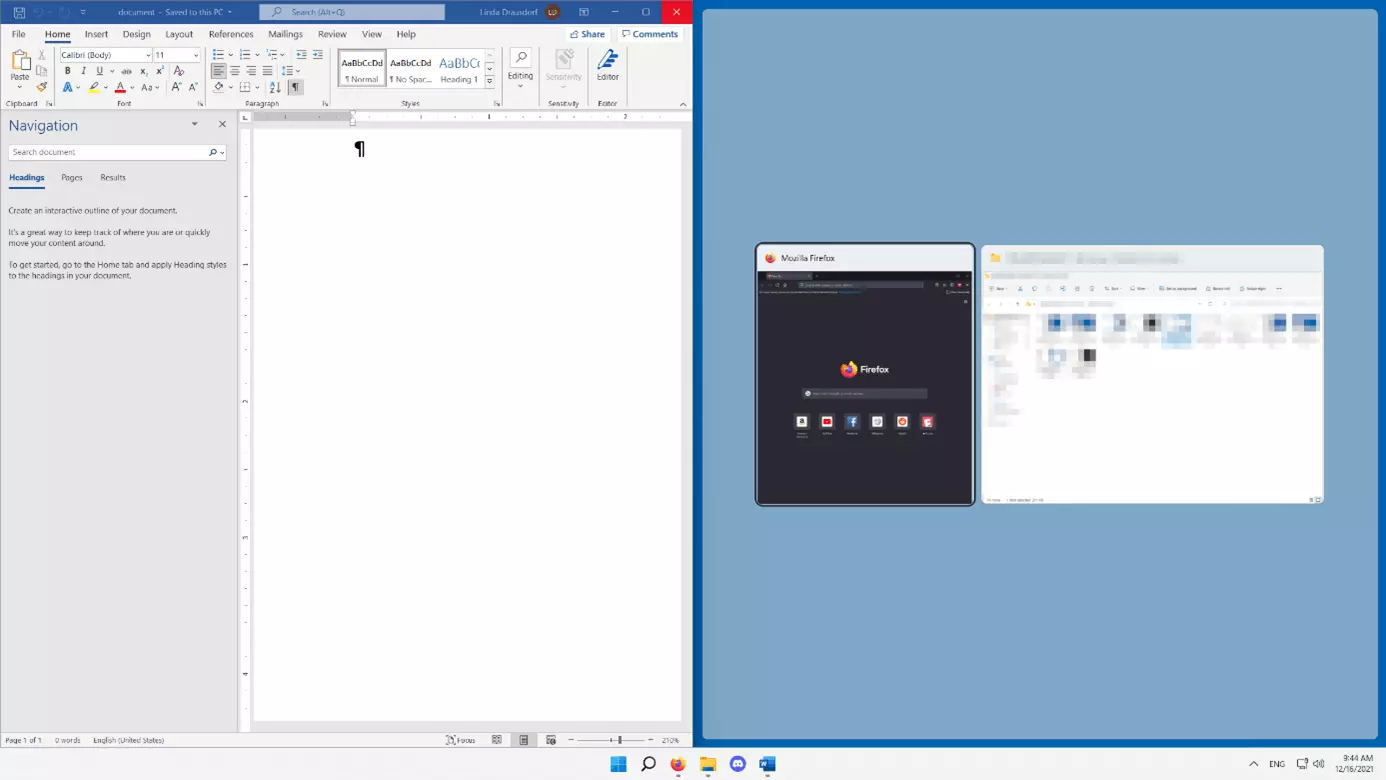
When you snap a window to one side of the screen , Windows will automatically show you all your other open windows so you can choose which one to place in the remaining space. This makes completing a split-screen layout very quick.
Plus, Windows 11 remembers the groups of windows you've organized. If you hover over the icons in the taskbar, you can reopen everything with a single click.
Methods to split the screen in Windows 11
Below are the most practical ways to organize your windows on the screen:
1. Use the maximize button
- Hover your mouse pointer over the maximize button.
- Select one of the designs that appears.
- Choose the other windows to complete the design.
2. Keyboard shortcuts for greater speed
Shortcuts are a very effective way to work with split screens.
- Windows + Left Arrow: places the current window to the left side.
- Windows + Right Arrow: places the current window on the right side.
- Windows + Up or Down Arrow: Maximize or minimize the application.
- Windows+Z: Directly opens the Snap Layouts menu.
3. Drag and drop method
This method is very visual and practical. All you need to do is:
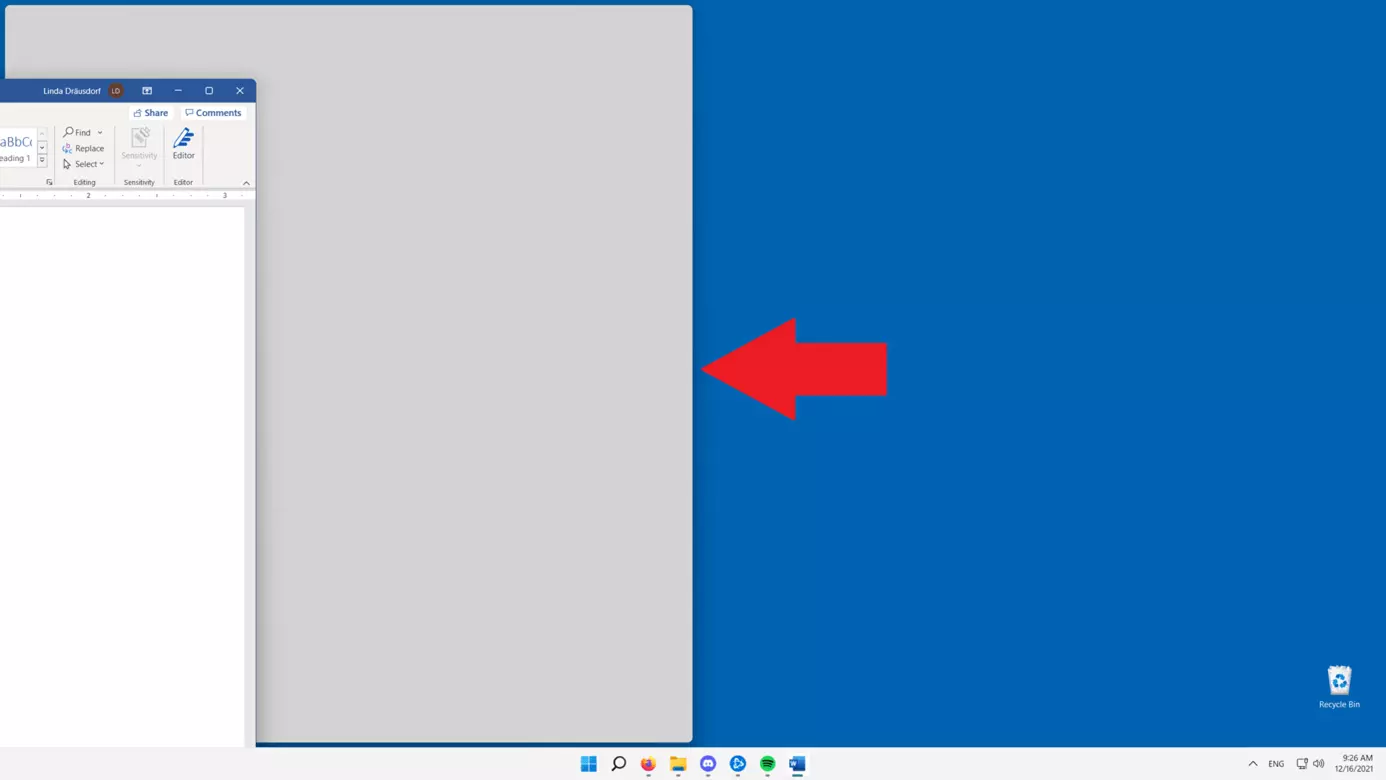
- Click and hold on the title bar of a window.
- Drag it to the left or right edge until you see a shadow or highlighted edge.
- Drop the window so that it occupies that half of the screen.
- Select the second window you want to dock on the other side.
If you drag a window to a corner, you can split the screen into four parts.
How to turn Snap Assist on or off
If for any reason you want to disable split screen or Snap Assist:
- Open the Settings app with Windows + I.
- Go to System > Multitasking.
- Turns the “Snap Windows” option on or off.
- You can customize the six available options according to your preferences.
Advanced split: four or more windows
If your screen allows it, Windows 11 also lets you arrange up to four windows :
- Drag each window to one of the corners to arrange them in quadrants.
- Use the Snap Layouts menu and select the four-section layout.
This option is perfect if you need to keep many sources visible at once, such as browser, notes, mail, and chat.
How to manage multiple displays and desktops
If you work with more than one monitor , Windows maintains your organizational preferences for each screen. You can connect an external display and use Snap Assist independently on each one.
Additionally, with virtual desktops you can create different workspaces. Use Windows + Ctrl + D to add new desktops and switch between them with Windows + Ctrl + Left/Right Arrows.