- Airplane mode on PCs instantly disables all wireless connections such as WiFi, Bluetooth, or mobile data.
- In Windows 10 and 11, it can be enabled and disabled from the taskbar, the Action Center, and Settings.
- It is useful for saving battery power, improving security on public networks, and avoiding interference on flights.
- If airplane mode gets stuck, there are solutions such as the troubleshooter and checking Windows services.
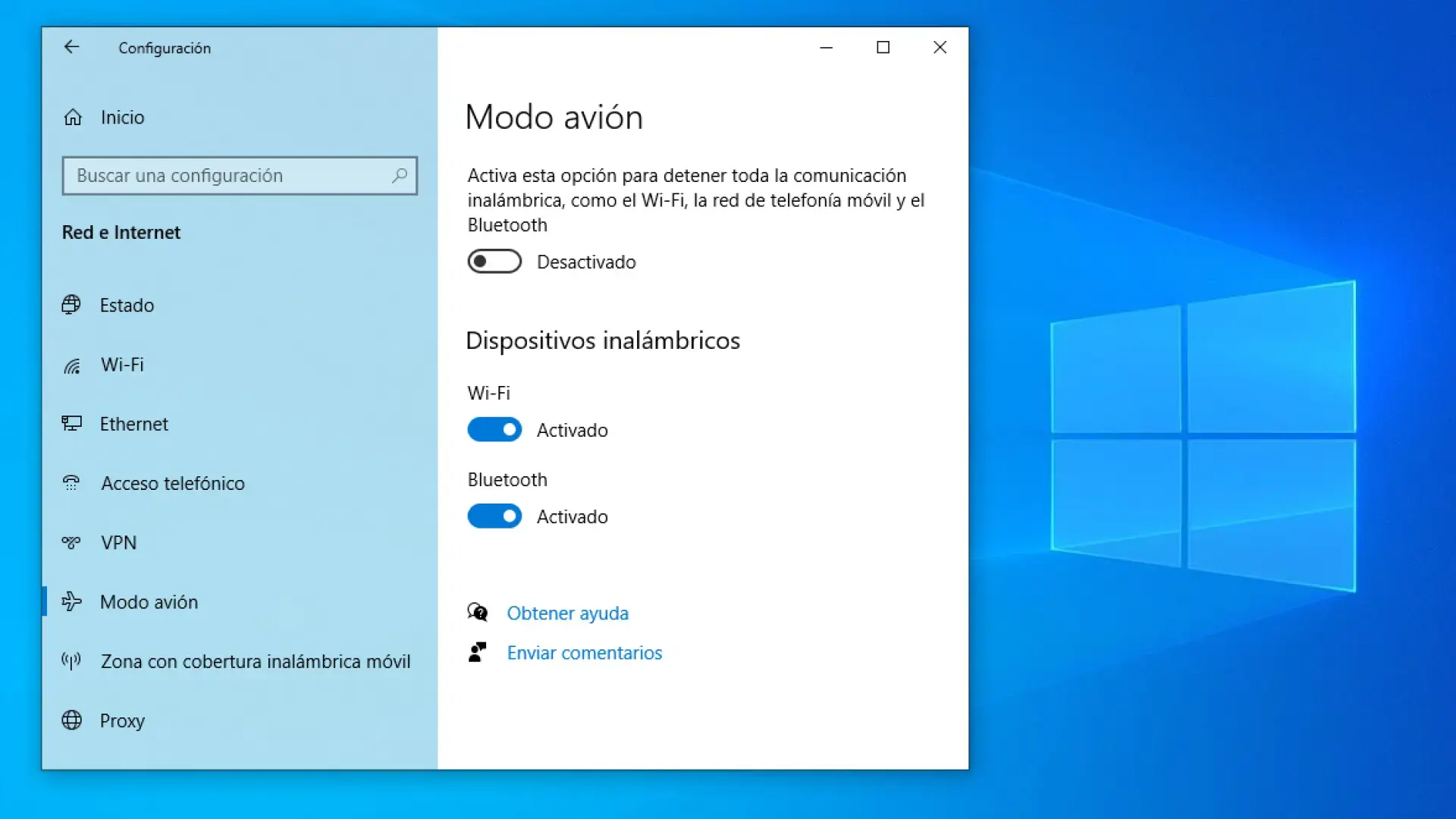
If you use a laptop or desktop computer with Windows, you've probably seen the airplane icon in the taskbar more than once and wondered what it does. Airplane mode on a PC is a very useful tool for instantly cutting off all wireless connections , whether you're going on a flight, want to save battery, or simply need to isolate your computer from the network for security reasons.
Although the concept is borrowed from mobile phones, it has its own nuances in Windows. On a PC with Windows 10 or Windows 11, you can activate and deactivate airplane mode in several ways , and you might even encounter the common glitch where it gets stuck and won't reconnect to the internet . Let's take a closer look at what it is, what it's for, and how to control it on your computer.
What exactly is airplane mode on a Windows PC?
Windows Airplane Mode is a system setting that, when activated, simultaneously disables all wireless connections on your computer . In other words, your computer continues to function normally, but becomes completely disconnected from the outside world via radio frequencies.
When you activate it, the Wi-Fi connection and any other wireless internet access are automatically disconnected . If your laptop has a mobile data card, this connection is also cut off, preventing the computer from sending or receiving network packets while airplane mode is active.
In addition, airplane mode can disable Bluetooth, GPS, and other wireless technologies such as NFC (if your device has them). This stops any communication with wireless peripherals, nearby devices, or radio-based location services.
Despite this lack of connectivity, the operating system and your programs will continue to run normally . You can still use applications, edit documents, or play games that don't require an internet connection, but anything that depends on the internet or a wireless connection will stop working while airplane mode is active.
Keep in mind that apps that store data in the cloud or sync information online won't be able to do so until you turn airplane mode off again. For example, services like cloud storage, real-time email, or online games will be "on hold" until you re-establish the connection.
The name of this feature comes from the rules that were (and in many cases still are) in place on commercial flights. For years, passengers were required to completely turn off their electronic devices due to the possibility of interference with the aircraft's systems. To prevent people from simply abandoning their devices, manufacturers implemented this special mode that keeps the equipment powered on but mutes all internal radios.
Outside of the context of flying, airplane mode is also a very convenient shortcut for quickly and reversibly disconnecting your PC from the network . With a single click, you cut off internet, Bluetooth, and all other connections, and when you turn it off again, Windows remembers your previous settings and restores them without you having to manually re-enable each one.
Advantages of using airplane mode on a computer
Beyond its mandatory use on airplanes, airplane mode in Windows 10 and 11 has several practical uses in everyday life that are worth knowing about, because they can get you out of more than one tight spot.
One of the most obvious benefits is energy savings. By suddenly disconnecting Wi-Fi, Bluetooth, GPS, NFC, and any mobile network, battery consumption is reduced , sometimes quite significantly in laptops with several active wireless modules. If you're away from home, your battery is low, and you don't need connectivity at that moment, activating airplane mode can give you a good amount of extra battery life.
Another important advantage is security in public environments. When you connect in libraries, airports, cafes, or shared spaces , your device is usually visible on the local network, and other devices might try to communicate with it. By activating airplane mode, you cut off all that exposure at the source, preventing unwanted connections and reducing the risk of network attacks.
It can also be useful in situations where you want to minimize radio interference. In some sensitive environments, such as certain hospitals, laboratories, or technical rooms , you may be advised or required to disable wireless communications. Instead of unchecking Wi-Fi and Bluetooth separately, turning on airplane mode is a quick way to silence your device in that regard.
On the other hand, it's a useful tool for maintaining concentration. If you need to work without distractions from messages, emails, or online notifications , activating airplane mode helps create a kind of temporary "offline bubble" on your computer. When you're finished, simply deactivate the mode, and everything will work as before.
How airplane mode works in Windows 11
In Windows 11, Microsoft has refined the management of wireless connections. Airplane mode still disconnects all communications by default , but the system now better remembers your custom settings so you don't have to repeat them every time.
For example, you might want to keep Bluetooth on while airplane mode is active , so you can continue using wireless headphones or a Bluetooth mouse even when Wi-Fi is off. Windows 11 allows this behavior and remembers your preferences.
In fact, if you activate airplane mode and then manually turn on Wi-Fi or Bluetooth while airplane mode is still active, Windows 11 will remember that choice . This way, the next time you activate airplane mode on your PC, the system will automatically enable the radios you left on the last time , such as Wi-Fi or Bluetooth, without you having to manually go into the settings again.
In short, the approach in Windows 11 is more flexible: airplane mode becomes a template for how you want connections to behave when you enter that state, rather than simply a rigid switch that turns everything off without hesitation.
Furthermore, the quick options in the Windows 11 taskbar make accessing airplane mode more convenient and visual . From this panel, you can not only turn airplane mode on or off, but also control Wi-Fi, Bluetooth, and other settings without having to open complex menus.
How to turn airplane mode on or off in Windows 11 from the taskbar
The primary way to manage airplane mode in Windows 11 is through the taskbar. In the bottom right corner, you'll see either the network icon or the battery icon , depending on your device's settings and configuration.
To open quick options, click the network or battery icon . A floating panel will appear with several buttons, including controls for volume, brightness, Wi-Fi, Bluetooth, and other quick system settings.
Within that panel, you'll see a button labeled "Airplane Mode . " If you tap it, the button will light up, indicating that airplane mode is activated , and the system will disconnect wireless connections according to your settings. To deactivate it, simply tap the same button again, and it will turn off.
This system allows you to enable and disable airplane mode in Windows 11 in a matter of seconds , without needing to open the full Settings or navigate through deeper menus.
Activate airplane mode in Windows 11 from Settings
If you prefer the more traditional method or need to explore additional options, you can also activate airplane mode through the Windows Settings app. Simply open Settings and go to the Network & Internet section , where all the system's connectivity options are located.
Within that section, you'll find a setting dedicated to airplane mode, with a switch to turn it on or off . Turning it on from here will make Windows 11 behave the same as if you had activated it from the quick settings, cutting off wireless communications according to your preferences and saving your last configuration.
How to use airplane mode in Windows 10
In Windows 10, the concept is virtually the same as on mobile phones: a shortcut to quickly disable all wireless communications , originally intended to prevent interference with aircraft flight systems.
When you activate it, Windows 10 immediately turns off Wi-Fi and Bluetooth, as well as any other wireless radios your computer might have, such as NFC or mobile data connections. The goal is to prevent the system from emitting or receiving wireless signals while the mode is enabled.
However, this connectivity limitation doesn't mean the device is unusable. We can still work with programs, edit documents, or use applications that don't depend on the internet . The only difference is that any online function will be interrupted, and any peripherals that rely on Bluetooth or the network will be temporarily unavailable.
One of the biggest practical advantages of Windows 10 is its energy efficiency. By simultaneously disabling Wi-Fi, Bluetooth, GPS, NFC, and mobile connections, airplane mode helps you get the most out of your laptop's battery. It's a highly recommended solution when your computer is running low on power and you don't have a power outlet available.
Furthermore, airplane mode is particularly useful from a security standpoint on public networks. By cutting off all wireless connections, you reduce the attack surface and prevent other devices on the network from seeing or attempting to access your device while you're, for example, in an airport or a coffee shop.
Activate airplane mode using the function key
Some laptops have a dedicated airplane mode key on the keyboard. It's usually represented by an airplane icon, typically on one of the function keys , such as F7 , although its position may vary depending on the manufacturer.
If your computer has this button, you can activate airplane mode by pressing the corresponding function key along with the Fn key , if your keyboard requires it. You'll see the network icon appear or change in the taskbar, indicating that airplane mode is activated.
Similarly, if you press the Fn + airplane key combination again, airplane mode will be deactivated and the system will restore wireless connections to their normal state, reconnecting to WiFi or other services if they were previously active.
Action Center in Windows 10
Another common way to manage airplane mode in Windows 10 is through the Action Center. This panel opens by clicking the notifications icon to the right of the taskbar , at the bottom of the screen.
When you open the Action Center, you'll see a series of quick action buttons at the bottom . Among them is usually the Airplane Mode button. Simply click it to toggle between turning it on and off.
When the button is highlighted, it means airplane mode is on and wireless connections are disabled . If you need to restore connectivity, simply press the button again to turn it off and restore network access.
Floating network menu
Windows 10 also allows you to activate airplane mode from the floating network menu. Clicking on the network icon in the taskbar opens a small panel with available Wi-Fi networks and some additional controls.
Within that panel, you'll usually also find an Airplane Mode button . Pressing it will disconnect the computer's wireless communications. Clicking the same button again will deactivate the mode and reconnect the PC to any configured networks.
From Windows 10 Settings
Another more traditional method is to use the Settings app. Open Settings and go to the Network & Internet section . Within that menu, you'll find a specific section for Airplane Mode.
In that section, you'll find a master switch to turn airplane mode on or off . When activated, Wi-Fi, Bluetooth, and all other radios will be turned off. When deactivated, the system will restore connections to their previous state.
Use from the lock screen
In some cases, you can access airplane mode even from the Windows 10 lock screen . From there, you can open a small settings panel that allows you to quickly turn off wireless radios without logging in, useful if you need to comply with flight regulations or specific environmental rules immediately.
What to do if airplane mode won't turn off in Windows 10
Sometimes Windows 10 behaves erratically, and airplane mode can get stuck . In these cases, the airplane icon remains active, and the system refuses to reactivate wireless connections, leaving your PC completely disconnected even if you try to turn off the mode using the usual buttons.
If you find yourself in this situation, there are several methods you can use to try to get Windows 10 to stop insisting on airplane mode and re-enable WiFi and other connections.
1. Try the normal route first
Before getting bogged down with more advanced solutions, it's a good idea to review the standard procedure. Start by clicking the notifications icon in the taskbar to open the Action Center and try toggling the Airplane Mode switch between on and off.
Also check if your laptop has a physical or function key for airplane mode . If so, try pressing that key (sometimes in combination with Fn). The system might be prioritizing the state of that key over the software and require you to press it directly to switch modes.
Also check the airplane mode button in the floating network menu (network icon in the taskbar) and in Settings under Network & Internet. Sometimes, toggling the mode several times from different locations will get the system to resynchronize.
2. Use the Windows troubleshooter
If you still can't disable airplane mode using the usual methods, the next recommended step is to use the built-in Windows troubleshooter. Right-click on the airplane or network icon in the taskbar and select the troubleshooter option.
The Windows troubleshooter will start , analyzing your network settings and wireless adapters for inconsistencies or errors. This wizard will automatically attempt to correct any errors it detects.
During the process, the system will suggest different actions. Each time a suggestion appears with a button like "Apply this fix," accept the recommendation so the wizard can implement the necessary changes and attempt to disable airplane mode or reactivate network adapters.
In many cases, this troubleshooter is enough to unblock airplane mode and restore normal wireless connections.
3. Review and reactivate involved Windows services
In some more complex cases, problems with airplane mode are due to internal Windows services that are stopped , either because of system errors, conflicts with third-party software, or even malware.
To check if this applies to you, right-click on an empty area of the taskbar and open Task Manager . Once inside, go to the Services tab, where all system services and their current status are listed.
In the list, look for the service called "Automatic WLAN Configuration" . This service manages part of the wireless connectivity. Right-click on it and select the Start option (or Restart if it was already running) to force it to start.
If the problem persists after this, you can try the same procedure with the service identified as "Radio Management Service ." This service is also related to managing the system's wireless radios, and having it disabled can cause Airplane Mode to malfunction.
Once these services are reactivated, try turning off airplane mode again from the Action Center, the network menu, or Settings . With a bit of luck, the system will then react as it should and the connections will be available again.
As you can see, airplane mode can be quite useful on a PC, whether for complying with flight regulations, saving battery power, improving security on unreliable networks, or simply working without distractions. Mastering the different ways to activate and deactivate it in Windows 10 and Windows 11, as well as knowing what to do if it gets stuck, will allow you to better control your computer's connectivity and adapt it to your specific needs at any given time.
