- Background processes allow Windows and its applications to continue running tasks even when they are not in the foreground, but too many of them significantly increase resource consumption.
- Microsoft services such as Store, System, or "Service Hosts" tend to concentrate CPU usage when there are internal failures, more so than third-party applications.
- Network problems and messages such as "a network change has been detected" are usually linked to Windows services that reconfigure or restart the connection in a loop.
- Limiting which apps can run in the background and checking for updates, network, and system status helps control these processes and improve performance.

Understanding what background processes are in Windows and how they affect your computer is key to avoiding surprises with CPU and memory usage, or even connection problems—for example, by learning how to prevent Spotify from starting automatically in the background . We often notice that our laptop is slow, the fan isn't stopping, or we can't even browse the web normally, and the cause is precisely these types of processes that run without us directly seeing them.
If you've encountered situations like a cluttered Task Manager , the bug that multiplies Task Manager entries , a CPU usage spike even with only one window open, Microsoft services hogging resources, or messages like "a network change has been detected" when trying to open a webpage, this article is for you. We'll break down exactly what background processes are, why they appear, the role third-party applications and Windows services play, and what realistic steps you can take to regain control without losing your mind.
What are background processes in Windows?
In Windows, a background process is essentially a task that continues running even when the window isn't open in the foreground. These can be system services (like the desktop window manager) or processes associated with applications you've installed (for example, the Microsoft Store, a PDF reader, or a design program).
These processes exist so the system can synchronize data, display notifications, download updates , or keep certain functions ready when you need them. For example, Windows Mail can continue checking for new emails even when you don't see its interface, or a backup application can automatically save files without bothering you.
The problem arises when too many applications reserve the right to run in the background, or when a Windows service gets stuck. At that point, the classic symptoms begin: high CPU usage, saturated memory, a fan running at full speed , and even network connection errors that don't seem to have a clear explanation.
Windows 10 and Windows 11 include a specific option to decide which applications can continue running in the background. However, even if you disable many of them, system services and some critical components will continue to function because they are necessary for the operating system to remain stable.
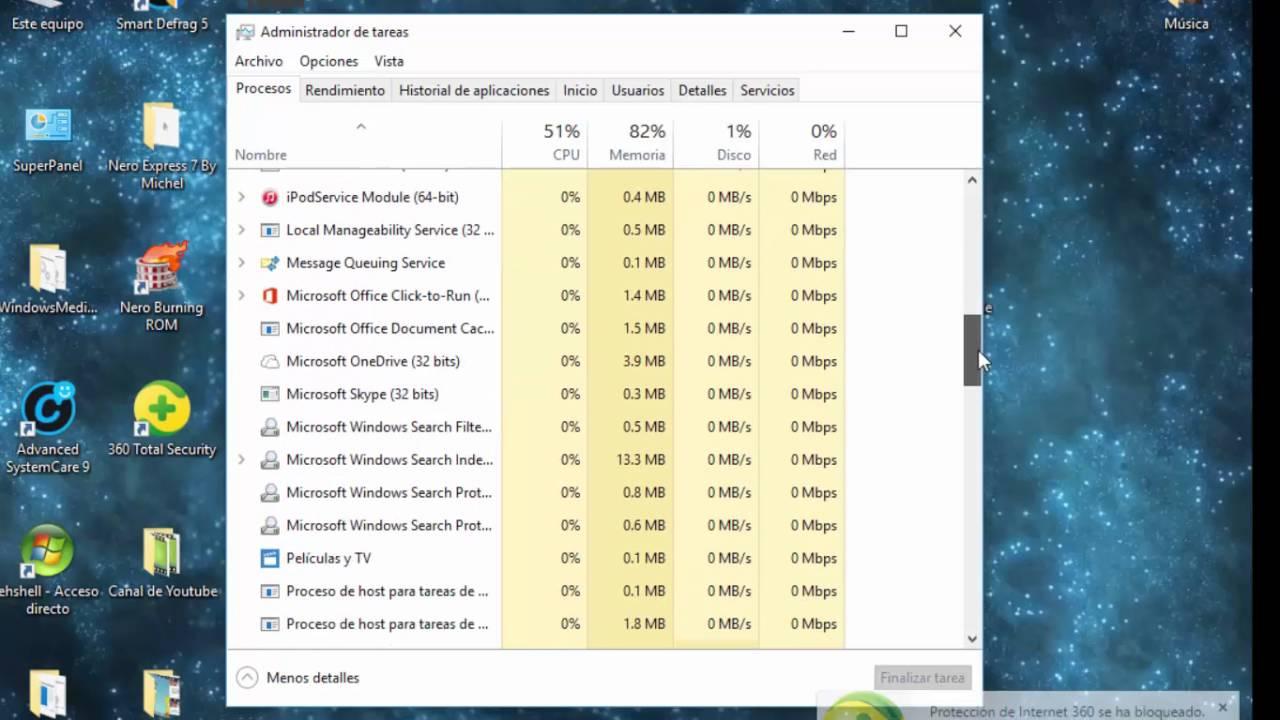
How Windows displays background processes in Task Manager
The Windows Task Manager is the primary tool for seeing what's running. In recent versions, the Processes view typically groups items into three main categories: Applications , Background Processes , and Windows Processes (or a similar name, depending on the version). This structure helps you understand at a glance what's running.
However, if you've performed a clean boot or other configuration changes, this classification might no longer be so clear , and you might see all the processes jumbled together in a single list. This doesn't mean Windows is broken, but it does make it much harder to identify what belongs to what.
That list often includes several names that raise questions for many people: Microsoft Store , Microsoft services , Desktop Window Manager (dwm.exe) , Cortana , system processes like System , and a number of tasks called "Service Host." All of these are part of the modern Windows architecture and, generally, shouldn't be tampered with lightly.
The trick is to use the CPU, memory, disk, and network columns in Task Manager intelligently, and, if needed, consult CPU cache optimization guides . If you sort by CPU usage, you'll quickly see which process is consuming the most . Even if it's a "Microsoft" process, if it's constantly spiking, it could indicate a problem (for example, a service stuck trying to update or unsuccessfully connecting to the internet).
Microsoft services and processes that consume the most resources
In many cases, those experiencing performance issues find that it's not so much third-party applications (games, design programs, etc.) but rather certain Windows-related processes that are consuming the majority of the CPU. Among the most common are:
- Microsoft StoreIt may continue downloading or updating apps in the background.
- Microsoft Services generic or “Service Host”: they group dozens of system services within the same process.
- Desktop Window Manager (dwm.exe): handles the graphical interface, transparency effects, etc.
- Cortana or components related to Windows search.
- System and other operating system kernel processes.
It's normal for some of these to appear almost always active. The worrying thing is when, without changing anything, you notice that CPU usage suddenly spikes , the computer overheats, or the battery drains drastically. In this case, it's a good idea to check if there are any files slowing down your computer . If this also coincides with internet problems (for example, a "network change detected" message in the browser or the Windows Mail app failing to sync), there's a good chance that a network component or update service is experiencing a recurring failure loop.
Disabling Cortana "as much as possible" might alleviate some of the load, but it's rarely a magic bullet. In practice, the key is to examine what the system is trying to do: download updates? sync accounts? reconfigure the network? When one of these tasks fails, the services retry repeatedly, creating a vicious cycle of resource consumption.
The role of third-party applications and clean booting
Many tutorials recommend a "clean boot" to check if the problem originates from third-party applications . This process involves disabling non-essential services and programs that load at startup, so that Windows starts with the bare minimum required to function.
If, after performing a clean boot, you still see that the Microsoft Store, Microsoft services, Task Manager, or Desktop Window Manager are using the most resources, it's reasonable to conclude that external programs (AutoCAD, Adobe Reader, Octave, etc.) aren't the main culprits. In fact, uninstalling resource-intensive software that you rarely use is a good maintenance practice, but in the case described, it hasn't changed anything.
In this scenario, it makes sense to focus attention on Windows and its own components , or on deeper problems such as file system errors, faulty drivers, an update that has gotten stuck, or conflicts with the network card.
It's also important to note that when you perform a clean boot, the way processes are displayed in Task Manager may change. The "Running, background, and Windows apps" section may lose some of its structure, showing all processes mixed together. While this is inconvenient, it doesn't necessarily mean your system is damaged; it's simply a consequence of having common services temporarily disabled.
Relationship between background processes and network problems
A very noticeable symptom that often accompanies these process disruptions is difficulty browsing the internet. It's relatively common to see messages like "a network change has been detected" when trying to load a page, or for even the Windows Mail app to fail to connect and download emails.
This message typically appears in browsers like Chrome when Windows suddenly changes certain network parameters: for example, the IP address is renewed, the network adapter is restarted, a proxy is modified , or communication is momentarily interrupted. When this happens repeatedly, the browser detects these continuous changes and issues a warning.
At the same time, it's normal to see activity in Task Manager from processes like Microsoft Network Services, Update Services, the Microsoft Store itself, or "Service Host: Network Service." These components attempt to establish or maintain connections, and when they encounter errors, they try again. This endless cycle generates both unnecessary resource usage and connection instability.
Although a virus is sometimes the first thing that comes to mind, when problems suddenly appear after turning on the laptop and coincide with strange Windows behavior (update failures, recent driver changes, power outages, etc.), it is usually more likely to be an operating system or network configuration failure than malware.
Could it be a virus or is it a Windows problem?
When your laptop starts behaving strangely without you having installed anything new, it's normal to wonder if it's a virus or a Windows problem . There are several clues that can help you figure it out without needing to be a technician.
If the processes that consume the most resources are, as in the case described, Microsoft Store, Microsoft services, System, Service Host and others clearly identified as part of the operating system, the balance tips towards thinking about an internal Windows problem (stuck updates, damaged files, corrupted configuration, etc.).
That doesn't mean you should completely rule out a virus. It's always advisable to run a full scan with your trusted antivirus software (or an updated version of Windows Defender) to be sure. But if the scan doesn't detect anything and the symptoms are consistent with Windows services running in a loop, the sensible thing to do is work on the system itself, not obsess over malware.
In summary, when the problem suddenly appears upon turning on the laptop, without having browsed dubious websites or installed unusual programs, and also coincides with network errors, high CPU usage, and Microsoft processes running at the top , the likelihood points more to Windows than to a serious infection.
How to limit which apps can run in the background
Windows offers a dedicated panel for choosing which applications can continue running in the background. While it won't solve the most serious problems on its own, it significantly helps reduce the number of unnecessarily active processes , especially those of modern (UWP) apps that come pre-installed on the system or are installed from the Microsoft Store.
In Windows 10, the typical path is to go to Settings > Privacy > Background apps . There you can disable this feature for all apps or disable it for each one individually. In Windows 11, the menu organization changes slightly, but the idea is the same: locate the section where you manage whether apps from the Microsoft Store can run in the background.
It's best to apply a practical approach: only leave in the background those applications that truly contribute something when you don't have them open, such as email, the Calendar app, or messaging tools. The rest (games, occasional utilities, tools you use only occasionally) are best left running only when you explicitly open them.
However, this setting primarily affects modern apps. System services and many classic desktop programs aren't controlled from there, so even if you disable almost everything, you'll still see a significant number of background processes in Task Manager.
Good practices for diagnosing and alleviating the problem
If you find yourself experiencing a slow computer, Microsoft processes consuming too much resources, and network problems, a combination of steps can help you isolate the source and alleviate symptoms , although they are not a magic bullet in all cases.
First, it's worth checking which processes are using the most CPU and memory in the Task Manager. Right-clicking on each one lets you see additional details, open the file location, or search for information online, which helps distinguish legitimate processes from potentially suspicious ones.
Next, it's helpful to review your Windows update history and check for any updates that have repeatedly failed. Sometimes, a feature or driver update that fails to install completely keeps several services running in the background , trying to complete the task over and over again.
In parallel, checking the network connection status (WiFi adapter, cable, router, DNS, etc.) can reveal why you're seeing messages like "a network change has been detected" and why Windows Mail isn't even syncing . Resetting the network settings from within Windows settings, or updating/reinstalling the network adapter driver, is usually an effective solution when connectivity is the issue.
Finally, if you've already tried uninstalling resource-intensive programs you don't use, performed a clean boot, run an antivirus scan, and are still experiencing the same issue, you might need to consider more drastic options such as a Windows repair while keeping your files or, in extreme cases, a clean reinstall. It's not pleasant, but sometimes it's the only way to untangle an internal system problem that can't be fixed with superficial adjustments.
In short, Windows background processes are necessary for the system to function normally, but when something goes wrong, they can become a real headache: skyrocketing CPU usage, Microsoft services constantly at the top of the list, a chaotic Task Manager, and a constantly unreliable network . Understanding what each type of process does, limiting the applications that should actually remain active, checking the status of updates and the connection, and knowing when the problem is more likely related to Windows than a virus allows you to make informed decisions and restore your computer's stability without having to operate blindly.
Table of Contents
- 1 What are background processes in Windows?
- 2 How Windows displays background processes in Task Manager
- 3 Microsoft services and processes that consume the most resources
- 4 The role of third-party applications and clean booting
- 5 Relationship between background processes and network problems
- 6 Could it be a virus or is it a Windows problem?
- 7 How to limit which apps can run in the background
- 8 Good practices for diagnosing and alleviating the problem