- A firewall controls network traffic by applying rules based on IP addresses, ports, protocols, and applications to block unauthorized access.
- The combination of router firewall, operating system and, where applicable, NGFW and segmentation provides an effective defense in depth.
- Properly designing network zones, ACLs, and records, and testing the configuration with security tests, is key in corporate environments.
- Disabling the firewall for convenience exposes the system to serious risks; the correct approach is to set specific rules and keep it always active.
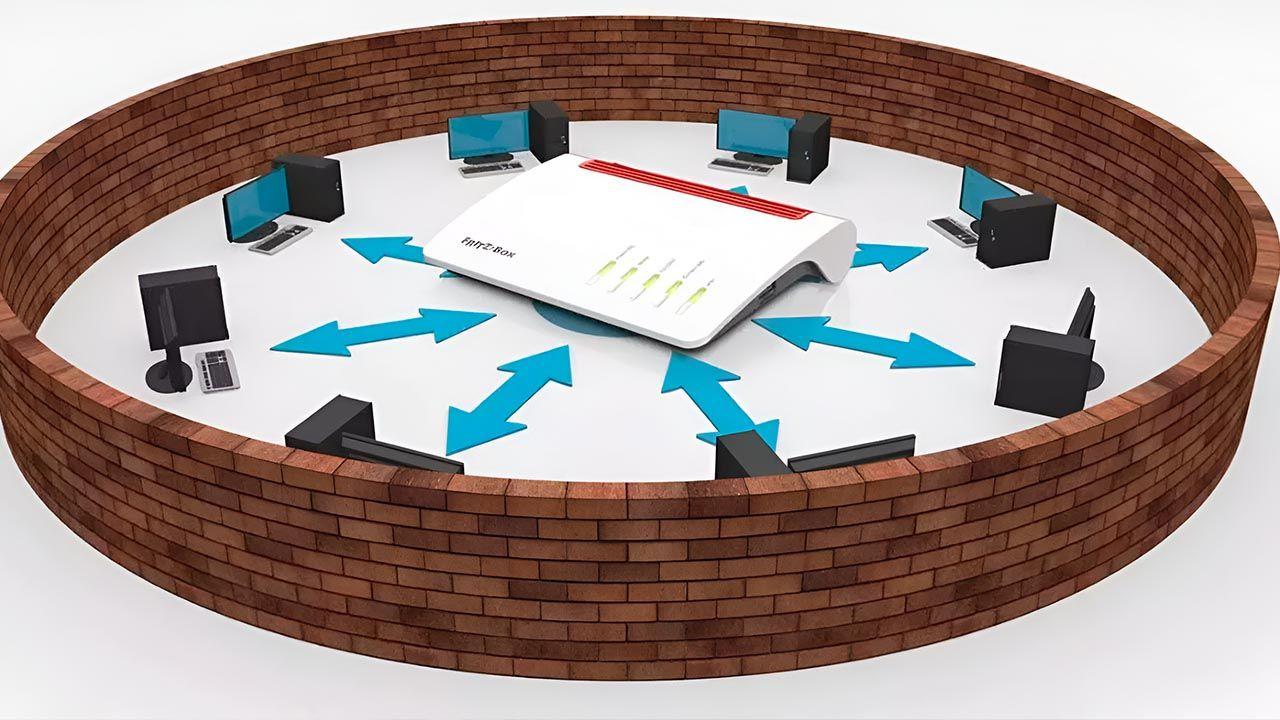
In any modern network, from home Wi-Fi to a large enterprise's infrastructure, the firewall is the first line of defense against attacks, unauthorized access, and data leaks. Without proper configuration, it's like leaving your front door ajar: nothing might happen… until it does.
Even so, many users and even some organizations have their firewalls running with the default settings, without really understanding what they do or how to adjust them . Here you'll find a comprehensive and very practical guide on what a firewall is, how to configure it on Windows, macOS, Linux, routers, and server environments, as well as advanced best practices (NGFW, segmentation, logging, extra tools) so you can tailor the level of protection to your environment without getting overwhelmed.
What is a firewall and why is it so important?
A firewall is a system that analyzes the traffic entering and leaving your network or device and decides what to allow and what to block based on a set of rules. This traffic consists of data packets that travel using different protocols (TCP, UDP, ICMP, etc.) and ports.
The idea is simple: the firewall acts as a filter and barrier between the device or internal network and the internet . It checks where a packet comes from, where it's going, which port it uses, and what type of content it carries. If it matches an allowed rule, it lets it through; if not, it blocks it. This logic offers clear advantages: greater security, a lower probability of malware infection, and greater control over what goes in and what goes out.
Imagine your firewall as the front door of your digital home : you decide who you let in, who you keep out, and which areas of the house each guest can visit. Furthermore, a firewall doesn't just stop attacks; it also allows you to restrict access to certain websites or applications that, while not malicious, you don't want used (for example, social media in a corporate environment).
In the real world, we find two main types of firewalls: software firewalls (integrated into the operating system or installed as a program) and hardware firewalls (dedicated devices, often integrated into professional or enterprise routers). In addition, there are next-generation firewalls (NGFWs) , which combine several layers of advanced security, deep packet inspection, IPS, and application segmentation and control features.
Types of firewalls you might encounter
Within the umbrella term "firewall" there are several technologies with different approaches. Understanding them helps you know what you're looking at when you check your router's configuration, your operating system, or an enterprise NGFW.
The first group consists of packet -filtering firewalls . These create control points on routers or switches and perform a simple check of each packet based on source IP address, destination IP address, port, and protocol. They are fast, but they don't analyze the content in depth.
Then there are circuit-level gateway firewalls , which focus on approving or denying connections based on the session state, without inspecting each packet in detail. They are very efficient, but less effective at detecting complex threats.
Stateful inspection firewalls combine packet information with TCP connection tracking. They maintain a table of active sessions and verify that traffic matches an allowed flow, providing more robust protection than simple static filtering.
We also have application-level gateways or proxy firewalls . These operate at the application layer and inspect HTTP, FTP, and other traffic, allowing for highly granular policies based on application type or even content. This approach forms the basis of many cloud firewalls and deep traffic inspection tools.
Next-generation firewalls (NGFWs) integrate deep inspection, application control, intrusion prevention system (IPS) functions, web category filtering, advanced file analysis, and increasingly, AI-based capabilities. They can be deployed as physical equipment, virtual machines, or cloud services.
Furthermore, based on their location, we can distinguish between software firewalls (on each PC, server, or device) and hardware firewalls (dedicated appliances at the network perimeter). In addition, there are cloud firewalls , which act as large proxies capable of scaling to protect distributed environments and organizations with many users and locations.
Firewall on the router: the first line of defense in your network
The router you have at home or in the office usually has a built-in firewall and NAT/PAT . This means that, by default, no one can open a direct connection from the internet to your internal devices unless there is port forwarding, an active DMZ, or misconfigured protocols like UPnP.
The typical policy on a modern router is to "deny all incoming traffic unless explicitly allowed ." This is reinforced by IPv4 NAT/PAT: internal devices use private IPs, and the router translates their outgoing connections to a public IP. Any attempt to initiate communication from the internet without an open port or a pre-existing rule will be rejected.
That's why it's so dangerous to open a DMZ to a PC on the local network that doesn't have its own firewall properly configured: that computer will be completely exposed to the Internet, with all ports accessible except those redirected to another machine.
Basic best practices for router firewalls include not opening ports that aren't strictly necessary, avoiding the use of DMZ except for very specific devices (like a game console), and always disabling UPnP to prevent devices from opening ports on their own. Manually opening ports gives you complete control over what is exposed.
It is also advisable to periodically check which ports are open, close those that are no longer used, and limit, where possible, the IPs that can access sensitive services (for example, allowing SSH only from a specific administrative IP and not from the entire Internet).
Common firewall options on home and advanced routers
Depending on your router brand, firewall configuration options may vary, but the logic is similar: security profile, rules, and additional filtering . Let's look at some representative examples.
ASUS Routers
ASUS routers integrate an iptables -based firewall . From the web interface, in the "Firewall" menu, you can enable or disable the firewall for IPv4 and IPv6 (it is enabled by default, as it should be) and configure anti-DoS measures that block source addresses that make too many connection attempts.
Another common option is to block ping requests (ICMP Echo-requests) to the WAN interface, so your router doesn't respond (stealth mode). In IPv6 environments , the firewall is configured with a very restrictive inbound policy : each device has its own public IP address, but unexpected incoming connections are blocked, while outgoing connections are allowed normally.
ASUS also offers "LAN to WAN Filter" features, allowing you to block traffic from your LAN to the internet based on source IP address, destination IP address, and ports. Additionally, URL and keyword filtering is supported internally by the firewall to enforce restrictions.
Livebox Routers (Livebox Fiber, etc.)
On Livebox routers, commonly used by internet service providers, the firewall is managed from the "Advanced Settings > Firewall Settings" menu. There you can select from several levels: low, medium, high, and custom.
The "low" filtering level offers virtually no filtering (beyond what's essential for NAT) and is intended for advanced users who prioritize flexibility over security. The "medium" filtering level, which is usually the default, drops all incoming connections and allows outgoing traffic except for very specific services like NetBIOS.
The "high" profile is the most restrictive: it only allows outbound connections to well-defined standard services and blocks unexpected incoming connections. The "custom" mode allows the user to set specific rules and is intended for administrators who know what they're doing; with poor configuration, you can block legitimate services or leave significant vulnerabilities.
AVM FRITZ!Box Routers
FRITZ!Box devices feature a fairly comprehensive firewall. In the advanced view, under the "Internet > Filters" menu, you can activate stealth mode to avoid responding to pings on the WAN and block sensitive ports such as 25 (unencrypted SMTP), NetBIOS, or Teredo if they are not in use.
In NAT environments, it's crucial to regularly review the port forwarding settings and close any that are no longer needed to prevent outdated services from becoming entry points. The FRITZ!Box's own remote management services should also be disabled if they aren't essential; instead, it's more secure to access the router via a VPN and, once inside the network, manage it using its private IP address.
FRITZ!Box also offers IPsec-based remote access and site-to-site VPN connections. This is a good way to avoid exposing services directly to the internet and force all remote access through an encrypted and controlled channel.
Next-generation firewalls (NGFW) and advanced security
In corporate environments, next-generation firewalls, such as the FortiGate range, go far beyond simple port filtering. These devices integrate advanced networking features and deep security onto a single platform, reducing the need for numerous separate devices.
FortiGate, for example, is based on the FortiOS operating system and incorporates SD-WAN, ZTNA (Zero Trust Access), WLAN and LAN integration, deep inspection of encrypted traffic, IPS , web category filtering, and AI-based analytics capabilities through FortiGuard services.
These NGFWs typically rely on a custom ASIC architecture , enabling very high performance and improved energy efficiency, even when inspecting large volumes of encrypted traffic. Furthermore, they are integrated into what is known as a "Security Fabric": a security mesh that spans networks, endpoints, and clouds, with unified policies managed from platforms like FortiManager.
The key to this approach is that the entire network surface is covered with consistent policies : from the perimeter to the endpoint, including hybrid and cloud environments. This facilitates a rapid response to emerging threats, segments complex networks, and provides complete visibility into traffic and security events.
Steps to design and configure a well-structured network firewall
When we talk about firewalls in enterprise networks (physical or virtual), it's not enough to simply plug in the equipment and leave the default settings. A pre-designed configuration of zones, IP addresses, and policies is necessary to allow for fine-tuned traffic control.
Design firewall zones and IP addressing scheme
The first step is to identify network assets (servers, critical applications, workstations, IoT devices, POS systems, VoIP, etc.) and group them according to their function, sensitivity level, and access needs . Instead of a single, flat network where everything is interconnected, segments or zones are created.
It's typical to define a DMZ (demilitarized zone) for servers exposed to the internet, such as web, email, VPN, or public API servers. In these zones, internet access is restricted to only what is absolutely necessary. Internal servers, such as databases, management systems, workstations, and voice or point-of-sale devices, are placed in internal zones with stricter security policies.
When using IPv4, it is essential to use private address ranges for all internal networks and configure NAT so that internal devices can access the internet when needed. As the infrastructure is built, switches with VLAN support are used to maintain Layer 2 logical separation between segments.
Once the zone structure and IP addressing plan are clear, the corresponding zones are created in the firewall and assigned to physical interfaces or subinterfaces . This mapping is key to ensuring that firewall rules are applied correctly between zones.
Configure access control lists (ACLs)
With the zones now defined, it's time to create the rules that dictate what can communicate with what . These rules are implemented as ACLs (access control lists), where the traffic allowed (or denied) between zones is specified in as much detail as possible.
Access Control Lists (ACLs) are applied per firewall interface or subinterface, and it's best to fine-tune the source IP address, destination IP address, and ports as precisely as possible . In other words, it's better to allow "this server to this port on this database" than "this entire network to all ports on the other network."
A very important rule is to "deny all" at the end of each ACL. This restrictive policy ensures that any traffic not explicitly covered is blocked . Subsequently, inbound and outbound ACLs are applied to each interface, adjusting the behavior according to the direction of the traffic.
It's a good idea to disable public access to the firewall's management interfaces and make sure to test not only that the applications are working, but also that unwanted traffic is effectively blocked . For example, you should verify that application-level control features (web category blocking, advanced file analysis, IPS, etc.) are operating as expected.
Configure additional services and logs
Many firewalls allow you to enable additional services like DHCP, NTP, or IPS directly on the device. Only enable those services you will actually use; disable the rest to reduce your attack surface.
Another critical aspect is logging configuration. To comply with regulations such as PCI DSS , the firewall must send detailed logs to a logging server or SIEM, covering aspects such as who accesses the system, from where, to which service, and with what result. PCI DSS, for example, sets specific requirements in sections 10.2 and 10.3 regarding the content of these logs.
The volume of logs can be high, but it's the only way to audit access and detect attack patterns or anomalies . It's advisable to define policies for retaining, rotating, and monitoring these events to be able to respond quickly when something seems amiss.
Thoroughly test the configuration
Before deploying a new firewall configuration, or after a major change, it's essential to validate that it blocks what it should and allows what's necessary . This includes port scans, vulnerability assessments, and penetration testing.
It's also essential to have backups of the configuration in a secure location and to test the rollback process. Before making any critical changes, document the planned modifications and verify that you know how to restore the firewall if something goes wrong during the maintenance window.
Firewall in virtual server networks (private or public cloud)
On cloud server platforms, it's common to have a network-level firewall configurable from the control panel, in addition to the operating system's own firewall and any intermediate firewalls. Understanding the order in which these are applied helps avoid rule conflicts.
Typically, incoming packets first pass through the network firewall (managed by the platform), then through the server firewall (for example, iptables on Linux or Windows Firewall), and finally through any additional software-based firewalls. Outgoing traffic follows the reverse path.
In this type of panel, the configuration is usually based on rules with name, action (allow or deny), source and destination (IP, ranges, CIDR, "any", "internal", "external"), source and destination ports (a specific port, range or "any") and protocol (TCP, UDP, both or ICMP).
A key detail is the order of the rules : the higher a rule is in the list, the higher its priority. A "deny" rule placed before a "allow" rule for the same traffic will cause that traffic to be blocked. That's why they usually allow you to reorder rules by dragging and dropping, to adjust priorities.
If the firewall is in off mode, all packets enter and leave without filtering. In active mode, the default behavior is usually to "allow anything that doesn't match any rule," although it's much more secure to set a default deny policy and allow only what's necessary , especially in environments with sensitive data.
Firewall in the operating system: Windows, macOS and Linux
In addition to the router's firewall and any cloud-based network firewall, every modern system includes its own layer of protection. Configuring it properly provides a defense-in-depth approach , especially useful if any service is exposed to the internet or if an attacker gains access to the local network.
Windows Firewall: Basic and Advanced Configuration
In Windows, the built-in firewall (Windows Defender Firewall or Microsoft Defender Firewall) filters traffic based on predefined and custom rules . You can view and manage it from the Windows Security app, under the "Firewall and network protection" section.
The first step is to check the active network profile: domain, private, or public. A private network (like your home network) assumes a relatively reliable environment and allows more incoming connections, while a public network (like a coffee shop's Wi-Fi) has stricter rules and blocks almost everything coming from outside.
From this interface, you can enable or disable the firewall for each network type, although disabling it is not a good idea because it increases vulnerability to unauthorized access . If a legitimate application isn't working because it's blocked, the correct approach is to create an exception or open a specific port for it, not to turn off the entire firewall.
Advanced settings manage inbound and outbound rules , which determine which connections are allowed. Windows classifies these rules into four types: program rules (which allow or block a specific executable), port rules (which control specific TCP/UDP ports), predefined rules (provided by the system), and custom rules (the most flexible, allowing you to combine program, port, protocol, and address).
Additionally, there's an option to block all incoming connections , including those on the allowed list. This is useful when you need maximum security, although it may cause essential services (shared files, remote desktop, etc.) to stop working.
Many organizations use centralized management tools, such as the Ivanti Endpoint Security Solution Agent Configuration . These tools allow users to create a Windows Firewall policy and deploy it en masse to devices running different versions of Windows (XP/2003, Vista, and later), defining inbound/outbound rules, exceptions, and firewall activation/deactivation as part of configuration or repair tasks.
Help, utilities, and security definitions in Windows Firewall
Detailed configuration can be somewhat complicated, so there are tools that make everyday tasks easier. TinyWall , for example, acts as a management layer over the Windows firewall and allows you to change operating modes (more or less restrictive), display active connections, create whitelists, and prevent the firewall itself from blocking applications you need.
Another example is Windows Firewall Control , which integrates into the system tray and offers quick profiles (high, medium, low, no filter) and a convenient interface for managing rules, importing/exporting configurations, and activating a learning mode that detects digitally signed programs to create rules more intelligently.
In enterprise security solutions like Ivanti Endpoint Security, specific security threats related to Windows Firewall are defined (for example, ST000102 for Windows Firewall in XP/2003). These definitions include customizable variables that allow you to track whether the actual firewall configuration matches the desired policy and, if not, mark the computer as vulnerable and launch repair tasks to enforce the correct settings.
Firewall in macOS
On a Mac, the firewall is configured from "System Settings" (or "System Preferences" in older versions), within the Network & Firewall section . There you can activate it and then access advanced options to decide how to handle incoming connections.
Among other things, you can block unsolicited connections , allow only essential apps and services, control which specific applications can receive traffic, and enable the automatic addition of trusted apps to the allowed list. It's a simpler system than Windows in terms of port detail, but very effective for the average user.
In corporate environments, this is usually complemented by centrally managed security policies, which ensure that all Mac machines follow the same rules regarding exposed services and applications allowed to receive connections.
Firewall on Linux: UFW as a simple option
In Linux, especially in distributions like Ubuntu, it's common to manage iptables (or nftables) using more user-friendly tools. One of the most popular is UFW (Uncomplicated Firewall) , which offers straightforward commands for activating the firewall and defining rules.
Installation is done through the package manager (for example, “sudo apt-get install ufw”), and although UFW is usually disabled by default, it's advisable to check its status with “sudo ufw status” before enabling it. Do not enable it without first defining the basic rules , as this would block all incoming connections and you could lose remote access.
Typical rules include allowing SSH (“sudo ufw allow ssh”) to maintain remote access, opening HTTP and HTTPS (“sudo ufw allow http”, “sudo ufw allow https”) for web servers , and then adding ports as needed. Once the basic rules are set, the firewall is enabled with “sudo ufw enable” and its status is checked with “sudo ufw status”, which displays the list of allowed services and ports.
Since Linux is already a fairly robust system, having UFW configured provides an additional layer of security that is highly recommended , especially on servers accessible from the Internet.
Network segmentation, policies, and credential theft prevention
One of the most effective strategies for improving security is network segmentation . By dividing the network into segments (by function, device type, risk level), traffic from one segment is not visible from another, reducing the impact of any incident.
This is especially relevant with IoT devices, which often run on older, vulnerable systems. Placing them in VLANs or isolated zones and strictly limiting their access minimizes the risk of a failure in an IP camera or sensor compromising the entire corporate network.
Another key issue is firewall policy optimization . Adding rules without reviewing them leads to chaotic build-ups, conflicts, and a nearly unmanageable firewall. Ideally, you should migrate from port-based rules to application-based rules, with clear visibility into which services are being allowed or denied, and review them periodically to remove obsolete entries.
Some advanced firewalls include features to prevent the theft of corporate credentials . They scan login attempts (username and password) and cross-reference them with internal lists of the organization's accounts, blocking their use on external sites such as social media or services unrelated to the business. They can also display warnings to the user explaining the risks of reusing work credentials.
These types of controls not only stop direct attacks, but also serve as a security awareness tool , making the impact of password usage habits outside the corporate environment more visible to employees.
What happens if you disable the firewall (and why you shouldn't)
It's common for someone having problems with an application or online game to try disabling the firewall "to see if that fixes it ." And yes, sometimes it solves the immediate problem, but it opens the door to a host of risks that aren't immediately apparent.
Without a firewall, the system is exposed to external threats such as malware, Trojans, viruses, and other attacks that can be installed without any barrier. Attackers can attempt to scan router ports and, if NAT rules are also lax, find poorly protected services and use them as entry points.
A firewall also controls outbound data : without it, any malicious application would have free rein to send sensitive information to the outside world. Furthermore, many applications rely on the firewall to buffer port scanning attacks or minor DDoS attacks; disabling it eliminates that buffer.
If an app isn't working because of the firewall, the professional solution isn't to turn it off, but to create a specific rule that allows the necessary traffic , check if the router needs to open any ports, and align the rules so there are no conflicts between the local firewall and the network equipment's firewall.
Coexistence of multiple firewalls: router and PC at the same time
When you have a firewall on your router and another on your PC (for example, the Windows firewall), all incoming traffic passes through the router first and then through your computer. This dual-layer security, when properly configured, increases overall security because a failure in one layer can be compensated for by the other.
However, you have to be careful with inconsistent rules . If the router blocks a port that the PC's firewall allows, or vice versa, you might find services that don't work and not be sure which of the two layers is causing the problem.
In practice, the most sensible approach is for the router's firewall to act as the primary perimeter barrier , allowing only what truly needs to enter from the internet, while the PC's firewall controls traffic between devices on the LAN and any suspicious outgoing communication. This, combined with a well-configured NAT and avoiding excessive use of DMZ and UPnP, provides a very robust level of protection for a home or small office environment.
Ultimately, understanding how different firewalls (router, operating system, cloud, corporate NGFW) work and are linked together allows you to make more informed decisions: what services to expose, where to segment, what logs to keep, and how to adjust the rules to maintain a balance between security and usability on your network and devices.