- The DNS translates domain names to IP addresses, and any failure in that translation causes loading errors, slowness, or total loss of access to websites and services.
- Many "DNS server not responding" errors are due to poor IP configuration, corrupt DNS cache, misconfigured routers or firewalls, rather than an actual provider outage.
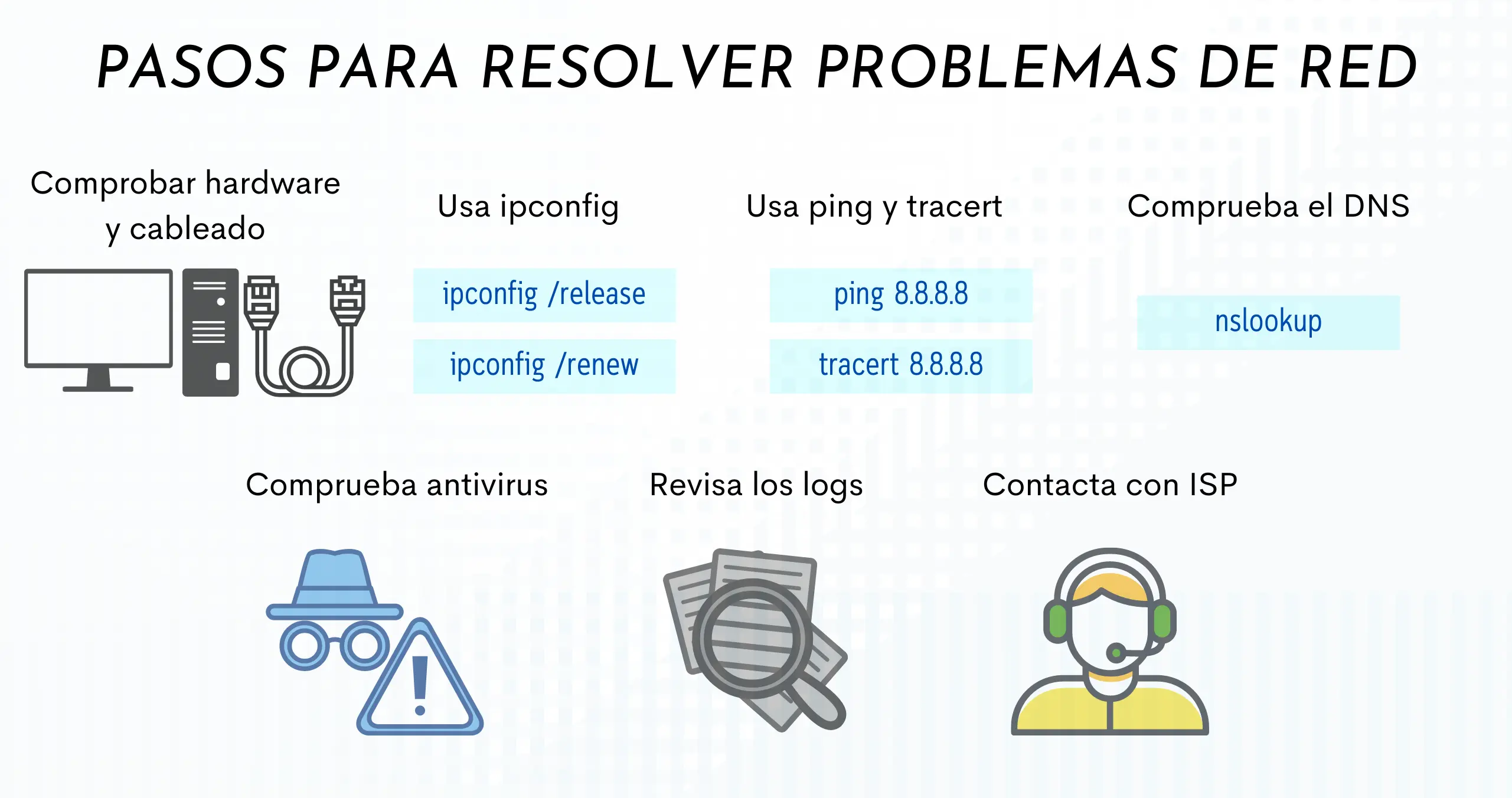
- Tools such as ipconfig, nslookup, dnscmd and event logs allow you to pinpoint whether the problem is with the client, the router, the DNS server, or recursion/delegations.
- Choosing reliable DNS servers, keeping firmware and systems updated, and monitoring the network drastically reduces the occurrence of DNS incidents and IP connectivity problems.
When everything is working properly, browsing the internet seems like magic: you type an address, press Enter, and in a matter of seconds, the page appears completely. But it only takes the DNS or the IP network to start failing for us to go from magic to despair: websites that won't load, online games that crash, video platforms that freeze, or even computers on the local network that can no longer see each other.
The tricky part is that, often, the problem isn't with the browser or the fiber connection itself, but with minor configuration details like IP, DNS, router, modem, or firewall settings that have become misconfigured. And to top it all off, the error messages are vague: "DNS server not responding," "DNS server not found," "DNS error," "Request timed out"... In this article, you'll see, in detail, what's really going on, how to diagnose it with professional tools (nslookup, ipconfig, dnscmd, etc.), and, most importantly, how to fine-tune your IP network and DNS settings so they don't cause you any more trouble.
What exactly is DNS and how does it relate to the IP network?
The DNS (Domain Name System) is, simply put, the internet's address book. Machines communicate using IP addresses, such as 192.0.2.1 or 172.217.4.46 , but humans find it easier to type www.example.com or google.com . The DNS translates these human-readable names into numerical IP addresses that the browser and operating system understand.
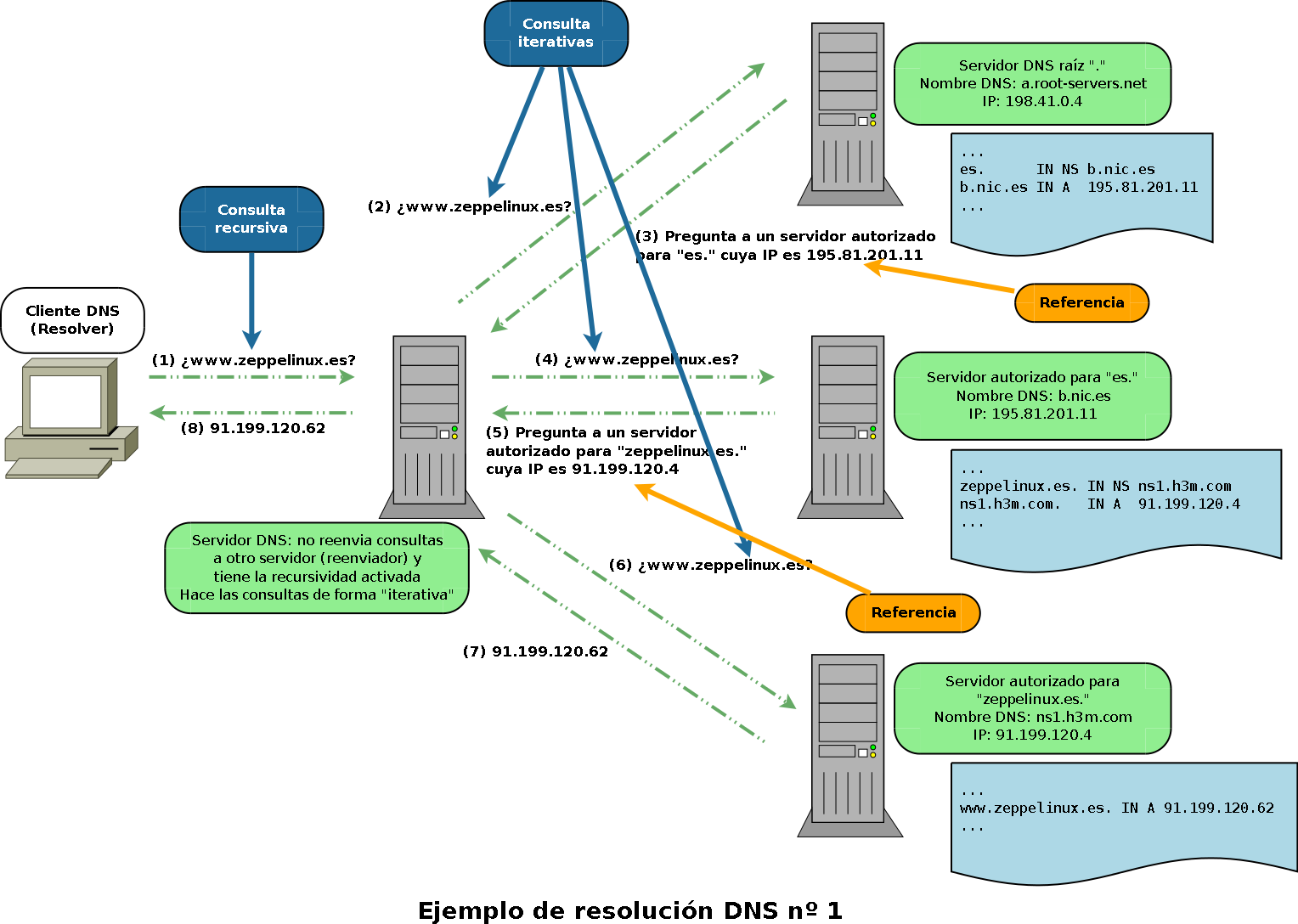
When you enter a URL into your browser, it sends a DNS query that scans your computer, router, modem, ISP network, and, if necessary, root and authoritative servers , until it obtains the correct IP address. Only then does the actual HTTP/HTTPS connection begin. If this translation breaks down at any point, you'll have a seemingly active connection (the network icons will appear correctly), but no websites will load because the names aren't being resolved.
In local or corporate networks, DNS is also the component that allows names like app1.corp.local or file-server to resolve to internal IP addresses. If there are problems with this internal DNS, you'll experience issues accessing servers, applications, email, printers, or shared resources.
Underlying all of this is the IP protocol , with its IP address, subnet mask, gateway , and DNS servers configured on the network adapter or assigned via DHCP. A failure in any of these parameters can result in DNS errors, loss of connectivity, or extreme slowness.
Typical problems in IP networks that manifest as DNS errors
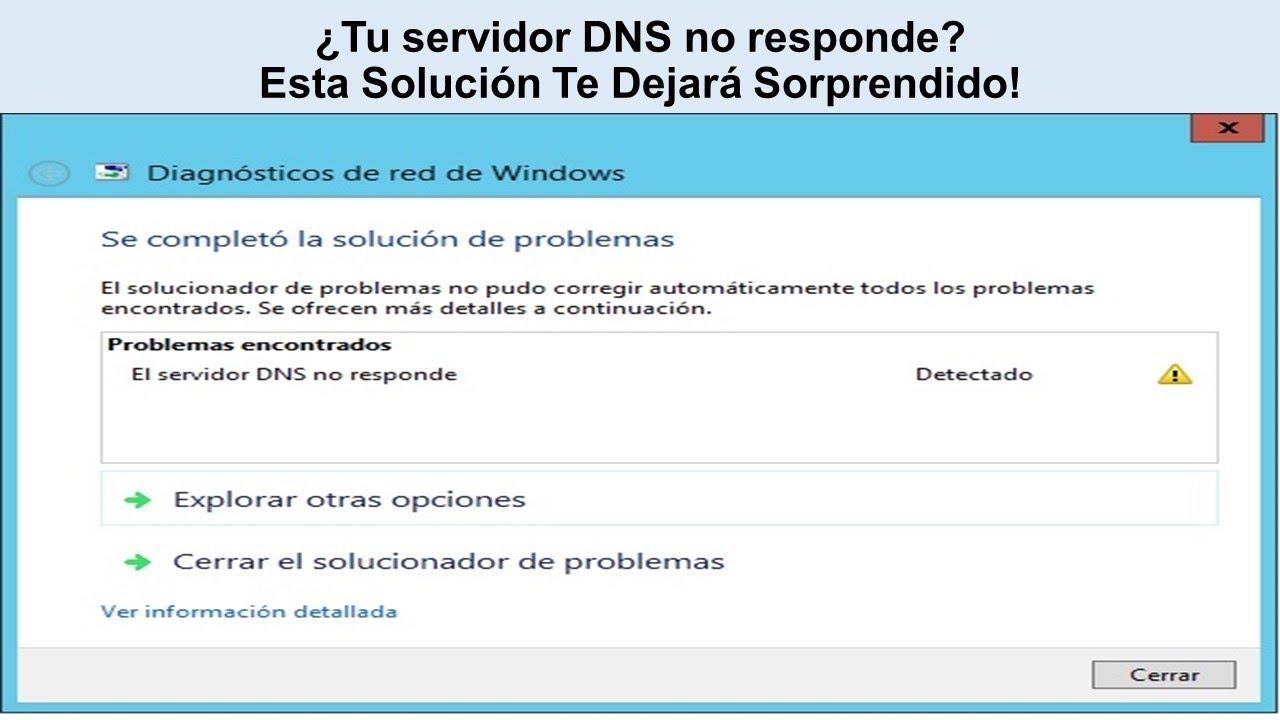
Messages like “DNS server not responding,” “DNS error,” or “DNS server not found” are just the tip of the iceberg. Underneath, there's usually a combination of incorrect IP configuration, a corrupted DNS cache, misconfigured routers, or failures in the DNS server itself.
A very common scenario is that of a user who sets up a new PC on a wired local network and suddenly finds that only one computer has internet access, the Wi-Fi stops working, and speeds plummet to a tenth of what they're paying for. At first glance, it seems like the problem with the provider, but upon closer inspection, it's discovered that there are conflicting IP and DNS assignments , corrupted caches, or even ports blocked by a firewall.
The most common symptoms related to DNS and IP network are:
- Apparent connection but no websites loadingThe network icon indicates a connection, but no page responds or the connection times out.
- Only some sites failYou can access some websites, but others return DNS errors or fail to resolve the name.
- Extreme slownessThe pages eventually load, but each name resolution is very slow because your ISP's DNS server or your internal one is overloaded or misconfigured.
- Problems with email, SaaS apps, or VPNEven if the browser is working, certain services depend on domain names that are not resolving correctly.
- Local network equipment that “disappears”Servers or PCs become inaccessible by name, even though they still respond when pinging the IP address directly.
In server environments, the symptoms become even more serious: critical service outages, zone transfers that fail, broken recursion, corrupted DNS delegations, or outdated secondary zones.
Basic verification of IP and DNS configuration on the client
Before messing with routers or servers, it's a good idea to make sure that the IP and DNS settings on the affected device are consistent. On Windows, the starting point is the classic one:
ipconfig / all
This command shows you, for each adapter, the configured IP address, subnet mask, gateway, and DNS . Things to check:
- The IP address belongs to the expected network. (for example, 192.168.1.x if your LAN is 192.168.1.0/24).
- The subnet mask It makes sense (255.255.255.0 in many domestic scenarios).
- The gateway It is usually the router's IP address (192.168.1.1, for example).
- The DNS server pointed to It is consistent: your router, a local DNS server or public DNS (Google 8.8.8.8, Cloudflare 1.1.1.1, OpenDNS, etc.).
If you suspect a specific DNS server, you can test it directly with:
nslookup
For example:
nslookup app1 10.0.0.1
If that query returns "Server Error," "Query Rejected," "Request Timed Out," or "No Response from Server ," you know something is wrong with that DNS server (or it's not accessible from your network). If it responds with the correct IP address, the problem could be with the client, the network path, or an intermediate firewall.
On Windows servers acting as DNS servers, it's also a good idea to flush the resolution cache to discard outdated data:
- Command console (administrator): dnscmd /clearcache
- PowerShell (administrator): Clear-DnsServerCache
Common causes of “DNS server not responding” errors
There are a number of scenarios that repeat themselves time and again in both home and professional networks. Understanding them will help you get straight to the root of the problem without wasting time.
Corrupted or outdated DNS cache in the operating system
Your computer stores a local DNS cache containing the latest DNS lookups to speed up browsing. If this cache becomes corrupted or stores outdated records (due to hosting changes, migrations, DNS zone changes, etc.), you'll see errors when accessing domains that work fine on other devices.
In Windows you can fix this by running the following command in the command prompt with administrator privileges:
ipconfig / flushdns
On macOS, the typical equivalent is:
sudo dscacheutil -flushcache; sudo killall -HUP mDNSReply
On mobile devices, often simply restarting the device or toggling airplane mode on and off is enough to force the clearing of network caches.
Incorrect router or modem configuration
Your router and modem act as a gateway between your LAN and the internet . If their DNS settings are incorrect (for example, pointing to a server that no longer exists, or with incorrectly defined forwarders), widespread errors will occur across all devices on the network.
Typical configuration errors:
- Incorrectly configured manual DNS servers on the router, inherited from old tests.
- DHCP delivering internal DNS that is no longer active or that only work for part of the network.
- Filters or firewall rules on the router that block port 53 UDP/TCP to certain DNS servers.
In these cases, a good starting point is to restart the modem and router (turn them off, wait 30-60 seconds and turn them back on) and, if the problem persists, check the configuration or even restore to factory settings and reconfigure from scratch.
Interference from firewall, antivirus, or VPN
Firewalls, antivirus solutions, and VPNs are designed to protect, but overly aggressive settings can end up blocking DNS queries or routing them through faulty tunnels . This includes both operating system firewalls and advanced network security devices.
Logical steps to check it:
- Temporarily disable your antivirus and firewall (knowing what you're doing and just to test it).
- Close any VPN Make sure it's connected and try browsing again.
- On corporate firewalls, check that port 53 is not being filtered or redirected strange way.
If everything works correctly after disabling these elements, it's time to review rules, exclusions, and network profiles to allow DNS traffic without compromising security.
DNS server problems: load, zones, recursion, and delegations
Many enterprise networks have one or more authoritative and recursive DNS servers (for example, Windows Server with the DNS role) that respond to both internal names and internet queries. Here, the range of possible incidents is broad:
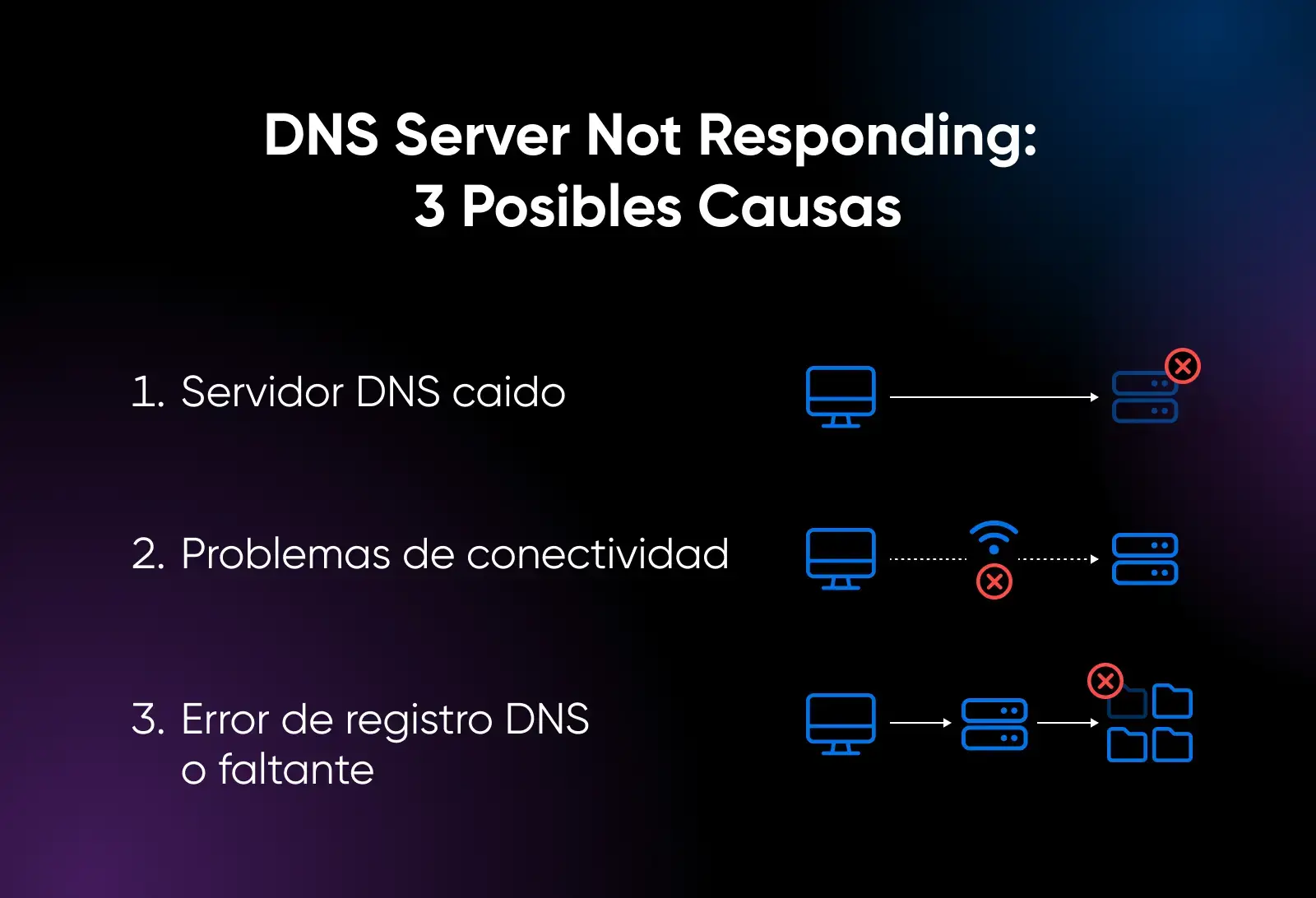
- DNS server down or service stoppedIf the Windows DNS service is not running, queries will fail with "No response from the server". You can try starting it with net start DNS.
- Server overloaded or zone pausedErrors such as “Server Error” or “Query Rejected” may indicate that the The zone is paused or the server is at its limitReview the event logs (Application, System and “DNS Server”) and the General tab of the zone.
- Broken recursionIf the server forwards queries to other DNS servers (Forwarders tab), any problems in that chain (timeouts, incorrect data, poorly assembled chained forwards) can cause external resolution errors.
- Incorrect DNS delegationsIf there is a misconfigured delegation between a parent zone and a delegate zone (for example, corp.contoso.com and sub.corp.contoso.com), you will see errors when trying to resolve names from the delegate zone.
To diagnose recursion and delegation, nslookup in interactive mode is often used , querying the NS and A records at each level, and experimenting with recursion enabled or disabled. It's a more advanced approach, but essential if you manage authoritative DNS servers.
Zone transfers and synchronization between servers
In topologies with primary and secondary DNS servers , resolution errors can occur because the secondary zone has not been updated correctly. Typical symptoms:
- The secondary server returns outdated or inconsistent data compared to the primary server.
- The event viewer appears zone transfer errors.
- By forcing a dnscmd /zonerefresh The process is not completed properly.
It is therefore advisable:
- Compare the serial number of the zone in primary and secondary, and make sure that the primary has a higher serial number.
- review the zone transfer options (Zone Transfers tab) and confirm that the secondary is authorized.
- If there are mixed implementations (e.g., Windows and BIND), check registry type compatibility and whether "fast transfer" has been disabled if the secondary does not support it.
Practical solutions for when “the DNS server is not responding”
Here is an ordered list of actions you can follow, both on client computers and in home and corporate network environments, to tackle the problem methodically.
1. Restart router/modem and devices
It sounds like a cliché, but a proper shutdown and restart often fixes a lot of network problems. Restarting clears caches, renews sessions with the ISP, and corrects minor internal network equipment locks.
- Turn off your computer (or mobile phones, tablets, etc.) completely.
- Unplug the router and modem (if they are two separate devices).
- Wait at least 30 seconds.
- Plug the modem and router back in, and wait for all the lights to stabilize.
- Turn your computer back on and try browsing.
2. Change your DNS servers to other public and reliable ones
If you suspect your provider's DNS servers are malfunctioning or overloaded, you can configure high-performance public DNS servers on your computer or router , such as:
- Google DNS: 8.8.8.8 and 8.8.4.4
- Cloudflare DNS: 1.1.1.1 and 1.0.0.1
- OpenDNS: 208.67.222.222 and 208.67.220.220
- Other commercial DNS (Surfshark DNS: 194.169.169.169, etc.).
On Windows, you can do it like this:
- Balance Windows + R, writes ncpa.cpl and press Enter.
- Right-click on your connection (Ethernet or Wi-Fi) and choose Properties.
- Choose Internet Protocol version 4 (TCP / IPv4) and press Properties.
- Brand Obtain an IP address automatically If you want the router to assign the IP address, then select Use the following DNS server addresses.
- Fill in the fields of Preferred DNS server y alternative with the values you want to use (for example, 8.8.8.8 and 8.8.4.4).
- Active Validate configuration upon exit and click OK.
3. Clear the DNS cache and refresh the IP configuration (Windows)
In many cases, especially if the connection was working fine before, simply "resetting" the network configuration of the device with a few commands is enough:
- Open the Start menu, type cmd, right click on Symbol of the system and select Run as administrator.
- Type the following commands, line by line (pressing Enter after each one):
ipconfig / flushdns
ipconfig / release
ipconfig / renew
NETSH winsock reset catalog
NETSH int ipv4 reset reset.log
NETSH int ipv6 reset reset.log
After this, restart your computer. You will have cleared the DNS cache, renewed the DHCP lease, and reset the TCP/IP stack , which fixes a ton of strange errors.
To isolate the cause, cross-testing is very useful :
- If you use Chrome, try Firefox, Edge, or any other browser.
- Use another device on the same network (another PC, mobile, tablet) and try to access the same websites.
- If you're using Wi-Fi, connect your PC to a Ethernet cable directly to the router And for Wi-Fi problems, consult How to fix Wi-Fi problems on your PC.
If it only fails on one specific device, the problem lies in its configuration, firewall, drivers, or even malware . If it fails on all devices, you should check your router, internal DNS server, or even your ISP.
5. Run the operating system's network troubleshooters
Windows and macOS include wizards that automatically detect and correct many connection failures, including basic DNS problems.
- On Windows: Settings > Network and Internet > Network troubleshooter.
- On macOS: Apple menu > Network diagnostics.
They don't perform miracles, but they can save you time on simple issues , such as disabled adapters, incorrectly applied network profiles, or inconsistent IP parameters.
Advanced techniques for diagnosing DNS problems on servers
If you manage a corporate DNS server (for example, Windows Server with the DNS role), the tools change slightly and the level of detail increases. Here, the approach is to go from simple to complex , just as with clients, but adding specific tests to the DNS service itself.
Check service status and event logs
The first thing to do is log into the server and check:
- That the DNS service is running (you can start it with net start DNS (if he is detained).
- The event logs from Application, System and “DNS Server”, looking for repeated zone errors, transfers or recursion.
If clients receive "Server Error" or "Query Rejected" when using nslookup directly against that server, the zone may be paused or the server itself may be at its resource limit (CPU, RAM, disk).
Test accessibility with nslookup from clients and servers
In addition to testing from client servers, it's a good idea to run queries from the DNS server itself and from other intermediate servers. For example:
nslookup
If the resolver returns the correct IP address, the server is working and the problem might be in the path between the client and server. If it returns:
- “Server error” or “Query rejected”: paused zone, configuration conflict or overloaded server.
- “Request to the server times out”: DNS service stopped, firewall blocking port 53, misconfigured interface, or server listening only on certain IPs.
In environments with advanced firewalls or proxies, check that a non-standard DNS port is not being used . nslookup uses UDP 53 by default; if the port has been changed, queries will fail unless you adjust the firewall rules and run tests.
Diagnosis of recursiveness and delegations
To check recursion, on a DNS server you can:
- See if it has configured forwarders (Forwarders tab of the server properties in the DNS console).
- If there are no forwarders, test if the server can query the root servers using nslookup in interactive mode and querying NS records from the root zone.
When the responses indicate "Request timed out" even to root servers and the root suggestions point to correct servers, there is usually:
- Outgoing network connectivity problems from the server.
- A firewall blocking outgoing DNS traffic.
- An overly aggressive recursion waiting time.
To secure broken delegations, one usually:
- Start nslookup on the affected server, disable recursion (set norecurse) and launch NS/A queries against each level of the domain hierarchy.
- Repeat the process with each delegate server, collecting all NS records and their A addresses.
- Detect if any A record is missing for an NS, if any NS is no longer responding, or if there are discrepancies between the parent and delegated zones.
The solution involves correcting or adding the appropriate A and NS records in the primary zone, and ensuring that the delegation points to valid and accessible servers.
Best practices to avoid future IP and DNS network problems
Once everything is working again, it's time to tackle the root of the problem so it doesn't keep happening. There are a number of simple best practices that greatly improve stability.
Keep systems, routers, and firmware up to date
Manufacturers frequently patch network stack bugs, DNS issues, memory leaks, and vulnerabilities in system and firmware updates. Leaving your router and operating system unupdated for several years is asking for trouble.
Recommendations:
- Apply regularly security patches and updates on Windows, macOS or Linux.
- Check if there is New firmware for the router or modem and apply it following the manufacturer's instructions.
- Keep network drivers reasonably up-to-date, especially after hardware changes.
Choose reliable DNS servers and properly configure your firewall and antivirus software.
If your provider is giving you trouble, you can opt to use reliable, high-quality public DNS servers (Google, Cloudflare, OpenDNS, etc.) on both your router and devices. At the same time, check your firewall and antivirus software.
- Do not block DNS queries on port 53 UDP/TCP.
- Allow resolution for both IPv4 and IPv6 if your network supports it.
- Don't force it encrypted DNS or over HTTPS experimentally without you knowing what you're doing.
Monitor connection and DNS stability
In companies, it is recommended to implement continuous DNS and network monitoring using tools such as PerfOps, DigiCert DNS Trust Manager or other similar solutions:
- Measure resolution times and detect unusual latencies.
- Monitor uptime and downtime on authoritative DNS servers.
- Receive alerts about recurring errors, query spikes, or potential attacks (e.g., DDoS on DNS service).
In smaller environments, simple periodic checks are sufficient: ping known IPs and domains , review router logs and, if DNS errors are repeated, contact the ISP to rule out network-level issues.
The combination of a consistent IP configuration, well-chosen DNS servers, controlled caches, updated devices, and consistent monitoring makes all the difference between a network that goes down every week and one that simply works flawlessly. Understanding how IP, DNS, routers, firewalls, and servers interact leaves you much better equipped to diagnose the next "DNS server not responding" error in minutes, instead of wasting hours struggling with your browser.
