- Route customization through toll management, vehicle types, and frequently used addresses.
- Optimized navigation with offline maps, traffic alerts, and voice alerts.
- Privacy settings and personal preferences to receive accurate local recommendations.
- Advanced settings for Android Auto and battery consumption optimization.
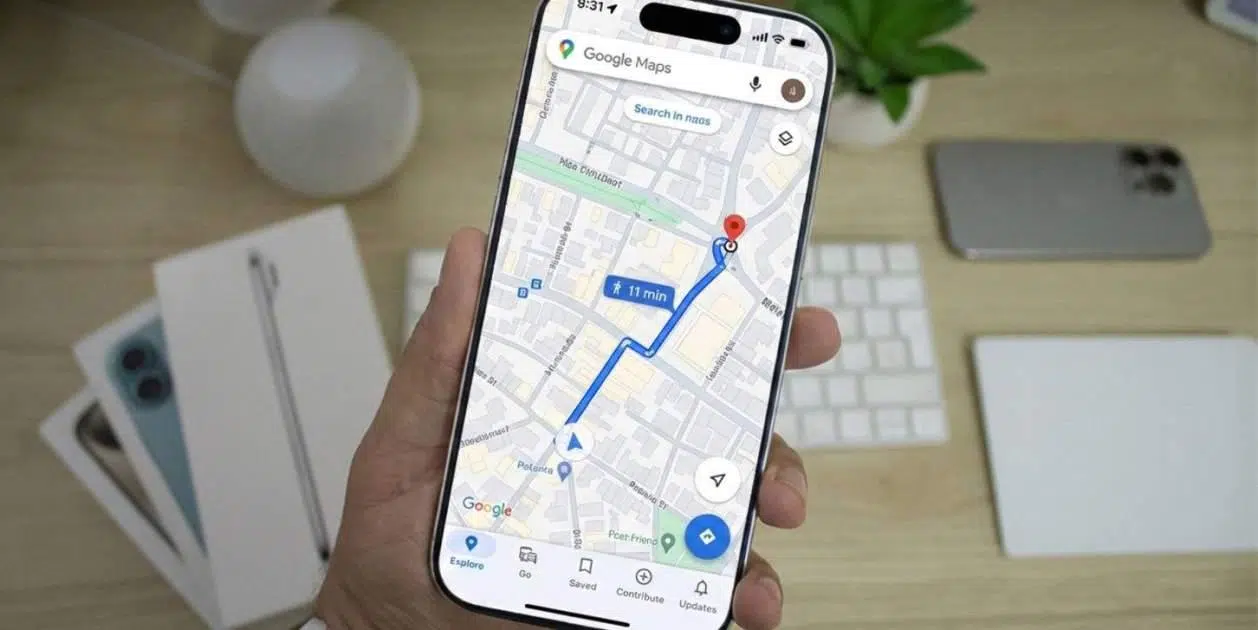
You probably use Google Maps daily to avoid getting lost, but most of us stick to the basics. The truth is, this app has a range of hidden features that can make your journeys much smoother and less stressful, whether you're walking or driving an electric car.
Having the app properly configured not only helps you get there faster, but also lets you customize the map to your liking , saving battery and mobile data in the process. Let's take a look at all the settings in Google Maps so you can get the most out of it and stop struggling with the GPS.
To get started, first make sure your GPS is enabled and that the app has location and audio permissions . Once that's done, simply search for a destination and tap the "Get Directions" button. If you're in a hurry, you can press and hold the button to skip intermediate steps and start the route directly.
If you're in an area with impressive buildings, you can activate the 3D view . To do this, go to your profile, then Settings, Navigation, and select "3D Map Detail." Keep in mind that this is usually limited to certain regions and devices, and that activating it will disable satellite and traffic layers while driving.
Sometimes, while you're driving, you need to do more. Swiping up on the bottom information card will reveal a menu with additional actions. To return to the clean view, simply swipe down.
Voice and sound settings to avoid distractions
Voice navigation is essential for keeping your eyes on the road. If you want the directions to continue playing even while you're on a phone call , go to Settings, Navigation, and select the "Play voice during calls" option. This way, you won't miss the next turn because of a call.
If you're not happy with the app's voice, you can change it. This isn't done within Maps itself, but in your phone's text-to-speech settings , under Language and input. Changing the preferred voice engine will affect all system apps, but it will leave the GPS with a more natural tone or your preferred language.
Customization of routes and travel preferences
Not everyone enjoys paying tolls or driving on highways. To avoid these sections, access your profile, go to Navigation, and under Route Options , select the elements you want to avoid. This is key for those looking for more scenic or economical routes.
If you own an electric vehicle, it's vital that Maps knows this. In the Your Vehicles section , select your motor type. This will allow Maps to suggest charging stations compatible with your specific connector, preventing you from running out of power.
To personalize your experience, you can replace the typical blue arrow with a driving avatar . In the Your Vehicles menu, find the avatar option and choose your favorite car color and model to stylishly identify your position.
Organizing frequented sites and privacy
Typing your home address every time is a hassle. Ideally, you should go to Settings, Location and Privacy, and define your home and work locations . That way, with a single tap or voice command, the app will know exactly where you want to return.
Another common problem is forgetting where you parked your car. Google Maps has a feature to save your parking location . If your car's Bluetooth is connected, the app will automatically detect it when you disconnect. If not, you can activate the option so it recognizes your movement and marks the exact spot where you got out.
Regarding privacy, from your profile picture you can manage your Google Timeline , control who sees your real-time location, or activate Incognito mode if you don't want your searches to be recorded in your history.
Optimization for Android Auto and resource saving
When using your car, Android Auto enhances the experience. An essential trick is to download offline maps . Tap your profile, go to Offline Maps, and select the area where you usually drive; this way you won't use up mobile data or experience signal drops in remote areas.
To improve accuracy when driving through tunnels, activate Bluetooth tunnel beacons in your navigation settings. This prevents the GPS from becoming erratic and ensures you know exactly which lane you're in, even without a satellite signal.
If you notice the battery draining while you're navigating, remember that the screen and GPS consume a lot of power. The best solution is to use a power adapter or external battery in your car, or if you don't need to constantly look at the screen, turn it off; the voice prompts will still work perfectly.
Personalization of interests and recommendations
To prevent the Explore tab from showing you things you're not interested in, you can configure your personal preferences . Go to Settings and select "Manage your preferences." There you can add topics like food, museums, or shops , so Maps will notify you about new things you'll really enjoy.
You can also define specific geographic areas . If you're interested in knowing what's happening in a particular city even if you don't live there, use the "Manage your areas" option and select the box on the map. This way, you'll receive accurate local recommendations for those places.
Finally, don't forget that you can contribute to the community. Using the Contribute button , you can add new places, upload photos, or report an accident in real time. If you see a report from another user, Maps will ask if the incident is still there; saying yes or no helps everyone travel better.
By adjusting dark mode to reduce eye strain, configuring toll avoidance, and optimizing data usage with offline maps, you transform a basic tool into a smart travel assistant that fully adapts to your pace and your vehicle.