- Zorin Appearance allows you to easily change the interface to mimic systems like Windows or macOS.
- The use of Gnome extensions and tools like Conky expands the possibilities for visual and functional customization.
- It is possible to manually install custom themes and icons in the system's local folders.
If you've ventured into the world of Linux, you've probably realized that Zorin OS is one of the most powerful and attractive options available. Its greatest strength lies not only in its stability but also in the amazing flexibility it offers , allowing you to customize your desktop exactly as you want it, adapting to your needs or visual preferences.
This distribution has seen a surge in downloads, especially now that many people are looking for a viable alternative after the end of support for Windows 10. Being a fast and very intuitive system , it's the ideal place for those who want to leave Microsoft behind without complications but don't want to deal with impossible configurations from day one.
Master the interface with Zorin Appearance
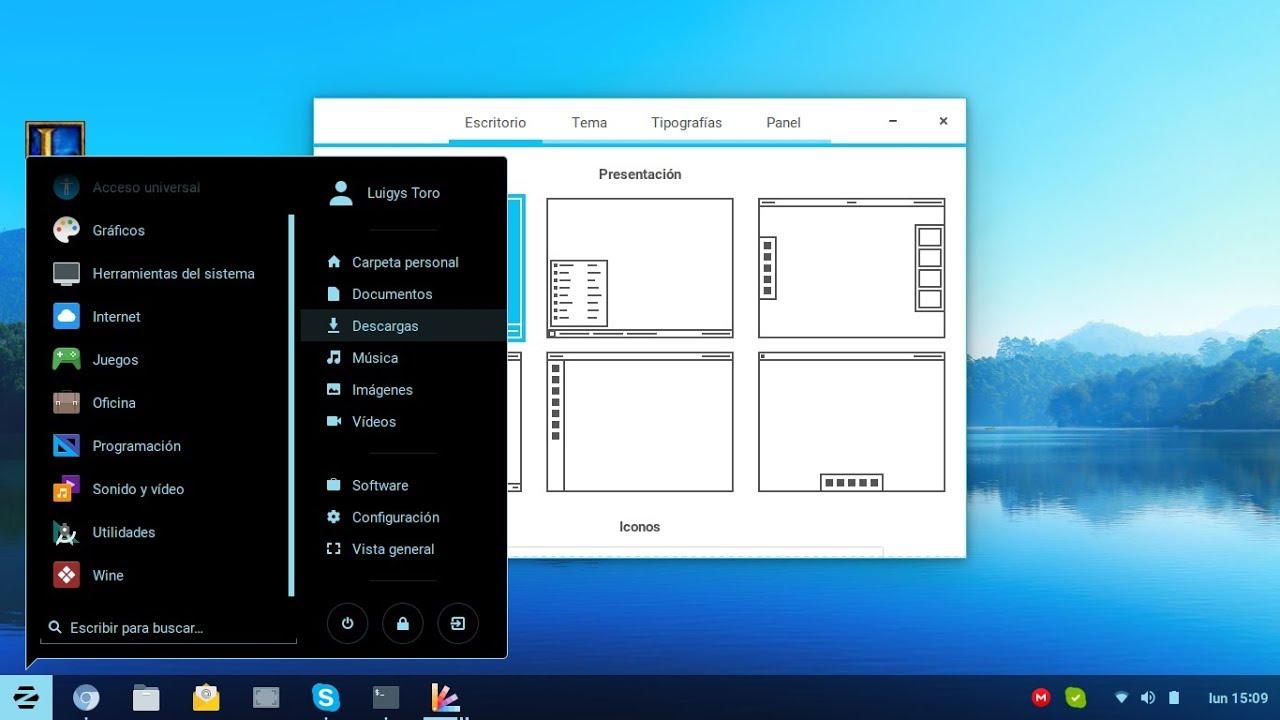
For those who don't want to overcomplicate things, the system already includes a built-in tool called Zorin Appearance. This application is essentially the master key for changing your device's appearance without any risk of tweaking. To access it, simply open the Start menu in the bottom left corner and type its name.
From here you can manage things like icons, wallpaper, animations, and window placement. The coolest thing is that it offers predefined styles . In the free version, you have four options: two that are very reminiscent of Windows 10 and two others based on the GNOME environment, making the transition a breeze.
If you're looking to take things a step further and have the Pro version, the options expand considerably. This paid version unlocks four additional themes that mimic the aesthetics of macOS, Windows 11, Ubuntu, and KDE Plasma, allowing you to effortlessly create an extremely polished desktop.
Advanced customization: Extensions and Themes
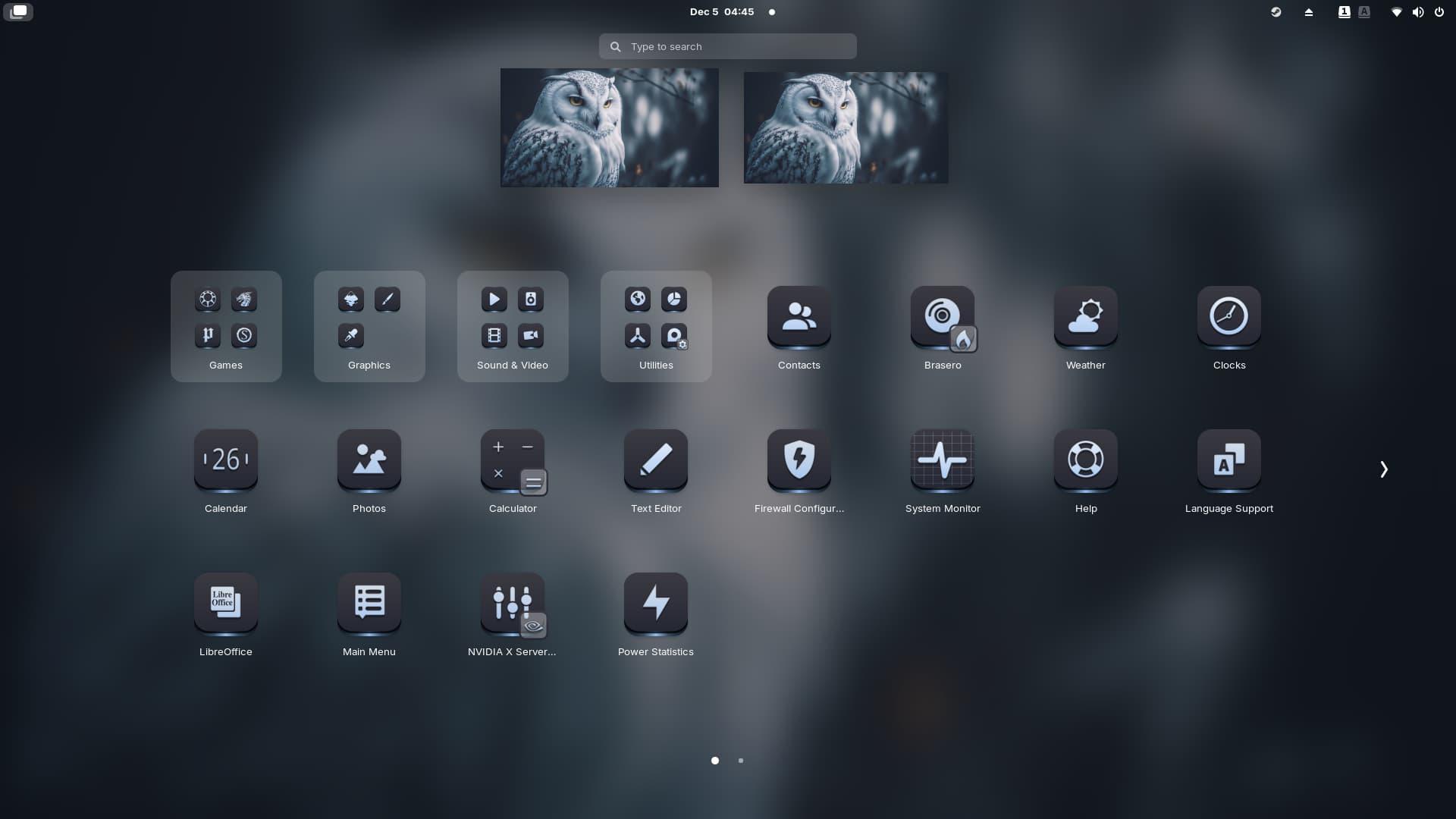
When Zorin Appearance falls short, it's time to delve into the world of GNOME Extensions . Since Zorin OS uses GNOME as its foundation, you can install third-party extensions to add functionality. For example, if you want translucent windows or widgets that display CPU and RAM usage , this is the way to go.
Be aware that sometimes the road is bumpy. Some users have reported that tools like Blur my Shell don't always work perfectly with the floating dock, leaving the edges too sharp. If you're looking for something truly powerful to monitor your hardware, installing Conky is a great option , although it requires patience because it's configured using scripts and Lua, but the results are spectacular.
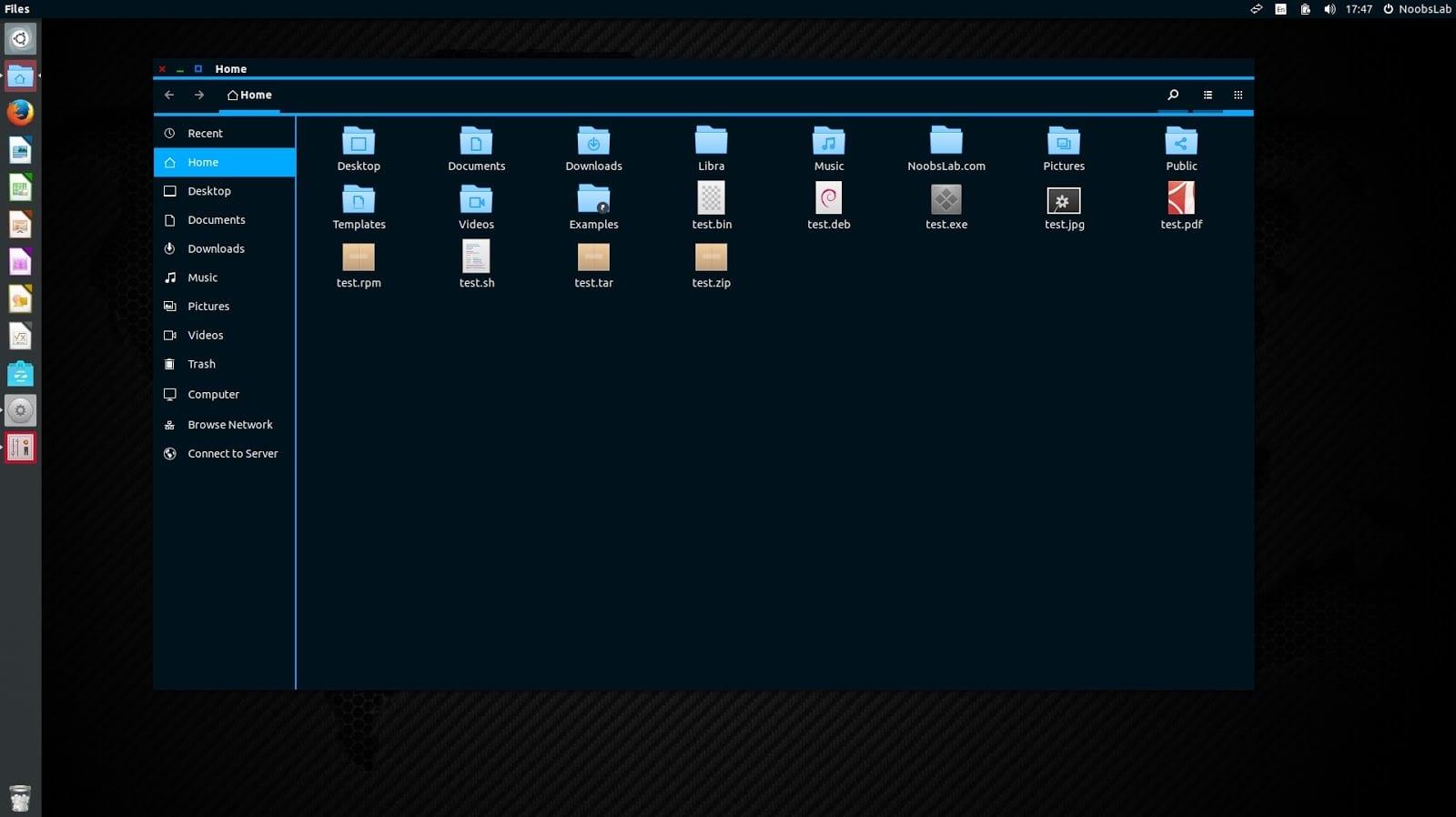
For those who want to install themes and icons downloaded from the web, the process is simple. Icons should be placed in the .local/share/icons/ directory within your user folder. As for themes, you can move the extracted folder to .themes (for your user) or to /usr/share/themes if you want it to affect the entire system. Once this is done, simply select them in Zorin Appearance under the "Other" tab.
Tips for expert users and scripts
There are some things the system doesn't allow you to change natively, such as the Start menu icon. To work around this, some users resort to a simple hack using shell scripts. Essentially, they create a script that overwrites the original icon's SVG file with a custom one every time the system starts.
To make this work automatically, a cronjobExecuting the command sudo crontab -e In the terminal, you can add a line with @reboot followed by the path to your script. Don't forget to give it execute permissions with the command chmod +x so that the system does not ignore the file at startup.
If you're keen to experiment with other desktop environments, keep in mind that installing KDE Plasma can give you more widgets, although it can sometimes cause stability issues when logging out. Therefore, sticking with the default GNOME environment is usually the fastest and most responsive option, provided it's complemented with the right extensions.
Having an operating system that adapts to you, not the other way around, is the great advantage of Zorin OS. Whether using the simplicity of Zorin Appearance to mimic Windows or macOS, manually installing themes in hidden folders, or venturing into boot scripts and Gnome extensions, you have everything you need to create a unique and fully optimized working environment tailored to your preferences.
