- Hibernation in GNU/Linux saves the entire state of RAM to swap and shuts down the computer, while suspend keeps memory in RAM with low power consumption.
- For hibernation to work reliably, kernel support and sufficient swap space are required, either a swap partition or a well-configured swapfile.
- Various tools (systemd, pm-utils, uswsusp and PolicyKit) allow you to enable, control or disable hibernation and suspension depending on the distribution and usage scenario.
- Choosing between suspend, hibernate, or restart with session restore depends on the balance you seek between energy savings, speed of return to work, and system stability.

Hibernation in GNU/Linux remains one of those features everyone has heard of, but that isn't always well understood or configured correctly. Many users come here having trouble with Windows or laptops that shut down unexpectedly and want to know exactly what each power mode does and how to control it in their Linux distribution.
In the latest kernel versions and major distributions, things have improved considerably, but important nuances remain between hibernation, suspend, and shutdown with document reopening , as well as technical details like swap usage (partition or file) that are worth understanding. Let's break all this down calmly, but in a clear and practical way.
Hibernation, suspension, and restart with session restoration: how they differ
Before touching anything in the settings, it's key to understand what each power saving mode actually does , because concepts are often mixed up and then come the shocks with lost data or empty batteries.
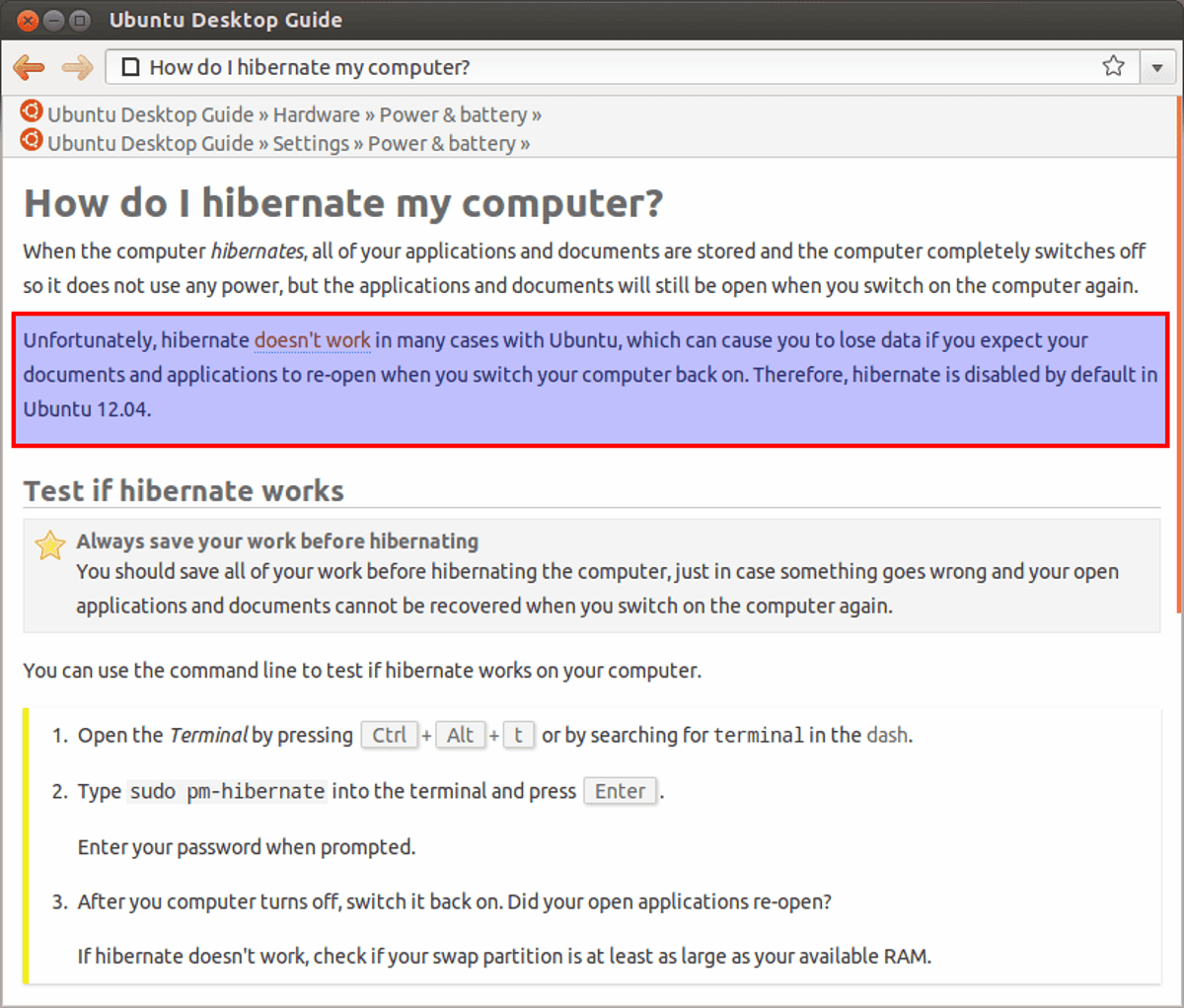
When we talk about hibernation in operating systems, we're referring to a process that freezes the entire system state : open programs, documents, services, desktop settings, buffers, etc. All of this content from RAM is saved to a persistent storage medium (usually the disk swap) and the machine is completely shut down.
This means that hibernation is not the same as simply leaving files open and shutting down the computer, nor is it the same as suspending. It's slower than suspending to RAM, but it saves significantly more energy because the computer is completely powered off, with no electricity consumption.
On the other hand, some systems offer something similar to a "restart with reopening documents," where the system shuts down normally, but upon restarting, the applications that were open are automatically relaunched . In GNU/Linux, many distributions mimic this desktop environment behavior, but this is not hibernation: it is still a cold boot with all services started from scratch.
The advantage of hibernation over a restart with app restoration is that the kernel and user space don't reboot from scratch ; instead, a complete image of the previous state is restored. Therefore, when everything is working correctly, you can resume your work exactly where you left off, without reopening documents or reconfiguring windows.
What is suspension in Linux and why is it worth using?
In sleep mode, the operating system generates a live image of the current state (your programs, your documents, the desktop) but, instead of writing it to disk, it leaves it in RAM, which is volatile.
When the system suspends, the kernel shuts down virtually all hardware devices: disk, screen, most of the chipset… The only components that remain powered are the RAM and the bare minimum of the motherboard to be able to “wake up” when you press a key, move the mouse or open the laptop lid.
This mode is great when you want a near-instant return to your desktop and aren't too concerned about power consumption while the computer is idle. A modern laptop can stay in sleep mode for one to three days on battery power, but during that time it's consuming some energy to keep the RAM running.
Normal sleep mode is especially recommended if you have more than 2 GB of RAM and limited disk space (for example, on small SSDs) or if you'll be using the computer again very soon. This is typical when you close the lid for a few minutes between classes or stop for lunch.
Hybrid suspension: a mix of RAM and disk
There is a third, less well-known mode: hybrid suspend . In this case, the system performs the entire hibernation process (writing the contents of memory to disk, usually to swap space) but, instead of shutting down completely, it enters a suspended state in RAM.
This creates a mixed scenario: if the battery lasts, you'll wake the system as quickly as a normal sleep ; but if the power runs out, the saved disk image will allow you to restore the session as if it had hibernated.
The downside of this mode is that it takes longer to enter and exit than a pure suspend, because it writes to disk and also keeps the RAM powered. For this reason, it's often used on servers or workstations that require an extra level of security against state loss.
How hibernation works internally in GNU/Linux
When you hibernate a GNU/Linux system, the kernel executes a series of well-defined steps to capture and restore the machine's complete state . It's not simply a matter of "saving the RAM to a file" and that's it.
The typical suspend-to-disk process follows this general sequence:
- User processes are stopped to freeze its state and prevent it from continuing to modify memory while the capture is being made.
- Hardware devices are frozen or stopped to prevent memory changes associated with controllers and DMA.
- The image of hibernation is created: The entire contents of RAM are copied with interruptions disabled.
- The hardware devices are reactivated in a controlled manner.
- The image is written in the swap space, which is then considered a suspension area (swsusp or linux-suspend).
- Finally, all devices are suspended and the computer is completely powered off.
Upon restarting, the boot system checks if there is a valid hibernation image :
- If there is one, It doesn't start normally.but reads the image from the swap.
- The devices are frozen again to prevent interference.
- The image is copied from swap to RAM and reactivate processes and devices as they were before hibernating.
One curious detail observed in real-world testing is that after hibernation, the former "linux-swap partition" appears labeled as linux-suspend or swsusp in tools like GParted or parted. This change in partition type is one of the clues the system uses to determine whether to restore from hibernation or perform a clean boot.
The importance of swapping during hibernation
This entire mechanism involves a key requirement: to hibernate in Linux, you need adequate swap space , both in size and configuration. Without swap, the system will have nowhere to store the RAM image.
The swap can be:
- An dedicated partition with system type linux-swap.
- Un swap file located in a normal file system (for example, in /swapfile).
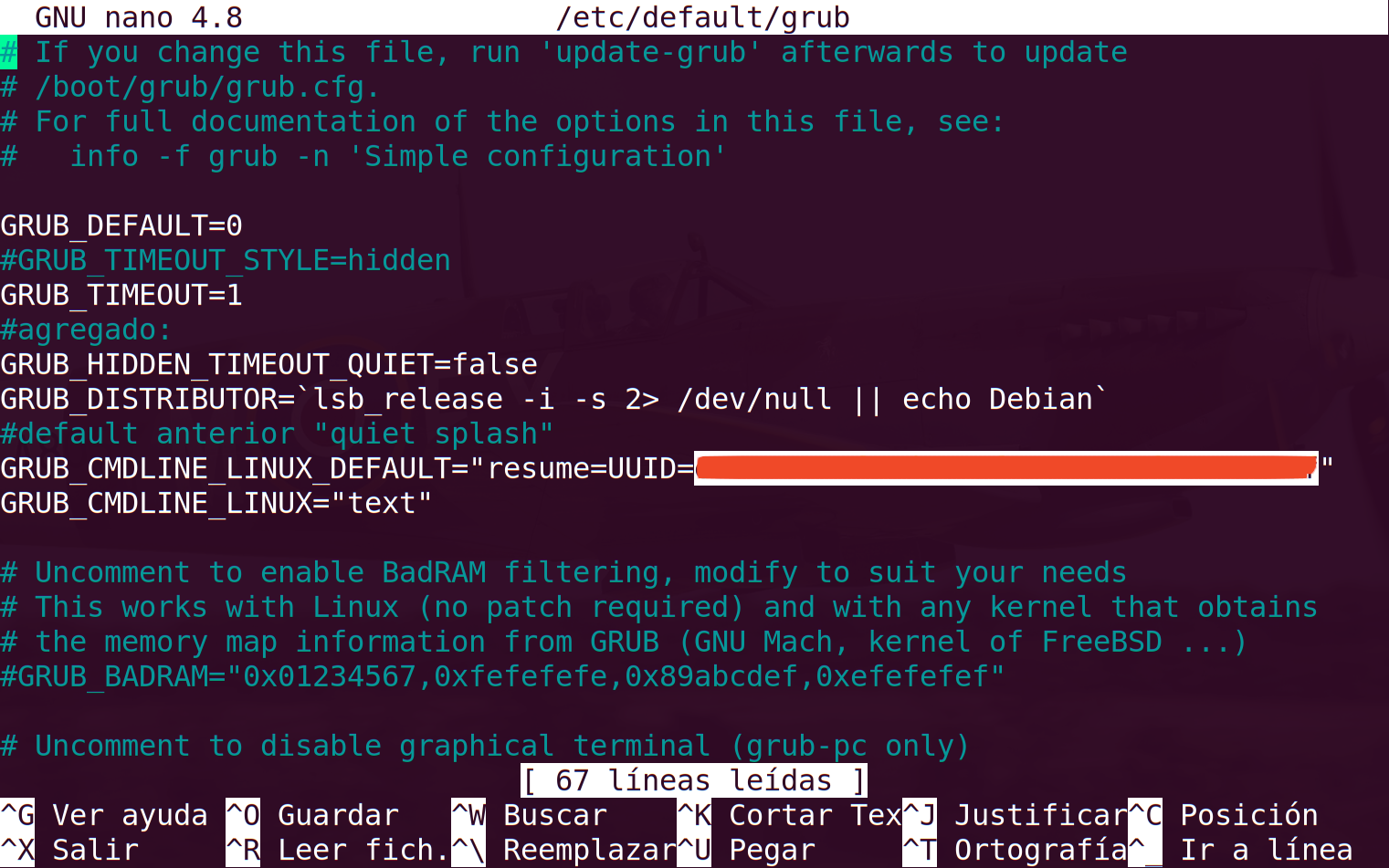
For practical purposes, the kernel treats both as swap space transparently. However, to use a swapfile as hibernation destination You need to tell the kernel, through the boot manager, parameters such as resume= (device) and resume_offset= (displacement within the file). If this is not done, the system will boot from scratch and will not restore the image, even if it is written to disk.
Regarding size, the classic recommendation for reliable hibernation is that the swap space should be at least the size of the physical RAM . It's true that if the system is under heavy load, you can sometimes hibernate with a slightly smaller swap space, but this isn't a sure thing and shouldn't be generalized. On systems with 32 GB or 64 GB of RAM or more, many administrators advise against hibernation altogether due to time and space constraints.
It's also worth remembering that mechanisms like zram or zswap create a compressed swap area within RAM itself. These are fantastic for improving performance on systems with limited memory, but they're not suitable for hibernation: being volatile, the image would disappear when power is cut.
Hibernation on swap partition vs. swapfile
For years, having a dedicated swap partition was considered almost mandatory if you wanted to hibernate without complications. The behavior of the kernel and tools like initramfs was heavily based on that classic model.
However, many modern distributions, such as recent versions of Ubuntu, have switched to using a swapfile by default instead of a partition . This doesn't mean you lose the ability to hibernate; it simply changes where the system state is saved.
In both cases, the underlying process is the same: The image from RAM goes to a persistent swap spaceThe difference is that, with a swapfile, the system needs to know the exact block on the disk where the file starts (hence the parameter). resume_offset) to be able to read the image early during startup.
Practical experiments on Debian and Debian-based machines have shown that formatting or deleting the swap partition where the hibernation image was stored results in a clean boot, as if hibernation had never occurred. This confirms that the image is indeed stored in swap and not elsewhere on the disk.
Kernel requirements and support in distributions
In addition to swap space, the Linux kernel must have hibernation support enabled . If you compile your own kernel and disable this option, no matter how many configurations you tweak in the distribution, you won't be able to hibernate.
In practice, most distributions use the kernel packaged by the project itself, and in those cases hibernation is usually enabled by default along with the rest of the usual power management functions and drivers.
However, not all distributions always display the "Hibernate" button in their graphical menus. Some, like Ubuntu in certain versions, hide the option on the desktop by default even though the kernel and hibernation infrastructure are fully operational.
How to enable hibernation in Ubuntu using PolicyKit
On Ubuntu systems where the hibernation option doesn't appear in the shutdown menu, it can be re-enabled relatively easily by modifying some PolicyKit rules. The idea is to authorize regular users to invoke the hibernation actions of upower and logind.
The typical procedure involves creating a configuration file, for example com.ubuntu.enable-hibernate.pklawith content similar to this (adapted to the syntax used by your tools):
Identity=unix-user:*
Action=org.freedesktop.upower.hibernate
ResultActive=yes
Identity=unix-user:*
Action=org.freedesktop.login1.hibernate;org.freedesktop.login1.hibernate-multiple-sessions
ResultActive=yes
Once the file has been created, it must be placed in /etc/polkit-1/localauthority/50-local.d/To do this, you can open your file manager as administrator (for example with gksudo nautilus in environments that still support it) and paste it into that directory.
After restarting the system, the Ubuntu desktop will display the hibernation option alongside the shutdown, restart, and suspend options. Of course, a sufficiently large swap space and a kernel with hibernation support are still required.
Hibernation and suspend commands from the terminal
If you prefer the terminal or use lightweight environments (Fluxbox, IceWM, Openbox, JWM, etc.) where there are no pre-configured power buttons, you can control hibernation and sleep directly with commands.
Using pm-utils
In many classic Debian/Ubuntu distributions, the pm-utils package provides several simple commands:
- pm-suspendThis suspends the machine to RAM. Most devices are powered off, and the state is maintained in memory. Power consumption is significantly reduced, but energy is still being used.
- pm-hibernate: hibernates the system by saving RAM to disk (swap) and completely shutting down the computer.
- pm-suspend-hybridIt performs hibernation on the disk and, instead of shutting down, puts RAM into sleep mode, thus achieving a "hybrid sleep".
The basic usage would be:
sudo pm-suspend
sudo pm-hibernate
sudo pm-suspend-hybrid
On Arch Linux-based systems and others that maintain it in their repositories, you can also use these commands, although pm-utils has been abandoned in favor of systemd in many modern distributions.
Using systemd (systemctl)
In distributions with systemd (OpenSUSE, many versions of Arch and derivatives, modern Debian, etc.), the recommended way is to use systemctl :
- systemctl suspend: suspends RAM.
- systemctl hibernate: hibernates to disk.
- systemctl hybrid-sleep: activates hybrid suspension.
For example, in OpenSUSE or any typical systemd system, you can directly call:
sudo systemctl hibernate
In many distributions, if you prefer to maintain compatibility with older tools, pm-hibernate is still available and simply delegates or coexists with systemd depending on the configuration.
Using uswsusp: s2ram, s2disk and s2both
Another family of tools, less common nowadays, is uswsusp , which provides the commands s2ram, s2disk, and s2both. It was available in Debian and Ubuntu until certain versions (Debian 10; Ubuntu 20.04 and later versions have deprecated it).
- s2ram: suspends the system to RAM (S3 mode). It is equivalent to pm-suspend or systemctl suspend.
- s2disk: saves the complete state to disk and shuts down the machine (classic hibernation).
- s2both: combines both things: writes the image to disk and then suspends to RAM, achieving hybrid behavior.
The commands would be:
sudo s2ram
sudo s2disk
sudo s2both
These utilities require proper configuration of the initramfs so that, upon startup, the resume mechanism is called and the image is restored if it exists.
How to disable sleep and hibernation on GNU/Linux systems
In some environments, such as classrooms, shared computers, or public workstations, sleep and hibernation can cause unexpected shutdowns, network problems, or freezes that are difficult to explain to users . In such cases, sometimes the most practical solution is to disable these functions completely.
Disable using systemd (target mask)
If your system uses systemd, simply mask the targets related to sleep and hibernation so that they cannot be activated from either graphical menus or the terminal:
sudo systemctl mask sleep.target suspend.target hibernate.target hybrid-sleep.target
This redirects those targets to /dev/null , symbolically sending them "to the trash." After a reboot, any attempt to suspend or hibernate will fail cleanly.
If you later want to restore normal behavior, you will only need to use:
sudo systemctl unmask sleep.target suspend.target hibernate.target hybrid-sleep.target
Disable hibernation and suspend buttons with PolicyKit
Another, finer option is to use PolicyKit to remove suspend/hibernation permissions to all users. For example, you can create files in /etc/polkit-1/localauthority/90-mandatory.d/ on the table:
/etc/polkit-1/localauthority/90-mandatory.d/disable-suspend.pkla
Identity=unix-user:*
Action=org.freedesktop.upower.suspend
ResultActive = no
ResultInactive=no
ResultAny=no
Identity=unix-user:*
Action=org.freedesktop.login1.suspend
ResultActive = no
Identity=unix-user:*
Action=org.freedesktop.login1.suspend-multiple-sessions
ResultActive = no
And for hibernation :
/etc/polkit-1/localauthority/90-mandatory.d/disable-hibernate.pkla
Identity=unix-user:*
Action=org.freedesktop.upower.hibernate
ResultActive = no
ResultInactive=no
ResultAny=no
Identity=unix-user:*
Action=org.freedesktop.login1.hibernate
ResultActive = no
Identity=unix-user:*
Action=org.freedesktop.login1.hibernate-multiple-sessions
ResultActive = no
After restarting, the suspend and hibernate buttons will disappear from the graphical menus, preventing the user from accidentally activating them.
Block keyboard shortcuts and direct commands
Even if you hide the buttons, some desktops and keyboards have special sleep/hibernation keys that may still function. In older environments with classic GNOME, this could be adjusted with commands like:
gconftool -s /apps/gnome-power-manager/buttons/hibernate -t string interactive
Additionally, you can create scripts in /etc/pm/sleep.d/as the /etc/pm/sleep.d/000cancel-hibernate-suspendwhich simply Cancel any attempt at suspension or hibernation returning control to the system. A typical skeleton would be:
#! / Bin / sh
# prevents hibernation and suspend
. «$PM_FUNCTIONS»
case «${1}» in
suspend|hibernate)
inhibits
;;
resume|thaw)
exit 0
;;
esac
Don't forget to give it execute permissions:
chmod 0755 /etc/pm/sleep.d/000cancel-hibernate-suspend
When is it appropriate to hibernate and when is it not?
With all this theory laid out, the practical part remains: when is it really worthwhile to hibernate in GNU/Linux? There's no single answer, but there are some reasonable guidelines.
If your top priority is saving energy (for example, on a laptop that you leave unused for many hours) and you have plenty of disk space for the memory image, hibernation is a very attractive option; you can read how to choose between shutting down, suspending, or hibernating your PC . Energy consumption in hibernation mode is zero, and when you resume, it boots up much faster than from a cold start.
If you want pure speed when returning to the desktop and you're only going to leave the computer idle for a short time , suspending to RAM might be more convenient. The machine will still use some battery power, but resuming will be almost instantaneous.
On computers with a lot of RAM, or on systems where stability upon resuming is not guaranteed (certain unusual hardware, exotic drivers, etc.), it is often worthwhile to forgo hibernation and opt for a good sleep mode and a clean restart with document restoration when necessary.
Ultimately, understanding how they rely on swap, what the kernel does under the hood, and how to control them with tools like systemd, pm-utils, uswsusp, or PolicyKit allows you to treat hibernation and suspend as tools to your advantage , and not as mysterious functions that sometimes work and sometimes leave the laptop "stuck" without any apparent explanation.
