- The use of specialized software allows for the detection of duplicate files by analyzing the content and not just the name.
- There are free and open-source tools that optimize space without compromising system security.
- It is essential to perform backups and use previews before performing mass deletions.
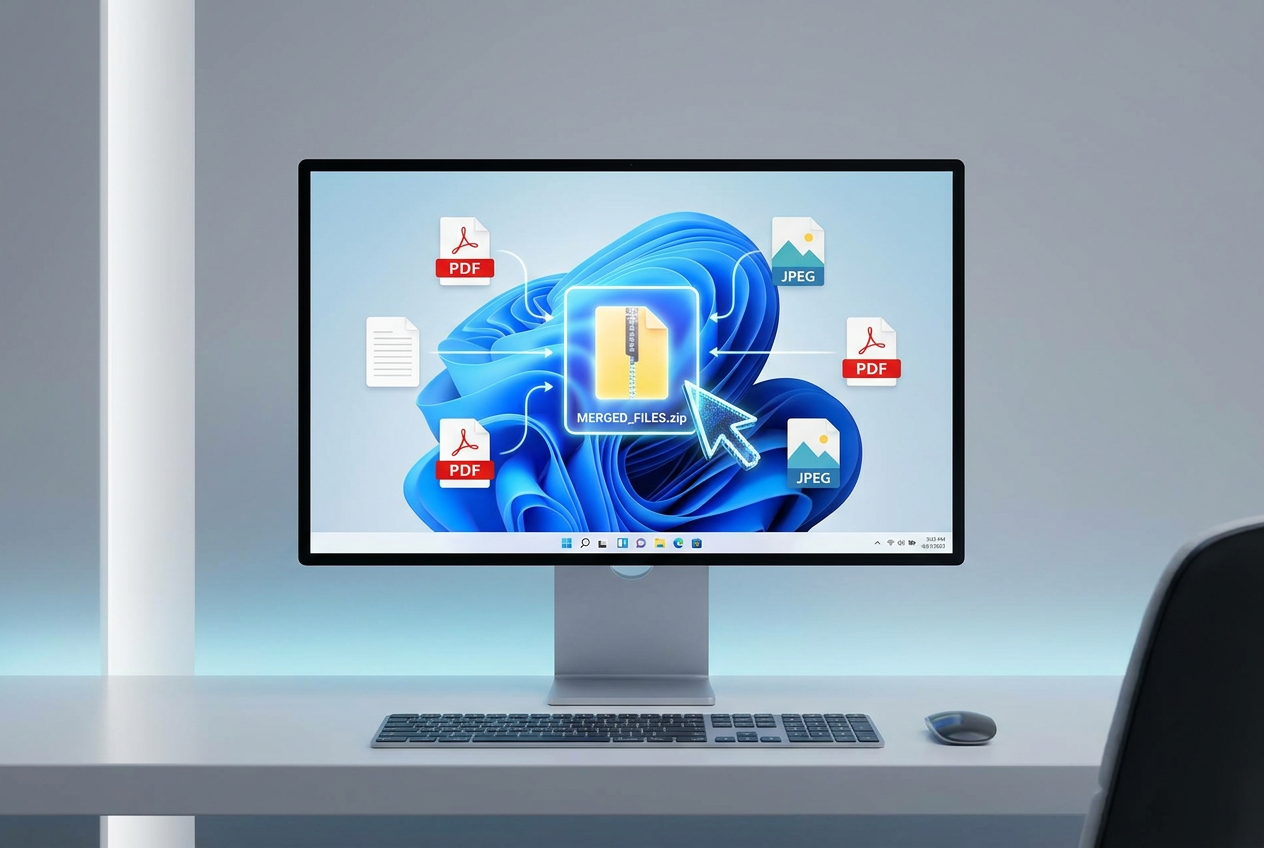
Having your computer cluttered with duplicate files is a real headache. Sometimes it happens without us even realizing it: we copy photos from our phones twice, download the same PDF multiple times, or simply lose track of where we save each document. Ultimately, this chaos not only wastes time searching for things, but it also slows down Windows 11 and leaves us with precious hard drive space.
The worst part is that trying to clean all this up manually is an impossible task. Simply looking at the names isn't enough, because there are identical files with different names. Therefore, the smartest approach is to use specialized duplicate detection tools that analyze the actual contents of the files and allow us to perform a general cleanup without fear of accidentally deleting something important.

Why is it essential to eliminate duplicates?

Many people think that having a couple of extra copies is fine, but when we're talking about gigabytes of videos or entire folders of images, things change. The operating system can automatically generate redundant files , taking up space that should be free for the PC to run smoothly. Keeping the disk clean helps make file management more efficient and prevents storage from filling up prematurely, which often leads to files that slow down your computer , affecting boot time and program execution.
The best tools for Windows 11

If you want to organize your PC, there are several options depending on whether you're looking for something simple, professional, or free. Here are the most reliable ones:

- Auslogics Duplicate File Finder: It's probably one of the most well-rounded options. What's really cool about it is its intelligent scanning algorithmIt can locate similar files even if they don't have the exact same name. It's free, safe, and works perfectly on Windows 11, although you have to be patient with some ads in the interface.
- AllDup: For those looking for something more technical and powerful, this software is a gem. It allows Filter by size, name, or modification dateThis makes comparison much easier. It's completely free and very robust, although its interface might be a little intimidating for those unfamiliar with advanced software.
- Wise Duplicate Finder: Its main advantage is security. It allows restore accidentally deleted files With just one click, it can save your life if you make a mistake. It can also clean empty files, although its scanning speed is somewhat slower than its competitors.
- Duplicate File Detective: This tool is ideal if you have files spread across network paths or deep local folders. It uses a assisted selection system called SmartMark to expedite the deletion process, although their payment plans are somewhat expensive.
- XYplorer: More than just a search engine, it's a powerful file manager that includes duplicate detection features. It's extremely customizable and efficient, ideal for users who want automate the cleaning of your diskalthough its free version is quite limited.
- CCleaner: A classic that almost everyone has installed. It not only cleans the registry, but also has a utility for... Solve the problem of duplicate files in a simple way, making it a great option for basic and regular maintenance.
An open-source alternative: dupeGuru
If you prefer free software, dupeGuru is a fantastic option. What's special about this program is that it doesn't just look at the file name, but also analyzes the file's internal content . It has specific modes for music and photos; for example, it can find two identical songs even if they have different bitrates , or photos that have been rotated or resized.

To install it on Windows 11, since the latest versions focus on Mac and Linux, it's recommended to look for older versions (like v3.9.1) on its official website. The process is typical: download the executable, accept the Windows permissions, and follow the installation wizard. Once open, simply add the folders you want to scan by clicking the "+" button, start the scan, and after reviewing the results, send the duplicates directly to the Recycle Bin.
Final tips for safe cleaning
Before you rush to delete everything, there are a couple of things you shouldn't forget. First, it's always advisable to back up your most valuable data; you never know if the program might flag something you considered a necessary backup as a duplicate. Second, use the file preview offered by most of these tools to visually confirm that the file is truly redundant before hitting the delete button.
Using a faster file finder on your Windows PC is the quickest way to free up gigabytes of storage and optimize Windows 11 performance. Whether you opt for free solutions like AllDup and dupeGuru, or more polished tools like Auslogics and Wise Duplicate Finder, the important thing is to keep your disk organized to prevent your system from becoming slow and unreliable.
