- Hardware virtualization allows multiple isolated operating systems to run on the same processor.
- The process requires enabling a specific option in the BIOS/UEFI and, optionally, activating features in Windows.
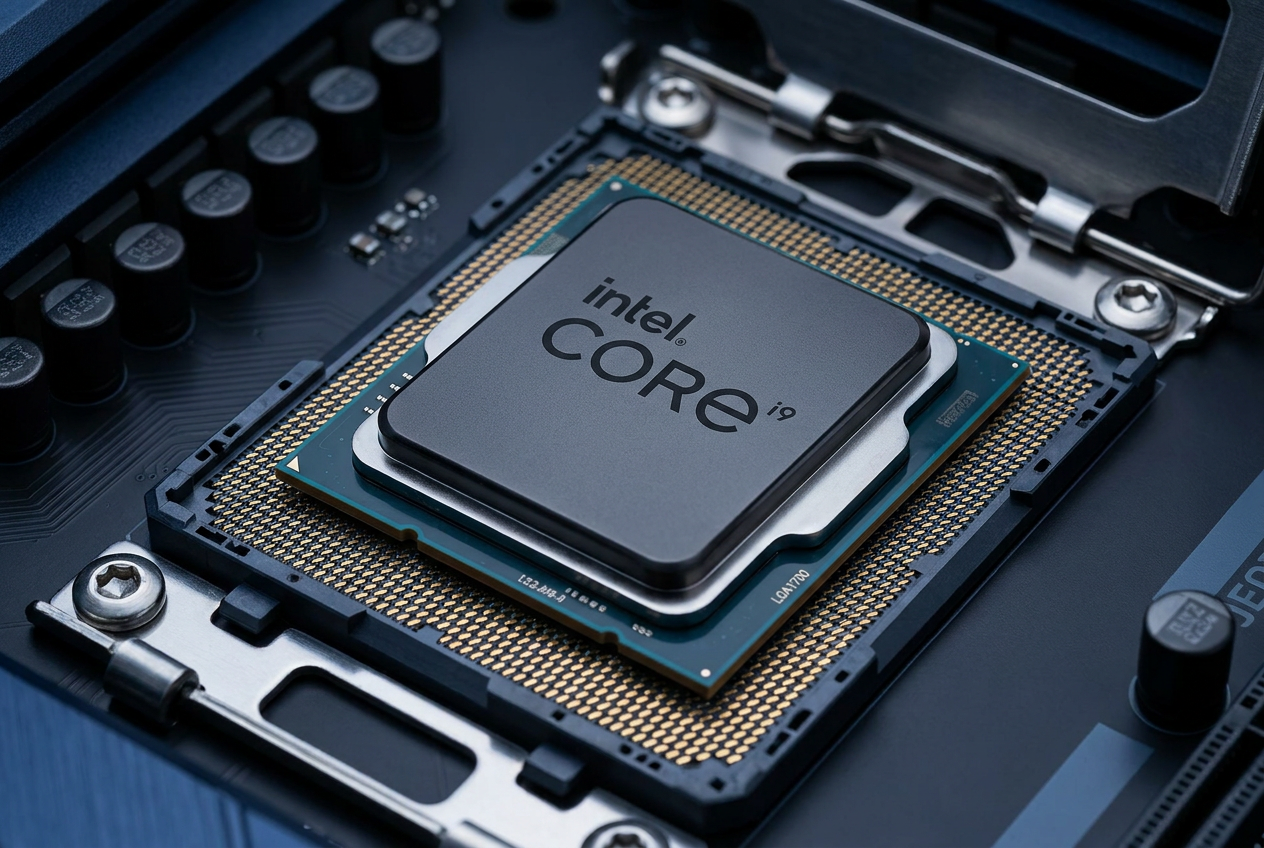
- The name of the technology varies depending on the manufacturer, being VT-x for Intel and SVM or AMD-V for AMD processors.
You've probably wanted to try a different operating system, like Linux or Android, without having to delete everything on your computer. To achieve this, we need to use hardware virtualization , a technology that essentially allows your processor to create isolated environments. Thanks to this, you can have a "virtual machine" running inside your Windows system without it interfering with your personal files.
Enabling this feature is like opening a door that comes locked from the factory on many computers. It's not about installing another program, but about giving the hardware permission to manage memory and the CPU in a specific way. If you've recently upgraded to Windows 11 or want to set up a test lab, enabling virtualization support is the essential first step to ensure everything runs smoothly and without errors.
How do I know if I already have virtualization enabled?
Before you start messing around with complicated startup menus, it's wise to check if it's already running. Many modern computers have it enabled by default. The quickest way to check is to open Task Manager by pressing Ctrl + Shift + Esc. Once there, go to the Performance tab and click on CPU; in the bottom right corner, you'll see the Virtualization field . If it says "Enabled," you can skip the rest of the steps.
If you prefer something more technical, you can access System Information by typing msinfo32 in the Run dialog box. There you can review the Hyper-V requirements and see its current status. There are also official tools from processor manufacturers that tell you if your chip is compatible, although remember that compatibility doesn't mean it's active , as the BIOS controls the system.

Getting into the heart of the PC: The BIOS or UEFI
If Task Manager tells you the feature is disabled, you'll need to restart and enter UEFI (the modern version of the BIOS). To do this from Windows, go to Settings, then System Recovery, and under Advanced startup, select Restart now . Then, follow this path: Troubleshoot > Advanced options > UEFI settings > Restart.
If you prefer the classic method, restart your computer and repeatedly press the access key before the Windows logo appears. Depending on your brand, this key is usually F2, F10, F12, Delete, or Esc . Keep in mind that if you're using a wireless keyboard, it sometimes doesn't respond during startup, so connecting a USB keyboard is the safest option to avoid problems. For more in-depth information, you can consult our complete guide to optimizing your PC's BIOS.
Enabling VT-x (Intel) and AMD-V (AMD) depending on your motherboard
Once inside the BIOS, don't be alarmed if the menu looks like it's from the 90s or if it has a very modern interface. The important thing is to look for sections called Advanced, CPU Configuration, Security, or Overclocking . Depending on your processor, the option name will vary considerably.
- Intel Equipment: Search for terms like Intel Virtualization Technology or VT-x and change it to "Enabled".
- AMD Equipment: The option is usually called SVM Mode (Secure Virtual Machine) or AMD-V.
If you have a specific motherboard, here are some common paths: on ASUS it's usually under Advanced > CPU Configuration; on MSI, look under Overclocking > CPU Features; on Gigabyte, go to Advanced > Basic CPU Configuration. For those with Dell, HP, or Lenovo laptops , it's most commonly found under the Security tab. Don't forget to press F10 to save the changes and exit, because if you restart without saving, you'll have lost your progress.
Final configuration within Windows
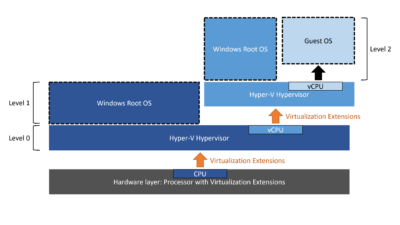
Enabling the option in the BIOS is essential, but sometimes Windows needs an extra push to get the virtualization software working. To do this, search the Start menu for "Turn Windows features on or off ." A list will open where you should check the box for Virtual Machine Platform.
If you want to use Microsoft's native hypervisor, also check the Hyper-V box (note that this option may not appear in the Windows Home version). There's another feature called Windows Hypervisor Platform that's useful if you want programs like VirtualBox or VMware to coexist peacefully with Windows' isolation features. After accepting, the system will most likely ask you to restart your computer to apply the changes.
Common Problem and Conflict Resolution
Sometimes, even when everything seems fine, the virtual machine won't start. This can happen because Hyper-V conflicts with other programs. If VirtualBox is giving you errors, try disabling the Virtual Machine Platform in Windows features. Also, if you can't find the option in the BIOS, check that your computer isn't locked by company policies or that you don't need to update the system firmware .
Remember that running one operating system inside another consumes a lot of RAM and CPU . If you notice your PC is slow, it's not necessarily a virtualization problem; you may have allocated too many resources to the virtual machine. Ideally, you should find a balance so the host system can continue running smoothly while the guest system works, or optimize Windows 11 when your PC is running slowly.