- A wired Ethernet connection offers greater stability, lower latency, and better use of the contracted speed than WiFi.
- Windows usually configures Ethernet automatically, but it's key to know the network menus to manage PPPoE, IP, and DNS.
- Many network problems are resolved by checking DHCP, renewing the IP address, and updating or reinstalling adapter drivers.
- Combining fiber optics and Ethernet in key home devices results in a much smoother and more reliable connection.
If your internet connection drops right in the middle of a video call or a TV show, you're probably thinking about switching to a well-configured Ethernet network and not relying solely on Wi-Fi. Connecting your computer with a cable isn't just for tech enthusiasts: anyone who works remotely, plays online games, or streams content can benefit significantly.
What is an Ethernet network and why should you be interested in using it?
An Ethernet network is a wired, fixed internet connection where your device (PC, laptop, Smart TV, game console, mini PC, etc.) connects to the router or modem using a network cable, typically with an RJ45 connector . Unlike Wi-Fi, there are no radio waves involved; everything travels through the cable.
This type of connection is characterized by offering greater stability, lower latency, and less interference than a wireless connection. That's why it's widely used in offices, professional environments , and homes where maximum reliability is needed for work, gaming, or watching high-resolution content.
Ethernet cable connectors are easily recognizable and make a small "click" when inserted into the port on the computer, router, or modem. They are usually marked with the word "Ethernet" or an icon representing a network cable. Many modern computers, such as desktops and some mini PCs (for example, PN, PB, or PL series from various manufacturers), have this port built-in.
In the Windows taskbar, when you're connected via cable, a network icon with the Ethernet symbol appears . This icon changes depending on whether you have an internet connection or not, and it's the starting point for many of the settings you'll see below.
Advantages of connecting to the internet via cable versus WiFi
One of the biggest advantages of an Ethernet network is that it provides a much more stable and consistent connection . Since it doesn't rely on a wireless signal , it reduces dropouts, packet loss, and the typical problems associated with walls, interference, or multiple neighbors with their own Wi-Fi networks.
When you work from home, hold video conferences, or teach online, a wired connection ensures lower latency and fewer dropouts . This is noticeable in that the voice doesn't cut out, the image doesn't freeze, and collaborative applications respond better.
If you play online, a wired internet connection is practically essential to take it seriously: an Ethernet connection reduces ping and prevents the lag and stuttering that often ruin competitive matches when you rely solely on Wi-Fi. It's also ideal for gaming consoles and PCs.
Furthermore, for downloading large files, heavy updates, or streaming 4K content, a wired network makes better use of your data allowance. By avoiding wireless interference and congestion, the actual speed is closer to the contracted speed , especially if you have fiber optic internet.
In homes with many connected devices (mobile phones, tablets, televisions, smart speakers, etc.), distributing the traffic helps: you can reserve Wi-Fi for less critical tasks and use Ethernet for the main device. This offloads the wireless network and makes everything run more smoothly.
How to physically connect to an Ethernet network
Before changing any settings in Windows, the first thing to do is make sure everything is properly connected physically . Without a cable correctly plugged in, no matter how much you adjust network options, you won't have a connection.
Step 1: Take one end of the Ethernet cable and connect it to the port on your computer, mini PC, or laptop . You'll see that the connector is only oriented one way. Push it in until you hear or feel a click. Some desktop computers and mini PCs (such as many PN, PB, PL, or GR series, among others) have the port on the back.
Step 2: Take the other end of the cable and connect it to the LAN port on your router or modem . These ports are usually grouped together, labeled LAN, and numbered (LAN1, LAN2, etc.). Again, make sure it's fully inserted.
On many routers, a small light next to the port illuminates when you connect the cable, indicating activity. This light usually blinks when there is data traffic, which is a good sign that the Ethernet network is active.
With your computer turned on, wait a few seconds. In most cases, Windows will automatically detect your wired network and connect you to the internet without you having to do anything else, especially if your router is assigning IP addresses via DHCP.
Setting up an Ethernet network in Windows 11
In Windows 11, accessing network options has changed slightly compared to previous versions, but it's still fairly straightforward. Normally, when you connect the cable, the system will configure everything automatically. Even so, it's useful to know how to access the settings in case you need to create or modify a connection , especially in PPPoE scenarios.
1. Right-click the network icon in the taskbar . This icon may show that there is no internet connection, that you are using Wi-Fi, or that you are using Ethernet, depending on your current connection status.
2. Select the "Network & Internet settings" option . This will open the corresponding section within the Windows 11 Settings app, where you can view the status of your connections.
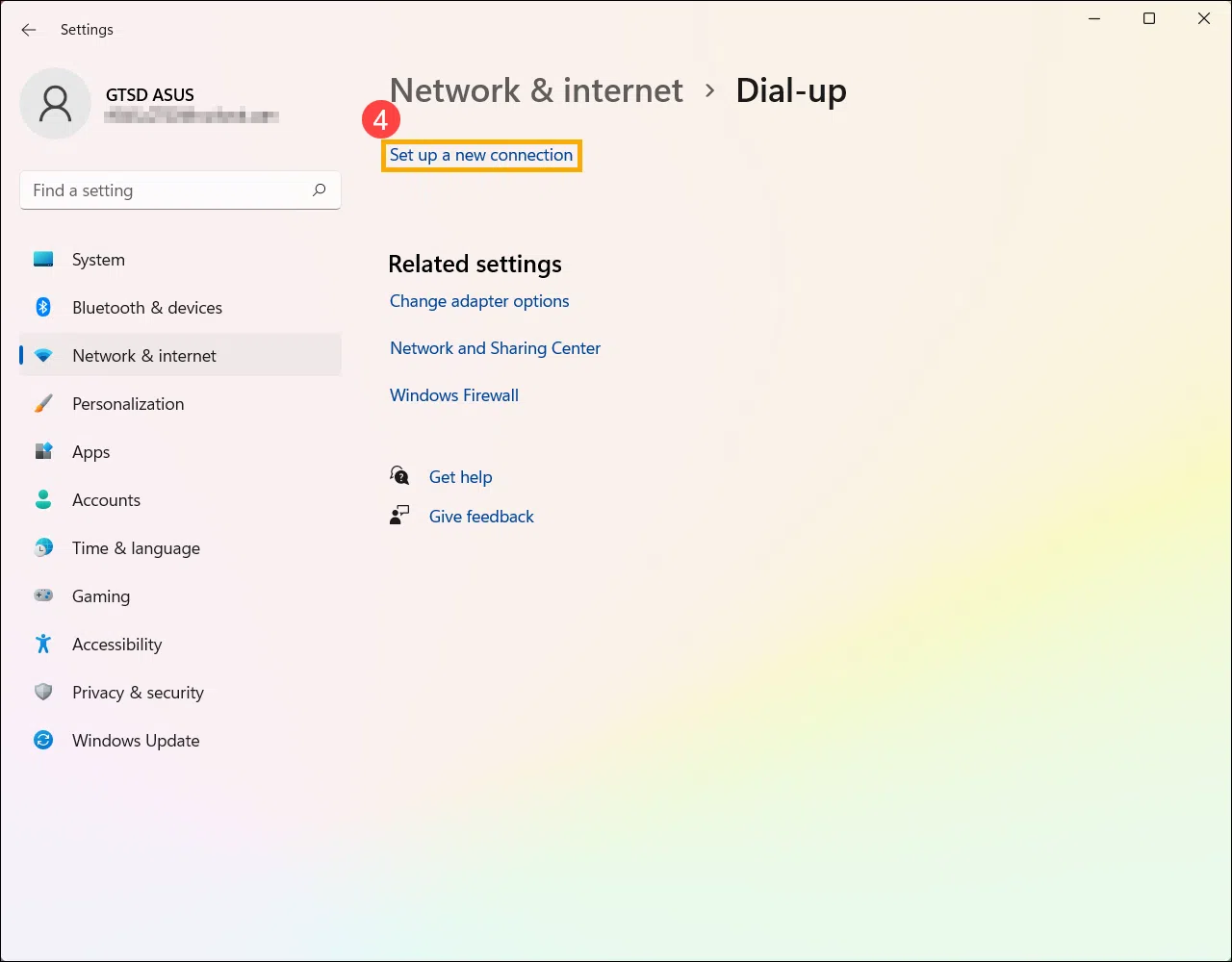
3. In the side panel, find and enter the "Dial-up" section if you need to set up a PPPoE broadband connection (something that some providers still require).
4. Within that menu, click on "Set up a new connection" . Windows will guide you through a wizard to create the appropriate connection.
5. When the wizard asks you what type of connection you want to create, select "Connect to the Internet" and click "Next" to continue.
6. Next, choose the "Broadband (PPPoE)" option . This type of connection is used when your provider gives you a specific username and password to authenticate the line.
7. Enter the username and password provided by your ISP (Internet Service Provider) in the corresponding fields. You can choose to have this information remembered so you don't have to enter it each time.
8. Click on "Connect" . If everything is correct (cable properly plugged in, router or ONT working and valid credentials), Windows will establish the PPPoE connection and you will see the status change to connected.
Once this process is complete, the network and internet settings screen will display the wired network you just set up , and the taskbar icon will change to the Ethernet symbol with internet access.
Setting up an Ethernet network in Windows 10
In Windows 10, the procedure for setting up a wired network connection is very similar, but the options have slightly different names and locations. Typically, it will configure itself automatically, but you can create or check a manual connection if needed.
1. Right-click on the network icon in the taskbar . If you don't see it directly, it may be hidden: in that case, click the up arrow to show background icons.
2. Select the "Open Network & Internet settings" option . This will open the Windows settings section where the network status and options are displayed.
3. Within the Status section, find and click on "Network and Sharing Center" . This classic Windows panel is still very useful for managing and viewing your active connections at a glance.
4. In the middle column of the Network Center, select the "Set up a new connection or network" option . The wizard for setting up a new connection will open.
5. When asked what you want to do, choose "Connect to the Internet" and click "Next" to continue with the wizard.
6. Next, select "Broadband (PPPoE)" if your provider requires PPPoE authentication through the router or directly from the PC.
7. Write down the username and password provided by your operator. This is sensitive information, so keep it in a safe place in case you need to repeat the process in the future.
8. Click "Connect" . If the line is active, the router is working properly, and the credentials are correct, the Network and Sharing Center will show the new wired network as connected , and the network icon in the bar will change to Ethernet with internet access.
How to connect to the internet via Ethernet on any system
Although the specific steps vary slightly between Windows versions or between Windows and macOS, the general idea for connecting via Ethernet is always the same: connect the cable, activate the adapter, and check that it receives a network signal.
On a Windows computer, the taskbar is usually at the bottom; on a Mac, it's typically at the top. From there, you can access network options (Network & Internet settings in Windows, Network Preferences in macOS ) and view the status of your Ethernet adapter.
Check that the "Ethernet" option is enabled . If the cable is properly plugged into both the PC and the modem or router, and the network card is working, you should see an IP address assigned and a connection established.
If you see the connection created but it displays "No internet access" or something similar, the problem may be with the router or the IP configuration (for example, DHCP disabled, duplicate IP address, or incorrect PPPoE credentials). In that case, it's best to follow the diagnostic steps we'll cover later.
Once you think everything is ready, open your favorite browser and visit any webpage. If it loads without problems, it means the Ethernet connection is working correctly . If not, you'll need to investigate further.
When is it better to use Ethernet instead of WiFi?
Wireless networks are incredibly convenient for everyday use, but there are situations where a wired connection is clearly a better option. Generally speaking, it's worth prioritizing Ethernet for devices that place the greatest demands on the connection.
If you work remotely, provide online training, or frequently participate in virtual meetings, you'll appreciate having your main PC connected by cable. The stability of a wired connection eliminates many of the interruptions that often occur due to peak Wi-Fi usage or interference.
For gaming consoles and PCs, the recommendation is clear: whenever possible, connect them to the router using an Ethernet cable. Lower ping and no signal loss are a huge help in competitive online games and reduce the risk of disconnections at crucial moments.
A wired connection is also highly recommended when downloading large files (games, cloud backups, 4K videos, etc.) or using streaming platforms at maximum quality. Because it doesn't depend on the strength of the Wi-Fi signal , the speed is usually more consistent and faster.
In homes where the Wi-Fi signal is weak in some rooms or where many devices are connected simultaneously, connecting the main computer or Smart TV via Ethernet can make a significant difference. This prevents overloading the wireless network and optimizes overall bandwidth usage.
If you also get a good fiber optic connection, you'll be taking advantage of the most advanced technology currently available for the home, offering greater speed and reliability , especially when combined with a wired network in key equipment.
Manually configure IP and DNS on Ethernet
In most homes, the router is configured as a DHCP server and automatically assigns an IP address to each device. Even so, it's useful to know how to check if your Ethernet adapter is configured to obtain an IP address and DNS automatically , or, if necessary, how to change these settings.
In Windows, you can open the Network and Sharing Center (typing its name in the Start menu search box is the quickest way). From there, click "Change adapter settings" to see the different available network interfaces.
Right-click on your Ethernet connection and choose "Properties" . In the list of items used by this connection, find "Internet Protocol Version 4 (TCP/IPv4)" , select it, and click "Properties" again to see its detailed options.
In the window that opens, make sure the "Obtain an IP address automatically" and "Obtain DNS server address automatically" options are enabled, unless your network is configured with static IP addresses. This way, the router (or your network's DHCP server) will assign the correct parameters.
If your company's requirements or advanced configuration necessitate a static IP address, you can manually enter a specific IP address, subnet mask, gateway, and DNS here. However, you must ensure there are no duplicate addresses on the network , as this can cause conflicts and connection errors.
Troubleshooting IP and DHCP conflicts on Ethernet
Sometimes, even with the cable plugged in and the setup seemingly correct, you still can't browse the internet or can only access certain pages. One of the typical problems with Ethernet connections is IP address conflicts or issues with the DHCP client.
In these cases, it's helpful to use the command prompt. Open Command Prompt as an administrator (type "Command Prompt" in the Windows search bar, right-click, and select "Run as administrator"). From there, you can force the release and renewal of the IP address.
To release the current IP address, type the command ipconfig /release and press Enter. If you see a message like "Ethernet interface release failed: No address has yet been associated with the network endpoint," it means that there wasn't actually an active IP address assigned at that time, so it's not a serious issue.
Next, run the command ipconfig /renew to request a new IP address from the network. You may sometimes see a message similar to "The DHCP client has obtained an IP address that is already in use on the network. The local interface will be disabled until the DHCP client can obtain a new address."
Although the message sounds alarming, often after a few moments, the DHCP client tries again to obtain another IP address and the connection is successfully re-established . In fact, it's possible that after seeing this warning, all pages will suddenly start loading normally and the disconnection errors will disappear.
If the problem persists, it's advisable to check the router's configuration (make sure the DHCP range is not saturated and that there are no devices with static IPs within that same range) or even try restarting the modem/router to resynchronize the network and reassign addresses.
Update, uninstall, and reinstall the Ethernet network driver
Another common source of Ethernet network problems is the network card drivers . After certain Windows updates, it's not unusual for the connection to stop working properly due to a conflict with the installed driver.
Before making any changes, it's highly recommended that you back up your network driver or, at the very least, download the latest version from the website of your PC, motherboard, or network card manufacturer. If your computer doesn't have internet access, you can use another computer to download it and save it to a USB drive.
To manage the drivers, open Device Manager (you can type its name in the Windows search bar and select it from the results). Once inside, locate the "Network adapters" section and expand the list.
Right-click on your Ethernet adapter (it usually indicates in the name that it's gigabit or similar) and select "Update driver ." You can then ask Windows to automatically search for updated driver software. Sometimes this is enough to fix an unstable connection.
If the automatic update doesn't resolve the issue, you can try uninstalling the device. Again, right-click on the Ethernet adapter, select "Uninstall device," and if the "Attempt to remove the driver for this device" box appears, check it before confirming with "Uninstall."
After the uninstallation is complete, go to the Start menu, click the Power button, and select "Restart ." When Windows restarts, it will attempt to detect the network adapter and automatically reinstall a suitable driver.
Check if the connection is working again. If Windows cannot find or install a correct driver, use the file you previously downloaded from the manufacturer's website and install it manually from Device Manager (using the "Browse my computer for driver software" option).
What to do if the Ethernet connection keeps failing
When you've already checked cables, IP settings, DHCP and drivers, but the connection persists, it's a good idea to follow a short list of additional checks to narrow down where the problem lies.
Start with the simplest thing: try a different Ethernet cable . Even if the cable looks perfect, a small amount of damage to the connector or internal components can cause intermittent outages or failures that are difficult to detect with the naked eye.
Next, try connecting the same cable to a different LAN port on your router or modem . Sometimes a specific port might be faulty or malfunctioning, while the others are working normally.
If you have another computer at home, connect it using the same cable and port on the router. If that second computer browses the internet without problems, you'll know the issue is with your first PC (configuration, hardware, drivers, etc.). If it also doesn't work, the problem likely lies with the router or the internet service provider's connection.
At this point, it's a good idea to contact your internet provider to rule out line faults or problems with your modem/router. They can often run remote tests, restart your equipment remotely, or tell you if there are any outages in your area.
If the problem only occurs on your computer and persists even with different cables and ports, it could be a physical fault in the Ethernet network card . On desktop computers, this can be resolved by adding a new PCIe network card or even using a high-quality USB-to-Ethernet adapter.
Mastering Ethernet network configuration allows you to get the most out of your fiber or cable connection, gain stability compared to WiFi, and resolve many common errors yourself, from IP conflicts and DHCP failures to driver or hardware problems. With the cable properly connected, network parameters adjusted, and the adapter correctly installed, your computer will be ready to work, play, and enjoy wired internet with a direct, fast, and much more reliable connection.
