- Most peripheral failures are explained by insufficient USB power, outdated drivers, or aggressive power saving settings.
- Restarting, recalibrating, and updating firmware using each brand's official software resolves most everyday problems.
- Lag and disconnections in wireless devices are usually due to interference, low battery, or unreliable USB hubs.
- When the problems persist after testing several devices, the motherboard, chipset, or physical damage to the USB controller should be suspected.
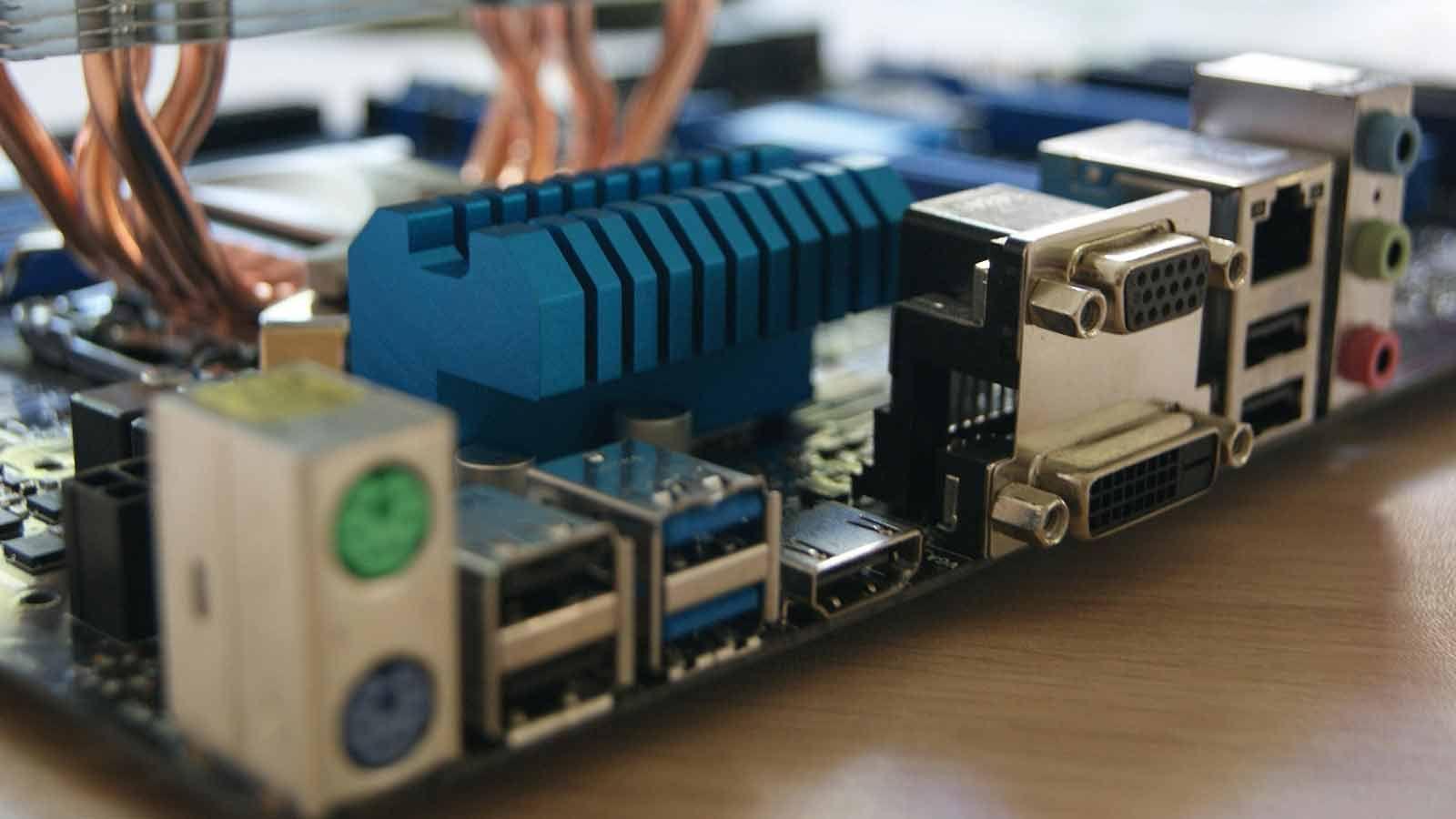
If you use your PC daily for work, study, or gaming, sooner or later you'll have to deal with problems with your keyboard, mouse , headphones, webcam, or gamepad . Sometimes they suddenly stop responding, other times they disconnect randomly, or they have a frustrating lag. And the worst is when everything seems fine, but something keeps malfunctioning for no apparent reason.
In this guide, we'll gather and organize all the key information on diagnosing and troubleshooting peripherals (especially gaming peripherals) that you've seen scattered across different websites: from typical USB failures and power issues to strange freezes where the PC remains powered on but the keyboard and mouse stop working. You'll also see the role of drivers, firmware, the operating system, and even the motherboard, and what you can do step by step before throwing anything away.
Why peripherals stop working (and how to detect it)
Most peripheral problems stem from a combination of faulty connections, insufficient power, outdated drivers, or aggressive power settings . In the case of gaming devices (RGB keyboards, high-DPI mice, illuminated headsets, etc.), these issues are exacerbated because they consume more resources and demand greater system stability.
In a typical scenario, such as an RGB USB 2.0 keyboard that shuts down when you connect a microphone, mouse, and webcam simultaneously, the key symptom is that not all USB ports deliver the same power . The motherboard distributes power among the controllers, and if the current limit of an internal hub is exceeded, devices will begin to shut down, flicker, or disconnect intermittently.
Another fairly common scenario is a desktop PC where, suddenly, while you're playing a game or watching Twitch, the mouse, keyboard, and microphone stop registering input, but the games continue running and videos keep playing. This points to an input subsystem problem (USB, HID, drivers) rather than a general system crash or a graphics card issue.
Before you drive yourself crazy with advanced solutions, it's a good idea to check the basics first: cables, ports, hubs, and power saving . A large part of the seemingly "mysterious" failures originate there.
Common real-world problems: USB power, motherboard, and drivers
Imagine this real-life scenario: you buy a Balamrush RGB keyboard and mouse kit (model XD05) , connect it via USB 2.0 to your Gigabyte H61M-DS2 motherboard, and the problems begin. The keyboard only works properly if you disconnect the microphone and mouse located behind it; if you connect them all at once, the keyboard loses its backlighting and becomes unresponsive, or it randomly turns off and on.
When you try other ports on the back of the motherboard, the problem persists . However, when you connect the keyboard to the front USB ports of the case, it works fine… until you turn on the webcam connected to the same front port. As soon as the webcam activates, the keyboard turns off, and when you turn the webcam off, the keyboard turns back on. It's a clear-cut issue: USB power limiting or power sharing.
On older motherboards like the H61, it's not uncommon for certain groups of USB ports to share the same controller or integrated hub. If you connect an RGB keyboard, a mouse, a USB microphone, and a webcam, you could be nearing the current limit of that port block , especially if the front panel of the case is powered through the motherboard without a very generous power distribution.
In an attempt to fix this, it's common to update chipset and USB drivers through Windows Update , disable device power saving in Device Manager, and disable USB selective suspend in power options. While these are correct steps, if the bottleneck is purely electrical, software modifications alone won't be enough.
In other scenarios, such as the PC with an ASUS X99-DELUXE motherboard, 32 GB of DDR4 RAM, an M.2 SSD, a GTX 1080, and an 850 W power supply, the symptoms are different, but the problem may also be related to device management: the entire system continues to function except for the keyboard, mouse, and microphone . It doesn't appear to be a power failure (the keyboard and mouse lights remain on) or a network issue (Twitch and the game continue), so we look at the USB/HID subsystem, the drivers, and the BIOS.
Basic steps to reset or recalibrate gaming peripherals
When a gaming mouse or keyboard freezes, behaves erratically, or stops responding for no reason, it's best to start by completely resetting the device and its settings . This usually solves most common problems.
For USB gaming keyboards and mice (wired or with a dongle) you can follow this sequence:
- Disconnect and reconnect the USB or wireless dongleUnplug the connector, wait about 10 seconds, and plug it back into the same port or a different one. This forces the system to detect it again.
- Check if it has a RESET button or holeMany gaming peripherals have a small reset hole. Using a paperclip or pin, press and hold it for a few seconds to reset the internal electronics.
- Use the brand's official software (Logitech G Hub, Razer Synapse, Corsair iCUE, SteelSeries Engine, etc.) to load a default profile, restore factory settings, or perform a "factory reset".
If it's a console controller (Xbox, PlayStation) connected to a PC or console, you also have a physical reset option:
- Hold down the rear reset button with a pin for about 5-10 seconds, depending on the model.
- Then Reconnect it via USB or Bluetoothas if you were connecting it for the first time.
For a PC gamepad that you connect via Bluetooth, in Windows you can go to Settings > Devices > Bluetooth & other devices , remove the controller (forget device) and pair it again from scratch, which usually solves dropouts or recognition failures.
In addition, Windows allows you to recalibrate controllers and mice from the Control Panel:
- Go to Control Panel > Devices and Printers.
- Right-click on your controller or gaming device and open Game controller settings.
- In Properties, look for the option to calibrated and the assistant continues moving sticks, axes, or pressing buttons.
Don't forget to check out the brand's proprietary software, as they often offer advanced options for sensor recalibration, DPI adjustment, button remapping, and profile resetting , which are very useful when a device has a corrupted configuration.
Gaming mouse that doesn't move, doesn't click, or is jerky
A very common problem is that the gaming mouse stops moving the pointer or doesn't register clicks , while the rest of the system is working. Before assuming it's broken, check these points, which resolve most cases.
First, confirm the physical connection :
- If the mouse is wired, check that the The USB connector is properly inserted. all the way in, without any slack.
- Test another different USB port, preferably a rear one directly to the motherboard and not through a hub or front of the chassis.
- If it's wireless, make sure the The battery is charged or put in new batteries.because when the load is low, many mice begin to experience micro-cuts or lag.
Next, perform a basic cleaning of the mouse . Dust and dirt can block the sensor or the button mechanism.
- Wipe the base of the mouse with a soft, slightly damp cloth (don't overdo it), focusing on the area of the optical sensor or laser.
- Use compressed air or a small brush to remove dirt around buttons and scroll wheel.
If that doesn't improve things, restart your PC. A simple restart eliminates many temporary driver conflicts that prevent your device from responding properly, especially after connecting and disconnecting several peripherals in quick succession.
If the problem persists, open the Windows Device Manager :
- Right-click on Start and open Device Manager.
- In the section of “Mice and other pointing devices”Locate your mouse.
- Right click and select "Update driver"allowing Windows to automatically search for drivers.
- If it doesn't work, repeat the process but choose “Uninstall device” and restart your PC so that it reinstalls itself.
On models with dedicated software (Logitech G Hub, Razer Synapse, etc.), open the application and restore the mouse's default settings . Sometimes a corrupted profile or an unusual DPI, macro, or polling rate setting can cause lag or partial freezes.
If after all this the mouse still doesn't work correctly on your PC or any other computer, the problem is most likely with the hardware and it will need to be replaced.
Driver and firmware updates for gaming peripherals
For keyboards, mice, headphones, controllers, and webcams to work smoothly, it's crucial to keep drivers and firmware up to date . An outdated driver can cause disconnections, lag, recognition errors, or incompatibilities with recent versions of Windows.
The easiest way is to use the official software from the peripheral manufacturer:
- Download the corresponding program from the brand's website (for example, Logitech G Hub, Razer Synapse, Corsair iCUE, SteelSeries GG).
- Install it and, within the program, look for an option like “check for updates”, “firmware update” or similar.
- If new versions are available, apply the update following the instructions as indicated.
You can also update from Device Manager :
- Right-click on Start > Device Manager.
- Locate the device (keyboard, mouse, controller, USB headphones) in its category.
- Right click > "Update driver" > “Search for drivers automatically”.
If you prefer the manual method, go to the brand's support page , find your exact model, and download the latest driver or firmware . Install it following the manufacturer's instructions and restart your PC for the changes to take effect.
Don't forget that the operating system itself must be up to date . Some newer peripherals, or conversely, very old ones, work better with recent builds of Windows, where bugs in the USB, Bluetooth, or HID subsystems are fixed. Keeping Windows updated significantly reduces compatibility issues.
Delay and lag in wireless peripherals
When using wireless peripherals (mice, keyboards, headphones, controllers), it's relatively common to notice keystroke delays, audio dropouts, random disconnections, or jerky movements . The cause is usually not a single factor, but a combination of several.
The most frequent causes of lag in wireless devices are:
- Low batteryWith low power, the device tries to save energy, lowers the communication frequency, or simply disconnects for milliseconds.
- Interference from WiFi, Bluetooth or routersIf the mouse dongle, WiFi router, and other Bluetooth devices share the same frequency range, the channel becomes saturated and micro-cuts occur.
- Excessive distance or physical obstaclesThe further the device is from the receiver, and the more walls or metal surfaces there are, the weaker the signal.
- Outdated drivers or firmwareThey can cause poor power management, reconnection errors, or problems with certain versions of Windows.
- Low-power or overloaded USB hubsA hub that does not properly self-power can result in poor signal quality to the wireless receiver.
- High CPU or RAM usageIf the system is running low on resources, it takes longer to process the input it receives from the device.
- Quality of the device itselfVery cheap models often have high internal latencies and lower quality radios.
- Standard Bluetooth vs. 2.4 GHzClassic Bluetooth typically has higher latency than proprietary 2.4 GHz systems with a dedicated dongle.
- System settings (aggressive power plans, USB or Bluetooth saving) that force the receiver to sleep to "save" power and then it takes a long time to wake up.
To mitigate this, try using 2.4 GHz dongles in direct USB ports to the motherboard , keep drivers and firmware updated, avoid hiding the receiver behind the PC or near the WiFi router, and disable selective power saving on wireless adapters when possible.
Tools and software for diagnosing peripheral problems
Having the right tools makes all the difference between working blindly and quickly identifying what's wrong. Both manufacturers and Windows itself offer utilities to check the status of your peripherals , update drivers, and run functionality tests.
From gaming manufacturers, you have access to suites like Logitech G Hub, Razer Synapse, Corsair iCUE, SteelSeries Engine/GG , etc. These applications allow you to:
- Check if the device It is correctly detected and connected..
- check and update own firmware and drivers.
- Readjust parameters (DPI, lighting, macros, equalization, profiles).
- Perform tests of buttons, sensors, sticks or wheels to verify that each entry is recorded correctly.
On the Windows side, several utilities help with diagnosis:
- Device administrator: displays all connected peripherals, shows error messages, allows you to update or reinstall drivers, and shows which driver each device uses.
- Hardware troubleshooterAlthough it's not always magic, in some cases it corrects incorrect configurations or reconfigures ports and devices.
In addition, there are online and third-party tools to test the functionality of keys, clicks, and joysticks . Websites like "keyboard tester" or "mouse checker" display on screen in real time which keys are being registered, whether double-clicking is working correctly, whether scrolling is functioning, etc., making them very useful for ruling out hardware problems.
More advanced diagnosis: what if the problem isn't the peripheral?
In some cases, especially when keyboard and mouse crashes are random and do not follow a clear pattern, it is worth considering that the fault may be in the motherboard, the chipset controllers, or even in something unrelated to peripherals, such as the peripheral nervous system in the medical field (in specific clinical contexts).
In the medical field, to diagnose peripheral nerve injuries that cause loss of sensation or strength in the hands and feet, tests such as the following are used:
- Electromyography (EMG)A very thin needle is inserted into the muscle to record its electrical activity at rest and in motion; reduced activity suggests nerve damage.
- Nerve conduction studiesElectrodes are placed on the skin and the propagation of electrical impulses along the nerve is measured.
- Magnetic resonance imaging (MRI): generates detailed images of the affected areas to see deep structures and possible compressions.
- Peripheral nerve ultrasoundPrecise images of the damaged region are obtained using ultrasound.
Interestingly, on another level, with computer peripherals it's also necessary to diagnose whether the fault lies with the device itself, the cabling (USB, ports, hubs), or the PC's central nervous system (motherboard, chipset, controllers). When, after testing several keyboards and mice, the problem persists in the same ports and occurs randomly , the following should be suspected:
- Chipset USB drivers incorrectly installed or damaged.
- Outdated BIOS with bugs in port power management.
- Physical damage to the motherboard's USB controller, sometimes due to overloads or short circuits.
In the extreme case of a PC with an X99 motherboard that randomly loses keyboard/mouse input, it is recommended to try things like: updating the BIOS , reinstalling the chipset drivers from the ASUS website, disabling specific USB power saving features , and even trying a PCIe card with additional USB ports to see if using a different controller solves the problem.
Treatment and solutions when the problem is physical (nerves or hardware)
When the fault is determined to be physical, whether in the human body or the PC, the type of intervention changes considerably compared to a simple software configuration. In the medical field, if a peripheral nerve is injured but not severed , there is a greater probability of spontaneous recovery; if it is severed, the approach is more complex.
Treatment for peripheral nerve injuries usually includes:
- Rest and observationIf the nerve is expected to heal on its own, full recovery can take months or years.
- Periodic reviews to monitor progress and adjust treatment according to the response.
- Treatment of the underlying disease if the nerve injury is a consequence of another pathology.
- Pain medicationFrom common analgesics (aspirin, ibuprofen) to drugs used in depression, epilepsy or insomnia that are used to modulate neuropathic pain; in some cases, they are added corticosteroid injections.
- Physiotherapy to avoid stiffness and regain strength and functionality.
If spontaneous recovery does not progress well, peripheral nerve surgery becomes necessary . In the operating room, electromyography can be used directly on the nerve to check if it is regenerating. If the nerve is trapped in a narrow "tunnel" or compressed by a scar, the surgeon can widen that space or release the nerve.
When a nerve segment is completely severed or so damaged that it is unusable, the injured portion can be removed and the healthy ends joined (nerve repair), or the gap can be filled with a nerve graft from another part of the body . In severe injuries, tendon transfers are also used to restore critical functions by redirecting the strength of a healthy muscle to an affected one.
To restore functionality to the damaged area, in addition to surgery, the following are used:
- Splints and orthoses that hold arms, hands, fingers or feet in the correct position.
- Electrical stimulatorswhich activate the muscle innervated by the injured nerve while it regenerates, although they are not always effective for everyone.
- Structured physiotherapy programswith specific exercises to keep joints mobile and muscles active.
- exercise routines aimed at improving strength, range of motion and reducing cramps.
In the PC world, when you know that the "nerve" (the USB controller, the port, the cable) is physically damaged , the solution involves replacing components: changing a peripheral's cable, installing an additional USB port card, replacing the motherboard, or, if the peripheral itself is broken, buying a new one. No driver can fix a burnt trace on the board or a broken USB connector.
Prepare for a good diagnosis (medical and technological)
Just as it's helpful to prepare certain information before going to the doctor, it's also a good idea to gather some data before taking your PC to a repair shop. In a medical context, when consulting about a possible peripheral nerve injury , the following is recommended:
- Write down all symptoms: when they started, what the injury or accident was like, how they have progressed and if they have worsened.
- Make a list of all medications, vitamins, and supplements. that you take, to assess interactions and causes.
- Accompanied from a family member or friend, to help remember what is explained in the consultation.
- Prepare questions about the different treatments available and future options, and request a follow-up call if the consultation time runs out.
In the world of peripherals, it's incredibly helpful to keep a record of when and how the failure occurs : what you were doing, what devices you had connected, the approximate temperature of the device, whether it happens after many hours of use or also when it's cold, whether it only happens with certain games or applications, etc. The more information you have, the easier it will be for the technician (or for you) to pinpoint the source of the problem.
Similarly, in advanced clinical settings, you can explore studies or clinical trials testing new treatments for peripheral nerve injuries, assessing with a specialist whether they are suitable for your situation. In the technological field, this could be equivalent to testing beta drivers, experimental firmware, or new BIOS revisions that correct errors detected in certain chipsets or motherboards.
Ultimately, whether we're talking about biological nerves or USB ports, RGB keyboards or game controllers, what makes the difference is knowing how to interpret the symptoms, using diagnostic tools correctly, and applying orderly troubleshooting steps : start with the easy stuff (connections, cleaning, restarting), then move on to drivers and configuration, and leave hardware replacement or surgery for last when there's no other option.
