- UEFI is the modern replacement for BIOS, with more security, support for large disks, and a better interface.
- BIOS+MBR and UEFI+GPT are almost inseparable pairs, and mixing modes usually causes the system to fail to boot.
- Secure Boot belongs to UEFI and limits which systems can boot, improving security if properly configured.
- Knowing whether your Windows uses BIOS or UEFI is key before upgrading hardware, reinstalling, or cloning disks.
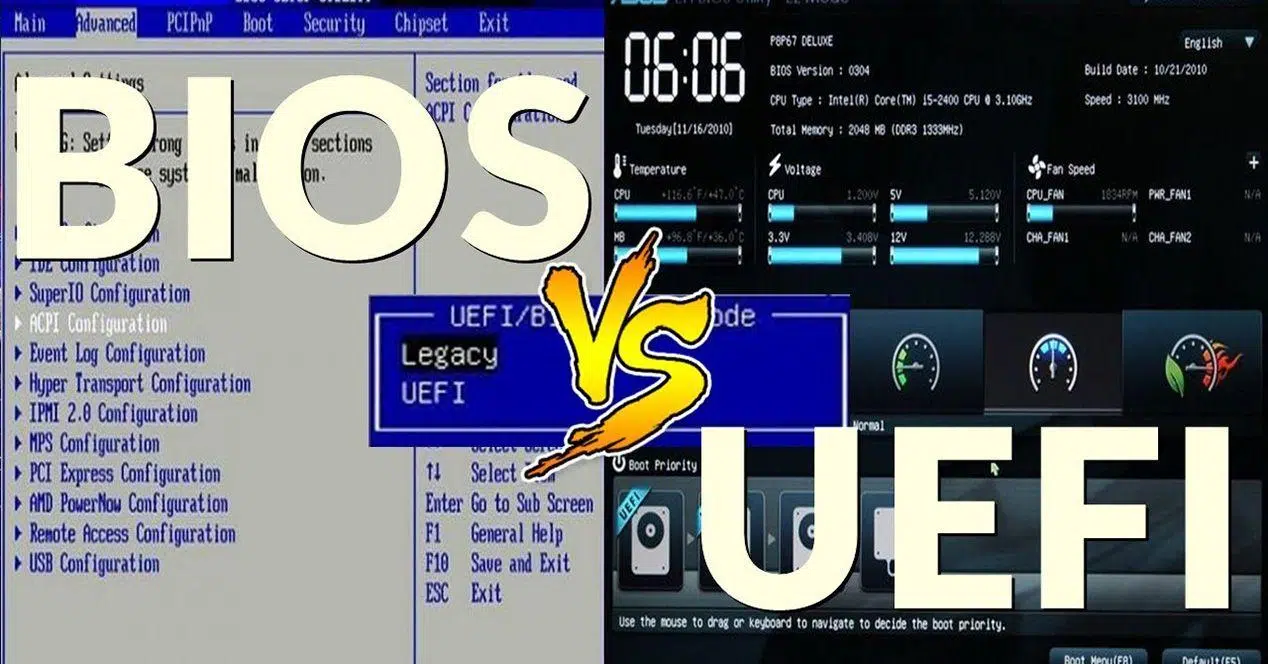
When we turn on our computer and everything seems to start up as if by magic, there's actually a very low-level program working in the background. This initial "brain" can be a classic BIOS or its modern replacement, UEFI . Both are often casually referred to as BIOS, but they're not the same, and it's important to distinguish between them if you want to avoid surprises when installing operating systems or changing hard drives.
UEFI has arrived to replace the BIOS we've been using since the late 70s. It performs the same basic function—initializing the hardware and booting the operating system—but adds many improvements: a graphical interface, enhanced security, support for very large disks, and more flexible partition management . However, the way your computer boots determines which operating systems you can install and how you should partition the disk , so it's worth understanding it carefully.
What are firmware, BIOS, and UEFI?
Before we get into comparisons, it's helpful to clarify a basic concept: both BIOS and UEFI are firmware . That is, a program stored in a special memory on the motherboard that directly controls the computer's electronic circuits before the operating system takes over.
This firmware runs as soon as the power button is pressed. It initializes and checks the RAM, processor, graphics card, hard drives, and basic peripherals . Once it has verified that everything is in order, it locates which device should boot (hard drive, USB, network, etc.) and loads the operating system from there.
What is BIOS (Basic Input/Output System)
The classic BIOS appeared in the 70s and 80s, and its acronym stands for Basic Input/Output System . For decades it has been the boot standard for virtually all compatible PCs . The BIOS code runs in 16 bits and was designed for very limited hardware compared to today's standards.
When you turn on a computer with a traditional BIOS, the first thing that happens is the POST (Power-On Self Test): the BIOS runs a series of checks on the hardware, checking memory, disks, CPU, fans, temperatures, etc. If everything is correct, it looks at the MBR-style partition table, identifies the disk's boot sector, and executes it to load the operating system.
The configuration interface of a traditional BIOS is easily recognizable: a blue or black background screen, an MS-DOS-like appearance, and navigation using only the keyboard . From this menu, you can change the boot order , enable or disable devices, adjust power profiles, or modify processor and memory parameters.
For many years this was more than enough, but the BIOS fell short with the arrival of very large hard drives, extended 64-bit systems, and new security requirements . That's where UEFI comes in.
What is UEFI (Unified Extensible Firmware Interface)?
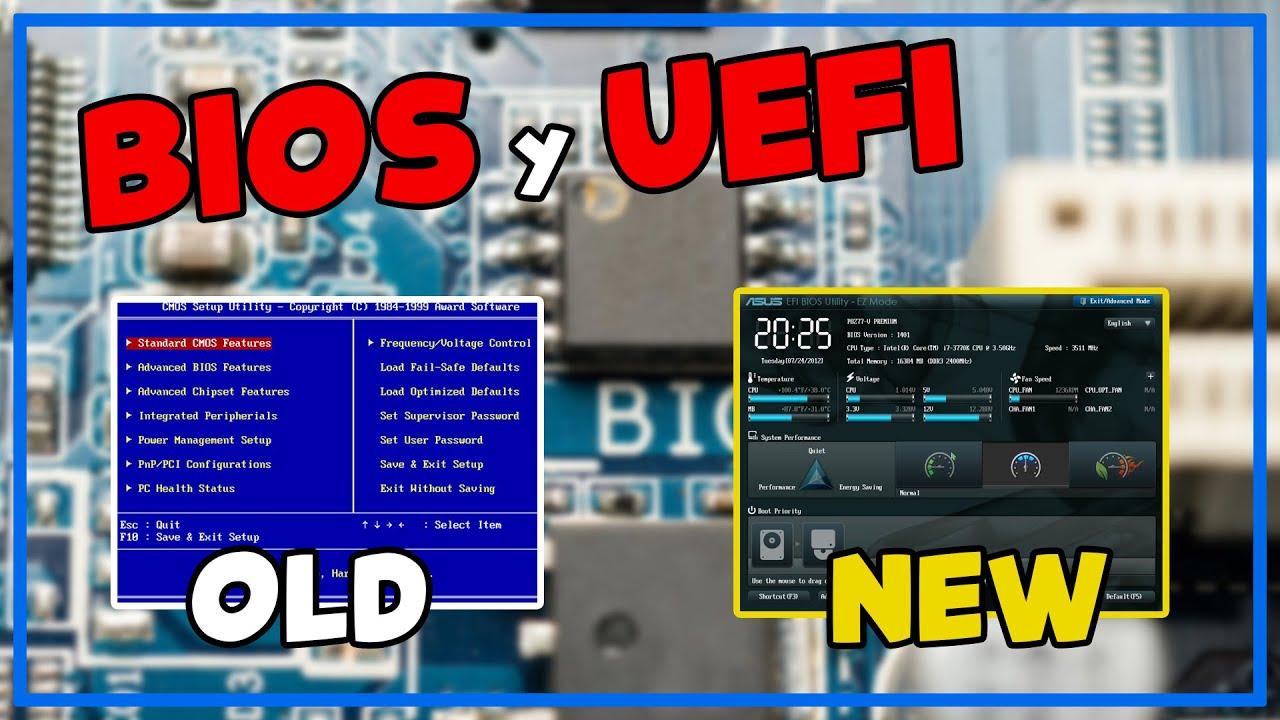
UEFI is the direct evolution of BIOS, and its acronym stands for Unified Extensible Firmware Interface . It originated as a standard initially driven by Intel and formalized by the UEFI Forum in 2002 , with companies such as AMD, Apple, Dell, Lenovo, and Microsoft, among many others, involved in its development.
The goal of UEFI is clear: to replace the BIOS by providing a much more flexible, secure environment capable of handling modern hardware . UEFI firmware is written in C, runs in 32 or 64 bits, and can reside in any non-volatile memory, not just the typical classic CMOS chip.
In practice, UEFI performs the same basic functions as BIOS : it initializes the hardware, verifies that everything is working correctly, identifies the boot device, and launches the operating system. The difference is that it adds a layer of additional services: its own boot manager, native network support, the ability to load third-party utilities, secure boot, support for GPT partitioned disks, and much more.
Visually, the change is obvious. UEFI interfaces typically offer graphical menus with icons, mouse support, multiple languages, and even animations and sound . Some motherboards even allow you to view real-time information on temperatures, voltages, and fan curves, or integrate small diagnostic tools.
Visible differences between BIOS and UEFI
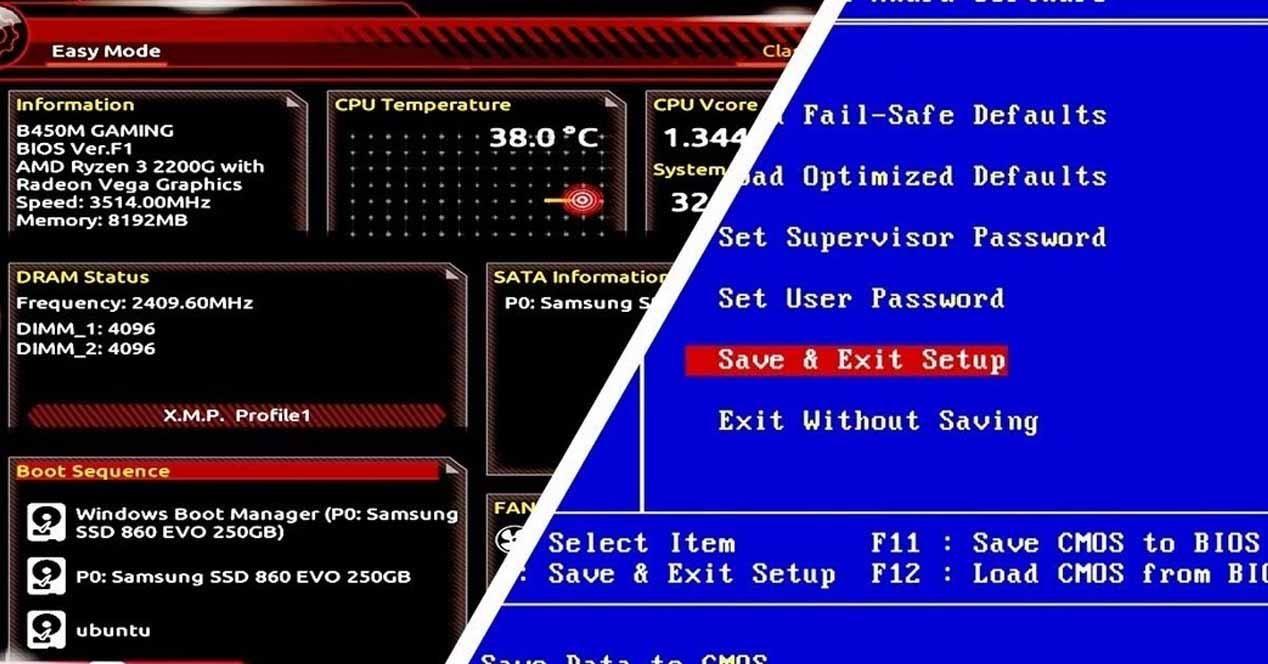
If you've only noticed that you "enter the BIOS" by pressing a key when you boot up, it might seem like everything is the same, but between a classic BIOS and UEFI firmware there are quite profound changes , both in what you see and in what happens underneath.
The most obvious difference is the appearance. Traditional BIOS presents a spartan, text-based environment controlled solely with the keyboard . UEFI, on the other hand, offers a graphical interface very similar to that of a lightweight operating system, with mouse support and, in many cases, with "basic" screens for novice users and "advanced" screens for those who want more precise control.
Another key difference is connectivity. UEFI can connect to the internet on its own to update firmware or access network services, even without loading the operating system. This opens the door to remote maintenance utilities on computers that aren't even booting Windows or Linux.
From a code perspective, BIOS is limited to 16 bits, while UEFI operates directly in 32 or 64 bits . This allows it to handle more memory, more devices in parallel, and faster boot times, reducing the time from pressing the power button to seeing the desktop.
For the end user, another very practical change is that UEFI incorporates its own boot manager, capable of handling multiple operating systems and several boot entries , without relying on the old rigid MBR scheme. This is combined with the use of GPT partitions, which we will discuss in detail later.
Main advantages of UEFI mode over BIOS
Beyond the aesthetics, UEFI offers a number of technical benefits that explain why manufacturers have made the switch en masse. On most modern computers, if you can choose between UEFI and legacy BIOS, you'll clearly want to use UEFI , except in specific scenarios.
One of the key improvements is its respect for user time: boot times are typically much faster . UEFI can initialize multiple devices simultaneously, thanks to its modern architecture, as it operates in 32/64 bits with more available address space. This is especially noticeable on systems with many disks or controllers.
Another crucial advantage is storage support. UEFI works seamlessly with GPT partitioned disks , allowing you to use drives larger than 2 TB and create up to 128 primary partitions on a single disk without the need for extended partitions or any other workarounds.
In the area of security, UEFI introduces the well-known Secure Boot . This feature cryptographically validates the code that runs during startup and blocks the booting of unsigned or tampered systems, reducing the risk of bootkits and malware that act before the operating system can defend itself.
Nor should we forget extensibility. UEFI is modular and can be extended with third-party drivers and applications : overclocking utilities, diagnostic tools, small media players, or embedded network clients. Furthermore, by being able to associate drivers directly with the firmware, the operating system is freed from loading certain drivers , which can simplify its work and improve overall performance.
Finally, in terms of maintenance, UEFI supports remote management and network access on many professional platforms, so that a technician can intervene on a server or PC even if the operating system is broken or the main disk has failed.
Common limitations and problems of UEFI
With all of the above, it might seem that UEFI is perfect, but no system is infallible. UEFI can also cause headaches , especially if you mix modes or work with older operating systems.
To begin with, UEFI is heavily geared towards 64-bit systems . Although specific implementations exist for 32-bit systems, in practice it's common for modern computers to have problems or simply not be able to boot older 32-bit systems, especially when the disk is formatted as GPT and Secure Boot is enabled.
From a security standpoint, it's important to clarify something: while UEFI with Secure Boot improves protection, it's not absolute . There are specific threats to UEFI firmware—such as certain persistent Trojans —that install themselves at such a low layer that they survive formatting, reinstallation, and even hard drive replacements because they reside on the motherboard itself.
Another source of problems arises when boot configurations are lost or accidentally changed . A simple UEFI reset (using a button, jumper, or battery) can return the motherboard to factory settings, altering the boot mode (UEFI/Legacy) and preventing Windows from starting, even if the data is intact.
Finally, compatibility with very old hardware sometimes requires enabling legacy mode (CSM) , which can conflict with GPT disks or modern systems that expected to boot in pure UEFI. In short, it offers power, but also more variables to manage.
Secure Boot: what it is and how it fits into all of this
Secure Boot deserves its own section because it raises many questions. It's not a Windows feature per se, but rather a component of the UEFI standard that modern systems—Windows 8 and later, and many recent Linux distributions—know how to take advantage of.
The idea behind Secure Boot is relatively simple: during boot, the firmware only executes code that is signed and validated using trusted cryptographic keys . This includes the operating system boot loader and, in some cases, optional drivers that load before the OS.
If something tries to boot without being signed with a recognized key, UEFI simply doesn't grant it control . This makes it difficult for an attacker to load an alternative operating system from USB to read your disk without permission, or for malware to modify the boot loader to run before the antivirus software.
This mechanism generated controversy when it first appeared because it initially excluded many non-Windows systems and older Linux distributions . Therefore, modern motherboards often include a legacy compatibility mode (CSM/Legacy) and the option to disable Secure Boot, enabling the installation of systems not designed for UEFI.
Currently, most of the well-known 64-bit Linux distributions already support Secure Boot , so they can coexist with Windows 10/11 in UEFI mode without needing to disable it, as long as the firmware key configuration allows it.
MBR and GPT partitions: why they matter with BIOS and UEFI
When discussing BIOS and UEFI, it's impossible not to mention how information is organized on the disk. The partition table defines how a physical disk is divided into usable partitions , and here two key schemes come into play: MBR and GPT.
In classic PCs, the BIOS works with disks that use the MBR (Master Boot Record) partition table . This format originated in the 80s, when talking about multi-terabyte disks was science fiction. The MBR is stored in the first sectors of the disk and contains, among other things, the boot code and the partition descriptions.
MBR has several important limitations: it only allows up to 4 primary partitions (or 3 primary and one extended partition with internal logical drives), and each partition cannot exceed 2 TB . Furthermore, by centralizing information in a single location, if the MBR becomes corrupted, you may lose access to all partitions.
With UEFI comes GPT (GUID Partition Table). GPT was designed precisely to overcome the limitations of MBR . It allows you to define up to 128 primary partitions on a single disk, each with sizes that can theoretically reach hundreds of terabytes.
Another key difference is robustness: GPT stores multiple redundant copies of the partition table across the disk , so damage to the first few sectors doesn't necessarily mean losing the entire structure. This makes recovery easier in case of errors.
In practice, the usual pairings are BIOS+MBR and UEFI+GPT . A computer booting in pure UEFI typically expects the system disk to be formatted as GPT, with its corresponding EFI boot partition . In contrast, a boot in legacy BIOS mode usually works on disks with MBR.
When does it make sense to use partitions and switch from MBR to GPT (and vice versa)
Working with partitions isn't just a technical matter; it directly affects how you organize your data and what operating systems you can install . There are several scenarios where modifying the partition table is almost mandatory.
One typical example is multibooting. If you want to have several operating systems on the same computer —for example, Windows and Linux—you need each one to have its own clearly defined partition (or set of partitions), and the partitioning scheme must be compatible with the boot mode you use.
Another common scenario is when you already have partitions created and need to resize, delete, or move them to make room for a new operating system or data partition. This is where a wrong move can result in data loss, so it's best to proceed with extreme caution, have a backup in hand, and preferably use specialized software.
It's also common to work with partitions when you want to clone your operating system installation to another disk, so you can restore it exactly as it was in case of disaster. In these cases, the partitioning type (MBR/GPT) and boot mode (BIOS/UEFI) must match between the source and destination disks to avoid ending up with a system that won't boot. For these processes, it's common to consult guides on how to clone the installation correctly.
Changing from MBR to GPT—or vice versa—is possible, but there's a catch. In many cases, it involves erasing the disk's contents , unless you use specific tools that allow for on-the-fly conversion. Furthermore, you can't "hot-convert" the disk you're booting Windows from without following specific and somewhat delicate procedures; that's why guides exist for doing it safely.
Operating system compatibility with BIOS/UEFI and MBR/GPT
Firmware, partitioning mode, and operating system compatibility is a bit of a puzzle that's worth understanding. Not all systems can boot in UEFI, not all support GPT, and not all work well with Secure Boot.
Starting with Windows, XP and earlier versions only understand BIOS and MBR . They cannot boot in UEFI mode or be installed on a GPT disk as the primary operating system. Windows Vista introduced preliminary UEFI support, but it was with Windows 7 and, especially, Windows 8 that support became established.
In modern environments, 64-bit Windows from Vista onwards can work with GPT disks , and from Windows 8 onwards, UEFI installation with an EFI system partition is the recommended scenario. In fact, certified computers with current Windows versions usually come from the factory with UEFI enabled, Secure Boot enabled, and the disk partitioned in GPT.
Regarding Linux, current 64-bit distributions typically support both UEFI and GPT , and even Secure Boot in many cases. However, very old distributions or 32-bit versions may require disabling Secure Boot and even forcing legacy BIOS mode to function.
An important detail is that it's not a good idea to install the operating system in one boot mode and then switch to another . If you install Windows in BIOS mode on an MBR partition and then enable pure UEFI without CSM, the computer will likely fail to boot. The reverse is also true: a Windows installation in UEFI on a GPT partition will not boot in Legacy mode if you simply disable UEFI and Secure Boot.
How to tell if your PC is using BIOS or UEFI
If you're unsure which operating system your computer uses, there's no need to open the case or play a guessing game. Windows includes several easy ways to check if you're using Legacy BIOS or UEFI , and also whether your disk is formatted as MBR or GPT.
One of the quickest ways is through the "System Information" tool. From the Start menu you can search for "System Information" or run msinfo32Within the main summary you will see a field called "BIOS Mode".
If "Legacy" or similar appears in that field, Windows is booting in Legacy BIOS mode . If it says "UEFI," it means the system is installed and configured to use UEFI firmware, likely with a GPT disk and an EFI boot partition.
Another useful way is Disk Management. Opens diskmgmt.msc and examine the disk where Windows is installed.If you see a small "EFI System" partition in FAT32 format, along with another partition reserved for Microsoft and the main NTFS partition, you are looking at a UEFI mode installation on GPT.
If, however, you only see one or two primary NTFS partitions and no EFI partitions, Windows is most likely installed in BIOS/MBR . To confirm this, you can use partitioning tools or the Windows command line.
There is even a "forensic" method based on the installation log file. In the folder C:\Windows\Panther the file is saved setupact.log with details of the boot environment detected during installation. By filtering that file by the string "Detected boot environment", you will see if the system was installed in a BIOS or EFI environment.
How to access UEFI or BIOS from Windows
Accessing the firmware is no longer just a matter of mashing F2 or Delete on startup, especially on computers that boot very quickly. Windows 10 and 11 offer direct paths to enter the UEFI settings without needing ninja-like reflexes.
The "cleanest" way is through Windows Settings. Go to Start → Settings → Update & Security → Recovery . In the "Advanced startup" section, you'll find a "Restart now" button that takes you to a special boot menu.
After restarting, you'll see several options. Select "Troubleshoot" → "Advanced options" → "UEFI Firmware Settings" and tap "Restart." The device will boot directly to the firmware settings screen, where you can change boot parameters, enable or disable Secure Boot, and more.
There's a very convenient shortcut: hold down the Shift key while clicking "Restart ," whether from the Start menu, the login screen, or even the familiar Ctrl+Alt+Delete. This takes you directly to the "Advanced Startup" menu without any hassle.
If you prefer to use the command line, that's also possible. Open a command prompt with administrator privileges and run shutdown.exe /r /oWindows will warn you that it will restart to enter advanced options, from where you can also access the UEFI.
For those who frequently make these adjustments, You can even create a desktop shortcut that runs shutdown /r /fw /t 1By double-clicking on it, the system restarts and goes directly to the firmware settings, without going through any more menus.
Resetting the UEFI settings when something goes wrong
Tweaking UEFI settings without knowing exactly what each setting does can result in a computer that won't boot. If that happens, you can always restore the configuration to factory settings , usually through one of these three methods.
Some manufacturers include a physical UEFI Reset button on the motherboard or even accessible from outside the case. Holding it down for a few seconds with the computer powered off and unplugged is usually enough to clear the custom settings.
Another classic possibility is to play with the motherboard jumper. By temporarily changing the position of the jumper used to erase the configuration (details of which are found in the motherboard manual) and leaving the computer without power for a few seconds, the UEFI loses the stored settings and returns to its default state.
The most "old school" method is to remove the CMOS battery from the motherboard. With the computer unplugged, remove the CMOS battery for about 10-15 seconds and then replace it. This is usually enough time for the firmware to forget the previous configuration.
In any of the three cases, it's a good idea to write down or photograph the configuration beforehand if you still have access to it, so you can put everything back the way it was once the problem is solved.
UEFI Upgrade: When is it worth it?
With so much emphasis on operating system and driver updates, it's natural to wonder if the UEFI also needs to be updated frequently . The short answer is: only when there's a compelling reason.
In general, updating the UEFI isn't necessary if your computer is working properly and you're not experiencing compatibility issues or serious malfunctions. Modern motherboards are much improved compared to older BIOS versions, but a failed firmware update still poses a significant risk.
It may make sense to consider an upgrade when the manufacturer releases a version that fixes specific bugs you're experiencing , improves compatibility with new processors or memory, or resolves significant security vulnerabilities.
To find out which firmware version you have, you can check the "BIOS Version and Date" field in the System Information tool . Then, compare it with the latest version available on your motherboard or laptop manufacturer's website.
However, if your computer starts malfunctioning after changing components—for example, after upgrading the RAM or installing a very powerful graphics card— the problem could be due to physical incompatibilities or motherboard limitations , not necessarily the UEFI version. It's advisable to rule these out before attempting a firmware update.
Understanding this whole framework of BIOS, UEFI, Secure Boot, MBR, and GPT is not just technical curiosity; it gives you the tools to decide how to install your systems, how to organize your disks, and what to touch (or not) when something stops booting , placing you much closer to the profile of a technician capable of taming any PC that comes into their hands.
