- MBR and GPT are distinct partitioning styles, with GPT offering more capacity, more partitions, and better integration with UEFI.
- Classic Windows tools convert between MBR and GPT only if the disk is empty, so they require backup and partition deletion.
- MBR2GPT allows you to convert MBR system disks to GPT without formatting, provided certain requirements are met and UEFI boot is enabled.
- Third-party partition managers facilitate lossless conversion in a graphical interface, but backups are essential.
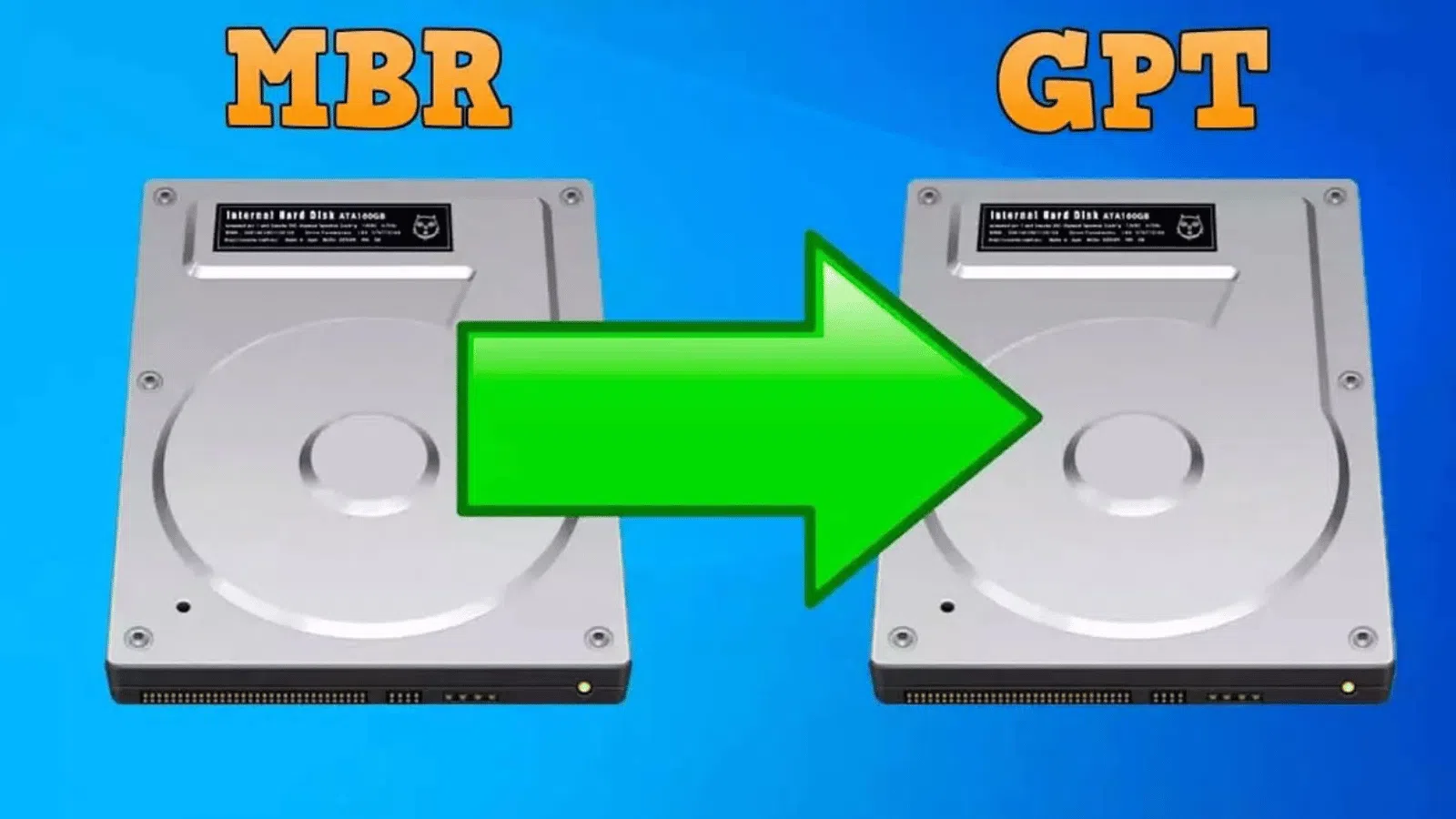
If you've come this far looking for how to convert an MBR disk to GPT without losing data , you've probably come across a lot of articles, guides, and videos that sometimes contradict each other or are incomplete. Between BIOS, UEFI, MBR, GPT, secure boot, and strange tools, it's normal to end up feeling confused.
The good news is that nowadays it is possible to safely convert a disk, even the system disk, from MBR to GPT , provided you meet certain requirements and follow the correct steps. Windows includes its own tools for this, and if you prefer, you can also use third-party programs that simplify the process and, in many cases, avoid having to delete partitions.
What are MBR and GPT and why do they matter?
Before touching anything, it's important to understand, even if only superficially, the difference between the two partitioning schemes, because this will determine whether your PC boots correctly and whether you can use all the disk space.
The partition style is the structure that tells the operating system where partitions begin and end , what type of partition each one is, and from which one the system should boot. To better understand the hardware involved, see computer components.
MBR (Master Boot Record)
MBR has been around since the early 80s and was designed for the first IBM PCs. Its greatest strength remains its almost universal compatibility with older operating systems and hardware . It works with a "classic" BIOS, and the basic structure is simple: the boot loader and the main partition table are stored in the first sector of the disk.
The problem is that this design has several significant technical limitations: with MBR you can only work with disks up to 2 TB and a maximum of 4 primary partitions . If you want more partitions, you have to use an extended partition and create logical partitions within it, which is less flexible and more prone to problems when managing many volumes. If you're unsure which storage medium to choose for high-capacity storage, check out SSD vs. external HDD.
Furthermore, in MBR all critical boot and partition information is stored in a single point at the beginning of the disk. If that sector becomes corrupted, you can easily lose access to the system or the disk's contents.
GPT (GUID Partition Table)
GPT originated as part of the UEFI (Unified Extensible Firmware Interface) specification , the modern replacement for BIOS. Compared to MBR, GPT is much more robust and scalable: in Windows, it can manage disks well over 2 TB (up to hundreds of terabytes depending on the implementation) and supports up to 128 primary partitions without the need for extended or logical partitions.
In GPT, the header and partition table are written to both the beginning and end of the disk, creating a backup of the partition structure . This means that if the main header is damaged, the system can recover the data from the copy at the end of the disk.
Another key difference is that GPT stores relevant boot data in partitions such as the EFI system partition (ESP) , rather than relying on a hidden sector. This improves reliability and simplifies recovery in case of problems, as critical data is not concentrated in a single vulnerable sector.
Operating system compatibility with MBR and GPT
The most common source of confusion is boot compatibility. Generally speaking, modern 64-bit systems with UEFI firmware can boot from GPT , while many older systems only boot from MBR.
- Windows 11: requires UEFI and a disk with a GPT partition for booting.
- Windows 10, 8, 8.1 64-bitThey can boot from GPT, but only if the motherboard is configured in UEFI mode.
- Windows 7 and Vista 64-bitThey need UEFI to boot from GPT; if they use legacy BIOS, they must use MBR.
- Windows 7 and Vista 32-bitThey cannot boot from GPT, although they can read and write to GPT disks as data drives.
- Linux and other modern systems usually support GPT natively, both for boot (with UEFI) and for data.
In practice, if you have a modern PC with 64-bit Windows 10 or 11 and UEFI firmware, it's likely that your system drive will be formatted as GPT . External or secondary drives still more commonly use MBR for compatibility with older computers and mobile devices; if you're going to replace an HDD with an SSD and reuse it as an external drive, see our guide on replacing a hard drive with an SSD.
Advantages of using GPT versus MBR
Once the concepts are clarified, it's easy to see why more and more users want to switch their disks from MBR to GPT , especially if they are upgrading to Windows 10 or 11 or installing high-capacity disks.
Among GPT's strengths are:
- Supports hard drives larger than 2 TB: if your disk is 3 TB, 4 TB or more, with MBR you will only see up to 2 TB usable.
- Up to 128 primary partitions in Windows, without extended or logical partitions.
- Greater redundancy and security thanks to replicated headers and partition tables.
- Better integration with UEFI, Secure Boot and Windows 11.
The downside is that GPT might not be suitable if you're working with very old operating systems or computers that only boot into legacy BIOS mode . In those cases, you might want to continue using MBR, at least on the system disk.
How to tell if a disk is formatted as MBR or GPT
Checking which partition scheme your drive currently uses is the bare minimum before considering any conversion. In Windows, you have several easy ways to find this out, both through a graphical interface and using commands.
Check from Disk Management
A very direct way is to use Windows' own disk manager , accessible from the administrative tools:
- Right click on This computer / My PC and select Manage.
- In the Computer Management window, go to Storage > Disk Management.
- Locate the disk you want to check, right-click on the label that says "Disk 0", "Disk 1", etc., and choose Properties.
- Go to the tab Volumes and press the button Fill so that Windows can read the information.
In that box you will see the Partition Style field , where it will be clearly indicated whether the drive is using MBR or GPT , along with other data such as the disk type or total capacity.
Check with DISKPART and Get-Disk
If you prefer using the command line, you can also quickly check the partition style with diskpart or PowerShell. In Command Prompt with administrator privileges, you can do the following:
- Write diskpart and press Enter.
- Enter the command list disk.
In the list of disks, you'll see a column called GPT . If there's an asterisk next to a disk in that column, it uses the GPT file system; if the box is empty, the disk uses the MBR file system. This also allows you to identify the physical disk number that corresponds to your drive.
You can also perform this same check using PowerShell by running the Get-Disk command , which displays the size, status, and a PartitionStyle field for each drive , showing whether it is MBR or GPT.
When is it in your interest to convert from MBR to GPT?
Changing the partition style isn't always essential, but there are several typical scenarios where converting from MBR to GPT makes perfect sense :
- Install or upgrade to Windows 11The system requires UEFI and a GPT boot disk to use the official update assistant.
- Use hard drives larger than 2 TBIf your MBR disk is 3, 4 or more TB, anything exceeding 2 TB will remain unallocated.
- Need many primary partitions: working with labs, virtual machines, multiboot… GPT offers much more flexibility.
- Prepare a system migration or cloningIf you are going to clone a system installed in GPT to another GPT disk or vice versa, it is advisable that both drives use the same style.
If you only have a relatively small hard drive, use 64-bit Windows 10, and don't plan on upgrading to Windows 11 or changing the boot configuration, you can stick with MBR without any major issues . However, on most modern computers, especially those with UEFI and active security measures, it's better to use GPT.
Methods to convert an MBR disk to GPT
In Windows, there are several ways to perform the conversion. Some require deleting the partitions (and therefore restoring a backup afterward), while others allow you to change from MBR to GPT while preserving your data . It's important to understand the difference between these methods before making any changes.
Conversion using Windows tools that delete partitions (Disk Management and DISKPART)
Classic built-in Windows utilities, such as Disk Management and the DISKPART command line , allow you to change a disk's partition style, but with one very clear condition: the disk must be empty, with no partitions or volumes . This means you'll have to delete all existing partitions.
With Disk Management , the general workflow would be:
- Make full backup from the disk data to another device.
- In Disk Management, right-click on each volume of that disk and select Remove volume….
- Once the entire space appears as Not assignedRight-click on the disc label and choose Convert to GPT disk.
- Create new partitions and format them as needed, then restore data from backup.
If you prefer DISKPART, the process would be similar but using commands. From an elevated command prompt:
- Run diskpart.
- Use list disk to view the discs and note the number you want to convert from.
- Write select diskX, where X is the disk number.
- Launch clean to delete all partitions and volumes on the disk.
- Use convert gpt to change the style to GPT (or convert mbr (if you want to revert to MBR on an empty disk).
This method, as you can see, is simple but results in the complete loss of the existing structure . Although you can restore from a backup later, it's more cumbersome and riskier than using other methods that preserve the data.
MBR2GPT: Convert your system disk without losing data
Starting with Windows 10 Creators Update (version 1703), Microsoft includes a specific tool called MBR2GPT.EXE that allows you to convert a system disk from MBR to GPT without deleting or modifying the stored data. This utility is designed to facilitate large-scale migrations in enterprise environments, but any advanced user can benefit from it.
MBR2GPT works by restructuring the partition table, creating the EFI partition, and adjusting the boot configuration (BCD) so that Windows can boot in UEFI mode. During the process, the tool performs a validation phase before finalizing the conversion, and only continues if a series of requirements are met.
Among the conditions that the disk to be converted must meet are:
- The disc must currently be in MBR and be a system disk, not just a data disk.
- There must be enough unpartitioned free space to accommodate the primary and secondary GPT headers (16 KB + sectors at the beginning and end of the disk).
- There can be a maximum of three primary partitions in the MBR scheme.
- One of the partitions must be marked as active and be the system partition.
- The disc cannot contain neither extended nor logical partitions.
- The BCD boot store must contain a valid OS entry that points to the operating system partition.
- All partitions must be of types that Windows recognizes or be mapped with the option /map on the command line.
If the disk passes all these checks, MBR2GPT proceeds to create the EFI partition, update the BCD, and migrate the partition table from MBR to GPT in place , without needing to format or restore backups. Even so, it's always highly recommended to make a backup beforehand in case something goes wrong.
Basic use of MBR2GPT from Windows 10 or Windows PE
The tool can be run from a Windows PE (pre-installation) environment or from a running Windows system using the /allowFullOS switch , or even using Linux live mode as an alternative tool in some scenarios. The general syntax is:
MBR2GPT /validate | /convert
A typical use case to validate disk 0 first from the operating system would be:
- mbr2gpt /validate /disk:0 /allowFullOS
If the validation is successful and the tool reports that the disk is suitable, the final conversion can be launched with:
- mbr2gpt /convert /disk:0 /allowFullOS
During the process, you'll see messages informing you of each phase: obtaining the disk layout, creating the EFI partition, installing new boot files, migrating boot entries, and correcting drive letters . If everything goes well, a message will appear at the end indicating that the conversion has been completed successfully.
Very important: After the conversion, you will need to access the computer's firmware settings and change the boot mode to UEFI (disabling Legacy BIOS or CSM). If you don't do this, the system will not boot even if the disk is formatted as GPT.
Limitations and warnings of MBR2GPT
Although MBR2GPT is extremely useful, there are several considerations to keep in mind before launching it:
- The change is irreversible.The tool does not offer an option to automatically revert from GPT to MBR. To do so, you would have to erase the disk and start from scratch.
- Works only with MBR-style system disksIt is not intended for data disks without an operating system.
- If the disk does not meet the requirements (for example, it has extended partitions, too many primary partitions, or there is not enough space at the beginning/end), the conversion will fail.
- If you have BitLocker, you must suspend protection before converting, and then reconfigure it and regenerate the key protectors.
In case of errors related to the partition structure or the BCD, it's time to review the configuration, reduce the number of partitions, free up some space, or, if things are very complicated, consider a backup and clean reinstall approach.
Convert MBR to GPT using third-party software
If Microsoft's tool doesn't suit your needs, or you simply prefer a simple graphical interface that allows you to convert MBR disks to GPT without deleting partitions , there are several third-party partition managers that specialize in this task. Many offer conversion for both data and boot disks.
EASEUS Partition Master
EaseUS Partition Master is one of the most popular partition managers. It stands out for its clean and intuitive interface, from which you can resize, move, and merge partitions, clone disks, and, of course, switch between MBR and GPT.
In this case, the MBR to GPT conversion is straightforward: select the disk in the main panel, right-click, and choose Convert to GPT (or to MBR if you're converting from GPT to MBR). Then confirm the operation and click Run operation / Apply for the program to make the changes.
The major advantage is that this conversion is performed without deleting existing partitions and, under normal circumstances, without data loss. Even so, it is highly recommended to make a backup beforehand, as it still represents a significant change to the disk structure.
The free version of the program has some limitations: for example, it's designed for drives up to 8 TB and lacks advanced features such as operating system migration or certain recovery tools. For intensive or professional use, the paid Pro edition offers more flexibility.
MiniTool Partition Wizard
Another classic among partition managers is MiniTool Partition Wizard , which also allows you to change the partition style and perform many other operations (clone, recover partitions, measure performance, analyze space usage, etc.).
This software can convert MBR disks to GPT without formatting and without data loss in most common scenarios. The process is similar to other tools: you select the disk, choose the conversion option, and confirm the operation.
However, some advanced features, including conversion in certain contexts, may be restricted to the paid Pro version . The free edition is useful for basic partition management tasks, but it may fall short if you're looking to automate boot disk conversions or handle more complex environments.
AOMEI Partition Assistant
AOMEI Partition Assistant is another comprehensive alternative for managing partitions in Windows. Its Professional edition allows you to convert both data disks and boot disks from MBR to GPT without deleting existing partitions.
The typical procedure would be:
- Install and open AOMEI Partition Assistant.
- Select the disc you want to convert.
- Choose the option Convert to GPT in the left menu or in the context menu.
- Accept the notification and press Apply so that the changes can be implemented.
The tool performs the operation while attempting to preserve all data and the partition structure . It even offers the ability to create a bootable USB drive to convert system disks on computers that cannot boot Windows, which is very useful if you encounter installation errors such as "Windows can only be installed on GPT disks."
MBR to GPT conversion with data preservation is part of the paid edition's features, so if you need it, you'll have to weigh the cost of the license against the time and risks of doing it manually with backup, formatting, and restoration.
Other tools and potential conflicts
There are other programs on the market focused on partition management, such as IM-Magic Partition Resizer and similar solutions. Many of them allow you to resize, move, and convert partitions with the promise of no data loss , but it's always advisable to carefully review the documentation and ensure they are compatible with your version of Windows.
After using these types of tools, Windows Disk Management may stop working correctly because the Logical Disk Manager (LDM) service or a related component has been disabled. In such cases, it is recommended to contact the software vendor's support to review the configuration or repair the necessary Windows services.
Conversion during Windows installation using CMD
In some cases, you encounter the problem during installation. For example, when trying to install Windows 10 or 11, you might see the message: “Windows cannot be installed on this disk. The selected disk has an MBR partition table. On EFI systems, Windows can only be installed on GPT disks . ”
If your motherboard supports UEFI and you want to follow the system's recommendations, you have two options: either exit the installation, back up your data, and convert at your leisure, or take advantage of the installation itself to convert the disk using CMD, knowing that all its contents will be erased.
In this scenario , what is usually done is:
- Boot from the Windows installation media.
- When the first assistant screen appears, press Shift + F10 to open a command prompt window.
- Launch diskpart and use the command combination list disk > select disk X > clean > convert gpt.
This leaves the disk completely clean, freshly converted to GPT, and ready to create the partitions that the Windows installer needs. However, you must understand that this method erases absolutely everything on the disk , so it's not a good option if you want to keep your data.
Key recommendations before and after conversion
Whichever method you choose to migrate from MBR to GPT, there are a number of best practices that can save you headaches and hours of work later:
- Always make a backup important files on another disk or in the cloud, even if the tool promises not to delete data.
- Close any applications that might be accessing the disk you're about to access. Avoid blocking or files in use.
- Check that you Motherboard supports UEFI and that you can enable it in the firmware settings before converting the system disk.
- If you have BitLocker or another encryption solution enabled, temporarily suspends protection during the conversion and reactivate it afterwards.
- After converting and adjusting the boot mode in the BIOS/UEFI, verify in Windows with Get-Disk or diskpart that the partition style appears as GPT and that the system boots without errors.
Furthermore, it's important to understand that if you ever decide to switch back from GPT to MBR (for compatibility with an older system, for example), in practice you'll have to completely erase the disk and recreate the partition table , since "reverse" conversions without data loss are not supported by Microsoft's native tools.
With all that said, the general idea is that today you are no longer tied to MBR: you have native tools like MBR2GPT to migrate your system disk without formatting and partition managers that greatly facilitate the process on data disks or more complex configurations, as long as you take precautions, make a backup and verify that your hardware is prepared to boot in UEFI mode over GPT.
