- An SSD dramatically improves the speed, reliability, and quietness of the computer compared to a mechanical HDD.
- Choosing the right form factor and interface (2,5"/M.2 and SATA/NVMe) is key to compatibility.
- Old hard drives can be repurposed as external storage with a suitable USB enclosure.
- If there are technical or disk status doubts, a professional service can handle data replacement and recovery.

If your computer takes forever to boot up, freezes when opening programs, and even browsing the internet is a chore, the problem is most likely not the processor or memory, but the old mechanical hard drive acting as a bottleneck . Instead of throwing your PC out the window or buying a new one, switching to an internal SSD or repurposing a hard drive as external storage can completely transform the experience.
Although it might sound technical, these days it's entirely possible to upgrade from a traditional hard drive (HDD) to a solid-state drive (SSD) , and even repurpose old drives as external storage with a simple USB enclosure. You don't need to be a computer engineer, but it's helpful to understand the options: using an external SSD, installing an internal SSD, cloning the system, formatting correctly, and deciding what to do with your old HDD.
Can an SSD be used as an external drive?
One of the most common questions is whether an SSD, initially designed to be installed inside a computer, can be used as an external storage drive connected via USB . The answer is yes: any SATA or M.2 SSD can be converted into an external drive as long as you use a suitable enclosure or adapter.
When you connect the SSD to a USB 3.0 or USB-C enclosure, the operating system recognizes it as a portable external drive for storing backups , documents, photos, games, or projects . It's a very convenient way to make use of an SSD that's become "free" after upgrading your PC or laptop.
Before spending money on a new external hard drive, it's worth checking if you already have an SSD or even an old internal HDD that you can repurpose . With a simple installation kit (enclosure + USB cable), you can mount it and start using it just like any other commercially available external hard drive.
However, if the drive you want to reuse has serious faults , severely damaged sectors, or constant errors , it's best not to rely on it for important backups, as it will most likely also cause problems as external storage.
Advantages of replacing a hard drive with an SSD
The main reason so many people are considering this upgrade is that an SSD offers a massive performance improvement over a mechanical HDD . The difference is noticeable as soon as you turn on your computer: the system boots in seconds instead of minutes.
Modern SATA SSDs can be up to ten times faster at reading and writing than a traditional hard drive . There are no more spinning platters or mechanical heads searching for data; everything is electronic, so access to information is instantaneous and the computer becomes much more responsive in any task.
In addition to speed, SSDs stand out for their greater reliability and resistance to shocks and drops . Since they have no moving parts, they are less affected by movement, which is especially important for laptops that are carried around daily.
Another advantage is that SSDs are completely silent and consume less power , which helps reduce overall system noise and improve battery life in laptops. For many users, this is the most noticeable upgrade in terms of daily convenience.
Therefore, if your PC or laptop still has an HDD, replacing it with an SSD is the most effective and cost-efficient way to give it a second life without having to replace the entire computer.
When does it make sense to reuse your old hard drive as an external drive?
If you've just installed a new SSD, you might be wondering what to do with your old drive, whether it's an HDD or a smaller SSD . In many cases, the smartest thing to do is repurpose it as external storage.
When you replace your hard drive simply to increase speed or capacity , the old one is usually still perfectly functional. In these situations, mounting it in a 2,5" USB 3.0 enclosure or an M.2 adapter allows you to continue using it as a portable drive for years.
However, if that disk shows clear signs of failure, such as constant freezes, read errors, or a poor diagnostic score in tools like CrystalDisk , it should be treated with caution. It might be useful for a one-off backup or data recovery, but it's not recommended for long-term backups.
In the case of hard drives with damaged but still accessible sectors, some repair services mount them in 2,5" USB external enclosures so you can retrieve your data more easily. Even so, it's advisable to copy all important data to another storage device as soon as possible, because they often eventually fail completely.
If your old hard drive is perfectly healthy and you just want a performance boost, using it as an external drive for movies, copies, photo libraries, or backups is a simple and inexpensive way to expand your available storage.
SSD types: form factor and interface
Before you rush out to buy an SSD, it's crucial to check what type of drive your computer supports in terms of size and connection . Not all computers are compatible with all formats.
The first point is the form factor . The most common ones are:
- 2,5″ SSDThey are the same size as many laptop hard drives and connect via SATA cable. They are the most common and usually fit without problems in the drive bay of most laptops and desktops.
- SSD M.2They are much more compact, shaped like an elongated card that is inserted into the motherboard. They don't require cables and are common in modern computers and thin ultrabooks.
The second point is the communication interface , that is, how the SSD connects to the motherboard:
- SATAThis is the traditional 2,5″ interface for hard drives and SSDs. While it doesn't reach the extreme speeds of other options, it's still more than enough to outperform any mechanical HDD.
- PCIe NVMeIt uses PCI Express lanes and the NVMe protocol, offering significantly higher speeds. It's the ideal choice for those who prioritize ultra-fast data transfers (video editing, loading very heavy games, etc.).
To find out what type of SSD you can install, it's best to consult your computer's technical specifications or manual . Search for the exact model online using terms like "specifications" or "storage" to see which formats and interfaces are compatible.
How to choose the right SSD for your computer
Choosing an SSD isn't just about finding the lowest price; it's about finding a model that physically fits your computer, is compatible with your motherboard, and has the capacity you need . A little planning can prevent surprises.
First, choose the correct form factor (2,5″ or M.2) based on your laptop or desktop PC's capabilities. An M.2 SSD won't do you any good if your motherboard doesn't have a suitable slot, and a 2,5″ drive won't fit in certain ultra-thin laptops.
You should also consider the communication interface (SATA or PCIe NVMe) . Many older computers only support SATA, while modern motherboards often offer M.2 NVMe slots as well. There's no point in installing the most expensive SSD if you can't then fully utilize its capabilities.
Regarding storage capacity, the ideal is to find a balance between space and budget . For basic use (office applications, browsing, studies), 240-256 GB may be sufficient. If you want to store large games, edit video, or save many photos, 1 TB or more is a more comfortable option.
Finally, it's advisable to opt for well-known brands like Kingston, Samsung, Crucial, or SanDisk . They generally offer better support, more polished firmware, and proven reliability compared to very cheap and little-known models.
Preparations before replacing the hard drive with an SSD
Before opening your computer and messing with screws, it's a good idea to secure everything properly to avoid any unpleasant surprises. A little preparation prevents data loss or problems when reinstalling the operating system.
The first step is to back up your important files . You can use an external hard drive, another PC, or cloud services like OneDrive, Dropbox, or Google Drive, which also allow you to automate backups of specific folders.
If you want to save time later, you can choose to clone your current hard drive to the new SSD . Programs like Macrium Reflect, Acronis True Image, Clonezilla, or EaseUS Todo Backup create an exact replica with the operating system, programs, and documents, making the switch almost seamless.
To clone from a laptop or PC that only has one internal drive bay, you'll need a SATA-to-USB adapter or an external enclosure to connect the new SSD while the HDD is still installed. This allows the software to copy all the contents from one to the other.
It's also a good idea to prepare a bootable USB drive with the operating system (for example, using the official Microsoft tool for Windows). If something goes wrong with the cloning process, you can always perform a clean install on the SSD and then copy your files from the backup.
Basic steps to replace an HDD with an SSD
Although each computer model has its own peculiarities, the general process for changing a mechanical hard drive for an SSD usually follows a series of fairly similar steps that, with a little patience, can be tackled without being an expert.
The first thing to do is completely shut down the computer, unplug it from the power outlet, and, in the case of laptops, remove the battery if it's removable . Working on a computer while it's still plugged in or while it's hot is a bad idea.
Next, prepare a clean and tidy work area and a suitable set of screwdrivers . Depending on the model, you'll need precision or other specific types of screwdrivers. Keep a container handy to store the screws and avoid losing any.
Once you've removed the side panel (on desktops) or the bottom or dedicated hard drive cover (on laptops), locate the HDD. It's usually screwed into a bay and connected with a SATA data cable and a power cable . In more compact systems, it may be secured with special brackets.
Carefully disconnect the cables from the hard drive and remove any screws or brackets holding it in place . Handle the HDD gently, avoiding sudden movements, especially if you plan to reuse it as an external drive.
In the now-free space, place your new SSD. If it's a 2,5" drive and the bay is designed for drives of the same size, simply screw it in and reconnect the SATA data and power cables . If the SSD is smaller or you're using adapters, you may need an additional bracket.
For M.2 SSDs, the process is slightly different: you'll need to locate the M.2 slot on the motherboard, insert the drive at an angle, and secure it with a small screw . Don't force it: if it goes in crooked or doesn't seat properly, double-check the orientation.
Once the SSD is physically installed, you'll need to reinstall the operating system or boot from the cloned drive . If you cloned the drive beforehand, the computer should boot directly from the SSD after shutting down. Otherwise, you'll have to boot from the installation USB drive and follow the wizard.
Installation and configuration of an external SSD
If you want to use an SSD specifically as an external drive for data, backups, or heavy projects , the assembly is even simpler, especially if it already comes in external format from the factory.
For models like a portable SSD with a USB-C connection, you usually just need to connect the USB-C cable to the corresponding port on your PC . If your computer only has USB-A ports, a USB-C to USB-A adapter is typically included so you can continue using it without any issues.
As soon as you connect the external SSD, Windows, macOS, or most Linux distributions will detect it as a new storage device . In Windows, you'll see it in "This PC" with a drive name; in macOS, it will appear in Finder as if it were another connected drive.
If the drive comes unformatted or you want to adapt it to your system, you can format it and, if desired, create partitions . For example, you could dedicate one partition to backups and another to storing projects or multimedia libraries. Choose the appropriate file system (NTFS, exFAT, APFS, etc.) based on your needs and the compatibility you require between different systems.
In Windows, you can manage this using the Disk Management tool , while in macOS it's done through Disk Utility. Choose the appropriate file system (NTFS, exFAT, APFS, etc.) based on your needs and the compatibility you require between different systems.
Once configured, you can use the external SSD as a destination to drag and drop files, save automatic backups, or directly edit large projects from it, taking advantage of its high speeds compared to a traditional USB mechanical drive.
Can the PC boot from an external SSD?
Many users consider buying an external SSD and moving their entire system to that drive to stop using the internal HDD as their primary drive . On paper, it sounds good, but in practice, there are significant limitations.
In some cases, such as with Windows, you'll encounter error messages when trying to install the operating system on a USB-connected drive , as not all installation methods support this configuration. The system may refuse to install on a standard external hard drive.
Even in scenarios where you can force a boot from USB, it's not always the most stable or highest-performing solution. Furthermore, you'll always depend on the external SSD being connected, the quality of the cable, and the USB port , with the added risk of accidental disconnections. If you're interested in exploring alternatives, keep in mind that booting from USB is closely related to solutions like booting from a Live USB and their limitations.
Therefore, if your goal is to truly speed up your computer, the best option is to install an internal SSD and use the external drive for data storage . An internal SSD will take full advantage of the interface speed (SATA or NVMe), reduce compatibility issues, and provide a much smoother experience.
If you've already bought an external SSD intending to use it as your system drive, you might consider returning it and buying an internal SSD , or keeping the external one as a fast data drive and adding a cheaper internal SSD for the operating system.
When is it advisable to consult a professional?
Although replacing a hard drive with an SSD is a relatively straightforward task, not everyone is comfortable opening a computer and handling internal components. If you have any doubts or your computer is particularly sensitive, it's wise to leave the work to a qualified technician.
Handling tiny screws, tight-fitting cases, and delicate cables can be frustrating if you're inexperienced, and a silly mistake can result in damaged connectors, broken parts, or even data loss . A technician experienced in this type of work will do it much faster and with less risk.
Professionals can also help you diagnose whether the performance problem is actually coming from the hard drive or if there are other underlying issues, such as memory failures, motherboard problems, excessive temperature, or even malware infection.
In addition, some workshops offer complete solutions: they supply the SSD, perform the change, clone the system, mount the old disk in an external enclosure and return the computer ready to use along with your old HDD converted into a portable disk.
If, after inspecting your computer, the technician discovers that the hard drive wasn't the problem, they'll usually offer you an alternative quote to repair the actual fault. If you decide not to proceed, they'll typically refund the cost of the service, minus any shipping or inspection fees.
Data recovery and uses of the old disk
When a mechanical hard drive is clearly damaged, the main concern is usually whether it will be possible to recover the important data it contained . This is where laboratory services come in.
If your hard drive suffers a serious electronic or mechanical failure, it may require advanced repairs using donor parts, cleanrooms, and specialized tools . In these cases, the technical service will typically send the drive to a recovery lab and provide you with a personalized, no-obligation quote.
If, on the other hand, the disk works but has damaged sectors and is very slow, a common solution is to mount it in a 2,5″ USB external enclosure so you can connect it as an external disk and extract the most important files at your leisure.
When your HDD is in good condition but you simply want to upgrade to an SSD for performance, you can usually repurpose it as an external drive without much hassle . This way, you gain extra storage, perfect for movies, backups, or data that doesn't require high speed.
Whatever your situation, it's wise to accept that no hard drive lasts forever . Both HDDs and SSDs have a limited lifespan, so it's essential to maintain backups on more than one storage medium (another drive, the cloud, etc.) to avoid unpleasant surprises when the day comes that they fail.
Making the switch to an SSD, whether internal or as an external add-on, is one of the best investments you can make to make an older computer feel fast again: with a good data backup, a suitable choice of format and interface, and, if necessary, the help of a professional, your computer can gain a second life and your old hard drive will continue to be useful as an external drive as long as its condition allows.
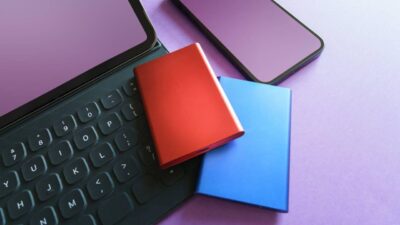
Table of Contents
- 1 Can an SSD be used as an external drive?
- 2 Advantages of replacing a hard drive with an SSD
- 3 When does it make sense to reuse your old hard drive as an external drive?
- 4 SSD types: form factor and interface
- 5 How to choose the right SSD for your computer
- 6 Preparations before replacing the hard drive with an SSD
- 7 Basic steps to replace an HDD with an SSD
- 8 Installation and configuration of an external SSD
- 9 Can the PC boot from an external SSD?
- 10 When is it advisable to consult a professional?
- 11 Data recovery and uses of the old disk