- The Hotspot sensor records the highest temperature of all internal points of the GPU, unlike the overall average temperature.
- The use of specialized software such as HWiNFO64, HWMonitor or GPU-Z allows the detection of thermal spikes that could cause thermal throttling.
- A considerable difference between the overall temperature and the hot spot may indicate problems with the application of the thermal paste or the contact of the heatsink.

If you're passionate about hardware and want to get the most out of your PC, you've probably noticed that there are several temperature readings for your graphics card. The general temperature reading we usually see isn't the same as the infamous hotspot , a metric that can be alarming if you don't know how to interpret it, but is crucial for knowing if your system is truly safe.
Understanding these differences is vital because, sometimes, the average temperature tells us everything is running smoothly while the chip is suffering in a specific area. In this article, we'll break down how to use tools like HWiNFO64 or HWMonitor to monitor these values and prevent your GPU from reaching the end of its life due to poor thermal contact.
What exactly is the GPU Hotspot?
To start with the basics, the Hotspot isn't an average temperature, but rather the highest reading from all the sensors distributed across the graphics card core. Imagine the chip as a map; while the GPU temperature is like the average weather temperature of a city, the Hotspot is like a thermometer placed directly on the asphalt at midday.
It's normal for this value to be higher than the overall average, since some areas of the graphics processor generate significantly more heat than others , especially near the compute units. Traditionally, AMD has been very transparent about this data, while NVIDIA has kept these values more hidden or restricted them to internal tools, although thanks to recent updates to third-party software, we can now access them.
Tools for measuring the hot spot
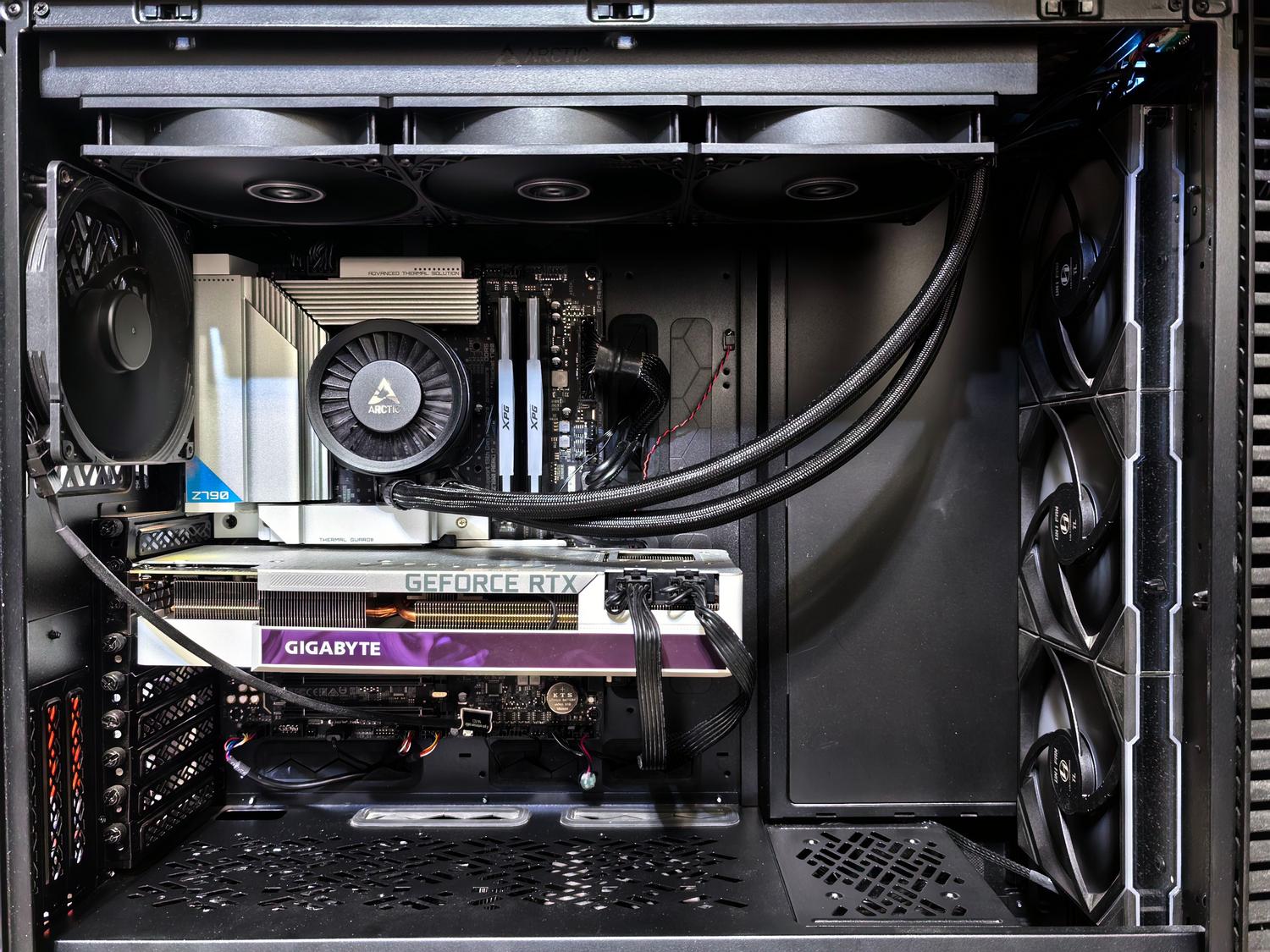
If you want to know the price of your graphics card, you have several options depending on your model and what you're looking for:
- HWiNFO64: It's probably the most comprehensive tool. In its most recent versions (including betas and pre-releases like v8.51), it has started supporting NVIDIA card hotspots, including the Blackwell architecture (RTX 50). You just have to open sensor mode and look for the line of GPU Hot Spot Temperature.
- GPU-Z: An essential classic. In the "Sensors" tab, you can see the maximum recorded temperature in real time. It's ideal for its simplicity and because it's free.
- HWMonitor: From the creators of CPU-Z. Version 1.65.1 recently fixed support for displaying the Hotspot on the new RTX 50 series cards, allowing you to monitor for hotspots. thermal limitations active.
Interpreting the values: When should I worry?
This is where many people panic. It's common to see a difference of between 10 and 20 degrees between the overall temperature and the hotspot temperature. If your GPU reads 70°C and the hotspot is at 85°C, don't freak out; this is normal behavior.
However, there are warning signs you shouldn't ignore. If the difference is greater than 25 degrees Celsius , you most likely have an assembly problem. This usually happens when the thermal paste isn't applied correctly or the heatsink isn't making even contact with the chip, creating a "blind spot" where the heat isn't dissipated properly.
The danger of thermal throttling and lifespan
When the hotspot reaches critical limits (which in modern graphics cards can peak at around 100-105°C), the system activates thermal throttling . This is essentially a defense mechanism where the card automatically reduces its clock speed and voltage to prevent overheating, resulting in a sharp drop in FPS and stuttering in your games.
In the long run, constantly working in extreme temperatures is unhealthy. Thermal paste degrades much faster, and electronic components, such as capacitors and VRM phases , can suffer premature wear. In the worst-case scenario, excessive and sustained heat could warp the PCB or cause permanent VRAM failures, resulting in those dreaded screen artifacts.
Tips for keeping your GPU cool
To prevent your computer from overheating, the most basic thing to do is ensure proper airflow in your case. Clean the dust filters and check that the fans are responding correctly to the load. If you have a laptop, avoid using it on soft surfaces like your bed, as this blocks the air intakes and causes the hotspot to rise rapidly.
If you find that the temperatures remain prohibitively high despite good ventilation, you might consider changing the thermal paste or using liquid cooling. High-end custom models typically handle these spikes better thanks to more conductive materials and larger heatsinks that keep the junction temperature well away from the critical limit.
Maintaining thorough monitoring using HWiNFO or GPU-Z allows you to differentiate between normal operating temperatures and a genuine hardware problem. As long as the hotspot temperature remains below 95°C under heavy load and there are no performance drops, you can play with peace of mind, knowing your graphics card is operating within the manufacturer's specified safety margins .