- Winlator allows you to run Windows applications and games on Android mobiles using Wine, Box86, and Box64.
- The installation is done via APK from GitHub and requires creating virtual machine-type containers with performance settings.
- Compatibility and performance depend on the device and the title, being more recommended for classic games and lightweight apps.
- Other emulators and alternatives such as Limbo, Bochs, ExaGear, Windows simulators and BlueStacks complete the bridge between PC and mobile.
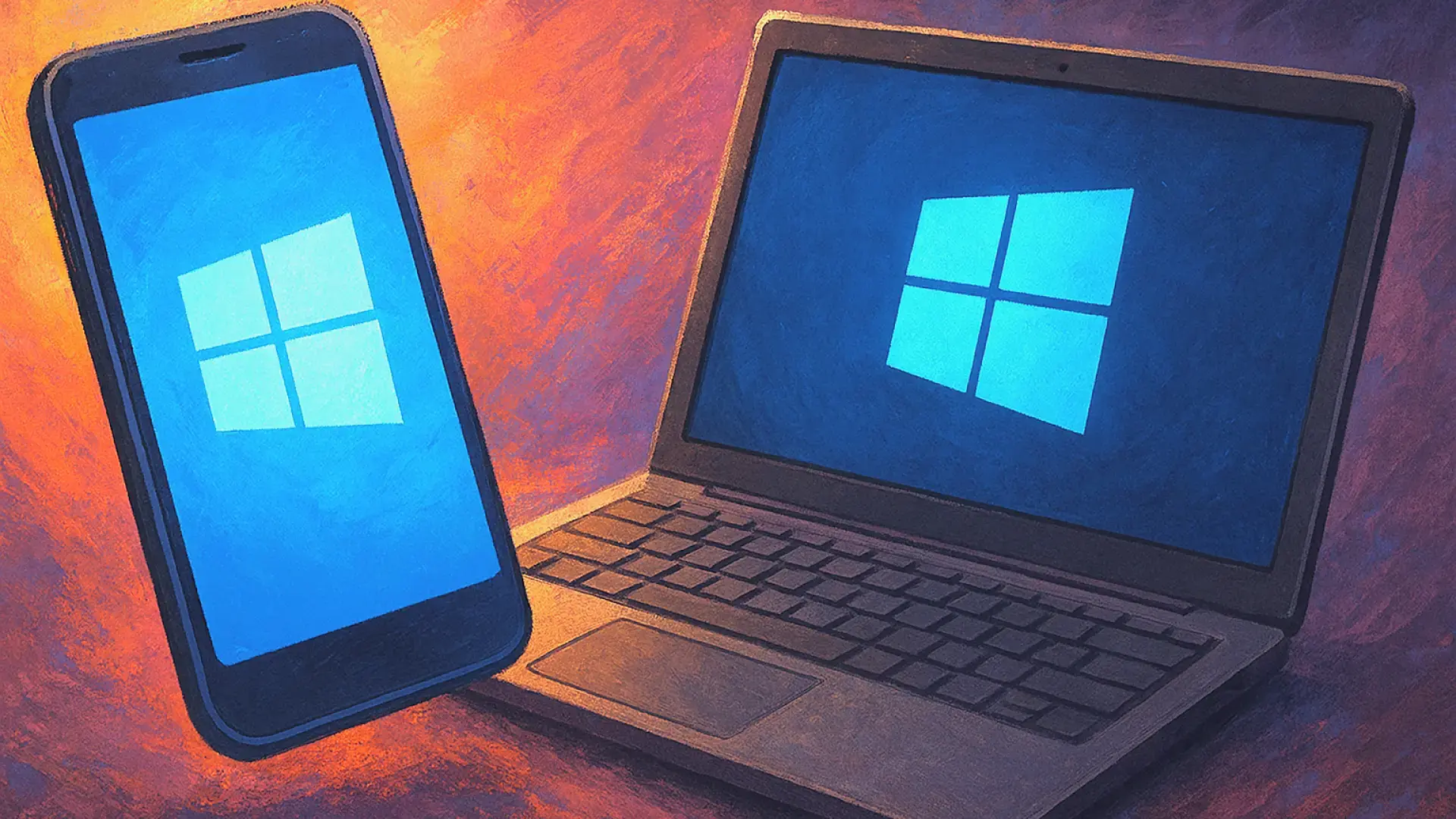
The line between Windows and Android is becoming increasingly blurred . What sounded like science fiction a few years ago—running PC programs on a mobile phone—is now within reach of anyone with a decent Android smartphone and a willingness to tinker a bit. Emulators have taken a giant leap forward and are now used not only to bring mobile games to PCs, but also to make the reverse journey: bringing the Windows world directly to your pocket.
Within this small but vast universe, the clear protagonist is Winlator, an emulator that brings Windows to your mobile device using technologies like Wine, Box86, and Box64. Thanks to it, you can run applications and games designed for Intel or AMD processors on Android phones with ARM chips. It's not magic; it has its drawbacks and limitations, but it opens a very interesting door for gamers, curious users, and people who want to get the most out of their device.
Winlator: the emulator that brings Windows to your Android mobile
Winlator is an open-source project whose main goal is to allow an Android phone to behave, as much as possible, like a small Windows PC. It doesn't replace a computer, but it does make it possible to run many desktop programs and games directly on the phone, without relying on the cloud or streaming.
To achieve this, Winlator relies on Wine, Box86, and Box64 . Wine acts as a compatibility layer that "translates" Windows calls so that the Android system (based on Linux) can interpret them, while Box86 (for 32-bit programs) and Box64 (for 64-bit programs) handle the emulation of the x86/x64 architecture on ARM processors. This combination allows software designed for Intel or AMD to run on a mobile SoC.
The application is distributed as a downloadable APK file from GitHub , the project's official repository. It's not available on Google Play, so you'll need to enable the installation of apps from unknown sources. Once installed, Winlator takes up approximately 253 MB of phone storage in its current version, a manageable amount considering everything it includes: emulation engines, a Windows-like graphical environment, and internal tools.
With the power offered by many Android phones today, especially in the mid-range and high-end, the idea of running PC games on a smartphone is no longer so far-fetched . Even so, emulation always comes at a cost: the device has to dedicate extra resources to "pretending" to be another platform, so the performance will never be identical to that of a native Windows PC.
Winlator is therefore presented as a solid first step towards a fully functional Windows emulator on Android . It doesn't aim for perfection, and not all games or programs will run flawlessly, but it does offer a very enriching testing ground for those who want to experiment with their favorite games without carrying around a laptop or a portable console like the Steam Deck.
Installation and first steps with Winlator
Installing Winlator is relatively straightforward , especially if you've previously installed an external APK on your phone. The essentials are to download the file from the developers' official GitHub repository, ensure it's the latest stable version available, and have sufficient storage space (at least 253 MB, plus extra for any games or programs you copy).
Once the APK is installed, opening the app will display a Winlator interface where the first step is to create a "container ." This container functions as a lightweight virtual machine based on Wine, emulating a basic Windows environment within Android. Your .exe applications and games will later run within this container.
During container creation, Winlator lets you select emulated hardware parameters : amount of memory, CPU settings, graphics options, etc. The more aggressive these values are, the more resources your phone will need, which can lead to slow, stuttering emulation or even prevent some apps from launching. Adjusting these parameters based on your smartphone's actual capabilities is key to a good experience.
After configuring the container, simply click on the run option (usually labeled "Run" or similar) and Winlator will load a graphical environment inspired by classic Windows . It feels like a mix between older versions of Windows (like 3.1/95) and a simplified file explorer, with access to the emulator's internal folders and directories on your phone.
From there you can navigate through the emulated drives and access the paths where you've placed your executables or game folders. That's the basic principle of the system: the Wine container "simulates" the Windows system, and you decide which programs you want to try running within it.
How to add Windows games and programs to your mobile phone
To truly benefit from the emulator, you need to transfer Windows files to the Winlator environment . This includes both executable files (.exe) and entire folders of games already installed on your PC. The usual way to do this is by connecting your phone to your computer with a cable and copying the files, using external storage (such as a microSD card), or using cloud services.
The easiest way is usually to copy the installation folders of games or programs you already have set up on your Windows PC. Then, place those folders in a location accessible from the Winlator container (usually in a directory that the emulator maps as a disk drive). Another option is to directly copy the .exe installers and run them within the Winlator environment, just as you would on a computer.
It's important to understand from the outset that there's no guarantee of full compatibility . Many lightweight games, classic titles, and simple software tend to work reasonably well, while very complex programs, specific professional tools, or games with high graphical demands may display errors, fail to launch, or run very slowly.
Winlator is best used for older games, less demanding titles, and basic office applications or utilities . In these scenarios, a powerful Android phone can perform surprisingly smoothly, allowing you to play PC classics or run older programs anywhere, simply by taking your phone out of your pocket.
If you're looking to bring your current AAA games to your mobile device, Winlator becomes more than just a daily tool; it's a testing ground to see "how far" your device can go . For many users, that element of experimentation, that "let's see if this works" feeling, is part of the emulator's charm.
Interface, controls and user experience
Once the container is opened, a visual environment reminiscent of classic Windows appears , with windows, folders, and a simple file explorer. It's not a perfect clone of any specific version, but it's familiar enough that anyone who has used Windows will know where to click without getting lost.
On screen, you'll see a movable cursor that you can control with your finger, just like a virtual trackpad. This solution allows you to interact with windows, menus, and small buttons without sacrificing the precision required by many desktop applications. However, not everything is designed for direct touch: some interfaces are simply not comfortable to use with just your finger.
Therefore, it is highly recommended to use Winlator with a controller, keyboard, and/or mouse , either connected via Bluetooth or a USB OTG adapter. For gaming, a gamepad is almost essential for enjoying titles that are typically controlled with a keyboard and mouse on PC, especially those with complex controls or requiring quick reflexes.
The very nature of emulation means that the perceived smoothness depends heavily on the game or program , the emulator's optimization, and the phone's processing power. On recent high-end smartphones, the results can be surprisingly good with many classic or mid-range titles. On more modest phones, expectations will need to be lowered, detail settings reduced, and less demanding software selected.
In any case, Winlator is designed more as a tool for experimentation and expanding possibilities than as a complete PC replacement. It's ideal for testing how your favorite games perform on mobile, revisiting old titles, or opening a specific Windows application when you don't have a computer nearby.
Technological limitations: performance and compatibility
It's important to keep in mind that, although mobile chips have advanced significantly, emulation always imposes a performance penalty . After all, the phone has to dedicate resources to simulating another architecture and operating system, in addition to running the game or program itself.
Therefore, for a Windows game to be even remotely playable on Android through Winlator, the device needs to be significantly more powerful than the game would require on a PC . Even then, there are still difficult factors to overcome: graphics drivers, specific APIs, copy protection, and dependencies that don't always work well with the Wine layer.
The direct consequence is that not the entire Windows catalog will work . Some games will open without problems, others will start but suffer from FPS drops, visual glitches, or unexpected crashes, and some simply won't run at all. This behavior is normal in emulation and doesn't mean Winlator is malfunctioning; it's simply limited by the inherent complexity of the Windows ecosystem.
Furthermore, the phone's temperature and battery life suffer when subjected to sustained heavy loads. It's not uncommon for the phone to get quite hot and consume a lot of power during long gaming sessions. It's best to use Winlator responsibly: for short testing sessions, not too long, and, if possible, with the phone plugged in to avoid any unpleasant surprises.
Despite this, for light use such as retro games, simple applications, and lightweight desktop utilities , the experience can be more than acceptable. The key is to adjust your expectations and understand that you're forcing a mobile device to do something it wasn't originally designed for.
Other Windows emulators for Android worth knowing about
Although Winlator has become the most prominent example, it's not the only Windows emulator available for Android . Several alternatives exist that can complement or replace Winlator depending on your needs, each with its own philosophy, level of complexity, and compatibility.
Among the best-known emulators is ExaGear , a tool designed primarily for playing Windows games on Android. For years it stood out for its good performance and user-friendly interface, although its official status has changed, and many versions now circulate on unofficial channels, making it difficult to recommend from a security standpoint.
Another option is Limbo , which functions as an adaptation of QEMU for Android. This emulator is also open source and allows you to create more traditional virtual machines capable of running different operating systems (including Windows, Linux, and others). It's very flexible, but also more technical: it requires configuring disk images, complete operating systems, and advanced parameters , so it tends to appeal to more experienced users.
Among the alternatives, we also find Bochs , an x86 CPU emulator written entirely in C++ that acts almost like a virtual motherboard. It can be used to load various operating systems, including Windows and Linux. Bochs is highly customizable, but its performance is generally more limited than solutions focused on a specific use case, and it's not intended for demanding games , but rather for testing and development environments.
Alongside these names more geared towards "real" Windows emulation, there are applications like Wins 10 Simulator or JPCSIM – PC Windows Simulator , which actually offer a visual simulation of the Windows desktop rather than full emulation. They mimic the appearance of Windows, include elements like the Start menu or a simplified file explorer, and are useful for browsing or basic tasks, but they don't allow you to run complex programs like a Wine-based environment or a virtual machine would.
While these projects don't directly compete with Winlator in terms of capabilities, they complete the picture of different ways to bring the Windows universe to mobile . From powerful and complex emulation to lightweight visual simulations, the range of options demonstrates how much the gap between platforms has narrowed.
If you're looking for real functionality and the ability to run demanding programs , the logical choice remains solutions like Winlator, Limbo, Bochs, or, in some cases, ExaGear. The other apps function more as curiosities or tools with a very specific focus, useful depending on the type of user and their intended use.
Specific emulators and curious simulators
In addition to the options mentioned above, there are more niche projects like WPR Windows Phone Emulator , designed to recreate the Windows Phone environment on Android. These kinds of tools are useful for those who miss certain apps or games from the Windows Phone ecosystem , especially titles developed with XNA. They are still under development and only support a few specific games, but they offer an interesting option for those nostalgic for that platform.
Another simple emulator is Vectras Emulator , designed to run older Windows applications and games with a very simple setup . It's geared towards those who prefer something uncomplicated and quick to set up, with a special focus on retro games and lightweight programs that don't require much processing power to run smoothly.
In the realm of simulators, JPCSIM – PC Windows Simulator offers an experience focused more on appearance than functionality. It simulates the boot process of various classic versions of Windows and allows you to experiment with a basic "desktop," but it doesn't replace a full emulation and is more geared towards entertainment or showcasing what old interfaces looked like than running modern software.
While these projects don't directly compete with Winlator in terms of capabilities, they complete the picture of different ways to bring the Windows universe to mobile . From powerful and complex emulation to lightweight visual simulations, the range of options demonstrates how much the gap between platforms has narrowed.
If you're looking for real functionality and the ability to run demanding programs , the logical choice remains solutions like Winlator, Limbo, Bochs, or, in some cases, ExaGear. The other apps function more as curiosities or tools with a very specific focus, useful depending on the type of user and their intended use.
When the emulator doesn't work as it should
It's relatively common that, when trying to run certain programs, the emulator doesn't respond as expected : games that won't start, black screens, unexpected crashes, or performance so poor it makes the experience unplayable. This doesn't necessarily mean you're doing something wrong, but rather that compatibility isn't yet perfect.
In these cases, a first recommendation is to try different emulators . A game that crashes in Winlator might perform better in Limbo, Bochs, or even another Wine-based environment. Each emulator uses different tricks, patches, and configurations, which means some programs only work correctly in one of the alternatives.
It is also key to check the configuration of each container or virtual machine : changing the amount of emulated RAM, modifying graphics settings, varying the version of Wine used, or even trying different builds of the emulator itself can make the difference between a game that doesn't even start and one that at least plays with some fluidity.
If after struggling with various emulators and settings you still haven't achieved good results, you might be interested in other solutions for running Windows on your phone without directly emulating it . This is where the concept of mirroring or projecting your PC screen onto your phone comes in, taking advantage of the fact that the computer handles all the heavy lifting.
Tools like AirDroid Cast allow you to mirror your Windows desktop on an Android device , turning your phone into a kind of remote monitor from which you control your PC. In practice, you can access all your Windows programs and games without the compatibility limitations of emulation, although you do need to have your computer turned on and, usually, a good network connection.
The reverse alternative: emulating Android on Windows with BlueStacks
While Winlator and others are trying to bring Windows to mobile devices , there's a reverse movement: running Android on a Windows PC. One of the key players here is BlueStacks , a very popular Android emulator that allows you to run mobile games and apps on a large screen with a keyboard and mouse.
BlueStacks installs like any other program on Windows, using an official installer downloaded from its website . After following the initial setup wizard, the user is presented with an interface that mimics an Android tablet, with access to the Google Play Store, account settings, and a dedicated desktop for organizing apps and games.
From this interface, you can search for mobile games, install them, and run them as if you were on a phone , but with the advantages of PC hardware. BlueStacks also allows for extensive customization of the controls, assigning keyboard keys or controller buttons to the original touch actions, which is especially useful for shooters, MOBAs, and other competitive titles.
The emulator includes extra features such as screenshot capture, game recording, and synchronization between different devices , so you can have your favorite mobile games always available, but enjoying them on a large monitor with much greater power than most smartphones.
Looking at the big picture, BlueStacks and Winlator are like two sides of the same coin : one brings Android to the Windows desktop, and the other pushes Windows into the Android ecosystem. Between them, it's clear how emulation is blurring lines that once seemed insurmountable between platforms.
All these tools make it clear that your Android phone can become much more than just a simple device : with Winlator and other emulators, you can play classic PC software, try out interesting programs, and experiment with environments that until recently seemed exclusive to a computer. Meanwhile, if you're looking to bring your mobile games to your monitor, solutions like BlueStacks put Android at the service of Windows. The decision of where to build that bridge—from PC to mobile or from mobile to PC—depends on what you want to do and how much you're keen to experiment.

Table of Contents
- 1 Winlator: the emulator that brings Windows to your Android mobile
- 2 Installation and first steps with Winlator
- 3 How to add Windows games and programs to your mobile phone
- 4 Interface, controls and user experience
- 5 Technological limitations: performance and compatibility
- 6 Other Windows emulators for Android worth knowing about
- 7 Specific emulators and curious simulators
- 8 When the emulator doesn't work as it should
- 9 The reverse alternative: emulating Android on Windows with BlueStacks