- Hotpatch allows many security patches in Windows 11 to be applied directly in memory, drastically reducing the number of restarts required.
- The feature is limited to Windows 11 Enterprise 24H2 and related editions managed with Intune and Windows Autopatch, focused on corporate environments.
- The model combines a major quarterly update with monthly "hot" reboots and patches that do not interrupt work.
- While businesses are taking advantage of this technology, home users are still relying on traditional restarts and manual management of Windows Update.
For many users, seeing the "restart to install updates" message in Windows is practically synonymous with interrupting their work or leisure time. We've been living with this routine for years: the patch arrives, it downloads, the computer runs a bit slower, and sooner or later, it's time to restart. With Windows 8 and Windows 10, the feeling of being overwhelmed worsened, and although the process has been refined in Windows 11, the underlying problem remained... until now, at least for some users.
Microsoft has decided to make a significant change with a system designed to update Windows 11 without requiring constant restarts . This technology, known as hotpatch or hotpatching , promises to apply numerous security patches directly to the running system. However, there's a catch: not everyone will be able to take advantage of it immediately, and there will still be situations where a restart is unavoidable.
What is hotpatch in Windows 11 and why does it matter so much?
Hotpatch is a new update model for Windows 11 that allows certain security patches to be installed without requiring an immediate system restart. Instead of waiting for the next boot to replace critical files, the system itself modifies the code in memory "on the fly," so the fixes begin protecting the computer as soon as they are installed, and administrators can use tools like Sysinternals to monitor the process.
Until now, each cumulative security update required a restart to apply changes to essential operating system components. In a home environment, we usually shut down our PCs daily or almost daily, so the patch would eventually be installed during a nightly shutdown. But in businesses, where computers are left on for weeks or systems cannot be shut down without a planned shutdown, this practice created real headaches.
Microsoft's approach with hotpatch is clear: drastically reduce downtime without sacrificing speed in patching vulnerabilities. The system downloads the patch, applies it in memory, and the computer is instantly protected, although a restart may still be required to consolidate major changes or install larger feature updates.
From a security standpoint, this means that instead of leaving known vulnerabilities unpatched for days or weeks because no one restarts their PC, patches start working immediately. In environments where many computers are managed, this difference can be crucial for preventing incidents and is often complemented by advanced automation for deploying and monitoring updates.
How hot patching works in Windows 11
The idea behind hotpatch in Windows 11 isn't just about faster installations, but about completely reorganizing the update schedule . Microsoft has explained that this system follows a highly structured quarterly cycle designed primarily for businesses and organizations using Windows 11 Enterprise.
In practice, the cycle has two types of updates: a major quarterly update that does require a restart , and a set of monthly "hot" patches that don't require shutting down the computer. In other words, restarts don't disappear, but they are greatly reduced in number and when they are necessary.
During January, April, July, and October, Windows 11 installs a comprehensive security update that includes cumulative fixes and general improvements. This update is the "baseline" of the update cycle and does require a system restart. From then on, in the following two months of each quarter, subsequent security updates are distributed via hotpatch and, under normal circumstances, are applied without a restart.
This means that, instead of having to restart almost every month to complete the security patch, the number of "forced" restarts drops to approximately four per year . The remaining patches are loaded into memory, correct the detected vulnerabilities, and the user barely notices anything more than a relatively discreet installation running in the background.
On the other hand, major feature updates and version changes (for example, upgrading from one major version of Windows 11 to another) follow a separate schedule and will still require their corresponding restarts. Hotpatch, for now, focuses on security and quality-of-life patches that affect the system core.
Practical advantages of updating Windows 11 without restarting your PC
The hotpatch system has several clear advantages that explain the interest it has generated among IT administrators and security professionals. The first is the immediate improvement in system protection : as soon as the patch is installed, the system begins using the corrected code in memory.
This aligns with Microsoft's regular "Patch Tuesday" schedule, so the security update frequency remains the same , but without the need to force a restart immediately upon application. In offices with dozens or hundreds of PCs, that difference between having to shut down everyone's work or letting them continue working normally makes a big difference.
Another significant advantage is the reduction in disruptions perceived by the end user . By limiting necessary restarts to just a few times a year, the typical insistent "restart now or tonight" messages, rushed document saving, and the feeling of racing against the clock before the system decides to start updates are avoided.
In addition, Microsoft has refined the technology for distributing these patches. Hotpatch packages use fewer binary files and are optimized to consume fewer resources, shortening download and installation times. On computers with many applications open or with limited hardware, noticing that the update is smaller is always welcome.
In summary, from a technical and organizational standpoint, hotpatch allows for more secure systems, with fewer downtimes and less impact on performance during the update process. However, as we will see, it's not all advantages: there are several important limitations regarding who can use it and how.
Who can use hotpatch in Windows 11 and what are the requirements?
While the idea of these hot-patching updates sounds great to anyone using a PC, Microsoft has decided to initially restrict hot-patching to the business and education sectors . In other words, nothing for now for most home users with Windows 11 Home or a large portion of those with Windows 11 Pro.
To benefit from this model, the device must be running Windows 11 Enterprise version 24H2 or later , or equivalent editions such as those for education (Windows 11 Education A3, A5) and certain Windows 365 Enterprise scenarios. Additionally, these devices must be managed through Microsoft Intune and, in practice, integrated into the Windows Autopatch platform.
Autopatch is Microsoft's service designed to automate and centralize update management in organizations . Within this service, hotpatch is enabled as part of quality update policies. In fact, in newer configurations managed by Intune, hotpatch is already enabled by default to simplify the workload for IT administrators.
Regarding hardware, hot-swapping is officially supported on x86 systems with Intel and AMD processors . ARM-based devices are still considered public preview scenarios, so their support is not as comprehensive or stable as on traditional machines. It's also important to monitor for potential software and driver conflicts that may arise after updates.
All of this means that, as of today, a user with Windows 11 Home on their home PC cannot enable hotpatch , no matter how new or powerful their computer is. Even many Windows 11 Pro systems, unless they are part of a managed environment with Intune and appropriate enterprise licenses, will not see this feature available, at least in the short term.
Windows Autopatch and Intune: the key component in businesses
Hotpatch deployment is closely tied to Windows Autopatch and centralized management with Microsoft Intune . It's not a feature that "magically" activates on any Enterprise PC; rather, it's controlled through specific update policies.
In companies, the IT department configures a quality update policy in Intune to define how and when patches are applied . From there, the service itself analyzes the managed computers, checks if they meet the requirements (version, build, processor, licenses, etc.), and enables the hotpatch process on compatible systems.
This aligns with the reality of many organizations where every reboot involves coordinating services, users, schedules, and maintenance windows . By relying on Autopatch, you can have very granular control over which device groups receive which type of patch and when, minimizing the potential for disrupting critical services.
Furthermore, Microsoft has decided that hotpatching will be enabled by default in the new quality update policies created in Intune. This prevents administrators from having to manually adjust dozens of options and encourages the organization to adopt this update method without too much technical friction.
However, while the feature is already operational for many companies, not all types of updates go through this "live" channel . Major quarterly updates, version changes, and patches that affect very deep aspects of the system will still require a planned restart.
Calendar and hotpatch availability in Windows 11
Microsoft has been gradually introducing this technology. The concept of hotpatch for Windows 11 began to be discussed publicly in early 2024 and was first tested in Insider Channel build 26058. Even in that initial phase, security updates were already installing noticeably faster and without requiring a system restart.
The company now plans to integrate it more broadly into Windows 11 Enterprise 24H2 and later versions , relying on a prior base update that prepares the system for this new "live" patching model. This base update is distributed as part of the regular security patches, and once installed, the computer is ready to receive the monthly hot patches.
The company has confirmed that hot patching will continue the quarterly pattern we discussed, concentrating mandatory system restarts into four periods per year. From then on, memory-based fixes will be released monthly, without any apparent interruptions for users.
Looking ahead to the coming months, Microsoft aims to make hotpatch the standard practice for quality security updates in environments where Autopatch and Intune are fully deployed . However, the company itself acknowledges that, for now, there are no firm announcements regarding its widespread rollout to Windows 11 Home or Pro.
If the system works well in large organizations and educational institutions, it wouldn't be surprising if it were later rolled out to home users , as has happened with other technologies that first debut in corporate settings. But for now, those with Windows 11 at home will continue to see the "restart to install updates" prompt as frequently as ever.
What does this mean for home users of Windows 11?
For the average user, things remain largely the same . If you have a PC with Windows 11 Home or a Windows 11 Pro computer that isn't part of an Intune-managed enterprise, you'll continue to receive updates as before: Windows Update downloads the patches, prepares them, and prompts you to restart to complete the process.
It's true that Windows 10 and Windows 11 now allow you to schedule the download and installation of updates , so you're not caught in the middle of a meeting or while you're playing a game. This change, which arrived a few years ago, put an end to the days when the system would suddenly restart, forcing the user to accept the interruption.
Furthermore, when Microsoft releases a new security patch, an icon now appears in the notification area warning of a pending restart . During this time, the computer may run slightly slower, as some resources are allocated to preparing the update in the background. It's not ideal, but at least the user has the option to stop and let the restart take place.
Until hotpatch is available for home versions, the best strategy remains to take advantage of Windows Update's scheduling and management options , avoid postponing restarts indefinitely, and, if it's a work computer, schedule those update windows for times of lower load. If problems arise after an update, it's helpful to know how to safely repair Windows 11 .
In any case, this first deployment in companies lays the foundation for what could be the future of updates at home as well: a much more transparent model, with fewer interruptions and closer to what is already seen in other systems that have been working with "live" patches for years.
Linux, 0Patch and other precedents of hot patching
While the concept of hotpatch has generated considerable excitement in the Windows world, the idea of applying patches on the fly is not new at all . In fact, the Linux ecosystem has had what is known as "live patching" for over a decade, and it has been part of the kernel since version 4.0, released in 2015.
In Linux, this system allows you to modify kernel functions while the system is running , replacing vulnerable versions with fixed ones without having to restart the server. It is especially useful in professional environments: data centers, cloud services, or mission-critical systems where downtime would be very costly.
The key difference is that, while also heavily geared towards professional environments, on Linux any user can enable and use these live patches if their distribution supports it, even on a home computer. There's no need to be part of a corporate network or have a specific enterprise license, something many point out as an area where Microsoft could have been more generous.
Within the Windows ecosystem itself, a commercial solution called 0Patch already existed , offering a similar approach to current hotpatching. This tool allows micropatches to be applied directly to RAM to correct bugs and vulnerabilities without needing to restart the system, even on older versions of Windows and Office that are no longer officially supported.
0Patch is used, for example, to maintain a certain level of security on systems that Microsoft has deemed obsolete , and it does so through a paid subscription of around $25 per year. This is a relatively affordable cost for businesses or administrators who need to buy time before migrating to more modern platforms.
All of this demonstrates that hot patching is a mature and proven technology , and that Microsoft's vision with hot patching fits into a broader trend of reducing restarts and minimizing service downtime. The controversial aspect, according to many, is that it is initially being reserved for a relatively limited group of users.
Configure and manage updates in Windows 11 and Windows 10
While hotpatch is becoming more established in the enterprise world, users and administrators continue to rely on traditional update configuration tools . In professional environments, this often involves controlling which version of Windows is deployed and when the upgrade to a newer version is permitted.
Microsoft offers several options for setting a target version for feature updates . This can be done through Group Policy, via feature update profiles in Microsoft Intune, or using Windows CSPs associated with Windows Update for Business. The key is to tell the system, "I want to stay on this specific version," and prevent premature upgrades.
A very straightforward way to do this, especially on individual computers or in small environments, is to define these preferences directly in the Windows Registry . For example, entries such as TargetReleaseVersion, TargetReleaseVersionInfo, or ProductVersion can be created under the corresponding WindowsUpdate branch to lock a specific version of Windows 11 for a certain period.
From a command prompt with administrator privileges, you can add these keys using `reg add` commands that tell the system which version (21H2, 22H2, etc.) you want to target. Once the desired update is complete, it's advisable to remove these keys to avoid being stuck indefinitely on a version that will eventually become unsupported. If you need to boot into Safe Mode to troubleshoot problems, that option is still valid.
It's also important to note that if a device is enrolled in the Windows Insider Program , it may receive preview builds that include significant changes before the version is released to the general public. If you no longer wish to participate in this program, you must unenroll your computer from Settings > Update & Security > Windows Insider Program and choose the option to stop Insider builds, depending on the channel you're in.
Upgrade to Windows 11 on unsupported computers without formatting
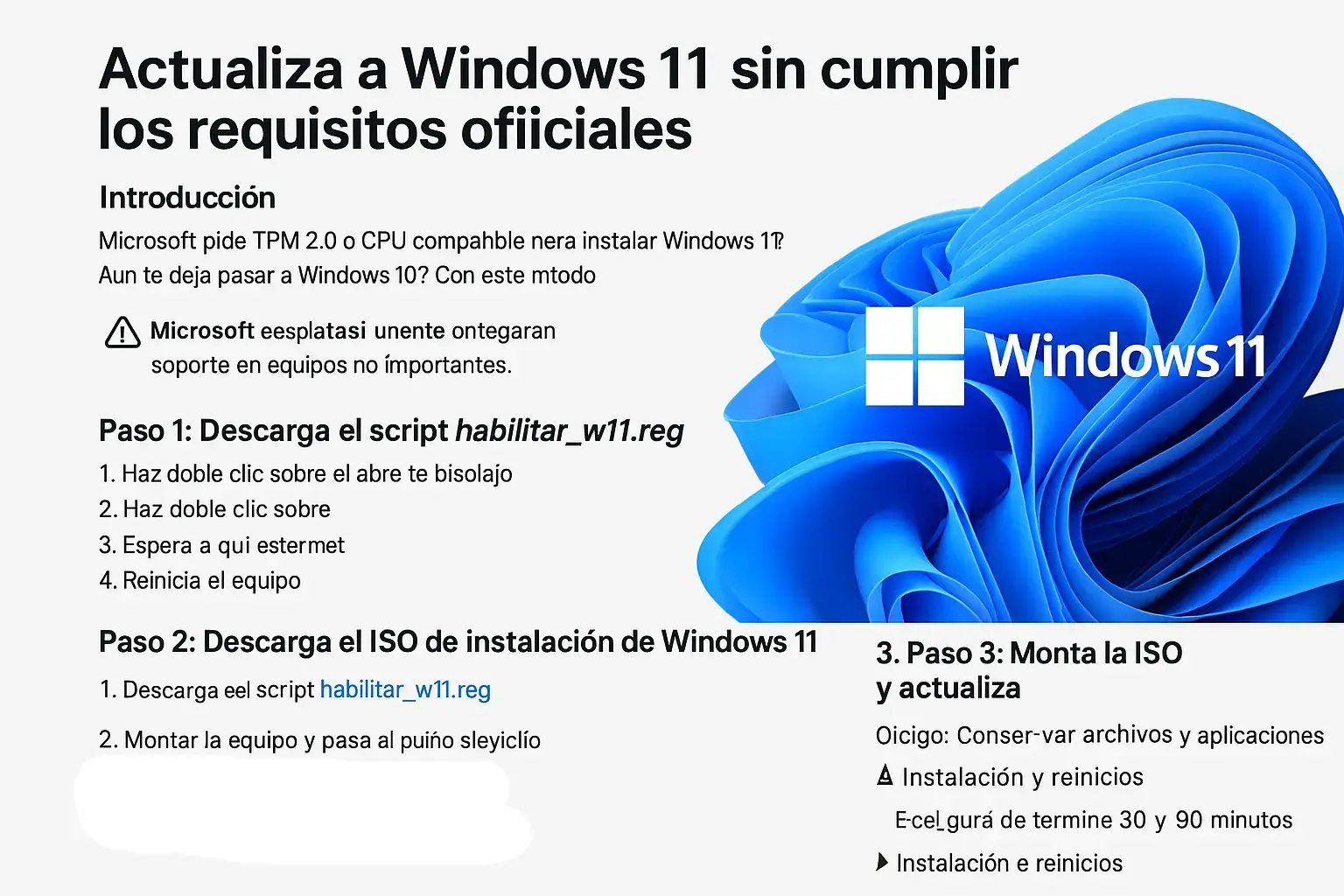
Another very common scenario related to Windows updates is that of users who want to upgrade to Windows 11 from Windows 10 despite not meeting all the official requirements . Microsoft requires TPM 2.0, Secure Boot, and a supported CPU for standard installation, but there is a method recognized by the company itself to upgrade without formatting in certain cases.
This method involves using the Windows 11 Setup Wizard or the official ISO , combined with a minor registry modification that relaxes compatibility checks. Before proceeding, it is crucial to back up important files, as this configuration is not recommended by Microsoft for critical environments and future support is not fully guaranteed.
The process typically involves three main steps: first, preparing the necessary registry key (for example, using a .reg file that creates it automatically); second, downloading the Windows 11 ISO file for the desired 64-bit edition from the official Microsoft website; and finally, mounting the ISO and running setup.exe, choosing to keep your files and apps. You can also consult our guide for upgrading to Windows 11 in different scenarios.
During the installation, the wizard will warn that the device does not meet the hardware requirements, but will allow you to continue thanks to the applied registry key . The computer will restart several times, and upon completion, the user will have their system updated to Windows 11 without having formatted the drive and, in principle, retaining both the activation and personal data.
After completing the update, it is recommended to remove the specific registry keys that were forcing the target version and verify in Windows Update that everything is working correctly. Although these computers continue to receive security and feature updates in practice, Microsoft reserves the right to discontinue them in the future.
In terms of ongoing maintenance, it's still a good idea to run Windows Update until all patches are gone, check the activation status in Settings > System > Activation, and create a restore point in case you need to revert any problematic changes later.
This whole situation creates a curious scenario: we have systems that can be upgraded to Windows 11 even without fully meeting the requirements , but which, at the same time, cannot benefit from enterprise hot-patching. Meanwhile, at the other end of the spectrum, companies with Enterprise licenses enjoy very advanced hot-patching, but within a highly controlled hardware and management perimeter.

Microsoft's progress with hotpatch in Windows 11 clearly points to a future where updates are much more transparent and less disruptive for everyone . For now, the biggest beneficiaries are businesses using Enterprise, Intune, and Autopatch, where hotpatch updates already reduce restarts to just a few times a year. The rest of the users, between scheduling options, registry keys to lock versions, and tricks to install Windows 11 on not fully compatible machines, continue to deal with the classic restarts, waiting for this in-memory patching model to eventually reach home users as well.
Table of Contents
- 1 What is hotpatch in Windows 11 and why does it matter so much?
- 2 How hot patching works in Windows 11
- 3 Practical advantages of updating Windows 11 without restarting your PC
- 4 Who can use hotpatch in Windows 11 and what are the requirements?
- 5 Windows Autopatch and Intune: the key component in businesses
- 6 Calendar and hotpatch availability in Windows 11
- 7 What does this mean for home users of Windows 11?
- 8 Linux, 0Patch and other precedents of hot patching
- 9 Configure and manage updates in Windows 11 and Windows 10
- 10 Upgrade to Windows 11 on unsupported computers without formatting