- Prioritize the Ethernet cable connection to reduce WiFi instability.
- Configure optimized DNS servers to improve network response.
- Manual selection of geographically close servers to minimize latency.
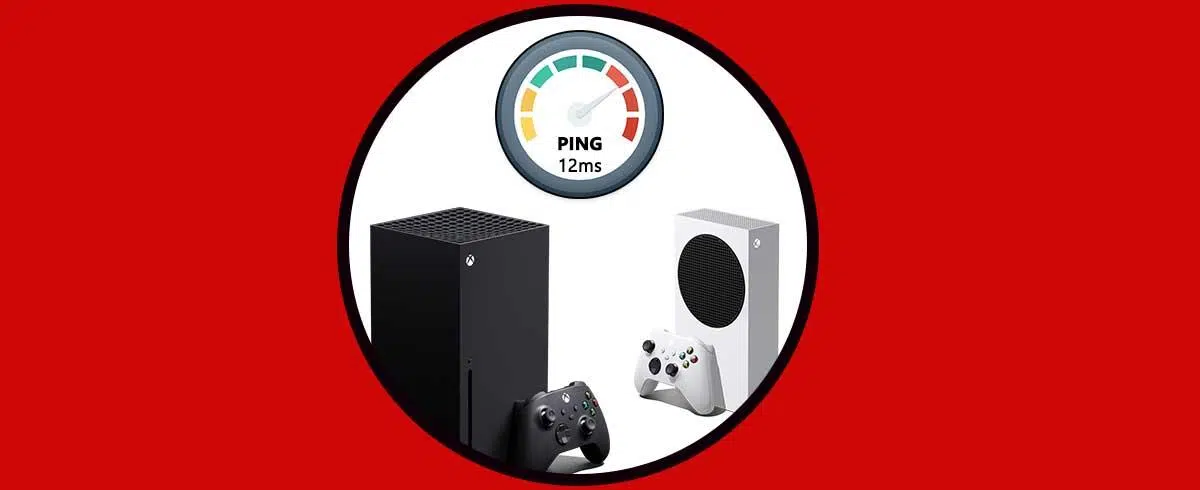
If you're passionate about online gaming, you know there's nothing more frustrating than being about to win a match and then suddenly having your character freeze or actions take forever to execute. This phenomenon, known as lag, is the direct result of high or unstable ping , which can turn an epic experience into a real nightmare.
To put it simply, ping is basically the time it takes for a data packet to travel from your console to the game server and back. Ideally, this value should stay below 60 ms on your Xbox Series X or S. If you start approaching 80 ms, you'll notice stuttering, and if you reach 200 ms, you'll be playing with a significant delay that will put you at a considerable disadvantage against your opponents.
Physical and basic network improvements
Before diving into complicated menus, the first thing to do is check how your machine is connected. The best advice is to use an Ethernet cable instead of relying on Wi-Fi. Wireless signals can be affected by walls, furniture, or interference, while a cable offers a much more reliable and direct connection.

If your router is at the other end of the house and you don't want to run miles of cable, a very effective alternative is to use a Powerline adapter , which transmits the internet signal through your home's electrical outlets. Additionally, it's crucial to prevent other devices from performing large downloads or high-quality streaming while you're gaming, as this saturates the bandwidth and increases latency.
DNS server optimization
DNS servers act like an internet phonebook, and if the default DNS servers provided by your internet service provider aren't efficient, your ping will suffer. To improve this, you can use Android apps like "DNS Speed Test ," which analyze which DNS servers to use to get faster response times in your current geographic area.
To change these values on your console, go to the Profile & System menu , then Settings, then General, and access Network Settings. From there, go to Advanced Settings and choose the option to Configure DNS in Manual mode . This is where you should enter the numbers for the primary and secondary servers that performed best in the test.

If you don't want to use an app, you can try some of the most reliable DNS servers on the market . You have options like Google (8.8.8.8 and 8.8.4.4), Cloudflare (1.1.1.1 and 1.0.0.1), OpenDNS (208.67.222.222 and 208.67.220.220), or IBM Quad9 (9.9.9.9). If you find that none of these options make a real difference, you can always revert to the automatic configuration without worry.
Specific settings within games
In popular games like Fortnite, the game itself allows you to manage latency. If you go to the settings menu (the gear icon) and scroll down to the Matchmaking Region section , you'll see that you can manually select the server. While the automatic option usually works well, forcing the region to "Europe" (or the one that corresponds to your location) can drastically reduce response time.
The rule is simple: the closer the physical server is to your house, the lower the ping. Whenever the game allows you to see the server load and its location , prioritize the one with the shortest distance, even if it has a few more players, since physical distance is the factor that most influences data speed.
Using VPNs to stabilize the connection
While it's not a solution for everyone, in some cases setting up a VPN can help stabilize your data route . This prevents your internet provider from prioritizing other types of traffic and allows packets to travel along more optimized routes to the game server. Since Xbox doesn't have a native VPN app, the solution is to configure the VPN on your router or use external devices like a Shellfire Box.
To pinpoint the exact problem, remember that Xbox has an analysis tool in the "Remote Play" section that identifies weaknesses in your current network. If the problem persists after trying these steps, it's best to contact your internet service provider to try upgrading your contracted speed or check for technical issues with your line.
For a smooth gaming experience, the ideal solution is to combine the use of an Ethernet cable with the selection of fast DNS servers and the manual selection of the servers closest to your geographical location, also ensuring that there are no other processes consuming your network while you are in the middle of a game.