- Windows 11 integrates the Dynamic Lighting feature to centralize control of RGB peripherals without external software.
- It is possible to customize the effects globally for all devices or adjust each peripheral independently.
- Compatibility depends on the HID LampArray standard and collaboration between Microsoft and major hardware manufacturers.
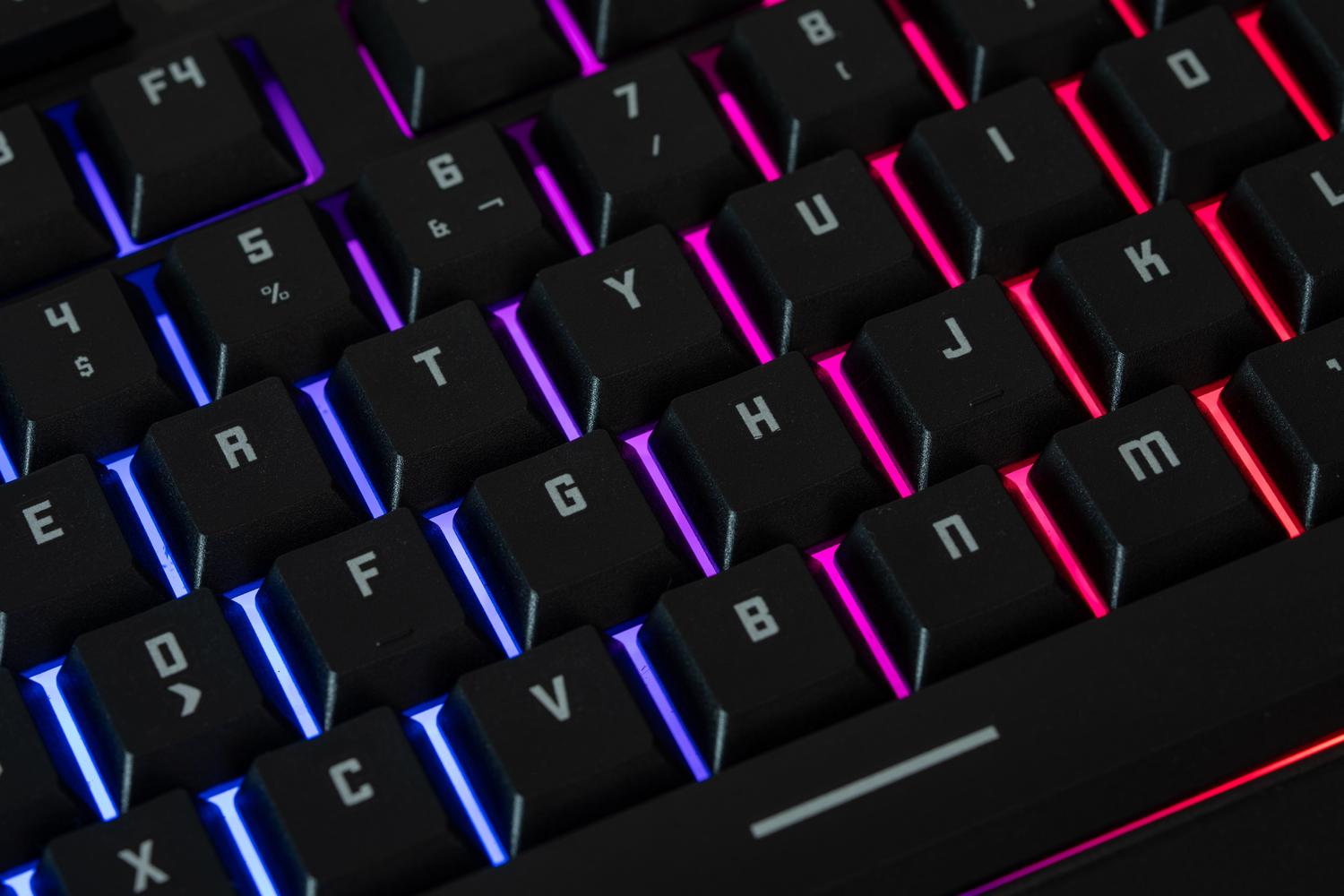
I'm sure it's happened to you: you have a mouse from one brand, a keyboard from another, and your PC becomes a chaotic mess of lights that just won't coordinate. Until recently, the only solution was to fill your hard drive with resource-intensive applications from each manufacturer to try and get the colors to match, which was a real headache.
The good news is that Microsoft has brought out the big guns and implemented a native tool called Dynamic Lighting . Essentially, it's a centralized control panel that lets you manage the LEDs on your accessories directly from the system, preventing your computer from slowing down with unnecessary background processes.
What exactly is Dynamic Lighting?
This feature acts as a command center, allowing you to coordinate the colors and effects of compatible RGB or LED devices. Its key advantage is its use of the open HID LampArray standard , which means it aims to break down barriers between brands so everything works seamlessly. No more juggling five different programs; now you can unify the aesthetics of your entire setup from a single location.
The system is very versatile and offers different usage scenarios. For gamers, it's ideal because it allows the lights to react to in-game events , making the experience much more immersive. If you use it for work, you can configure profiles that reduce eye strain or alert you to notifications through color changes. You can even synchronize the ambiance with music or movies to create a home theater with dynamic lighting.
Steps to set up your RGB lights
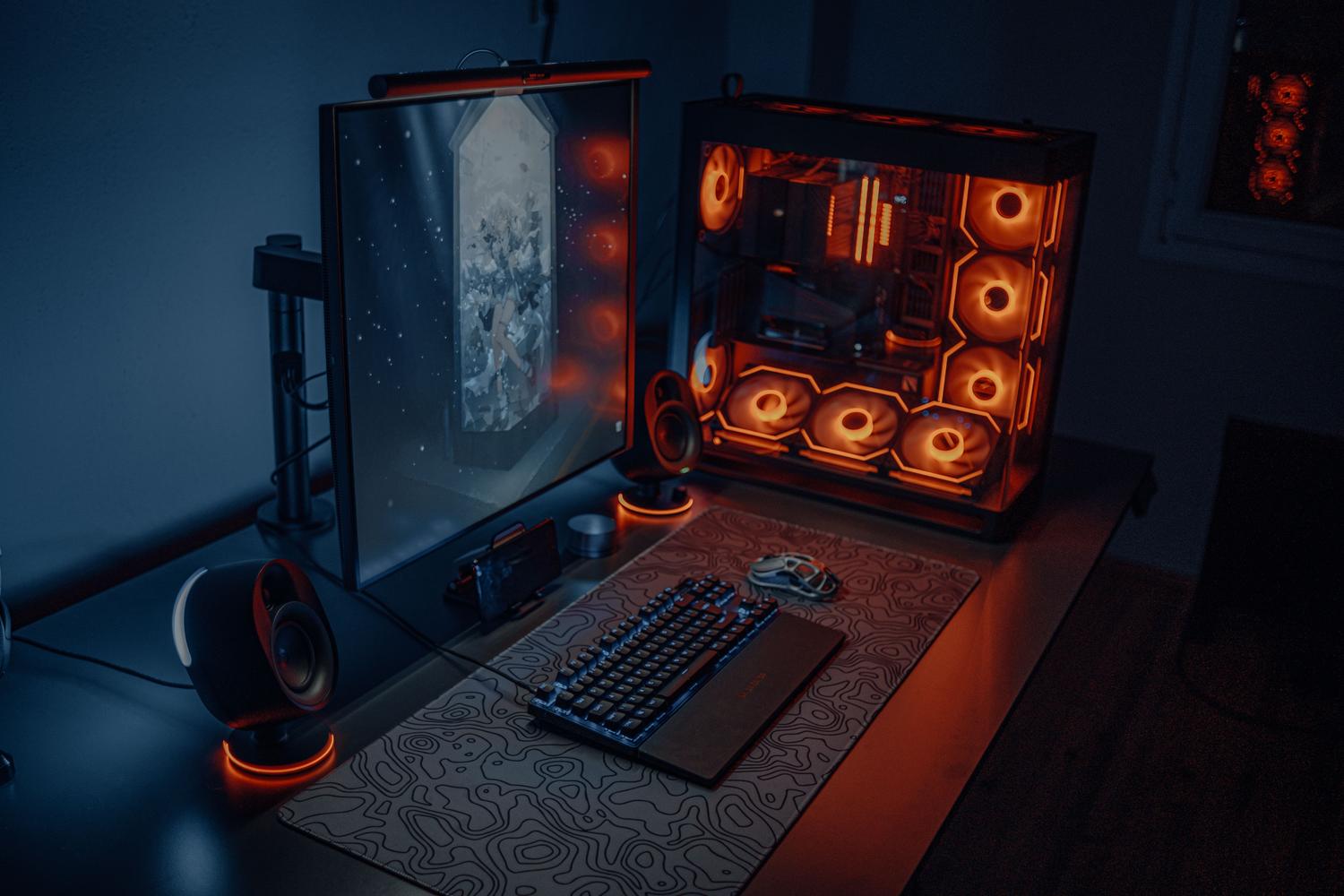
Accessing the control panel is incredibly easy and doesn't require installing anything unusual. Simply open the Windows Settings app and go to the Personalization section . Once there, look for the option called Dynamic Lighting and click on it to access all the available tools.
Global and custom settings
Within this menu, you have two ways to work. On one hand, there are the global options , which apply the same color or effect to all connected peripherals simultaneously—ideal for those seeking a uniform appearance. On the other hand, you can select a specific peripheral at the top to give it a unique touch, adjusting its parameters without affecting the rest of the system.
As for the specific options, you will find the following:
- Main switch: Enable or disable Windows control. If you turn it off, the devices will revert to their factory settings.
- Application priority: Allows compatible games or apps take control of the lightingtemporarily overriding your manual settings for creating immersive effects.
- Backlight control: Here you can manage which applications have priority for controlling the LEDs. If you notice that something isn't changing, there may be a problem. higher priority third-party software that you need to move in the list.
- Brightness and Effects: You can adjust the light intensity and choose from patterns such as wave, rainbow, gradient, breath, or wheelin addition to choosing solid colors or linking them to the Windows accent color.
Compatibility and supported brands
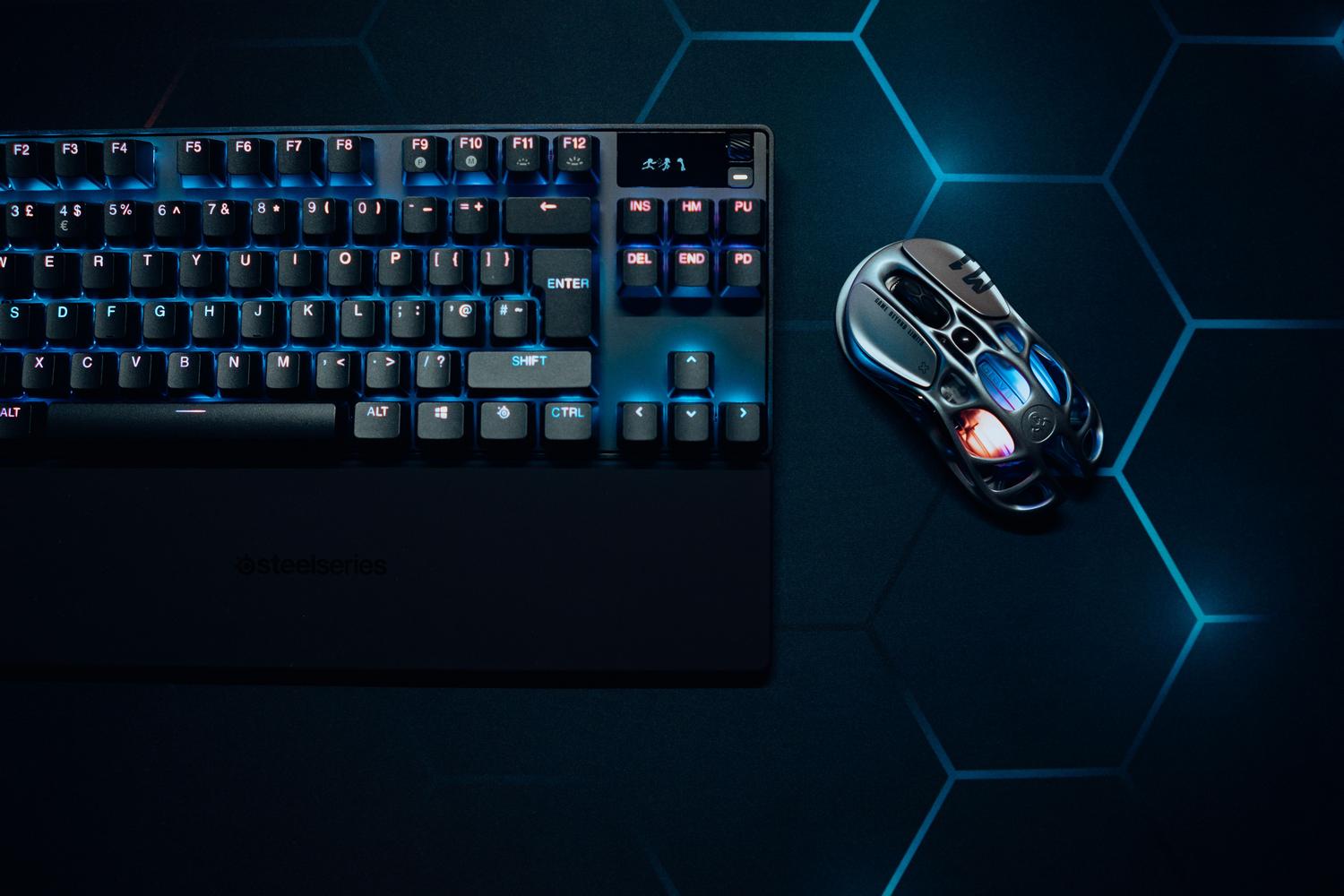
Not all devices work with this system, as they require the manufacturer to have implemented the necessary support. Currently, Microsoft collaborates with giants like Razer, Logitech (specifically G LIGHTSYNC), SteelSeries, ASUS (ROG series), HP (OMEN and Victus), and Acer . It's also compatible with various types of hardware, from keyboards and mice to game controllers and RGB furniture.
If your peripheral isn't listed, don't worry. It's likely not yet compatible with the native version, and you'll need to continue using the manufacturer's official tool . In fact, for those seeking extreme customization (like changing the color of each key individually), dedicated software like Razer Chroma remains superior, as the Windows option is simpler and more limited in its capabilities.
Troubleshooting and advanced tips
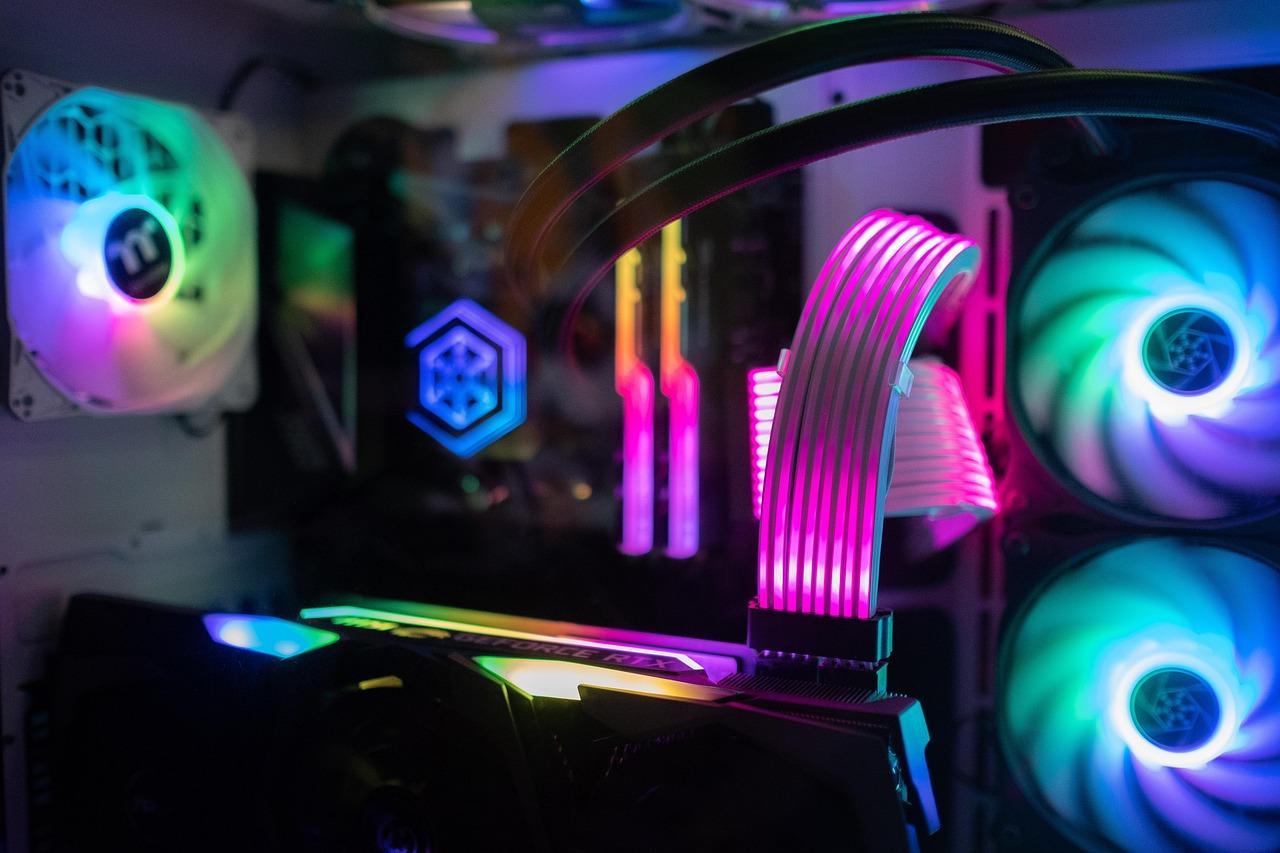
Sometimes, dynamic lighting can conflict with the internal hardware settings. If you have a mouse that turns off when unplugged or becomes unresponsive, you could try Disable the function by registering from Windows. Navigating to HKEY_CURRENT_USER\\Software\\Microsoft\\Lighting and changing the value of AmbientLightingEnable to 0You force the system to relinquish control of the device.
Another option for more technical users who want to try experimental features in Insider versions is to use Vivetool . This command-line tool allows you to enable specific IDs (such as 41355275) to unlock RGB lighting before it reaches the stable version of the operating system.
Alternative software from manufacturers
Although Windows 11 makes things much easier, proprietary software still has its uses because it offers extra features. For example, Corsair iCUE manages not only lighting but also fan speeds and temperatures. ASUS Aura Sync and Gigabyte RGB Fusion are excellent for coordinating the motherboard with peripherals, while Logitech G HUB stands out for its integration with systems like Philips Hue.
Lighting management in Windows 11 has taken a giant leap forward, allowing multiple brands to coexist on a single panel without the need for heavyweight software. While official applications offer more depth and detailed control, the native tool is the most practical and lightweight option for maintaining a coordinated and visually appealing setup without technical complications.
Table of Contents