- Analyze the health of HDDs and SSDs by reading SMART data to predict physical failures.
- It monitors critical parameters such as reassigned sectors, temperature, and total hours of use.
- It allows you to configure automatic alerts and notifications when the unit enters a state of risk.
- It facilitates the detection of wear in NAND memories (TBW) and mechanical problems in traditional disks.
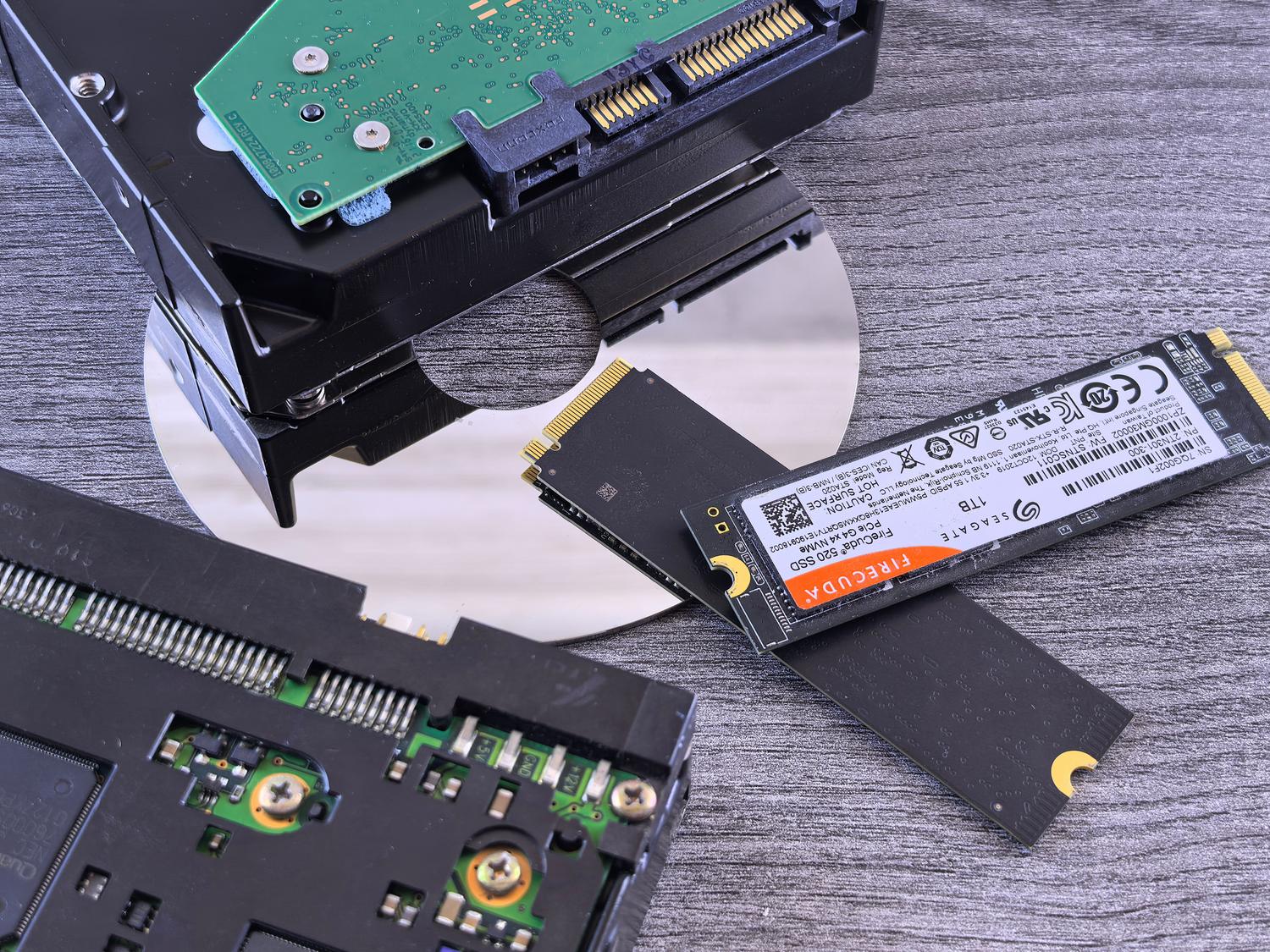
If you've ever noticed your computer running slower than usual, heard strange clicking noises when you turn it on, or simply wondered if your files are safe, you probably need to check if a hard drive is about to fail to protect your data. You don't need to be a computer expert to know that hard drives don't last forever; whether it's an old mechanical HDD or a modern NVMe SSD, they all have an expiration date determined by physical or electronic wear and tear.
To avoid playing Russian roulette with our data, there's a free and highly reliable tool called CrystalDiskInfo. This software has become the standard for any technician or user who wants to anticipate a catastrophic failure , allowing us to read the disk's internal data to determine whether we need to make an urgent backup or if we can continue browsing safely for a good while longer.

What exactly is CrystalDiskInfo?
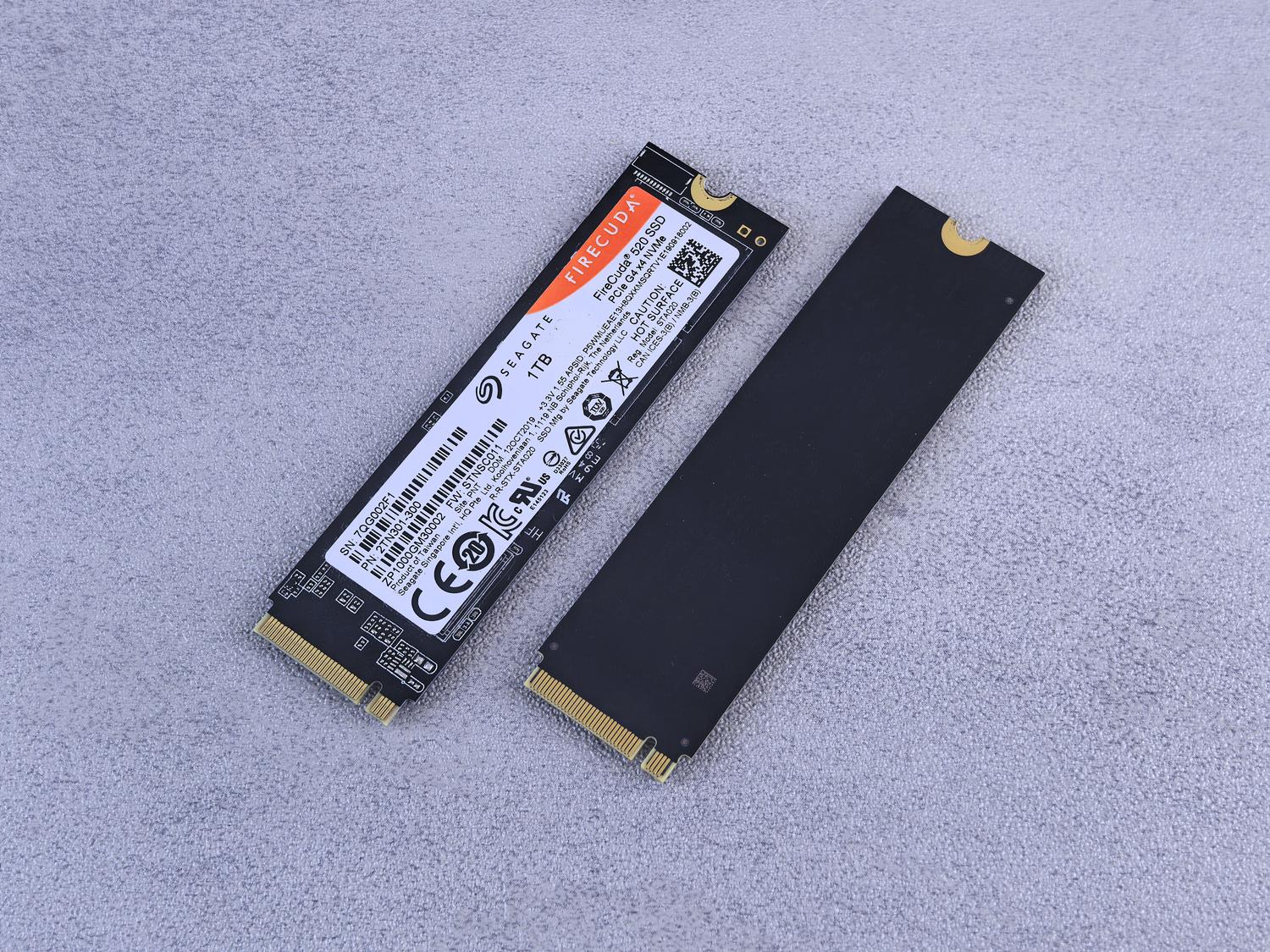
Basically, it's a monitoring program designed for Windows that reads SMART (Self-Monitoring, Analysis and Reporting Technology) data . This system comes pre-installed on almost all modern storage devices and acts as a kind of "black box" that records errors, temperatures, and the drive's overall wear and tear. Thanks to this, CrystalDiskInfo can tell us if our hard drive's condition is Good, Caution, or Bad.
The software was created by Japanese programmer Noriyuki Miyazaki under the Crystal Dew World label in 2008. Since then, it has evolved to be compatible with a huge variety of devices , including SATA drives, SSDs , NVMe drives, USB drives, SD cards, and RAID configurations, provided the operating system recognizes them. However, it's important to note that it cannot be used to monitor network drives or NAS devices.
Detailed analysis of the interface and key parameters
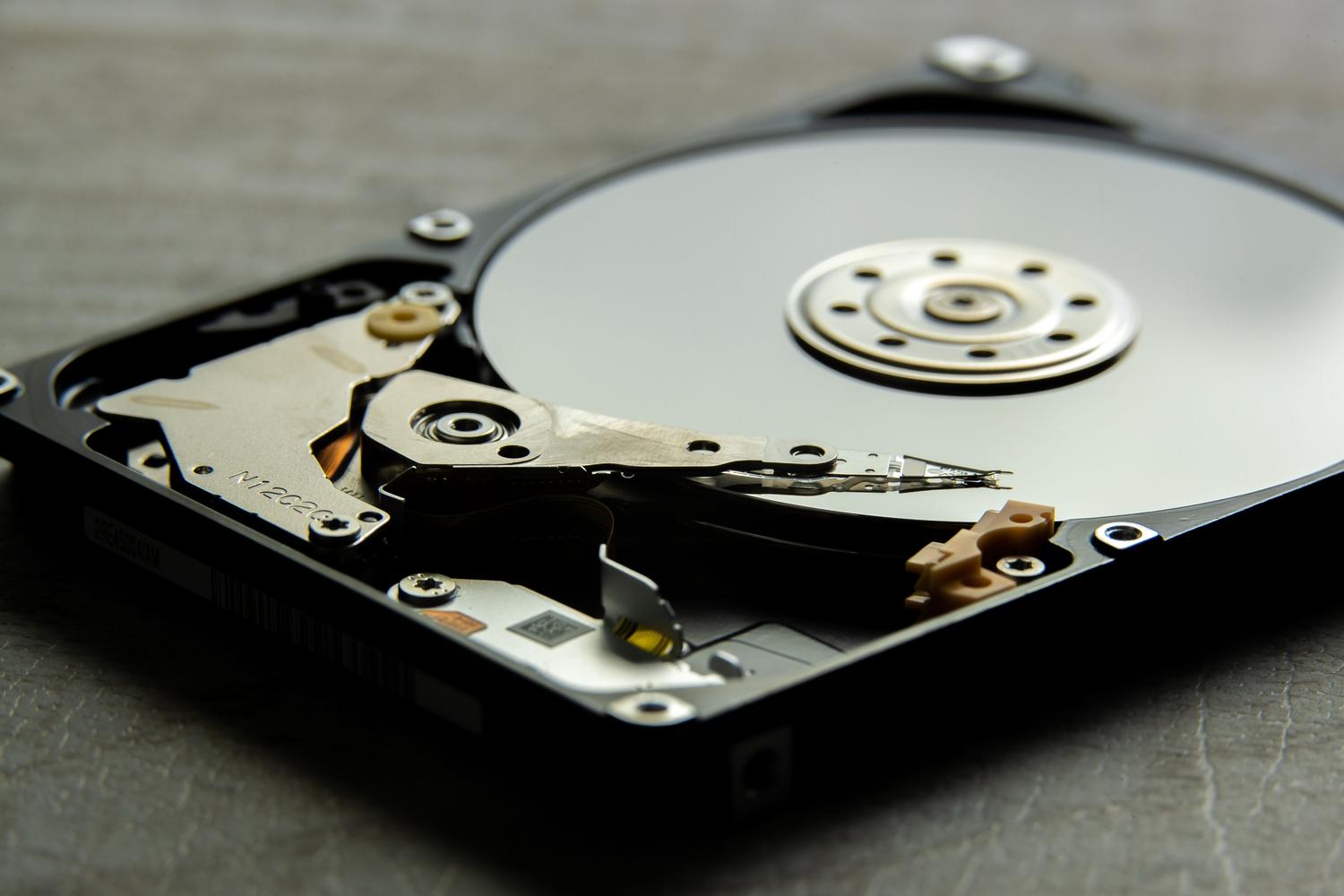
When you run the program, the first thing you'll see is the overall health indicator. For SSDs, this is especially useful because it shows an approximate percentage of remaining lifespan , although it's best to consider this an estimate based on the manufacturer's average and not an absolute truth. In addition, you can view technical data such as the firmware, serial number, connection interface, and drive letter.

On the right side, we find essential statistics that tell the "history" of the drive: the total amount of data read and written (crucial for SSDs to determine TBW, or Terabytes Written), the number of times the computer has been turned on, and the total number of operating hours. For mechanical drives, it also indicates the rotational speed of the platters.
How to interpret critical SMART indicators

Although the program displays a long list of attributes, some are serious red flags if they start to rise. It's vital to monitor reallocated sectors (ID 05) , which are areas of the disk that have failed and have been replaced by spare sectors; if this value is greater than zero, the disk's reliability plummets. We should also pay attention to pending sectors (ID C5) and uncorrectable errors (ID C6), as these indicate that some data may be unrecoverable.
- Temperature (ID C2): Excessive heat shortens the lifespan of hardware. Normally, the temperature should remain blue, but if it exceeds 55°C for HDDs or 70°C for SSDs, it's advisable to check. How to control the temperature of your hard drives.
- Read error rate (ID 01): If this value increases rapidly, there are usually problems with the disk's read heads.
- Spin retry count (ID 0A): For HDDs only; if the platter doesn't start on the first try, we have a serious mechanical problem.
Custom installation and configuration
To obtain the software, the best option is to go to the CrystalMark website and choose the Standard Edition . There is also a portable ZIP version, meaning it doesn't require installation and can be run directly from a USB drive—very convenient for technicians. The minimum requirements are straightforward, although the email notification features require .NET Framework 4.8 or higher , and NVMe support requires Windows 10 or Server 2016 or later.

One of the most powerful features is the ability to configure automatic alerts . We can define custom limits for temperature or error count, so the program alerts us with a sound or an on-screen notification as soon as a parameter falls outside normal ranges, saving us from having to open the app every day.
Action plan for risk situations
If, upon opening the program, you see that the status circle is yellow (Caution) or red (Bad), don't panic, but do act quickly . The first and most important thing is to make a complete backup of all sensitive information. A hard drive in a "Bad" state can stop working in a matter of hours or days, especially if you hear mechanical noises like repetitive clicking.
If we decide to dispose of the hard drive, simply emptying the Recycle Bin isn't enough. To protect our privacy, we should format the drive several times or use data overwriting software before taking the device to a municipal recycling center. If the PC takes forever to boot and the Task Manager constantly shows the disk usage at 100%, it's a clear sign that the hardware has reached the end of its life and should be replaced with an SSD to revive the computer.
Maintaining a routine check every six months with CrystalDiskInfo is the best strategy to avoid unpleasant surprises. By monitoring NAND cell wear in SSDs or the condition of platters in HDDs, we can plan data migrations with peace of mind, ensuring that our documents and memories don't disappear due to a foreseeable technical failure.