- The ideal temperature for HDD and SSD drives is between 25°C and 40°C, avoiding keeping them above 60°C for long periods.
- Windows 11 allows you to check disk temperature from Settings and PowerShell, without needing to install additional software.
- Programs like HWMonitor, HWiNFO, EaseUS Partition Master, or DiskAlarm offer more comprehensive monitoring and overheating alerts.
- Good ventilation, internal cleanliness, and proper placement of the drives are key to keeping heat under control and extending the lifespan of the drives.
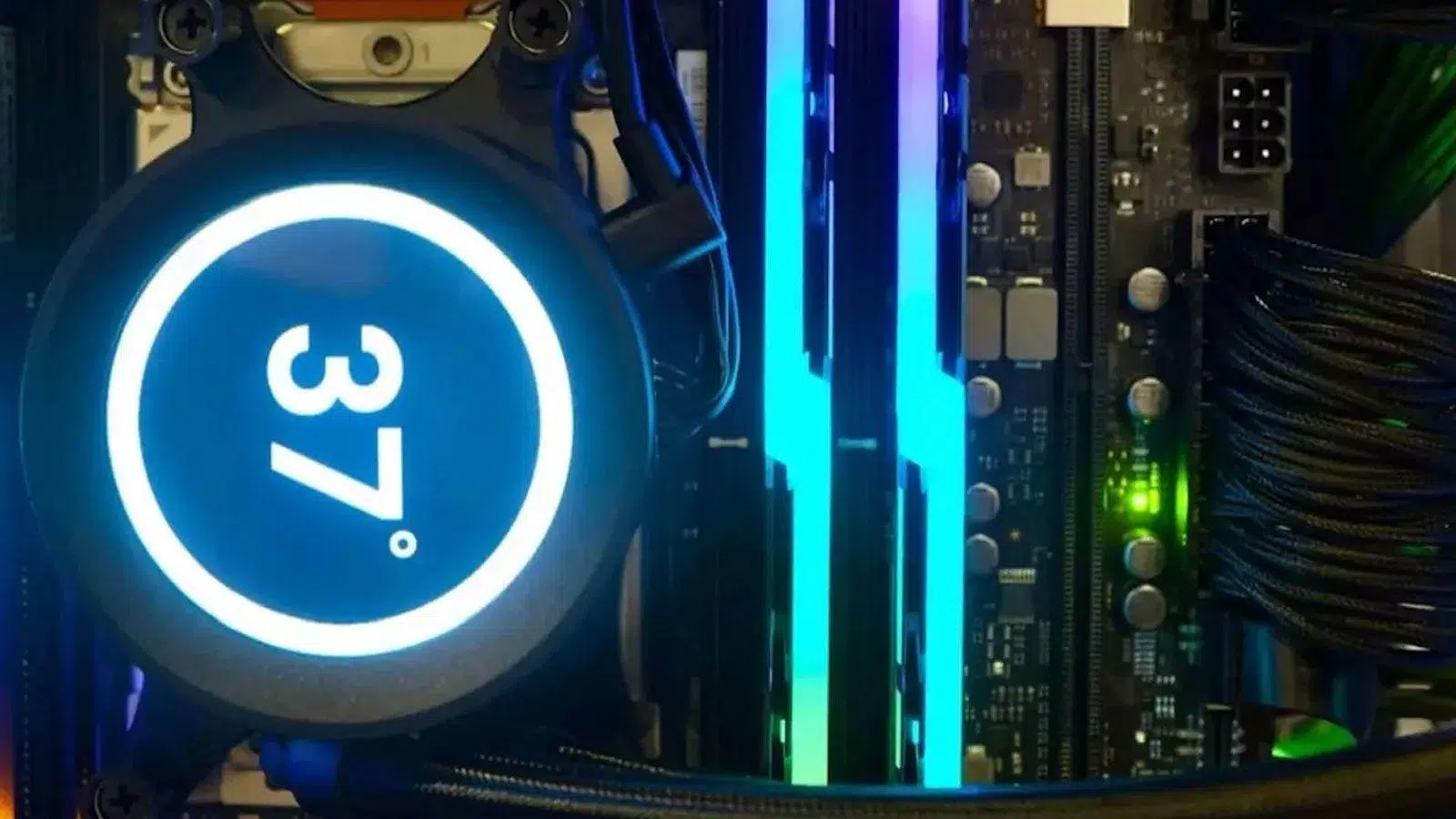
If you frequently use your computer for gaming, video editing, or working with large amounts of data, your hard drives get hotter than you might think. Monitoring the temperature of your hard drives and SSDs is crucial to prevent failures, performance degradation, and, in the worst-case scenario, losing all your data due to overheating.
The good news is that nowadays we have many ways to monitor these temperatures, both with tools integrated into Windows 10 and Windows 11 and with comprehensive free and paid programs. Learning how to check and monitor the temperature of your storage drives is simple, quick, and can save you from major problems , so let's take a closer look.
Why is it so important to monitor the temperature of hard drives and SSDs?
When we push our PCs to their limits with games, video editing, or copying large amounts of files, the HDD and SSD drives work for much longer periods, and their temperature rises noticeably . A certain amount of heat is normal, but if they exceed a safe threshold, problems begin.
Manufacturers specify a maximum operating range, but the critical issue isn't just the peak temperature, but rather maintaining excessively high temperatures for hours or days . This extra heat directly affects the electronics of the hard drive or SSD, accelerates component wear, and greatly increases the likelihood of bad sectors or read/write errors.
Furthermore, heat doesn't just damage the drive itself: when a hard drive or SSD overheats, many models automatically reduce their performance (a type of "throttling" similar to that of CPUs and GPUs) to try to protect themselves. This results in a slower system, longer game loading times, and choppy large data transfers.
If overheating is chronic and left unchecked, it can lead to total drive failure and the complete loss of all stored data . That's why simply having backups isn't enough: it's also crucial to monitor and maintain temperatures within reasonable limits.
Normal and ideal temperature for hard drives: what is acceptable and what is not
In general, experts and manufacturers themselves consider that a mechanical hard drive (HDD) operates normally between 0°C and 60°C (32°F – 140°F) . Any value within that range is usually within the official specifications.
However, several studies, such as Google's well-known report "Failure Trends in a Large Disk Drive Population," indicate that failure rates increase when the temperature is too low (below 25°C) or too high (above 45°C) . In other words, even though an HDD can withstand up to about 60°C, it's not ideal to constantly operate it at that limit.
That's why it's often said that the optimal and safest temperature range for most hard drives is between 25°C and 40°C . Within this range, the balance between performance and long-term reliability is excellent. Working slightly above or below this range isn't dramatic, but operating for extended periods outside of it will shorten their lifespan.
In the case of SSDs (both SATA and NVMe), the recommended limits are also around 60°C maximum for continuous use, although some models can withstand slightly higher temperatures . The difference is that NVMe drives, for example, can reach higher temperatures in a very small space, making them more sensitive to poor ventilation or the absence of heatsinks.
As a practical guideline, a hard drive or SSD that rarely exceeds 50-55°C under load and typically stays between 25-40°C during normal use can be considered to be in good condition . If you see sustained temperatures above 60°C, it's advisable to investigate and take action.
Check the hard drive temperature in Windows 11 without installing anything
The latest versions of Windows 11 have significantly improved the built-in tools for managing storage; if you need to measure other sensors, see how to check CPU temperature in Windows 11. The operating system itself allows you to view the temperature of HDDs, SATA SSDs, and even some NVMe drives without needing to install additional software.
To access this information, you need to open the Settings app. The quickest way is to use the Win + I keyboard shortcut and then go to System > Storage , where you'll find everything related to disks and volumes grouped together.
Within Storage, scroll down to the Advanced Storage Settings section and select "Disks and Volumes" to see the complete list of installed drives . This will include both internal drives and SSDs connected to motherboards or PCIe cards.
Each drive will have a Properties button. Clicking Properties on the drive you're interested in will display detailed information about that device , including, on compatible models, its current real-time temperature.
As long as the temperature remains below about 60°C under full load, the hard drive is generally considered to be within reasonable limits . If you regularly see much higher temperatures, you should consider improving ventilation, cleaning dust from inside the PC, or checking if the system is misconfigured.
Measure disk temperature from PowerShell with one command
If you prefer something more advanced or are working remotely, you can also check the temperature of your hard drives using PowerShell . Windows offers commands designed to read the sensors of the physical drives connected to the system.
To do this, open a PowerShell window with administrator privileges (from the Start menu, by searching for PowerShell and using the "Run as administrator" option). Once inside, you can run a command that iterates through each physical disk and displays its name and temperature.
The command that is usually used is this one, which takes advantage of the Windows storage reliability counters for each physical disk:
Get-PhysicalDisk | ForEach-Object { $t = Get-StorageReliabilityCounter -PhysicalDisk $_; @{ FriendlyName = $_.FriendlyName; Temperature = $t.Temperature } }
When you run it, you'll see a small table with each unit's friendly name (FriendlyName) and its temperature in degrees . This is a very useful option for administrators or advanced users who want to automate controls or even generate scripts that send alerts if certain limits are exceeded.
Remember that, just like with the Configuration tool, sustained values above 60°C should make you suspect cooling problems, poor disk placement, or continuous overload without adequate ventilation.
Programs to check disk temperature and SMART status
Windows tools are fine for a one-off check, but if you want continuous monitoring of disk temperature and health, it's recommended to use dedicated monitoring software . Many are free and offer very comprehensive data.
One of the best-known options for less technical users is EaseUS Partition Master. Although it was originally designed as a partition manager, it includes a feature called "Disk Health" that displays the temperature, overall disk health, free space, and other key attributes of HDDs and SSDs.
Using EaseUS Partition Master is quite simple: after installation, in the "Disk Health" section you can activate the "Disk Health" option and select the drive you want to check . The program will show you in a single panel whether the temperature is within acceptable limits and if there are any signs of potential failures.
In addition to temperature, these types of programs read SMART (Self-Monitoring, Analysis and Reporting Technology) data , which are small internal counters that the unit itself maintains to report errors, reassigned sectors, power-on hours, power-on and power-off cycles, etc.
If you use SSDs, EaseUS Partition Master is also useful. The same health and temperature monitoring function can be applied to SSDs, helping you detect if one is starting to degrade or operate at higher temperatures than desired before it fails completely.
Other applications for monitoring PC temperature (including hard drives)
Apart from tools focused on partitions or disks, there is a whole ecosystem of applications to monitor in detail all the components of the PC : CPU, GPU, RAM, motherboards and, of course, storage units.
A classic open-source utility is Open Hardware Monitor. This tool leverages sensors on processors, motherboards, and other components to display temperatures, voltages, frequencies, and fan speeds . Although its original development ceased some time ago, it remains very useful on many systems.
Related to it, Libre Hardware Monitor was created, a fork that is kept up-to-date. Libre Hardware Monitor is completely free and allows you to monitor modern Intel and AMD CPUs, NVIDIA and AMD graphics cards, and HDD, SSD, and NVMe drives without any problems.
It can be downloaded directly from its GitHub page, but also installed via the command line using Winget: winget install LibreHardwareMonitor.LibreHardwareMonitor. Once up and running, you'll have a unified view with temperatures, loads, and other important data from all your hardware., which includes your storage units.
In addition, many overlay programs like RivaTuner Statistics Server use the information provided by these tools to display on screen, while you play, the temperature of the CPU, GPU and also the disks and SSD in some cases, something very practical to detect temperature increases precisely when you are pushing the computer the hardest.
DiskAlarm: audible alerts when the disk overheats
Sometimes simply checking the temperature when you remember isn't enough. If you want your PC to alert you as soon as a disk gets too hot, a useful option is to use tools like DiskAlarm , designed precisely for that purpose.
DiskAlarm is a very simple program focused almost entirely on the temperature of your hard drives. Its main function is to allow you to set a maximum temperature and an alarm sound that plays automatically when that limit is exceeded.
Its use can be summarized in two basic steps. First, you set the temperature threshold that you consider dangerous for your units and choose the type of sound you want to play when that value is reached or exceeded.
Then, you let the program run in the background while you use your PC normally. When any of the disks reaches the set temperature, DiskAlarm will sound an alarm so you can take action before the temperature rises further.
The best part is that you don't need advanced hardware knowledge to use it. It's a highly recommended tool if you have many drives installed, work with critical data, or simply want an extra layer of protection against overheating without constantly checking graphs.
Ventilation, cleaning, and other tricks to lower the temperature of your hard drives
Monitoring is only half the battle: if you notice your hard drives are getting too hot, there are several simple steps you can take to reduce that temperature without spending a fortune.
The first and most obvious thing to do is check the computer's internal ventilation. Over time, dust accumulates on fans, vents, and heatsinks, blocking airflow . A thorough internal cleaning , with the PC powered off and unplugged, can lower the temperature of the CPU, GPU, and hard drives by several degrees.
The physical placement of the drives also has a significant impact. If you have many drives stacked in bays very close together, there's hardly any airflow between them . Leaving some space free or repositioning the drives can make a big difference, especially in cases with poor front airflow.
Another option is to improve the fan configuration and overall system cooling. Adding a front fan to draw cool air towards the disk area or a rear fan to exhaust hot air helps stabilize the internal temperature. In heavily loaded systems, you can even install dedicated fans focused on the disk area.
If you notice that the overheating coincides with very intense and sustained workloads, such as huge backups or RAID rebuilds, it may be worthwhile to schedule these tasks for times when the ambient temperature is lower , or to distribute the workload so that not all disks suffer at the same time.
Finally, don't underestimate the influence of the other components . An overheating CPU or GPU raises the internal temperature of the case, which in turn affects the hard drives. Proper cooling for the entire system keeps storage drive temperatures under control.
Other PC components and their relationship to temperature
When we talk about PC temperature in general, it's not just hard drives that are sensitive to heat: PC components like the CPU, GPU, RAM, and motherboard also have safe operating ranges and protection mechanisms when these are exceeded.
For example, a typical desktop CPU operates at around 25-35°C during light tasks (browsing, office applications, streaming), depending on the heatsink and case ventilation. Under heavy loads such as demanding games or 3D rendering, it typically reaches between 50 and 65°C , provided the cooling is adequate.
If the CPU consistently exceeds 70°C, it usually indicates a problem: aged thermal paste, insufficient heatsink, incorrectly configured fans, or accumulated dust . Beyond certain limits, the processor reduces its frequency to protect itself (thermal throttling), and if this is still insufficient, the system may shut down or restart on its own.
The GPU behaves similarly, although its normal operating ranges are usually somewhat higher. In modern games, it's common to see graphics cards operating around 70°C, but extreme temperatures or sudden spikes can cause performance drops, crashes, or blue screens if the rest of the cooling system isn't adequate.
In short, monitoring hard drive temperatures is closely linked to monitoring the overall thermal health of your computer . If the inside of your computer case feels like an oven, it's nearly impossible for the storage drives to stay within safe operating temperatures.
Symptoms that your PC (and your hard drives) are overheating
Although ideally you should check temperatures with specific tools, your own PC usually gives warning signs that the heat is getting out of control , both in disks and in the rest of the components.
One of the clearest signs is hearing the fans running at full speed almost all the time. If you notice that your PC fans are always at maximum speed, it's likely that the internal temperature is higher than it should be and that the motherboard or graphics card is trying to compensate.
Another common warning sign is performance drops: games that previously ran smoothly start experiencing FPS drops, or tasks that were once quick now seem to take forever. This behavior can be due to thermal throttling of both the CPU and GPU, but also to units slowing down due to overheating . For a more comprehensive analysis, see our slow PC diagnostic guide.
Sudden restarts and shutdowns are a more serious warning sign. If your PC shuts down on its own when you put it under heavy load, it's very possible that one of the components is exceeding its safe operating temperature and the system is protecting itself from damage.
At the operating system level, frequent blue screens of death (BSODs) or application crashes when performing demanding tasks can also be closely related to temperature. The problem isn't always thermal, but it's advisable to rule it out by checking the CPU, GPU, and disk sensors.
If you detect any of these symptoms, the next step is to go directly to a monitoring program or Windows tools to check the temperatures of all components, including hard drives and SSDs , and act accordingly.
General tools for monitoring all hardware
In addition to the utilities already mentioned, there are several very popular applications that allow you to see at a glance the temperature of the CPU, GPU, disks, motherboard and other parameters such as voltages, loads or fan speed.
HWMonitor is one of the oldest and most comprehensive options. It's a free program that displays all detected sensor readings in a table: minimum, current, and maximum temperatures, power consumption, voltages, and fan speeds . It's often one of the first tools many users install after a system format.
Another widely used alternative is HWiNFO, available in 32-bit and 64-bit versions. HWiNFO offers an enormous level of detail on each component of the computer and integrates with overlays like RivaTuner to display temperatures within games and full-screen applications.
For those seeking a more professional solution, AIDA64 Extreme combines monitoring with stress testing and benchmarks. It's not free, but it's used in technical environments because it can generate reports, perform stability tests, and read a wide variety of sensors , including those on many advanced motherboards and RAM modules with thermal sensors.
There are also simpler tools designed for less experienced users, such as Speccy or NZXT CAM. Speccy offers a clear overview of CPU, GPU, disk, and motherboard temperatures, while NZXT CAM also adds fan control options and profiles , especially geared towards those using components from that brand, although it works with any system.
When it comes to caring for your hard drives and SSDs, knowing what temperatures are safe, how to check them in Windows, and which programs to use for daily monitoring makes a huge difference to the lifespan of your data. By combining good monitoring (with tools like Windows Settings, PowerShell, HWMonitor, HWiNFO, EaseUS Partition Master, or DiskAlarm) with adequate ventilation and some regular maintenance, you can keep your drives within that comfortable 25-40°C range and minimize the risk of failures, performance drops, or overheating , resulting in a more stable and longer-lasting PC.
