- Internal hard drives offer greater speed, stability, and a better price per gigabyte, ideal for system and programs.
- External hard drives offer portability and ease of use, perfect for backups and data transport.
- The interface (SATA, PCIe, USB, Thunderbolt) and the technology (HDD, SSD, NVMe) determine the actual performance.
- The choice depends on the use: daily performance, mass storage, mobility, or network/NAS work.
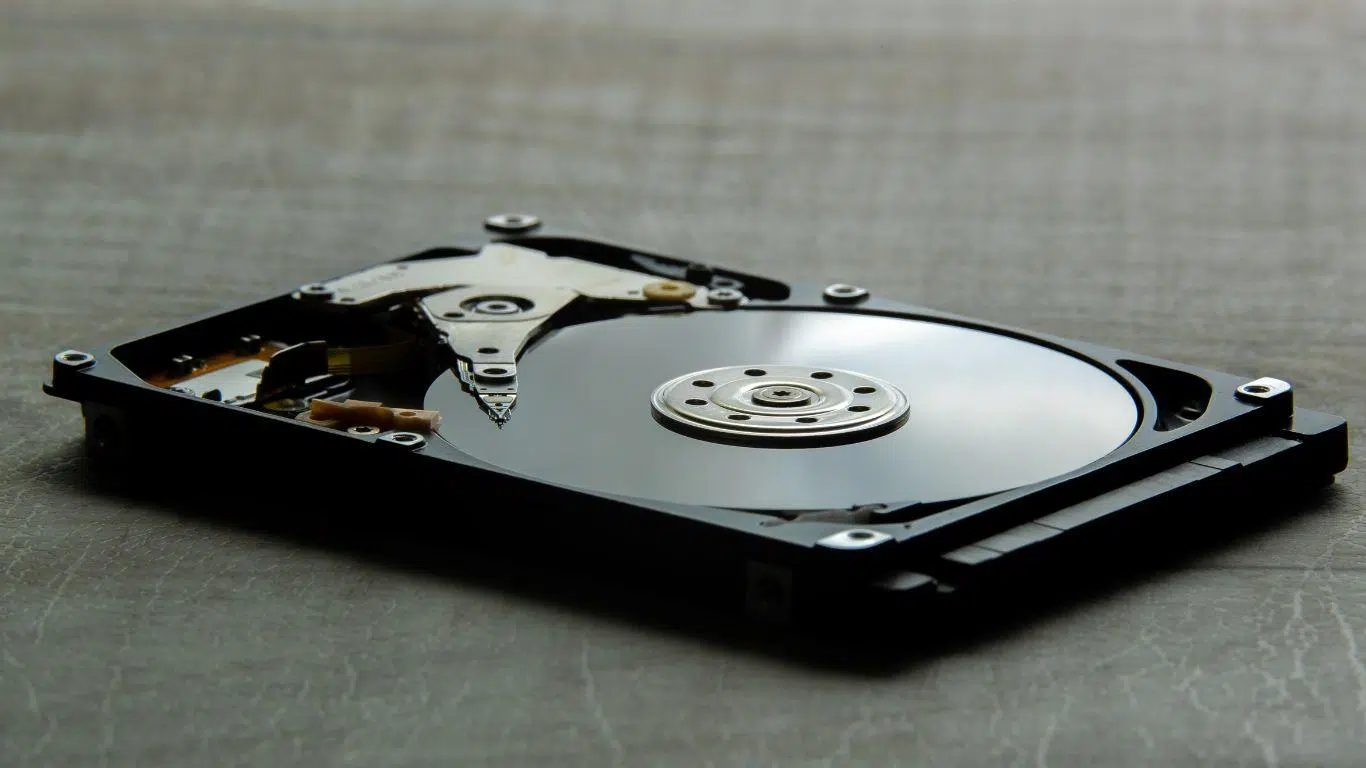
When you start looking at storage options, it's easy to get lost among internal hard drives, external hard drives, HDDs, SSDs , NVMe drives, NAS drives, and USB enclosures . They all seem to do the same thing: store data. But depending on how you use your computer and what priority you give to speed, price, or portability, the choice changes significantly.
In the following lines, we'll take a closer look at the real differences between internal and external hard drives , how the various types of drives (HDD, SSD, NVMe, SSHD, NAS, etc.) fit together, the advantages and disadvantages of each option, and when one or the other is more suitable. The goal is that by the end, you'll have a clear understanding of what to buy and won't feel like you've wasted your money.
Basic differences between internal and external hard drives
The first major distinction is the physical location of the hard drive and how it connects to the computer . An internal drive is mounted inside the computer and plugs directly into the motherboard; an external drive is housed in an enclosure and is usually connected via USB or Thunderbolt from outside.
An internal hard drive is the one installed inside a desktop PC, laptop, or server. It's the drive where the operating system, programs, and most of your files typically reside. It connects via internal interfaces like SATA or PCI-Express (in the case of NVMe SSDs) , allowing you to take full advantage of the computer's bandwidth and reduce latency.
An external hard drive , on the other hand, is basically an internal hard drive (HDD or SSD) housed in an enclosure with interface electronics that adapt it to USB , Thunderbolt, eSATA, FireWire, or other external connections . This enclosure provides power (via the USB cable itself or with an adapter) and basic physical protection, turning the drive into a portable device that you can plug and unplug as needed.
This physical difference leads to changes in speed, ease of use, portability, noise, heat dissipation, and price . It's not that one is "good" and the other "bad," but rather that they are designed for different contexts: the internal drive is meant to be permanently installed inside the computer; the external drive is designed to be moved between computers, make backups, or carry your multimedia library.
It's also important to understand that the internal storage technology (HDD, SSD, SSHD, NVMe) is independent of whether the drive is internal or external. You can have external mechanical hard drives or SSDs, just as you can install SSDs, HDDs, or NVMe drives internally.
Types of internal drives: HDD, SSD, SAS, NVMe, and SSHD
Internal hard drives offer a variety of technologies with very different characteristics. Each has its niche depending on whether you're looking for maximum capacity, raw speed, durability, or a balance between price and performance.
SATA mechanical hard drives (HDDs) are the traditional type: magnetic platters that spin at 5.400 or 7.200 RPM and a read/write head that moves to read or write data. The computer sends electrical impulses to an electromagnetic coil; this changes the magnetism of the particles on the platter's surface, thus encoding the information. They are inexpensive, offer many terabytes for little money, but are slower, noisier, consume more power, and are more susceptible to damage.
SAS (Serial Attached SCSI) hard drives are also electromechanical, but they are designed for professional environments and servers . They typically spin faster, have shorter access times, and are designed to operate 24/7 under demanding conditions. They incorporate small electromagnets and a highly polished internal design, free of dust and moving air, to maintain reliability. In return, they are more expensive and don't make sense in a typical home PC.
Internal SSDs (Solid State Drives) completely change the approach: there are no moving parts, only NAND flash memory chips soldered to a circuit board. A controller receives commands from the operating system (reads, writes, erases) and manages how data is stored and accessed in the memory cells . The result is significantly faster access, lower power consumption, zero noise, and greater resistance to shocks and vibrations.
Within internal SSDs there are two main families according to the interface: SATA SSDs , which use the same connector and protocol as traditional HDDs and are limited to around 550 MB/s read and 530 MB/s write; and NVMe SSDs over PCI-Express , which connect to the PCIe bus (usually in M.2 format) and offer speeds of several thousand MB/s, with very low latencies and spectacular performance in small input/output operations.
A special case is the SSHD, or hybrid drive , which combines a high-capacity mechanical HDD with a small portion of flash memory that acts as a cache. The system stores the most frequently used files there to speed up boot times and opening processes, while the rest of the data remains on the platters. They offer a middle ground between inexpensive capacity and some speed improvement , although they don't quite reach the level of a true SSD.
Internal hard drives: key technical features
If you look at the specifications of an internal mechanical hard drive, you'll see parameters such as rotational speed, average seek time, read/write time, average latency, transfer rate, track cache, interface, and lanz . All of these determine the drive's overall performance and how responsive it is in everyday use.
The rotational speed (HDD only) indicates how many revolutions per minute the platters make. Higher RPMs mean faster access to any point on the disk, but also more noise and heat. The average seek time indicates how long it takes the read/write head to move to the correct track; the read/write time and average latency complete the equation to define the total average access time.
The sustained transfer rate measures how many megabytes per second the disk can move once it is continuously reading or writing. The track cache (a buffer within the disk itself) helps smooth out load spikes and improve performance during repetitive accesses.
In SSDs, more important than the (non-existent) rotational speed is the type of NAND flash memory used (SLC, MLC, TLC, QLC) , the controller, and the interface. MLC flash memory typically withstands more write cycles than TLC, but it's more expensive; that's why many manufacturers don't clearly specify the NAND flash type unless it's a premium product. A good rule of thumb is that if the manufacturer heavily promotes the NAND flash memory, it's usually of higher quality.
Physical format also matters: 3,5-inch drives are primarily used in desktop towers and offer greater capacity, while 2,5-inch drives are used in laptops and compact devices. M.2 SSDs and some 1,8-inch or similar variants prioritize minimal size, ideal for ultrabooks and very compact configurations.
How to care for an internal hard drive and extend its lifespan
Internal hard drives, especially mechanical ones, benefit from a little care. Although they're designed to last for years, misuse or hard knocks during operation can significantly shorten their lifespan and cause data loss.
In the case of hard disk drives (HDDs), it is crucial to avoid any significant shock or vibration while the disk is spinning . The read/write head moves within microns of the platter surface, and an impact can cause it to slam into place, scratching the surface and damaging sectors containing critical information.
Another point to keep in mind is not to obstruct the ventilation or breathing holes of the unit or case . Although they are small, they play a role in air circulation and pressure balance. Blocking them can cause overheating or long-term operational problems.
From a logical standpoint, it's very helpful to partition your hard drive into at least two spaces : one for the operating system and applications, and another for user data. This makes it easier to recover information if something goes wrong with the system and helps keep your data organized. Regular defragmentation of HDDs (not SSDs, where it's not recommended) can also improve performance and simplify recovery from errors.
Internal SSDs, having no moving parts, are less susceptible to shocks but still depend on controlled temperatures, a reliable power supply, and reasonable write operations . Flash memory has a finite number of write cycles, so excessive write and erase operations shorten its lifespan. Therefore, for very demanding 24/7 workloads, it's advisable to choose models with higher-quality NAND flash memory and high durability specifications.
External hard drives: what they are and what they are used for
An external hard drive is essentially an internal hard drive housed in an enclosure with a USB controller or other external interface . This enclosure adds a layer of physical protection and translates the computer's read/write commands into a protocol such as USB, Thunderbolt, or eSATA.
External mechanical hard drives (HDDs) are the most common choice for backups, movie libraries, photos, music, and general mass storage. They can offer several terabytes at a very reasonable price and are typically powered by USB or a power adapter, depending on the model and the size of the internal drive.
External SSD hard drives have gained significant popularity in recent years. They use flash memory, just like internal SSDs, and benefit from the absence of moving parts to offer greater speed, better shock resistance, smaller size, and zero noise . They are ideal for professionals who work with large projects (video, photos, 3D, development) and need to transfer data quickly between computers.
There are also external hard drives with Wi-Fi connectivity or designed to function as small portable NAS devices . These allow you to access content from multiple devices on the same network without cables, which is very practical for homes with many computers or for group work in a small environment. How to set up a NAS server at home can be helpful if you want to set up such a system.
Ultimately, what differentiates an external drive from an internal one is not so much the storage technology, but the way it connects, its portability, and its typical use : data transport, backups, or supplementing a computer's storage without "opening" the computer.
How to care for an external hard drive
External hard drives, by their very nature as portable drives, are more susceptible to shocks, temperature changes, and sudden disconnections than internal drives. Therefore, it's advisable to take extra precautions, especially when dealing with mechanical HDDs.
A critical aspect is the operating temperature . Many manufacturers recommend not exceeding 45-46ºC. Do not leave the hard drive in direct sunlight, on top of a router or radiator, or use it continuously in very hot environments. Heat is the enemy of electronics and mechanical components.
It's also important to avoid voltage fluctuations and power surges . If the drive is powered by a power adapter, a good surge protector or a UPS can save you from a lot of trouble. Even when powered via USB, it's best to avoid cheap, overloaded hubs that can produce unstable voltages. If your computer doesn't recognize the drive, the guide on why Windows doesn't recognize USB can help you diagnose the problem.
Another natural enemy of external HDDs is strong magnetic fields . Powerful speakers, magnets, or certain electrical appliances can interact with the magnetic platters, so it's best to keep the drive away from them, especially while it's in use.
In the case of external SSDs, the main risk remains physical damage and overheating . Although they withstand impacts better, a hard fall can damage the circuit board or connector. Many models come with reinforced casings, drop resistance certifications, or even IP protection against dust and splashes to better withstand daily use.
Interfaces: USB vs. SATA and PCI-Express
One of the keys to understanding the difference between an internal and an external SSD is the interface through which they communicate with the computer . This explains much of the real speed difference between the two.
An internal SATA SSD connects directly to a SATA port on the motherboard. This interface is designed for internal drives and has a theoretical limit of around 600 MB/s, which is in line with typical figures for conventional SSDs (around 550 MB/s read and 530 MB/s write in the best cases).
Internal NVMe SSDs over PCIe are in a different league. Instead of using SATA, they connect directly to the PCI-Express bus (M.2 connectors or PCIe cards), allowing them to achieve several gigabytes per second of sustained transfer speeds and significantly higher throughput. For demanding tasks, they're on another level: instant loading, handling of large volumes of data, and minimal response times.
With external hard drives, the situation is different, because they almost always rely on USB or Thunderbolt . An external SSD connected via USB 2.0 will be limited by a theoretical maximum of 480 MB/s (note, megabits, not megabytes), which creates a clear bottleneck: the drive could be much faster, but the connection is too narrow.
To truly take advantage of an external SSD, it must be connected to at least USB 3.0 (3.1 Gen 1), USB 3.1 Gen 2, USB 3.2, or Thunderbolt 3/4 . These versions offer significantly higher bandwidth, enough to compete with internal SATA SSDs and even approach NVMe performance in some scenarios when using Thunderbolt.
In short: even though external SSDs with NVMe protocol exist, the actual speed will be determined by the type of USB/Thunderbolt port and the enclosure's controller . Therefore, with the same memory technology, a properly connected internal SSD will almost always be faster and more consistent than an external one.
External SSD vs Internal SSD: Speed, Price, and Portability
When comparing an external SSD to an internal one, the first difference that stands out is the effective transfer speed . While many internal SATA SSDs peak at around 550 MB/s, and NVMe drives go several steps above that, external SSDs tend to lag behind due to their interface.
Although there are external drives from brands like SanDisk or Samsung that use NVMe and connect via USB 3.2 or Thunderbolt, in practice their maximum performance figures are still lower than those of the best internal NVMe SSDs . There are several reasons for this: added latency due to the USB bridge, protocol limitations, less capable controllers, and, in general, more layers between the drive and the processor.
When it comes to the capacity-to-price ratio , external SSDs also fare worse. For the same capacity, an internal SSD is usually significantly cheaper than its equivalent external version. This makes sense: the enclosure, the USB controller, marketing, and lower demand all contribute to the higher price. To stay up-to-date on storage price trends and new developments, check out our storage news section.
However, in terms of portability and ease of use, the external SSD wins hands down. You don't need to open your PC or disassemble your laptop: just plug in the USB cable and you're good to go. Anyone who knows how to connect a flash drive can use it. Plus, you can carry it in your pocket, use it on multiple devices, your TV, your game console, etc., without worrying about internal installations.
If your priority is maximizing your money and getting the most out of every penny , an internal SSD makes more sense. If you want a fast drive that you can take with you and share between computers, an external SSD is more than justified by the extra cost.
Lifespan and durability: internal vs external
In purely technical terms, an internal and an external SSD of the same range could have a similar lifespan in terms of write cycles . However, in practice, other factors come into play, often resulting in the internal drive operating in a more controlled and stable environment.
To begin with, internal SSDs typically offer more detailed information about the type of NAND flash memory they use, their endurance (TBW), warranty, and so on. Many external SSDs, however, don't provide as much detail and simply market the drive as "portable and fast." And, as a general rule, when a brand doesn't advertise the NAND flash memory type, it's usually because it's not the most premium brand.
On the other hand, an external hard drive is exposed to more shocks, drops, sudden temperature changes, abrupt power outages, and physical handling . Although many are reinforced and have resistance certifications, the physical risk is still greater than that of an internal hard drive screwed into a well-ventilated enclosure.
In the case of hard drives, both internal and external, the mechanics are the same: platters, heads, motors. But with an external drive, it's more likely that you'll move it while it's powered on, drop it off the table, or have the cable pulled, which increases the likelihood of bad sectors or mechanical failures.
For all these reasons, it is not surprising to consider that, all other things being equal, an internal SSD can offer a more predictable and stable lifespan than an external one subjected to more physical wear and tear, especially if it is not handled with great care on a daily basis.
Typical use cases: When to choose internal and when to choose external?
The key question in the end is very simple: what do you really need the hard drive for? The answer to that usually clarifies whether an internal drive, an external drive, or a combination of both is more suitable.
If your goal is to improve the overall performance of your PC or laptop , the best option should be an internal SSD (SATA or, even better, NVMe if your motherboard supports it). This is where you'll install your operating system and the programs you use daily; it's the difference you'll notice every time you boot up, open an application, and load a game. If you don't want to reinstall everything, here's a step-by-step guide to cloning a hard drive to an SSD.
For massive data storage that you don't access constantly (video libraries, large photo collections, full backups), a high-capacity internal HDD or an external HDD is more economical. An internal drive requires you to open your PC and sacrifice portability, but it's usually cheaper per terabyte and somewhat faster; an external drive lets you take that data anywhere.
For uses like the one described by the user who stores movies, TV series, anime, manga, and video games downloaded via torrent and only connects the drive when they want to play something or install a game, a conventional external HDD is perfectly adequate . It's not on 24/7; it's used for a few hours and then disconnected. For this usage pattern, there's no need to complicate things with an internal drive in a faned enclosure unless you want to fine-tune temperatures or noise levels. If you work with large drives, you might also be interested in learning how to properly configure a 4TB drive in Windows 11.
If your absolute priority is unrestricted portability (working on the same project from multiple computers, taking your games or media library to a friend's house, moving large work files between clients), an external SSD is hard to beat. Compact, fast, silent, and with very low access times, even if you pay more per gigabyte.
However, if you're on a tight budget or need more than 2 TB , it's usually reasonable to opt for an internal SSD for the operating system and, if necessary, a high-capacity internal HDD for data. External SSDs with many terabytes of storage are extremely expensive and not always worthwhile for home use.
Other types of drives and configurations: NAS, network drives, and more
In addition to traditional internal and external hard drives, there are network attached storage (NAS) devices . These are enclosures that house one or more hard drives (usually HDDs, although increasingly SSDs are also used) and connect to the local network via Ethernet instead of to a single computer.
A NAS allows multiple users and devices (PCs, mobile phones, Smart TVs, game consoles) to access files centrally, even remotely if properly configured. It's ideal for small businesses, home offices, or families who want their own "private cloud" with automated backups, a shared media library, and additional services.
There are also hard drives specifically designed for surveillance (CCTV), servers, workstations, or 24/7 environments . These are typically HDDs with firmware optimized for continuous video recording or handling many simultaneous requests, prioritizing reliability and stability over pure speed.
The SATA interface remains the most common in desktop and laptop PCs, but NVMe is rapidly gaining ground in the SSD segment due to its performance. In terms of physical form factors, 3,5″ is typical for desktops, 2,5″ for laptops, and M.2 for many new-generation SSDs, with minor variations in ultra-compact systems.
With this wide range of options, the key to choosing well lies in considering three variables: technology type (HDD, SSD, NVMe, SSHD), form factor (internal, external, NAS), and budget . From there, it's a matter of finding the combination that best suits your computer usage.
Considering all of the above, it's easier to understand why there isn't a single answer that works for everyone: internal drives shine when you're looking for speed, stability, and a good price per gigabyte , while external drives are the perfect tool for backups, working on the go, and transporting large volumes of data; with internal SSDs and NVMe taking over as the preferred system option, external SSDs as a premium portable solution, and HDDs (internal or external) maintaining their role as champions of cheap capacity for those who still need many terabytes without breaking the bank.
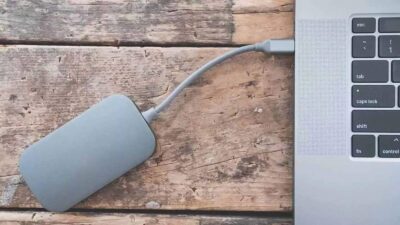
Table of Contents
- 1 Basic differences between internal and external hard drives
- 2 Types of internal drives: HDD, SSD, SAS, NVMe, and SSHD
- 3 Internal hard drives: key technical features
- 4 How to care for an internal hard drive and extend its lifespan
- 5 External hard drives: what they are and what they are used for
- 6 How to care for an external hard drive
- 7 Interfaces: USB vs. SATA and PCI-Express
- 8 External SSD vs Internal SSD: Speed, Price, and Portability
- 9 Lifespan and durability: internal vs external
- 10 Typical use cases: When to choose internal and when to choose external?
- 11 Other types of drives and configurations: NAS, network drives, and more