- The size, resolution, and type of panel determine visual comfort and productivity when working long hours in front of the computer.
- Ergonomics, blue light filters, flicker-free technologies and good connectivity are key to protecting health and simplifying the workplace.
- Depending on the type of use (office work, gaming, design, multitasking), it is advisable to combine format, refresh rate and extras such as curve, UltraWide or integrated webcam.
- Investing in a good professional monitor directly impacts daily performance, postural health, and the quality of work performed.
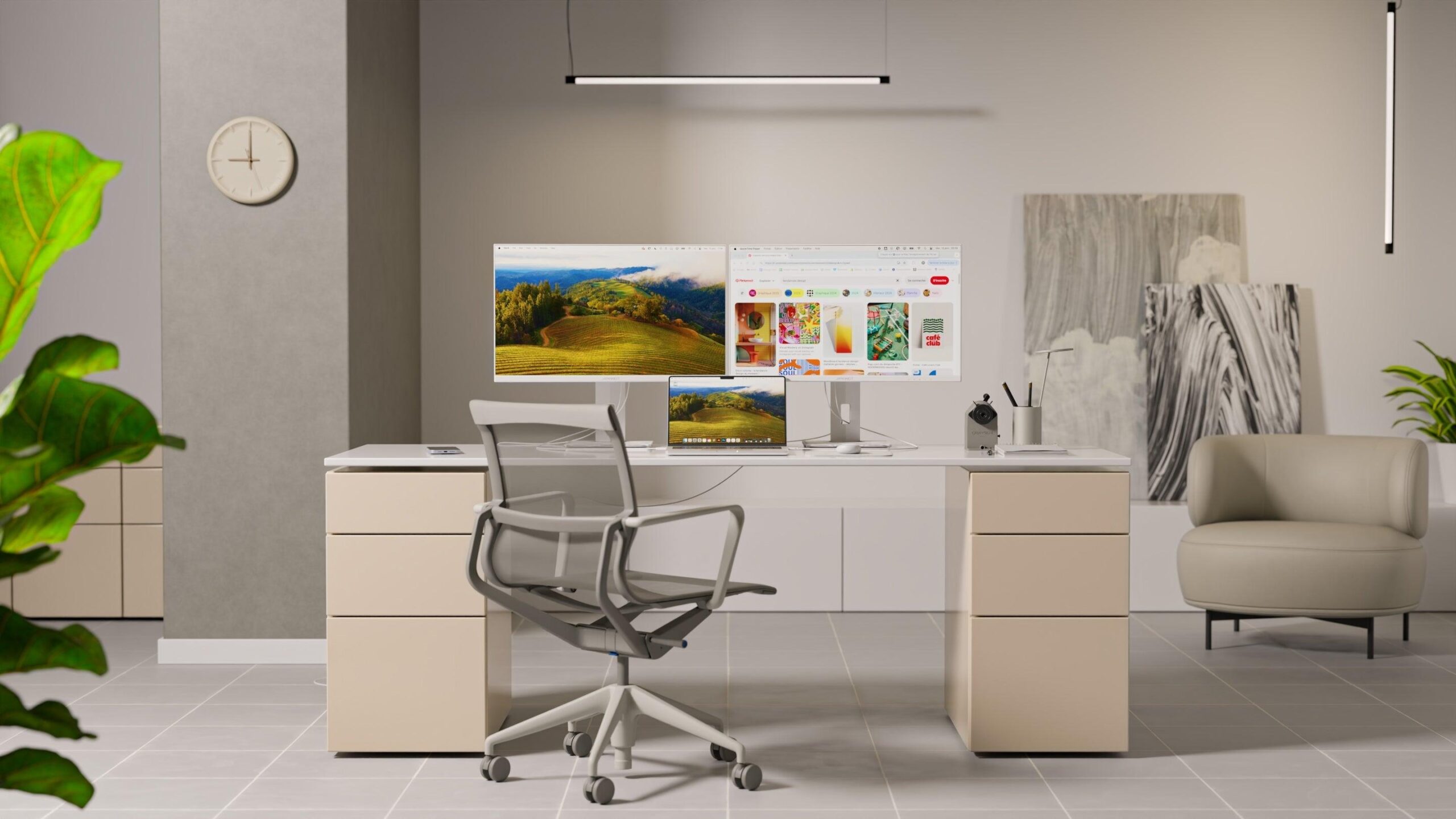
Spending eight hours or more in front of a computer with a mediocre monitor is the fastest way to end up with tired eyes, neck pain, and less productivity than you'd like. Luckily, nowadays there are so many options that it's relatively easy to find a screen that fits your work style and budget, as long as you know what to look for.
When choosing a monitor for work, it's not enough to focus solely on price or whether it "looks big." Size, resolution, panel type, ergonomics, connectivity , and even features like a webcam or speakers are all important. Furthermore, someone who only does office work will have different needs than someone who edits video, designs, programs, or plays games in their free time.
Monitor size and relationship between inches, space and distance
Screen size is usually the first thing we look at, but it's important to understand what that means. Inches indicate the length of the screen's diagonal (1″ = 2,54 cm) , not the width or height. A 24″ monitor has a diagonal of around 61 cm, a 27″ monitor is close to 69 cm, and so on.
Before rushing out to buy "the biggest screen possible," measure your actual desk space, the available depth , and the usual distance between your eyes and the monitor. A huge screen right up against your face can be just as uncomfortable as a small one that's too far away.
In general, we can divide the sizes in this way, thinking about professional use:
- Between 19″ and 22″Compact monitors, ideal for very small desks, points of sale, surveillance or workstations where the monitor is not the main tool.
- From 22″ to 24″The classic range for basic office tasks, simple remote work, and browsing. They take up little space and, with Full HD resolution, offer more than enough sharpness.
- From 24″ to 27″The sweet spot for most office users. They allow for comfortable working with multiple windows and are very well balanced in size and price.
- From 28″ to 32″ and more: geared towards advanced users, intensive multitasking, video editing, large spreadsheets or those who want to turn the monitor into a kind of desktop television.
Keep in mind that the larger the screen size, the more important it is to increase the resolution. A large screen with few pixels will appear blurry and display jagged text, which is very annoying if you spend many hours reading.
Resolution: Full HD, QHD, 4K and aspect ratio
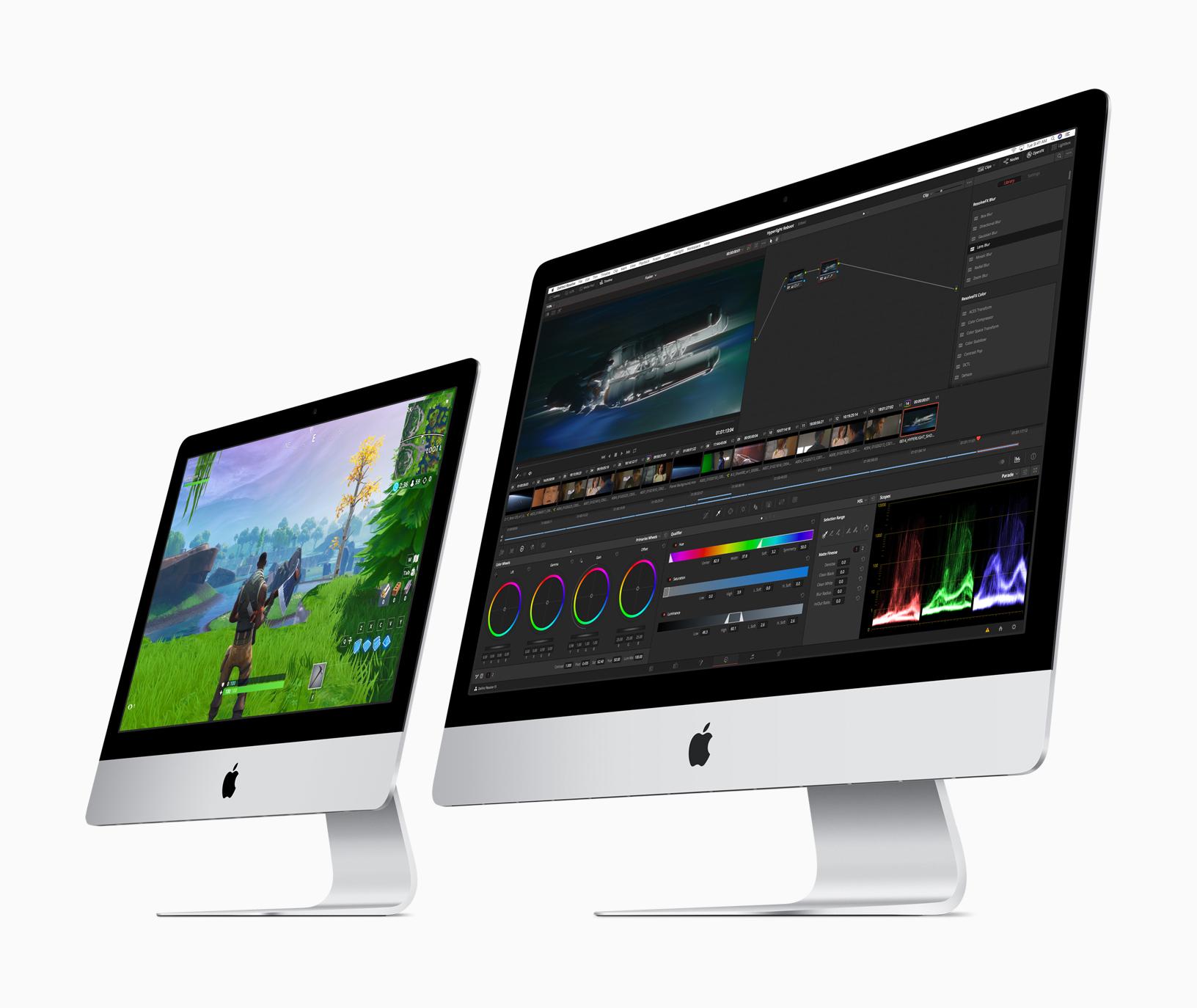
Resolution indicates how many pixels make up the image (width x height). The more pixels there are in the same area, the sharper everything will look and the more content will fit on the screen without using scroll bars or constant zooming. But be careful, a very high resolution on a very small screen can make everything look tiny.
The most common resolutions for working are:
Full HD (1920 x 1080)
It's the current minimum standard and works very well on monitors up to 24 inches . For office tasks, email, browsing, or basic document management, a 22" or 24" Full HD monitor is a balanced and economical solution.
On 27-inch screens, it's still acceptable, although the decrease in pixel density is starting to become noticeable. If you're demanding when it comes to sharpness or work with small text for many hours, it's advisable to upgrade to QHD on a 27-inch screen.
Quad HD or 2K (2560 x 1440)
QHD resolution has become very popular in 27″ monitors because it offers more usable workspace and better definition without the price increase of 4K. It's ideal if you often have several windows open side-by-side (email, browser, word processor, etc.).
On 27" or 32" screens, QHD offers an excellent balance between the size of on-screen elements and the amount of visible information. For those who do light design, programming, or moderate photo editing, it's a very good choice.
Ultra HD / 4K (3840 x 2160)
4K monitors have four times the pixels of Full HD. In practice, this translates into spectacular sharpness and a huge amount of workspace , especially on screens 27″ and larger, and particularly 32″ and above.
They are especially recommended for graphic design, professional photography, video editing, large spreadsheets , and generally any task where detail matters. However, make sure your graphics card and connection (HDMI 2.0, DisplayPort 1.4 and 2.0 , or modern USB-C) can handle that resolution smoothly.
On smaller monitors, such as 23″ or 24″, 4K is often underutilized: everything looks very small and you would have to increase the scaling of the operating system, losing some of the advantage of having so many pixels.
Aspect ratio: 16:9, 21:9 and UltraWide displays
Beyond the size in inches, the monitor's "shape" also matters, that is, its aspect ratio . Traditionally, we have used almost square screens (4:3, 5:4), but today widescreen and ultrawide formats dominate.
The 16:9 aspect ratio is the most common, both for monitors and televisions. It's versatile, economical, and sufficient for most uses: office work, browsing, some gaming, and video.
21:9 (UltraWide) monitors offer approximately 33% more width than a standard 16:9 monitor. This allows you to comfortably run multiple applications side-by-side: for example, a web browser, a text editor, and a chat window all open at the same time without anything feeling ridiculously compressed.
A good ultrawide monitor can easily replace a traditional dual-screen setup , with the advantage of eliminating the central bezel, reducing cables, and simplifying the workspace. They are especially attractive for:
- Those who work with video or audio timelines (edition).
- Users of large spreadsheets who need to see many columns at once.
- Developers and multitasking professionals who handle several tools at once.
If the UltraWide is curved and 34 inches or larger, the immersive experience is truly remarkable. However, the cost also increases, and it's worth considering whether you'll actually benefit from the extra screen width in your daily use.
Panel type: TN, IPS, VA, QLED and OLED
The image quality of a monitor depends largely on the type of panel it uses. On the market, you'll mainly find TN, IPS, and VA panels , as well as variants like QLED, and OLED panels in a league of their own.
TN (Twisted Nematic) Panels
TN panels were the kings of gaming for many years due to their very low response time and ability to achieve high refresh rates at affordable prices. Today they remain a cheap and fast option.
However, its weaknesses are clear for work: poorer colors and fairly limited viewing angles . If you look at the screen from a slight angle or from above or below, the colors degrade quickly. They might suffice for basic office tasks, but if you value image quality, IPS or VA panels are better.
IPS panels (In-Plane Switching)
IPS panels are favored in professional environments because they offer richer, more accurate colors , as well as very wide viewing angles. It doesn't matter if you move around in front of the monitor or if someone is looking from the side: the image remains remarkably faithful.
They are the most recommended option for graphic design, photography, video, intensive office work, and mixed use . Although historically they were somewhat slower than TN panels, the latest IPS generations have greatly reduced response time and are more than sufficient for casual gaming.
VA (Vertical Alignment) Panels
VA panels occupy a middle ground. They stand out for offering deeper blacks and superior contrast compared to IPS, which is appreciated when watching movies, series, or working with dark content.
In return, they tend to have slightly higher response times than TN panels and sometimes exhibit some blurring in very fast-moving scenes. Their viewing angles are better than TN panels, but not as good as IPS panels. They are a very solid choice if you want versatility for both work and multimedia entertainment.
QLED and color improvements
Under the QLED name, primarily found in Samsung monitors, lie VA panels enhanced with quantum dots to expand the color gamut and increase peak brightness. They offer vibrant image quality, good durability, and energy efficiency.
They still share some of the limitations of VA panels in terms of viewing angles, but if you're looking for vibrant colors and good contrast for multimedia and gaming, they're a very interesting option.
OLED: top quality at a high price
OLED monitors are in a league of their own. Each pixel turns on and off independently, allowing for perfect blacks, incredible contrast, and near-instantaneous response times . For movies, demanding video games, and highly detailed image work, they are a true delight.
The problem is that they are significantly more expensive and, over time, can suffer from wear and tear or image retention if static elements are displayed for many hours. In an office environment with static displays and windows, this risk should be considered.
Refresh rate, response time, and gaming technologies
For purely office use, most users are more than satisfied with a monitor with a 60Hz refresh rate and a response time of around 5ms. However, if you plan to play games or work with animations and video, these parameters become more important.
The refresh rate, measured in hertz (Hz), indicates how many times per second the image is updated. Above 100 Hz, the perceived smoothness increases significantly , a feature highly valued in shooters, esports, and fast-paced video games. Monitors are available with refresh rates of 120 Hz, 144 Hz, 165 Hz, and even 240 Hz.
Response time measures how long it takes a pixel to change from one shade to another (many brands now measure from gray to gray). Values around 1 ms GtG are ideal for gaming, while 4-5 ms is usually sufficient for almost everything else.
In addition, technologies like FreeSync (AMD) and G-Sync (NVIDIA) synchronize the rate at which the graphics card generates images with the monitor's refresh rate. This reduces screen tearing and stuttering, greatly improving the gaming experience, as well as the viewing of videos and complex animations.
Visual comfort: brightness, contrast, filters and Flicker-Free
Comfort depends not only on size and resolution. How the screen performs in terms of brightness, contrast, viewing angles, and eye-care technologies also plays a direct role.
Brightness is measured in candelas per square meter (cd/m²). For a typical office environment, values of 250 to 300 cd/m² are usually sufficient. If you work near a bright window or need to use your monitor in a well-lit space, you'll appreciate reaching 350-400 cd/m².
Contrast is the difference between the darkest and lightest areas. A native 1000:1 contrast ratio already offers reasonably deep blacks. Beware of inflated "dynamic contrast" figures in technical specifications: it's an artificial number that doesn't reflect the actual contrast you'll perceive.
To reduce eye strain, many monitors today include:
- Low blue light modes, which filter out part of the spectrum that is most tiring to the eyes, especially useful if you work long hours or at night.
- Flicker-Free Technologywhich prevents blinking invisible to the human eye but detected by cameras and, above all, noticed by your eyes after many hours.
- Automatic brightness adjustment depending on the ambient light, which maintains a comfortable luminance without you having to touch anything.
It is also highly recommended to opt for panels with a matte or anti-glare finish , especially if you work in natural light or under spotlights, as they reduce annoying reflections and make reading text easier.
Ergonomics: height, tilt, pivot and VESA mount
Whether we work remotely or spend the entire day in the office, posture is critical. A poorly positioned monitor is the source of neck pain, strained shoulders, and bad posture that, over time, take their toll.
That's why it's so worthwhile to choose a model that allows you to:
- height adjustmentso that the top of the screen is approximately at eye level.
- Forward/backward tiltso you can adjust the angle according to your chair, desk and posture.
- Horizontal rotation (swivel), very useful if you share your screen with colleagues or clients.
- Pivot to verticalIdeal for reviewing long documents, reading PDFs, programming, or browsing websites in column format.
If the monitor stand isn't tall enough, it's a good idea to choose one that's VESA mount compatible . This allows you to mount it on an articulating arm or on the wall, freeing up desk space and enabling much finer positioning.
Desktop connectivity and configuration
Connectivity is another key point that is often overlooked. These days, the minimum requirement is that the monitor has HDMI and, ideally, DisplayPort . Beyond that, the extra features make all the difference.
Modern laptops, especially ultrabooks and many MacBooks, increasingly rely on USB-C and HDMI . A USB-C monitor capable of transmitting video, audio, data, and power will allow you to connect your laptop with a single cable, charging it simultaneously and significantly reducing cable clutter.
It's also useful if the monitor includes additional USB ports for plugging in a keyboard, mouse, cameras, headphones, or charging your phone. This way, the screen acts as a kind of hub, and you can keep your desk much cleaner.
For audio and video in meetings, some monitors include integrated speakers, microphones, and webcams . With retractable or hidden webcams in the top bezel, you gain privacy and security, because the camera only appears when you actually need it.
Curved screens and curved displays for work
Curved monitors, especially those 34 inches and larger in UltraWide format, offer a highly immersive experience. Their slight curvature ensures the entire screen surface is at a more uniform distance from your eyes , reducing lateral eye movements.
When working with multiple windows or video timelines, the feeling of having a kind of "wrap-around panel" in front of you is very pleasant. In gaming, the immersion is even more pronounced, as it better covers the peripheral field of vision.
The downside is that, with the same specifications, curved monitors are usually more expensive than flat ones. Therefore, it makes more sense to invest in a curved monitor when we're talking about large screen sizes (34" or 49" UltraWide), where the benefit of the curvature is truly noticeable.
Recommended monitor types based on your use
We don't all work the same way or need the same things. Choosing the right monitor means matching its features to your usage profile: office work, design, occasional gaming, working from home with lots of video calls , etc.
If your daily tasks revolve around email, simple spreadsheets, documents, and web browsing, the most sensible option is a 22" to 24" monitor with Full HD resolution . An IPS or VA panel will give you good color quality and viewing angles.
In this environment, it's important to consider ergonomics (height and pivot) and eye care features: low blue light, flicker-free technology, and a matte finish. If you make a lot of video calls, a model with an integrated webcam will save you from having another accessory cluttering your desk.
If you want to boost productivity, you can set up two 22- or 24-inch monitors or go straight for a 29- or 34-inch UltraWide monitor. In both cases, you'll gain a ton of space to place windows side by side.
Monitors for graphic design, photography and video
The key here lies in color fidelity and range , in addition to resolution. A monitor between 24″ and 32″ with an IPS panel, wide color space coverage (sRGB, Adobe RGB, or DCI-P3), and good calibration is the minimum recommended.
If your budget allows, the combination of an IPS panel and 4K resolution is ideal for photo retouching, illustration, and video editing, although a good quality QHD display can also work very well. Sufficient brightness is important, and above all, good screen uniformity is crucial.
Many models geared towards creatives even come pre-calibrated from the factory and include tools for periodic recalibration with a colorimeter (integrated or external). This ensures that what you see on screen closely resembles what is later printed or published.
Monitors for gaming and work (mixed use)
If you want a monitor that works for both working from home and playing some good games afterwards, you'll want to look for a model that balances image quality and gaming features.
In this case, a 24″ or 27″ IPS or VA panel with Full HD or QHD resolution , a refresh rate of 100 Hz or more, a reasonable response time, and compatibility with FreeSync or G-Sync is a very versatile combination.
For everyday use you'll have good sharpness, decent colors and acceptable ergonomics, and at night you'll enjoy great fluidity in your favorite games.
Monitors with retractable webcams and pivoting models
In corporate and remote work environments, monitors with retractable webcams , which only appear when needed, have become very popular. This enhances privacy, eliminating the need to cover the camera with stickers or other unsightly solutions.
On the other hand, monitors that allow you to rotate the screen to portrait mode (pivot) are a blessing for programmers, writers, and anyone who works with long documents. Being able to switch between landscape and portrait depending on the task is a very welcome bonus.
Slim monitors and multi-screen setups
Slim monitors, with their very thin bezels, are perfect for dual or triple screen setups . Thanks to their reduced bezels, the visual separation between the monitors is less pronounced, creating a greater sense of continuity.
Furthermore, they are usually lightweight, take up little space, and fit perfectly into modern offices, studios, or creative spaces where aesthetics are also important. Combining several Slim TVs with VESA mounts can result in a very clean and organized workspace.
Looking at the range of options, it's quite clear that a good monitor isn't just an accessory, but a central piece of your workstation: it affects comfort , eye health, posture, and daily productivity . Choosing the right size, resolution, panel type, ergonomics, and connectivity for your work style will make that investment worthwhile every day as soon as you sit down in front of the screen.

Table of Contents
- 1 Monitor size and relationship between inches, space and distance
- 2 Resolution: Full HD, QHD, 4K and aspect ratio
- 3 Aspect ratio: 16:9, 21:9 and UltraWide displays
- 4 Panel type: TN, IPS, VA, QLED and OLED
- 5 Refresh rate, response time, and gaming technologies
- 6 Visual comfort: brightness, contrast, filters and Flicker-Free
- 7 Ergonomics: height, tilt, pivot and VESA mount
- 8 Desktop connectivity and configuration
- 9 Curved screens and curved displays for work
- 10 Recommended monitor types based on your use