- USB-C is just the type of physical connector, while USB 3.0 and the other USB versions determine the speed and capabilities.
- The same connector (USB-A or USB-C) can use different USB generations, from 2.0 to USB4, with significant performance differences.
- For fast storage, external monitors, and powerful charging, the USB version matters (5, 10, 20, 40 Gbit/s and more), not just that the port is USB-C.
- Checking icons, technical specifications, and certifications of cables and chargers prevents bottlenecks and compatibility problems.
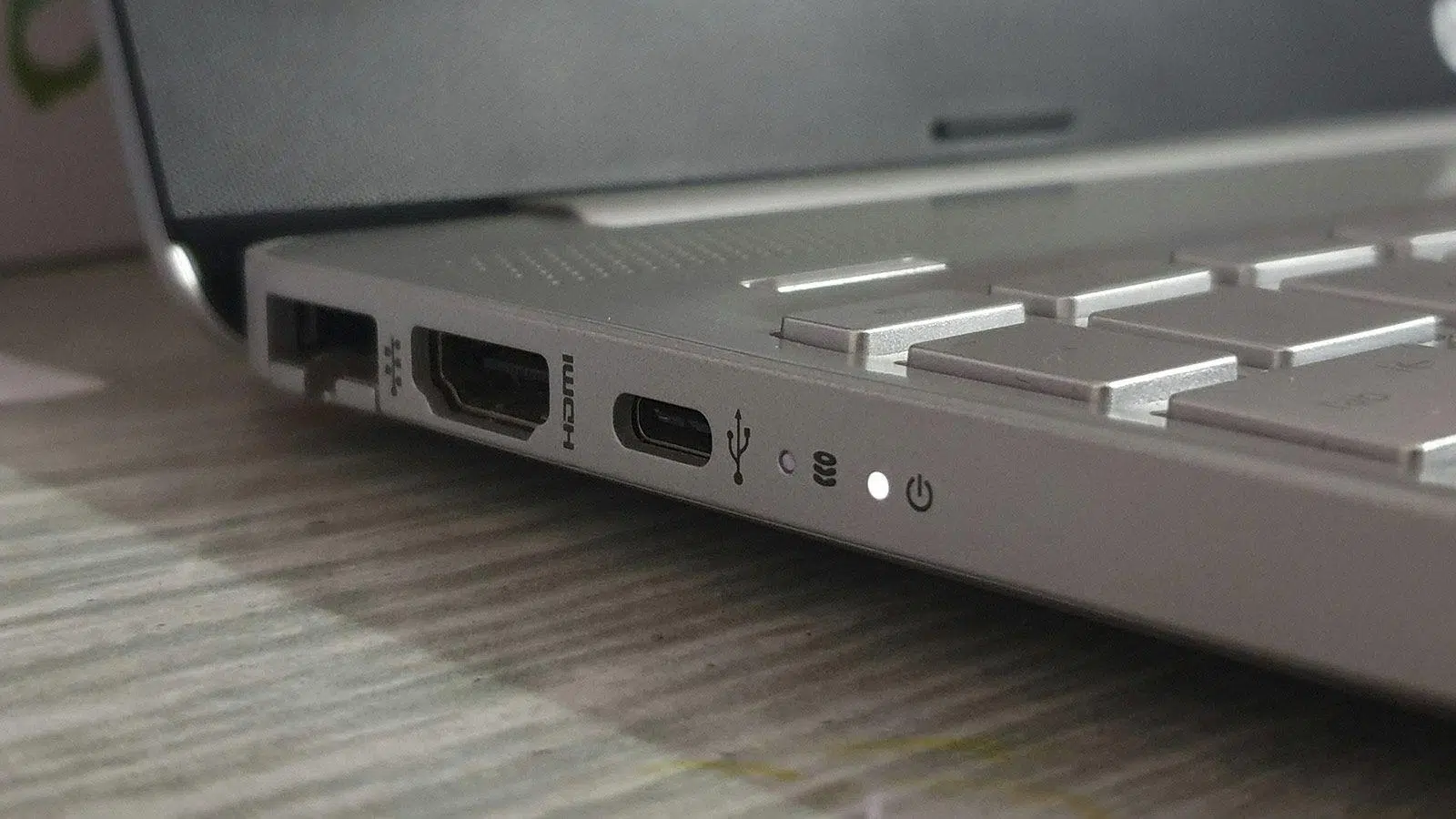
If you're confused by USB 3.0, USB-C, Gen 1, Gen 2 , and all that other jargon, don't worry, you're not alone. The USB standard was designed to be "universal," but between different connectors, speed generations, and name changes, it's understandable that it can be difficult to figure out which cable or port you need in each situation.
In the following lines, we'll calmly break down the real differences between USB 3.0 and USB-C , how the various standards fit together (USB 2.0, 3.0, 3.1, 3.2, USB4, and even Thunderbolt), and what you should look for to avoid mistakes when buying a cable, external hard drive, or charger. Everything will be explained in plain English, but with the necessary technical background.
USB-C vs USB 3.0: concepts that are not the same
The main confusion comes from mixing up connector type with speed generation . They are two different things, which sometimes coincide and sometimes don't:
- USB-C is Physical form of the connector and port: small, oval and reversible.
- USB 3.0 (USB 3.2 Gen 1) is a USB standard version which marks speeds of up to 5 Gbit/s.
This means you can have a slow USB-C cable (USB 2.0) or a very fast USB-A cable (USB 3.x) . The connector alone doesn't guarantee speed; what matters is the version of the standard behind it and what both ends (device port and cable) support.
USB-C has become the standard modern connector because it allows for faster speeds, more powerful charging, and even video output, but these features depend on the generation: USB 2.0, 3.0, 3.1, 3.2, or USB 4. A USB-C connector that only supports USB 2.0 will suffice for charging and basic data transfer, but it will fall far short for a fast external SSD, for example.
A quick look at the history and types of USB
To understand why there is so much variety, it's helpful to separate standards and connectors . On one hand, there are the versions of the USB protocol (1.0, 2.0, 3.0, 3.1, 3.2, USB4…) and, on the other, the plug types (Type A, B, C, Mini, Micro).
Evolution of USB standards (speeds)
The different versions of the USB standard are distinguished primarily by their maximum theoretical speed and, in some cases, by charging power and extra features such as video transmission:
- USB 1.0Very old, hardly used today. Speed up to 1,5 Mbit / sSufficient for very basic mice, keyboards, or webcams. It used Type A, Type B, and Mini/Micro connectors.
- USB 1.1An improvement over USB 1.0, called "full speed". It reached 12 Mbit / sIt allowed for more comfortable use, but it was still slow compared to what came later.
- USB 2.0This is where the serious takeoff began. Theoretical speed of 480 Mbit/s (60 MB/s)in practice, it's usually slightly less than half. It remains the most widespread standard in many systems. It also offered power supply up to 2,5WIt was used with Type A, B, Mini and Micro connectors.
- USB 3.0 (renamed as USB 3.2 Gen 1): goes up to 4,8 Gbit/s (600 MB/s)It's about ten times faster than USB 2.0 thanks to additional contacts. It works with SuperSpeed Type A, B, and Micro B connectors.
- USB 3.1 (now USB 3.2 Gen 2): doubles the speed again, reaching 10 Gbit/s (1,25 GB/s)It's a common type of adapter for fast USB-C ports and is compatible with many docking stations and cradles. It works with USB-C and some Micro-B ports.
- USB 3.2The USB-IF organization reorganized everything and defined several variants:
- USB 3.2 Gen 1 × 1: it's the old USB 3.0, 5 Gbit / s.
- USB 3.2 Gen 2 × 1: it's the old USB 3.1, 10 Gbit / s.
- USB 3.2 Gen 2 × 2: combination of two 10 Gbit/s lines to achieve 20 Gbit / s, normally using USB-C connector.
- USB4A big leap in philosophy. Always use USB-C connector, offers up to 40 Gbit / s and seeks to unify data, video and power in a single port, with compatibility for Thunderbolt 3.
- USB4 2.0: most recent evolution, with bandwidth of 80 Gbit / s and the possibility of reaching 120 Gbit / s in one direction in certain modes, also with USB-C.
The most complicated part is the name change made by the USB-IF , renaming USB 3.0 and 3.1 as variants of USB 3.2. From the user's point of view, it is often clearer to look at the indicated speed (5 Gbit/s, 10 Gbit/s, 20 Gbit/s, 40 Gbit/s) than at the commercial name.
Types of USB connectors (physical shapes)
Another aspect of the story involves the specific shapes of USB connectors , which you've surely seen a thousand times:
- USB Type AThe classic rectangular connector. It has dominated PCs, laptops, consoles, and chargers for years. It can carry USB 1.x, 2.0, and 3.x standards. In many cases, USB 3.x Type-A connectors are recognized by the blue interior piece or by the “SS” (SuperSpeed) logo.
- USB Type BIt is mainly used in printers, scanners, and some desktop devices. There is a classic "fat" version for USB 1.x/2.0 and another with a slightly different shape and a blue tab for USB 3.0.
- USB Type CThe current protagonist. It's a connector small, symmetrical, and completely reversiblewhich has become the natural replacement for Micro USB in mobile phones and a standard for modern laptops, docks, monitors and a multitude of accessories.
- Mini USBThe first attempt at a more compact connector. It was common in cameras and some older mobile phones. Today it has practically disappeared.
- micro USBThe successor to the Mini, very popular in Android phones and small gadgets until USB-C arrived. It's still present in cheap or older devices, but it's on its way out.
A single connector can support multiple USB versions . For example, you might have Type-A ports that are USB 2.0 or 3.0, or a USB-C port that only operates at USB 2.0 speeds. Therefore, it's not enough to just look at the shape; you have to look at the speed and function specifications (data, charging, video).
What does the USB-C connector really offer?
USB-C is much more than a pretty plug . It has been designed as an "all-in-one" connector capable of handling charging, high-speed data, and video output, simplifying the chaos of previous ports.
Reversible design and usability
The most noticeable improvement in everyday use is that the connector is reversible . With USB-A and Micro USB, you always had to get the orientation right; with USB-C, it doesn't matter which way you plug it in, it goes in the first time. This doesn't affect speed, but it does improve convenience and the port's durability.
The compact, symmetrical design allows the same type of connector to be used with mobile phones, tablets, laptops, docks, monitors, and even game consoles . This reduces the number of different cables you need at home.
Fast charging and power delivery (USB Power Delivery)
One of the biggest leaps forward in the USB-C ecosystem is fast charging . Thanks to the USB Power Delivery (USB PD) standard , a USB-C port can deliver significantly more power than an older USB-A port.
- A typical USB 2.0 port offers around 2,5 W (5V / 0,5A).
- USB 3.0 increases somewhat, up to about 4,5 W (5V / 0,9A).
- With USB-C and Power Delivery, you can achieve 100 W (20V/5A), sufficient for powerful laptops.
- The latest versions of USB PD 3.1 allow up to 240 W, geared towards very demanding equipment such as gaming laptops.
This translates into much faster charging : a laptop can go from 0 to 50% in about 30-45 minutes, and a modern mobile phone charges completely in less than an hour, provided that the charger, cable and device support the same power profile.
Data transfer with USB-C
The USB-C connector can carry different generations of USB , from USB 2.0 to USB 3.2 and USB 4. Not all USB-C cables are equally fast.
- A USB-C cable that only meets the requirements USB 2.0 it stays in 480 Mbit / s.
- A USB-C with USB 3.2 Gen 1 achieves 5 Gbit / s.
- With USB 3.2 Gen 2 we went up to 10 Gbit / s.
- With USB 3.2 Gen 2 × 2 you arrive at 20 Gbit / s, ideal for very fast external SSDs.
- USB4 y Thunderbolt 3/4 using USB-C they reach up to 40 Gbit / sAnd Thunderbolt 5 raises the bar to 80 Gbit/s bidirectional o 120 Gbit / s in one direction only.
The key is that the connector type alone doesn't tell you if you have 480 Mbit/s or 40 Gbit/s . You have to look at the fine print: USB version, SuperSpeed logo, indications like "10 Gbps", lightning bolt icon (Thunderbolt), etc.
Video output and alternate modes
Another major advantage of USB-C is that it can carry video signals directly , something previous USB versions didn't offer natively. Through so-called alternate modes , the port can act as either DisplayPort or HDMI.
- Many modern USB-C ports support DisplayPort AltMode o HDMI AltMode.
- This allows you to connect your laptop or mobile phone to a monitor or TV. 4K and even 8K using a single cable.
- The USB4 and Thunderbolt 3/4 standards use this same connector to combine data, video and charging simultaneously.
Not all USB-C ports have video output . This feature is usually found on ports with USB 3.2 Gen 2 or higher capabilities and also depends on the device manufacturer. On many laptops, you'll see specific icons next to the connector to indicate whether it supports video or Thunderbolt.
What exactly is USB 3.0 (USB 3.2 Gen 1) and how does it compare?
USB 3.0 was the third major revision of the USB standard , introduced in 2008. It represented a huge leap forward from USB 2.0, especially in transfer speed, and is the basis of the current USB 3.2 Gen 1.
In practical terms, USB 3.0 and USB 3.2 Gen 1 are the same : same 5 Gbit/s limit , same SuperSpeed philosophy, same backward compatibility with USB 2.0. The name change came from the USB-IF's reorganization to group all variants under the USB 3.2 label.
USB 3.0 speed versus other versions
USB 3.0 is ten times faster than USB 2.0 . While USB 2.0 was limited to 480 Mbit/s, USB 3.0 reaches 4,8 Gbit/s (5 Gbit/s rounded up). This makes it possible to use external hard drives, video capture cards, multi-port docks, and other demanding peripherals without such a noticeable bottleneck.
Later, USB 3.1 (USB 3.2 Gen 2) with 10 Gbit/s and USB 3.2 Gen 2x2 with 20 Gbit/s appeared , taking over in high-end devices. Despite this, many PCs and external hard drives still use 5 Gbit/s ports and controllers, which are usually sufficient for typical home use.
Connectors associated with USB 3.0
The arrival of USB 3.0 did not bring a new type of "unique" connector , but rather improved variants of existing ones:
- USB-A 3.0: same size and shape as USB-A 2.0, but with extra contacts and usually blue inside.
- USB-B 3.0: connector for printers and some desktop devices, with a slightly different shape and also labeled as SuperSpeed.
- Micro-B 3.0: very typical in 2,5″ external hard drives for years; it is recognizable because it looks like a “double micro USB”.
Later on, USB 3.1 and 3.2 speeds became increasingly associated with USB-C as the main connector , while Type A remained a widespread alternative but without significant future development.
Relationship between USB-C, USB 3.x, USB4 and Thunderbolt
USB-C has become the meeting point for several high-speed standards . It not only supports USB 3.x and USB 4, but also Thunderbolt 3, 4, and 5, which share a connector and many capabilities.
In summary, we can place them like this:
- USB 2.0 over USB-C: up to 480 Mbit/s, no video output, limited load (unless the manufacturer implements PD).
- USB 3.2 Gen 1 (5 Gbit / s): suitable for normal external hard drives, USB hubs, etc., without needing to reach absurd figures.
- USB 3.2 Gen 2 (10 Gbit / s): good base for fast external SSDs and for monitors via alternate video modes.
- USB 3.2 Gen 2×2 (20 Gbit/s): designed for external NVMe drives and intensive data copying jobs.
- USB4 / Thunderbolt 3 and 4 (40 Gbit/s): maximum versatility with high-speed data, multiple 4K screens or one 8K screen and powerful charging.
- Thunderbolt 5: goes up to 80 Gbit/s bidirectional or 120 Gbit/s in one direction, plus support for DisplayPort 2.1, multiple 8K monitors or multiple 4K monitors, all over USB-C.
The key to this convergence is that USB-C acts as the standard physical interface , while internally it can "talk" to different protocols (USB, DisplayPort, Thunderbolt), as long as the device and cable allow it.
How the USB (and USB-C) version affects your daily life
Depending on what you want to connect, one version of the USB standard will be more suitable than another . Plugging in a mouse is not the same as plugging in an NVMe SSD or a 4K monitor.
External storage drives
For external hard drives, and especially NVMe SSDs, interface speed is critical (for example, compared to an eSATA port ). If you connect a very fast drive to a slow port, you'll be wasting valuable capacity.
- A conventional external HDD can work reasonably well with USB 3.2 Gen 1 (5 Gbit / s).
- For an external SATA SSD or basic NVMe SSD, a port is already appreciated. USB 3.2 Gen 2 (10 Gbit / s).
- If you want to get the most out of a Very fast NVMe SSDIdeally, you should use USB 3.2 Gen 2×2 (20 Gbit/s) or directly USB4 / Thunderbolt.
In tasks such as copying 4K videos, photo libraries, or large projects , switching from USB 2.0 to any variant of USB 3 or USB4 means cutting minutes (or even hours) of waiting time, which makes a difference if you work with a lot of multimedia content.
Input peripherals: keyboards, mice, controllers
For input devices (keyboards, mice, gamepads, simple headphones), speed is the least important factor . The volume of data they transfer is minimal, so a USB 2.0 port is more than sufficient.
That's why you'll see many devices still including USB 2.0 ports, specifically designed for these peripherals. Reserving the fast USB 3 and USB-C ports for storage, monitors, or docks makes perfect sense.
Monitors and video output via USB-C
If you want to use USB-C to connect an external display , whether to a laptop or a tablet, you must ensure that the port supports video (DisplayPort Alt Mode or similar):
- From USB 3.2 Gen 2 And, especially in USB4/Thunderbolt, it is common to have video output.
- Manufacturers usually mark these ports with screen icons or the famous Thunderbolt beam.
- Depending on the version, you will be able to connect one or more 4K screens, or even 8K, and even combine them with charging and data at the same time.
For modern laptops, a single USB-C/Thunderbolt port can handle charging, data, network, audio, and multiple displays when connected to a suitable dock, greatly reducing desk cabling.
How to tell what type of USB-C port you have
Not all USB-C ports on a device offer the same functions , and this is where many users get surprises when trying to connect a monitor or a very fast SSD.
Some tricks to identify what's in front of you:
- Icons by the portA lightning bolt usually indicates Thunderbolta small "SS10" or similar points to SuperSpeed 10 Gbit/s, and a screen symbol indicates video output.
- Manufacturer's data sheet: it usually specifies there whether the USB-C is USB 3.2 Gen 1, Gen 2, USB4, whether it supports Power Delivery, DisplayPort Alt Mode, etc.
- Certified cablesOn good brand cables, the speed (5 Gbit/s, 10 Gbit/s, 40 Gbit/s), PD support, and even official USB-IF or Thunderbolt logos are also printed.
If you want to avoid confusion, it's best to combine ports and cables with clear specifications , especially when dealing with high-resolution monitors, docks with many ports, or very fast storage units.
Choose USB-C chargers and cables wisely
With the rise in popularity of USB-C, many chargers and cables have appeared on the market , and not all of them offer the same features. It's important to consider several factors before choosing one.
Charger output power
The wattage (W) of the charger must match the needs of your device :
- Modern mobile phones are usually comfortable with 18 30-W.
- Lightweight laptops often need 45 65-W for fast charging.
- Powerful laptops and some gaming models may require 100W or more, reaching up to 240W with USB PD 3.1.
Although a higher power charger doesn't force the device to consume more than it can handle, you do need to ensure that the minimum power required by the laptop or mobile phone is available to avoid slow or insufficient charging.
Number of ports and type of connections
If you want to charge multiple devices at once , look for USB-C chargers with multiple ports, often combined with traditional USB-A. GaN (gallium nitride) technology allows for very compact designs with multiple high-power outputs.
Pay attention to how the charger distributes power: some distribute watts according to the number of connected devices , others have "priority" ports with higher output.
Safety and construction quality
When it comes to chargers and cables, it's best to choose reputable brands . A good adapter should include protection against overloads, overheating, short circuits, etc. The manufacturer's warranty is also a good indicator of quality.
A cheap, low-quality cable can cause unstable charging, overheating, or even damage to the device , especially at high power levels (100-240W). Therefore, it's worth checking USB-IF certifications or the equipment manufacturer's recommendations.
Cables and special connectors included
Many USB-C chargers now come with a USB-C to USB-C cable , designed for modern phones and laptops. Some bundles also include cables with Lightning or Micro USB connectors to cover older devices.
If you travel frequently, it can be useful if the charger includes foldable plugs or international plug adapters , saving space in your backpack and avoiding having to carry multiple transformers.
The trend is clear: USB-C is on its way to becoming the standard port for almost everything , from mobile phones and professional laptops to monitors, docks, consoles, and accessories. Understanding the difference between the connector type (USB-C) and the speed generations (USB 3.0, 3.1, 3.2, USB 4) allows you to choose better cables, chargers, and devices, get the most out of your external SSDs, and know which port to use for each peripheral without having to go in blind.
