- There are multiple applications compatible with Windows, macOS, Android, and iOS for extending the screen.
- The USB cable connection offers much greater stability and fluidity than WiFi.
- Certain modern devices, such as the Samsung Galaxy Tab S7/S8 or iPads with Mac, include native functions without external software.
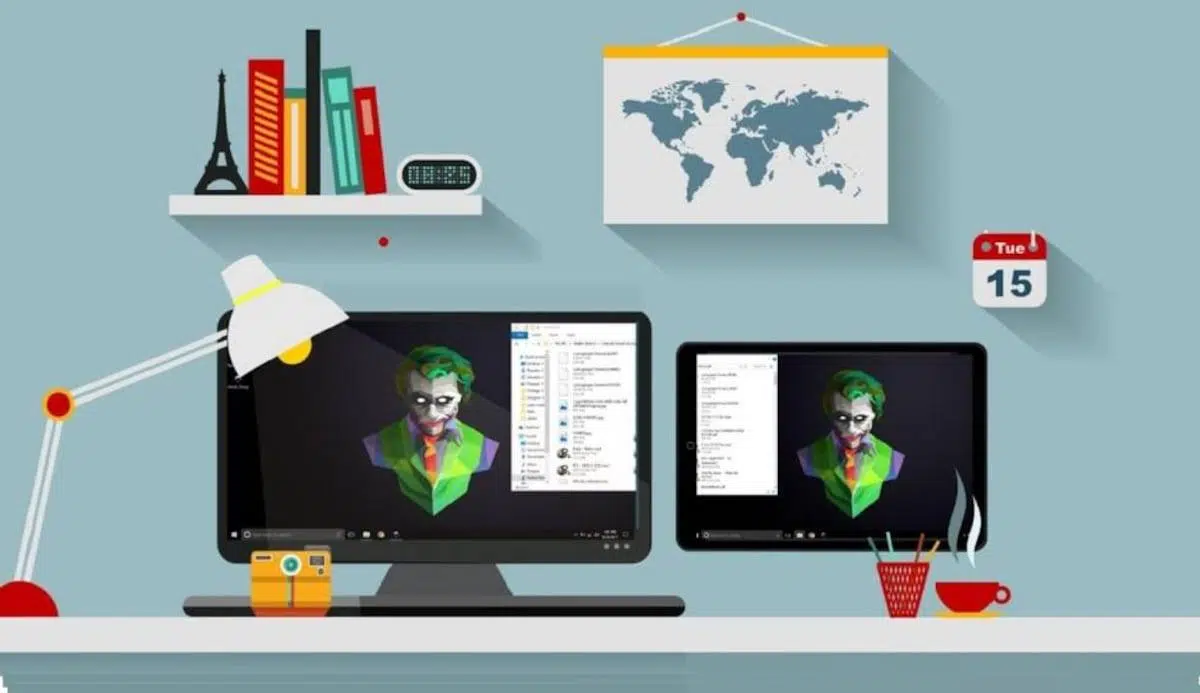
Do you have an Android tablet gathering dust in a drawer while you struggle with screen space on your laptop? It's very common that when we upgrade our devices, the old ones get forgotten, but the truth is that these devices are still useful even if they're no longer the latest model. One of the most productive ways to repurpose them is by turning them into a secondary monitor, allowing you to work much more efficiently without having to spend a penny on new hardware.
Having an extended desktop is a game-changer, especially if you often work away from home or travel frequently. Instead of lugging around a heavy, bulky external monitor, you can take your tablet and create a multitasking environment where you have your email on one side and the document you're writing on the other. Whether you use Windows or macOS, there are solutions available today for setting up two monitors on a PC for virtually any combination of operating systems.

Technical aspects and tips for a better experience
Before we start installing programs, it's important to know that not all tablets will work equally well. If the hardware is too old or the operating system is outdated , you might experience lag or freezing. The key to a smooth experience lies primarily in the connection you choose to link the two devices.
If you're looking for maximum smoothness, the ideal solution is to use a USB cable , as it drastically reduces lag and is much more stable. However, not all applications support this method. The alternative is Wi-Fi, which is the most universal option, but it depends entirely on your network speed. If you try this on a public network or unstable Wi-Fi , the experience will most likely be frustrating, and the connection will drop constantly.
Another important detail is the cost. While there are some very decent free options, generally speaking, if you want professional stability and zero lag , you'll likely have to pay for a license or subscription. However, most apps offer trial periods so you can check if your hardware is compatible before spending any money.

The best apps to extend your screen
Since Windows doesn't include a native Android tool, we have to resort to third-party software. Here are the most reliable options currently available:
- Splashtop Wired XDisplay: It's probably the most reliable option if you prioritize quality. It works exclusively via USB cable, which guarantees a real monitor feel Without annoying delays. It's a one-time payment (around €7,49) and very easy to install on your PC.
- Spacedesk: It's the ideal alternative for those who don't want to spend money. It stands out for being completely free (at least until 2025) and very easy to set up via WiFi. Although it may have a little lag, it works perfectly for basic tasks.
- SuperDisplay: A well-rounded tool that allows both wired and wireless connections. Although it's a paid service after a trial period, it stands out for having a very precise touch control and a lightweight installation on Windows.
- Duet Display: One of the oldest and most versatile apps. The best part is that it's multi platform (Windows, Mac, iOS and Android) and offers extra features such as drawing mode, although its configuration can be somewhat more cumbersome due to the installation of drivers.
Native solutions and specialized hardware
Not everyone needs to install external software. If you're lucky enough to own certain devices, the feature is already built in. For example, users of Samsung Galaxy Tab S7 and S8 series tablets (with One UI 3.1 or later) can activate "Second Screen" from the quick settings panel and connect their Windows PC simply by pressing the Windows key + K.
In the Apple ecosystem, things are even simpler thanks to the Sidecar feature . If you have a Mac and an iPad, you can extend your desktop by going to Displays settings and selecting your device without the need for cables or extra apps, as long as both are on the same network.

For graphic designers, there are drawing tablets (like the XPPen Artist). These devices aren't traditional tablets, but rather specialized touchscreen monitors that allow for pinpoint accuracy using styluses. They're ideal for capturing pressure-sensitive strokes and managing creative projects with color quality far superior to that of a conventional tablet.
If you're unsure how to connect these devices via HDMI, keep in mind that you might need an HDMI-to-USB-C adapter , depending on the ports your tablet has. For those who want to use the tablet with a mobile phone, the process is similar to that of a PC, requiring the installation of compatible apps on both devices.
Leveraging the hardware you already have at home is a smart move for both your wallet and the environment. Whether it's through the simplicity of Spacedesk, the power of Splashtop, or the built-in features of Samsung and Apple, turning an old tablet into an extra monitor is the quickest way to repurpose your technology and streamline your daily workflow.