- Understanding bits, bytes, speed, and frequency helps in correctly interpreting the specifications of any laptop.
- CPU, RAM, storage, and GPU are the components that most influence the actual performance of the computer.
- The motherboard, buses, and cooling system determine the expandability and sustained performance.
- Proper battery management, port maintenance, and thermal maintenance extend the lifespan of portable hardware.
If you've ever wondered what's inside your laptop or what you should look for before buying a new one, you've come to the right place. In these laptop hardware tutorials, we'll break down each component calmly, using easy-to-understand language and avoiding unnecessary technical jargon, while still leaving out no important details.
Although laptops and desktop PCs share many similarities, laptops are more compact, consume less power, and generate more heat in a smaller space. That's why understanding how the components connect, what each one does, and the actual limitations when it comes to upgrades or repairs is so crucial. Mastering this specific hardware will help you both extend the life of your current machine and make a much better choice for your next one.
From human language to bits: how your laptop “understands”
Before discussing motherboards, memory, and cables, it's important to understand the basics: a computer only understands electricity in two states: there is current or there isn't . Everything you see on the screen, from a letter to a movie, boils down to this simple concept.
Inside your laptop's microprocessor are millions of transistors, which act like tiny switches that open or close depending on the voltage they receive. These two states are represented by 0 and 1, and each is called a bit, the smallest unit of information that the system handles.
Since a single bit is very small, the hardware groups eight bits into a byte. A byte is enough to represent a character, a single number, or a symbol. From there, multiples are used: 1 KB is 1024 bytes, 1 MB is 1024 KB, 1 GB is 1024 MB , and so on. This 1024, and not 1000, is what often makes the hard drive "appear" to have less space than advertised on the box.
In addition to storing data, it also needs to be moved. Transfer speed is expressed in bytes per second (B/s, KB/s, MB/s) or bits per second (b/s, Kb/s, Mb/s). Pay attention to the lowercase 'b' and uppercase 'B' : 10 MB/s is not the same as 10 Mb/s; in the second case, the actual speed is eight times lower because 1 byte = 8 bits. This is very common in internet and network connections.
Another key metric is frequency, measured in hertz (Hz). It indicates how many cycles per second a component performs. When you see that a CPU operates at 3,5 GHz, it means it can execute up to 3.500 billion cycles every second . Not all of these cycles result in useful instructions (there are waits, latencies, etc.), but it gives you an idea of its operating speed.
Basic hardware components of a laptop
A laptop packs almost everything a desktop computer contains into a very small space: processor, memory, storage, motherboard, graphics card, battery, ports, and a long list of other chips and controllers. Essentially, it's the same thing, but in a compact, more efficient format, with far more limitations on upgrades.
In many modern laptops, a large portion of the components are soldered: RAM, GPU, even the SSD itself. This means it's crucial to choose the right components initially, because you'll have very little room for upgrades later . In other laptops, you can still upgrade memory and storage using SO-DIMM slots and M.2 sockets, so it's worth carefully reviewing the specifications.
The laptop's motherboard determines how many USB ports it has, whether it supports fast NVMe SSDs, which Wi-Fi standard it supports, and the maximum amount of RAM you can install. That's why two laptops with the same processor can offer very different experiences in terms of performance, expandability, and connectivity.
Furthermore, all of this is powered by the battery and under strict thermal constraints: space is very limited, and there isn't always enough room to properly cool a powerful processor and graphics card. This balance between power, temperature, and noise largely defines the experience with any modern laptop.
The processor (CPU): the miniature brain
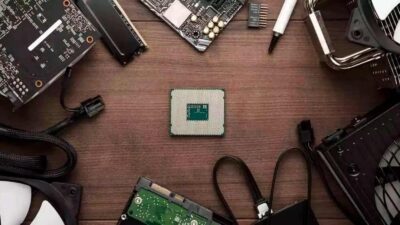
The processor, or CPU, is the computer's computing core. It executes the operating system and application instructions and coordinates the other components. Laptops use models designed for low power consumption and heat generation , which involves a compromise between performance and battery life.
Inside the CPU, we find two main blocks: the arithmetic logic unit (ALU), which performs mathematical and logical operations, and the control unit, which organizes the order in which instructions are executed and how data flows. It also integrates several levels of cache memory (L1, L2, L3) , which are much faster than RAM, where frequently used data and instructions are stored.
Almost all current laptop processors are 64-bit and multi-core, meaning they can handle multiple threads in parallel. However, it's not all about GHz and the number of cores: internal architecture, cache size, supported instruction set, and the thermal design power (TDP), which determines how much power the CPU can handle without overheating and reducing its frequency , all play a role.
Many manufacturers advertise very high turbo speeds, but those figures are usually only maintained for a few seconds. What you'll really notice in games, editing, or other demanding tasks is the stable frequency the processor can sustain with proper chassis cooling. Poor thermal design can turn a great processor into a caged lion that almost always operates below its capacity.
RAM memory: the immediate workspace
Random Access Memory (RAM) is where the programs and data you're currently using are loaded. If you think of the CPU as someone working, RAM would be the surface on the table where they leave their open documents . The more RAM you have, the more tasks you can run simultaneously without the system slowing down.
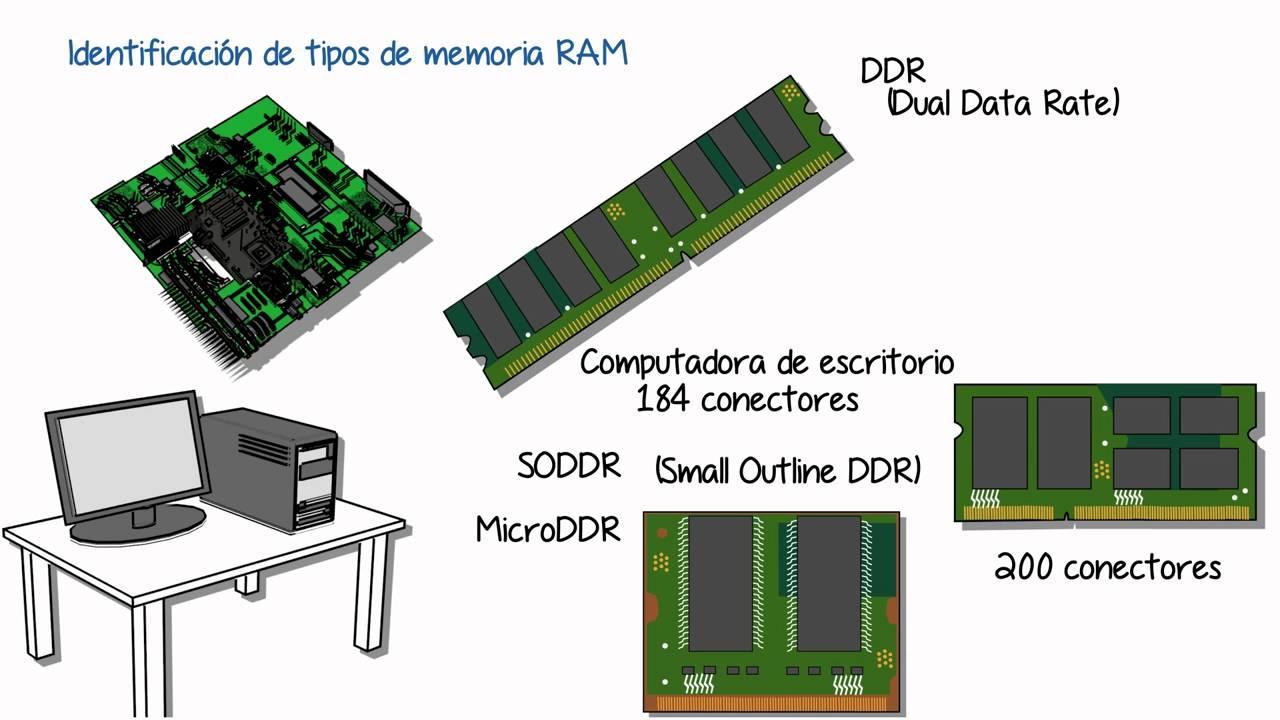
Modern laptops typically use DDR4 and DDR5 RAM, with capacities ranging from 8 GB to 64 GB in high-end models. For office tasks, browsing, and some multimedia, 8 GB is sufficient, but for serious multitasking, video editing, virtual machines, or demanding games, 16 GB is highly recommended as a base, and 32 GB if your workload is particularly heavy.
An important detail is whether the RAM is soldered or not. Many ultrabooks have LPDDR memory integrated into the motherboard, which cannot be replaced or upgraded. Others include SO-DIMM slots that allow you to add or replace modules. Before buying, it's advisable to check if the computer allows for expansion, how many slots it has, and what the maximum supported capacity is.
Besides the amount of RAM, its frequency (in MHz) and latencies also come into play. In everyday tasks, the difference isn't huge, but in games, with integrated graphics, or under intensive workloads, faster memory with tighter timings is noticeable, especially when the GPU uses shared RAM.
Storage: hard drives, SATA SSDs and NVMe SSDs
Storage is where your operating system, programs, and files are permanently saved. Traditionally, mechanical hard drives (HDDs) with platters spinning at thousands of revolutions per minute were used. Nowadays, laptops typically use solid-state drives (SSDs), which have no moving parts , are much faster, quieter, and more resistant to shocks.
There are two main types of SSDs: SATA SSDs, which use the classic interface limited by the SATA bus, and NVMe SSDs, which connect via PCIe and achieve read and write speeds several times faster. This translates to near-instant boot times, programs that load incredibly quickly, and shorter wait times when opening large files.
In terms of storage capacity, 256 GB quickly becomes insufficient if you install games, large programs, or store many photos and videos. These days, it's reasonable to start with at least 512 GB and aim for 1 TB if you work with multimedia or need a lot of local storage. Some laptops still combine a small SSD for the operating system with a large-capacity HDD, although this is becoming less common in thin models.
Most modern laptops use the M.2 form factor for their SSDs; this connector can accommodate both SATA and NVMe drives. It's crucial to check whether the SSD is a replaceable module or soldered to the motherboard , because in the latter case you won't be able to replace it; if it's soldered, you'll be able to install an SSD in your laptop.
Graphics card (GPU): integrated or dedicated
The graphics component of a laptop is responsible for generating everything displayed on the screen: desktop, videos, games, animations, etc. Laptops typically use two main approaches: integrated graphics within the CPU and dedicated graphics cards with their own dedicated memory.
Integrated GPUs (like the Intel Iris Xe or Radeon integrated in Ryzen processors) share RAM with the processor. They are more than sufficient for office tasks, internet browsing, high-definition video, and light or older games. Their main advantage is their low power consumption, which helps extend battery life—a key factor in thin and light devices designed for portability.
Dedicated graphics cards (NVIDIA GeForce, AMD Radeon, etc.) have their own VRAM and significantly more power for demanding tasks: modern games, video editing and rendering, 3D, CAD, and even AI work. However, they consume more power, generate more heat, and reduce laptop battery life under heavy load, though they make a dramatic difference in graphics performance . As an alternative to improve graphics performance without replacing the internal GPU, you can use an external graphics card for your laptop.
In most laptops, the dedicated GPU is also soldered to the motherboard, so it can't be replaced later like it can in desktop computers. When choosing, it's important to consider both the exact model and the amount of VRAM (4, 6, 8 GB or more) and the power consumption limit set by the manufacturer. Two laptops with the same graphics card can theoretically perform very differently depending on the wattage limit and the cooling system.
Battery: the energy that allows you to move
The battery is the component that makes a laptop truly portable. It consists of lithium cells, and its capacity is expressed in Wh (watt-hours). Higher capacity means more stored energy, but also greater weight and size, so manufacturers must find a balance between battery life, size, and the device's lightness.
Actual battery life depends not only on its capacity: the type of CPU and GPU, screen brightness, usage patterns, and power plan settings all have a significant impact. Writing in a word processor with the screen at medium brightness is very different from playing games or exporting video for hours, where the battery drains rapidly . To understand battery wear and tear and how to extend its lifespan, you can read about laptop battery life.
Many modern laptops have the battery integrated into the chassis, making it difficult to remove. It can be replaced, but this usually involves removing the bottom cover and even other components to access it. If you're not used to opening computers, it's advisable to take it to a repair shop to avoid damage.
To extend its lifespan, it's best to avoid extreme temperatures, not to constantly drain it to 0%, and not to keep it plugged in at 100% indefinitely if it's not needed. Some manufacturers and operating systems include special modes that limit the maximum charge to 80% or similar, designed to reduce long-term degradation when the laptop is used almost constantly plugged in.
Motherboard, buses and controllers: the “skeleton” of the system
The laptop's motherboard is the main circuit board where all other components are connected or integrated: processor, memory, storage, port controllers, chipset, etc. In practice, it's the nerve center that coordinates the flow of data throughout the entire computer; to compare models and reliability, you can consult real hardware reviews.
In modern hardware, many functions that were previously handled by several separate chips have been consolidated into a single unit known as the chipset. Among other things, it manages how the CPU communicates with memory, which PCIe buses are available, and how USB, SATA, network, audio, and other ports are handled. The chipset's features influence performance and expandability.
Data buses are the "highways" along which bits travel within a computer. They have a certain width (the number of bits they can move at once) and operate at a specific frequency. The greater the bandwidth (bus width multiplied by frequency), the more information can be transmitted per second. A slow or narrow bus becomes a bottleneck, even if the processor is very powerful.
The motherboard also houses a whole series of controllers dedicated to specific tasks: the disk controller that manages the SATA or NVMe ports, the keyboard and touchpad controller, the audio chip, the battery controller, and even older interfaces like IDE or SCSI in older desktop computers. All these components work together to ensure that data flows smoothly between the CPU, RAM, and peripherals.
ROM, BIOS/UEFI, cache and virtual memory
Not all of a laptop's memory is RAM or SSD. There's also ROM (Read Only Memory) or its equivalent in flash chips, where the firmware that allows the machine to boot is stored. This is where the BIOS or UEFI resides; it's the small program that runs as soon as the computer is turned on to initialize the hardware before loading the operating system.
The BIOS/UEFI is stored on a non-volatile chip, and its settings are maintained by a small battery (or coin cell battery) on the motherboard. When that battery runs out, the laptop may lose the time, date, or some settings, requiring you to reconfigure the system and replace the battery to restore the information.
On the other hand, there's the CPU cache, which is very fast RAM located within the processor itself. It's organized into several levels (L1, L2, L3), with L1 being the fastest and smallest, and L3 the largest and somewhat slower. This cache stores the data and instructions that the CPU will need immediately, reducing the time it would spend waiting for information to arrive from RAM or storage.
Virtual memory, on the other hand, is a trick the operating system uses to simulate having more RAM than actually exists. When physical RAM fills up, the system moves some of the less frequently used data to a special file on the disk (the page file). This allows you to continue opening programs, but at the cost of significantly slower performance, because SSDs are much slower than RAM.
On a laptop with limited memory, it's common to experience lag when you have many tabs and applications open. In these cases, the system starts to overuse virtual memory. Increasing RAM is usually one of the most beneficial upgrades, much more effective than tweaking the page file if you're looking for real speed in everyday use.
Laptop ports, connectivity, and peripherals
Ports and network interfaces are how your laptop communicates with the outside world: mice, external keyboards, monitors, printers, external hard drives, networks, etc. The standard is USB, in its various versions, usually accompanied by HDMI or DisplayPort for video, and by Wi-Fi, Bluetooth, and sometimes wired Ethernet connectivity . If you want to learn more about these devices, see input/output hardware.
USB ports can be Type A (the "classic" type) or Type C (smaller and reversible). The maximum transfer speed varies depending on the version (USB 2.0, 3.0, 3.1, etc.); in addition, some USB-C ports also serve as video outputs, support Power Delivery charging, or allow the connection of docking stations that convert a single connector into multiple additional ports for desktop work.
To connect to the internet, many thin laptops do away with the RJ45 Ethernet port and rely solely on Wi-Fi, although some larger models still include it. Virtually all of them integrate dual-band Wi-Fi and Bluetooth, managed by a radio chip and several antennas hidden in the screen bezel. This allows you to connect wireless peripherals and work without a tangle of cables.
In video, the most common standard is HDMI, which transmits both image and sound over a single cable. Some laptops also include Mini DisplayPort or USB-C with DisplayPort Alt Mode, allowing them to power external monitors with high resolution or high refresh rates. With the right combination of GPU and ports, a laptop can handle multiple displays simultaneously, significantly improving productivity.
In addition to that, don't forget the integrated peripherals: keyboard, touchpad, webcam, microphones, and speakers. Although sometimes overlooked, they are part of the hardware and make a significant difference to the user experience. If you're interested in exploring them further, see peripheral hardware . A good keyboard, a precise touchpad, and a decent screen can be more valuable in everyday use than upgrading the CPU.
Thermal management and cooling in laptops
In such a compact chassis, temperature becomes one of the biggest challenges. The CPU, GPU, and other components generate heat that must be dissipated quietly and without sacrificing battery life. That's why the cooling system design is just as important as choosing a good processor or a powerful graphics card . If you're concerned about noise and thermal performance, also check out why my laptop is so noisy.
Most laptops combine one or more fans with heat pipes that transfer heat from the CPU and GPU to metal fins. The fan blows air across these fins and expels it from the chassis. While you can't easily replace this system, you can extend its lifespan by avoiding blocking the vents and cleaning the dust regularly.
When the internal temperature spikes, the CPU or GPU automatically reduces its frequency to protect itself; this is called throttling. The result is a drop in performance and lag. A poorly cooled laptop may have very powerful hardware on paper, but in practice, it almost never operates at the speed you expect.
The operating system and BIOS/UEFI typically offer power profiles: quiet, balanced, high performance, etc. Each of these changes the maximum power limits and fan response. If you prioritize quiet operation and battery life, you'll use more conservative modes; if you need maximum power for gaming or work, you'll want to activate a performance mode, even if it increases noise and temperature.
If you notice that an older laptop is running hotter than usual or that the fans are revving high during light tasks, it could be a sign that the thermal paste between the CPU and the heatsink is dry or that the cooling channels are clogged with dust. An internal cleaning and replacement of the thermal paste by an experienced technician can restore much of the original performance without needing to replace the entire machine.
With all that said, it's clear that understanding how bits work, the role each component plays, and how they communicate with each other gives you a comprehensive view of your laptop's hardware. This knowledge allows you to make informed choices when buying new components, know what's worth upgrading, identify common bottlenecks, and apply best practices for use and maintenance to prevent breakdowns and get the most out of your computer for many more years.