- Partitioning a 1 TB disk allows you to separate the system, programs, and data to improve organization and security.
- A practical scheme consists of four partitions: system, applications, personal data, and leisure/multimedia.
- Windows includes Disk Management, but specialized programs offer more options and flexibility.
- It is also possible to define partitions during Windows installation or on 1 TB external disks.
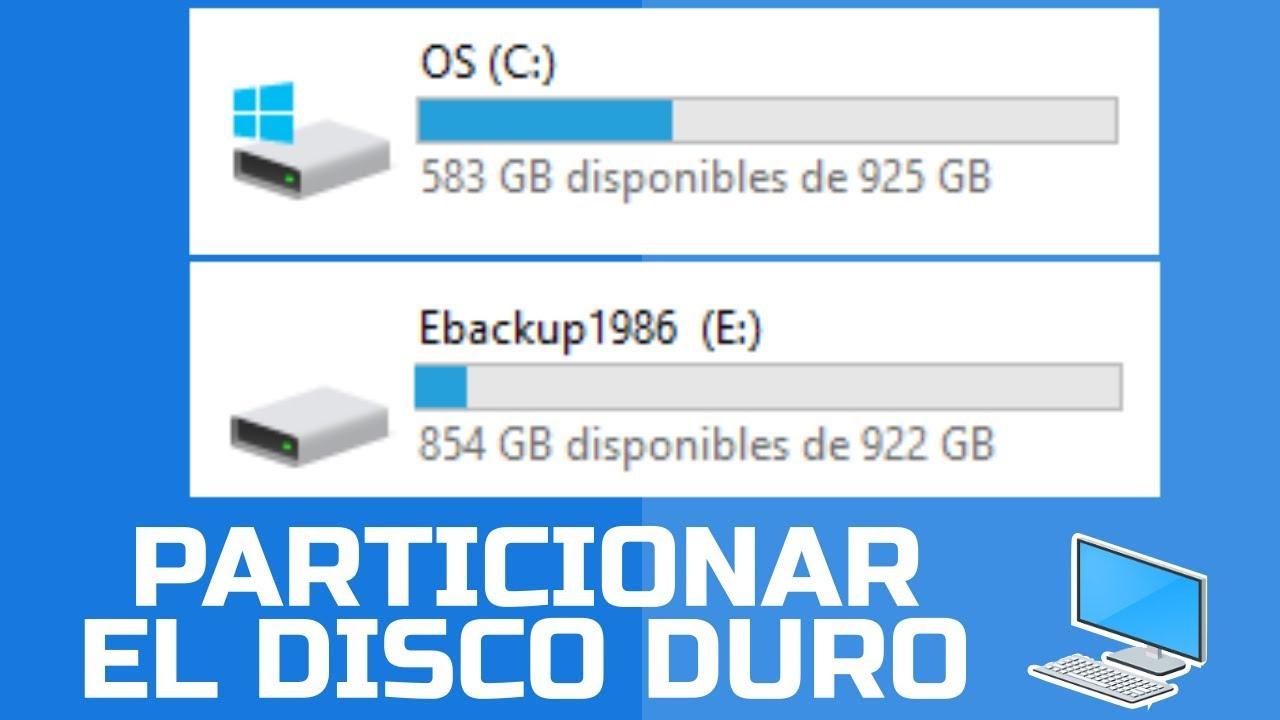
When you buy a new 1TB hard drive or get a new PC, it's very common for all the space to appear as a single drive. However, partitioning the 1TB drive is one of the best decisions you can make to keep your data organized, your operating system under control, and, incidentally, save yourself a lot of trouble if Windows crashes.
Throughout this guide, we'll explore exactly what partitions are, why it's beneficial to divide a 1 TB hard drive, and how to do it step-by-step in Windows , using both built-in system tools and specialized third-party programs. We'll also cover what partition size makes sense for a 1 TB drive, how to do it during Windows installation, and some practical tips to prevent data loss in the process.
What is a disk partition and why should you use it?
A partition, simply put, is like cutting a single physical hard drive into several logical "pieces ." For Windows and for you, each piece behaves as if it were an independent drive, with its own drive letter, file system, and available space.
These divisions are not arbitrary: each partition is defined in the disk's partition table , which tells the operating system where each one begins and ends. When you format a partition, you also choose the file system (for example, NTFS, FAT32, exFAT, EXT4…) that will manage the data in that specific area of the disk.
The interesting thing is that you can use each partition for a different purpose : one for Windows, another for programs, one for your important documents, and another large one for games, movies, music, or virtual machines. In practical terms, it's like having several hard drives, but everything is on the same physical device.
In the world of partitioning, we usually talk about three main types: primary, extended, and logical . Primary partitions are those detected by the system at startup and where you can install operating systems. Traditionally, the MBR scheme allowed up to four primary partitions. To overcome this limitation, the extended partition was devised: a kind of "container" within which you can create multiple logical partitions to store data, although you can no longer install the operating system there.
On modern systems with GPT and UEFI, management is more flexible, but the general idea remains the same: one or more partitions to boot the system and the rest for data . Windows, for example, usually creates small hidden recovery and boot partitions automatically, which should be left undisturbed.
Advantages of partitioning a 1 TB hard drive
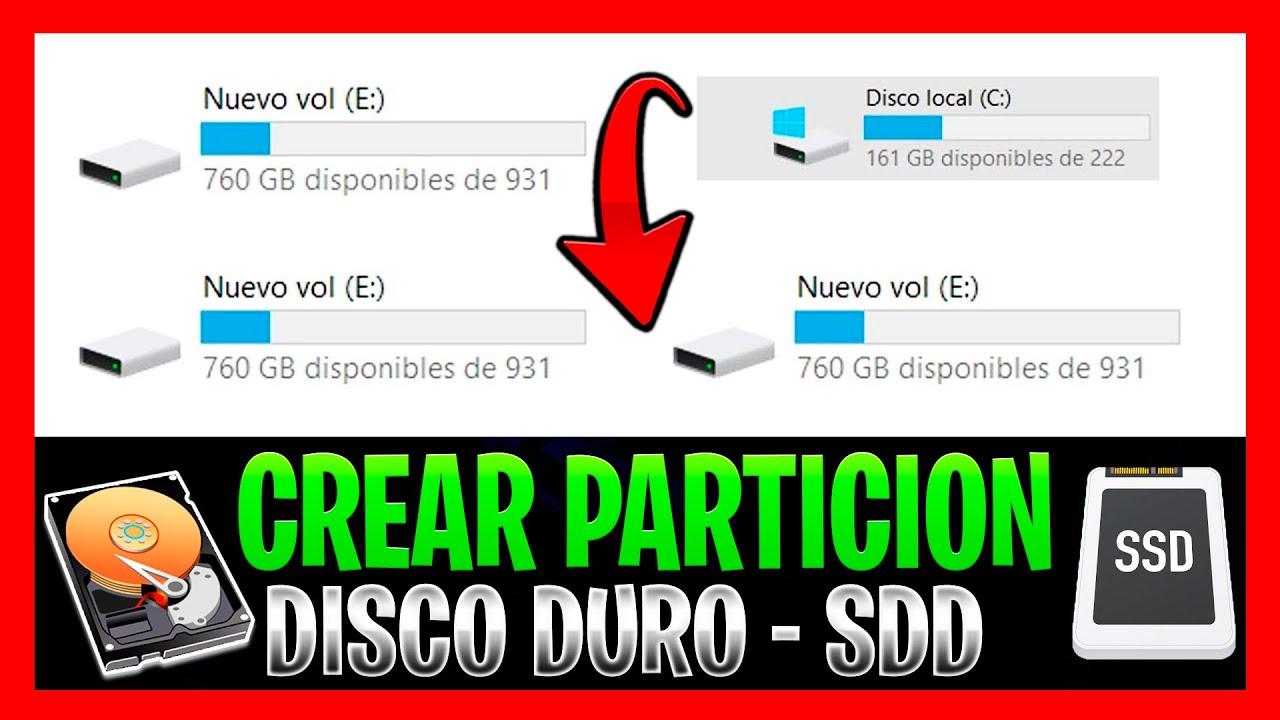
Dividing a 1 TB hard drive into multiple partitions isn't just a quirk of advanced users. On a practical level, it has many advantages in everyday use , whether you use your PC for work, leisure, or gaming.
One of the clearest reasons is that it separates the operating system from your personal data . If Windows becomes corrupted, infected with malware, or stops booting correctly, you can format only the system partition and even reinstall from scratch without affecting your documents, photos, or projects located on other partitions.
Another important advantage is the improved organization by file type . You can create, for example, one partition just for games, another for movies and TV shows, and a small but carefully curated one for work and study documents. This makes selective backups much easier (backing up 80 GB of documents is not the same as backing up 700 GB of multimedia content).
Furthermore, partitioning a 1 TB drive makes it easier to manage space and plan for future growth . If you find that the drive where you install programs is running out of space, you can extend it or move applications to another partition. And if you have a dedicated volume for backups, you can better control how much space they occupy.
There's also a security aspect: data stored on a partition separate from the system is somewhat better protected when Windows crashes. If you need to format C:, the other partitions (D:, E:, F:…) will remain intact. It's not absolute protection against physical disk failures, but it does protect against many software problems.
Finally, if you enjoy tinkering, partitioning allows you to install multiple operating systems on the same disk . You can reserve one volume in EXT4 format for Linux , another for Windows, and dual-boot without needing another physical disk.
What is the best partition scheme for a 1 TB disk?
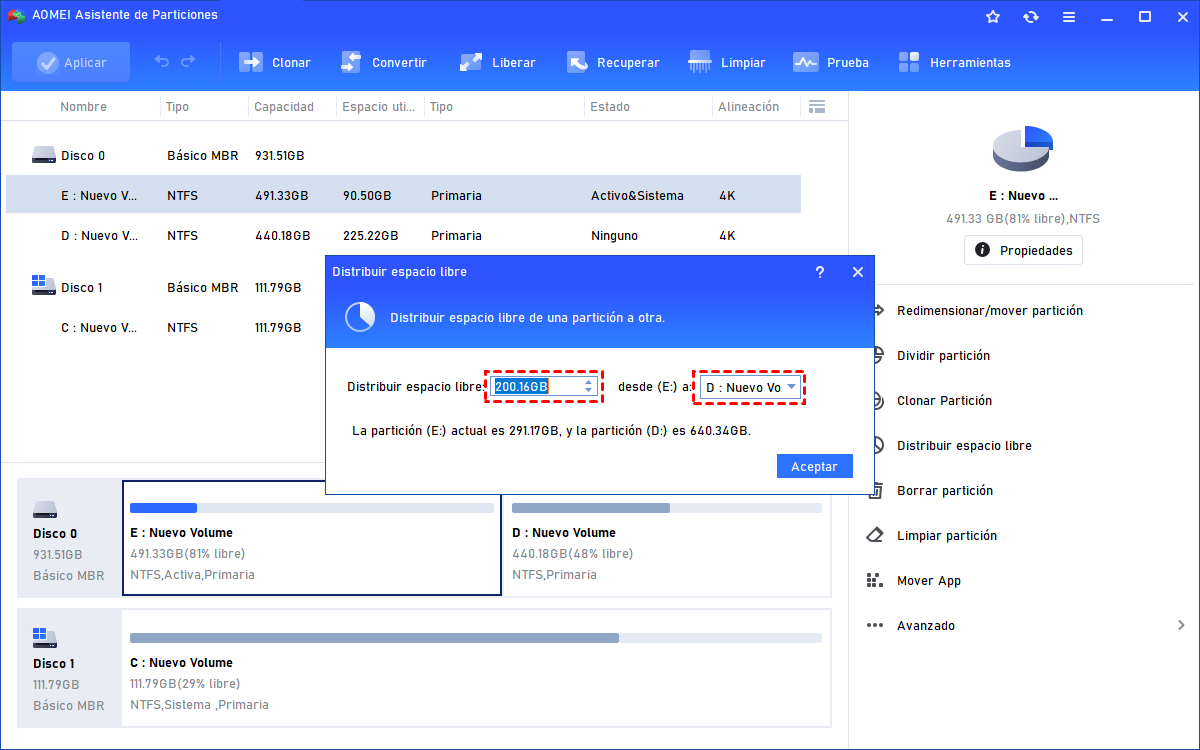
A frequently asked question is how many partitions to create and what size they should be. The answer depends on your habits, but for a 1 TB drive, most guides and specialized tools agree that between 2 and 5 partitions are reasonable , with four being a very balanced structure.
It's important to note that the way manufacturers calculate 1 TB doesn't match Windows' definition . For manufacturers, 1 TB is 1000 GB, but for the operating system, 1 TB is 1024 GB. That's why, when you go into Disk Management, you'll see something like 930 GB available instead of a full 1000 GB, which is perfectly normal.
A very practical partitioning scheme for a 1 TB disk intended for general use could be the following, which coincides with what several partitioning suites recommend:
1. C: drive: operating system and critical system files (around 150 GB) . Windows 10/11 64-bit officially requires 20 GB or slightly more, but in practice, it's advisable to allow ample space. Between hibernation files, virtual memory, updates, temporary files, and desktop files, this partition can easily become quite large. Allocating around 150 GB to C: generally provides a good balance between space and performance , always maintaining 10-20% free space for the system to operate smoothly.
2. Drive D: Programs and applications (around 100 GB) . Installing absolutely everything on C: is not a good idea, as it fills up the system partition and can slow down your computer . Creating a D: drive of around 100 GB for lightweight games, office suites, editors, etc., keeps the system partition tidier and makes it easier to move software or make selective backups.
3. Drive E: Important personal data (between 50 and 100 GB) . This is where you would store work documents, projects, notes, family photos, or personal videos. Although Windows includes folders like Documents, Pictures, and Videos on C:, if the system crashes, you risk losing everything . Having a separate 50-100 GB partition dedicated to personal files makes organization and backups much easier.
4. Drive F: Leisure, heavy games, and multimedia content (remaining space, around 600-700 GB) . Nowadays, a high-quality movie can take up tens of gigabytes, and a AAA game can be around 100 GB. For these uses, it makes sense to dedicate most of the disk to a large partition exclusively for entertainment and large volumes of data.
Keep in mind that these amounts aren't set in stone. You can adjust each size according to what you'll use most , but the four-partition scheme (system, programs, personal data, and entertainment) is a very solid foundation for a 1 TB drive.
Method 1: Partitioning a 1 TB disk using Windows Disk Management
Windows includes its own volume management utility, so installing additional programs to create or modify partitions is not required . This tool is called Disk Management and has been integrated into Windows for several versions.
To open it, you can use several methods. A quick way is to press the Windows key + R, type diskmgmt.msc, and click OK . You can also find it by searching for "Create and format hard disk partitions" in the Start menu, or by right-clicking the Start icon and choosing "Disk Management." Either method will take you to the same window.
Once inside, you'll see a list of volumes at the top and a graphical view of the physical disks with their partitions represented by blocks at the bottom . If you've connected a new, uninitialized disk, it will appear as unallocated space, and a wizard may appear asking you to choose between MBR or GPT.
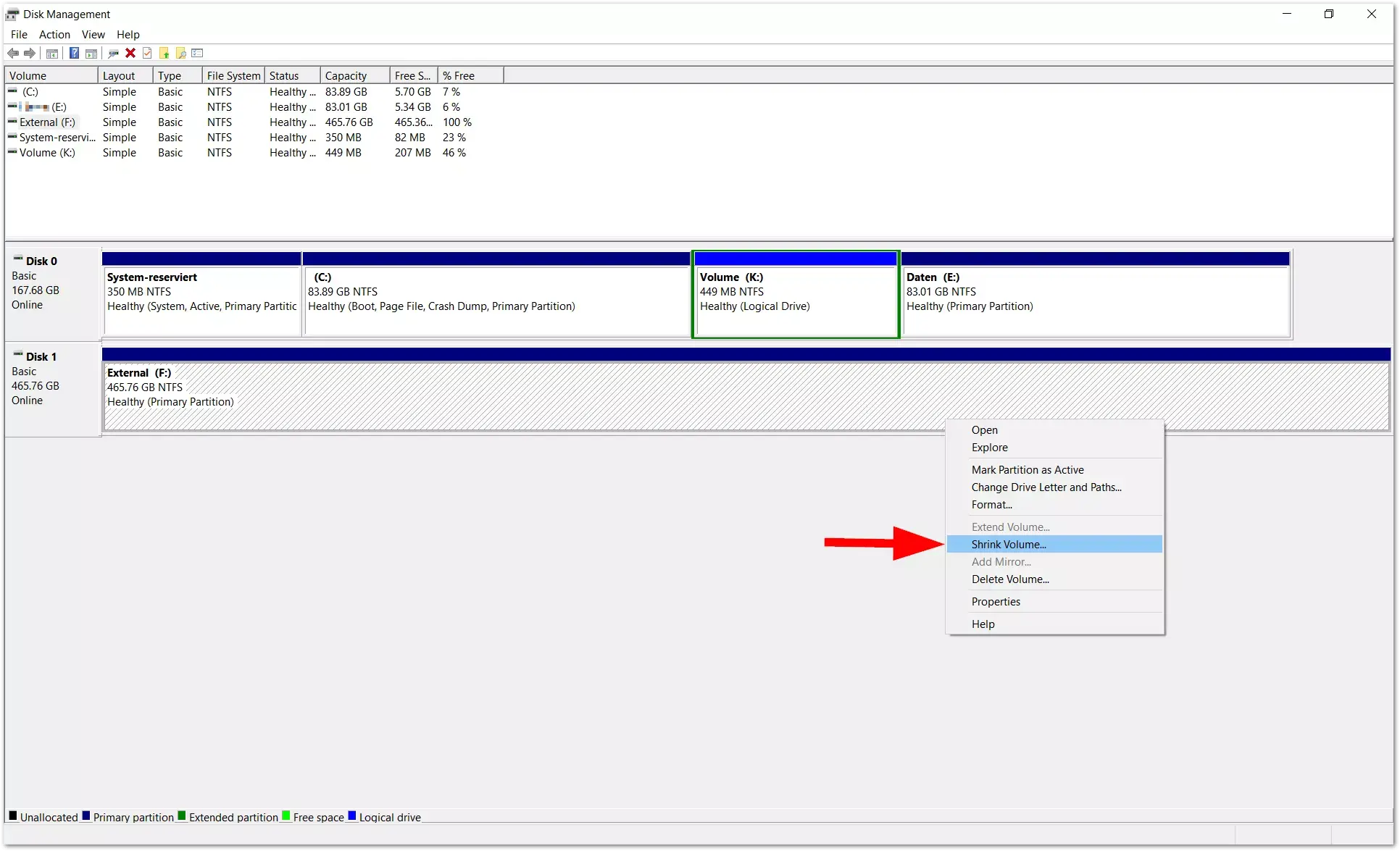
If the 1 TB drive is already in use, it will typically have a large partition occupying almost all of the space. To create new partitions, you'll need to shrink an existing one and free up "unallocated" space, which you can then convert into a new volume.
The basic workflow using Disk Management to partition a 1 TB disk is as follows:
- Shrink an existing partition: Right-click on the partition with the most free space (usually C: or a data partition) and choose "Shrink Volume." The system will calculate how many megabytes you can free up; enter the amount you want to shrink in MB and confirm. When finished, you'll see a black area marked "Unallocated."
- Create a new simple volume: Right-click on the unallocated space and select "New Simple Volume". A wizard will open where you'll specify the size of the new partition, the drive letter, the file system (e.g., NTFS), and whether you want to perform a quick format. When finished, the new volume will appear in File Explorer, ready to use.
- Change the drive letter if needed: By right-clicking on a partition, you can choose "Change drive letter and paths" and assign a different letter to suit your scheme (for example, making sure the partitions are C:, D:, E:, F: in that order).
It's important to know that Disk Management has some significant limitations . For example, it only allows you to extend a partition if the unallocated space is directly to its right on the same disk. If the space is separated by another partition, it won't let you extend it without first reorganizing the volumes, which isn't always feasible with this tool.
Method 2: Partitioning a 1 TB HDD or SSD with specialized software
If you want to go a step further or encounter limitations with the native tool, you can use third-party partitioning software . There are several popular options such as EaseUS Partition Master or AOMEI Partition Assistant, which are specifically designed to facilitate these types of tasks and minimize risks.
These types of utilities usually offer more intuitive interfaces and a wider range of functions than Disk Management: redistributing free space between different partitions, splitting a large partition into two, merging volumes, cloning disks, migrating the operating system to another disk (for example, when installing an SSD ), aligning SSD partitions to improve their performance, or converting between MBR and GPT without losing data.
For example, with EaseUS Partition Master you can extend your C drive by reserving space from other partitions , create new partitions from free space, or clone an entire disk to another without reinstalling anything. Many of these actions are performed through step-by-step wizards, where you choose the disk, adjust the size, file system, and label, and then apply the changes.
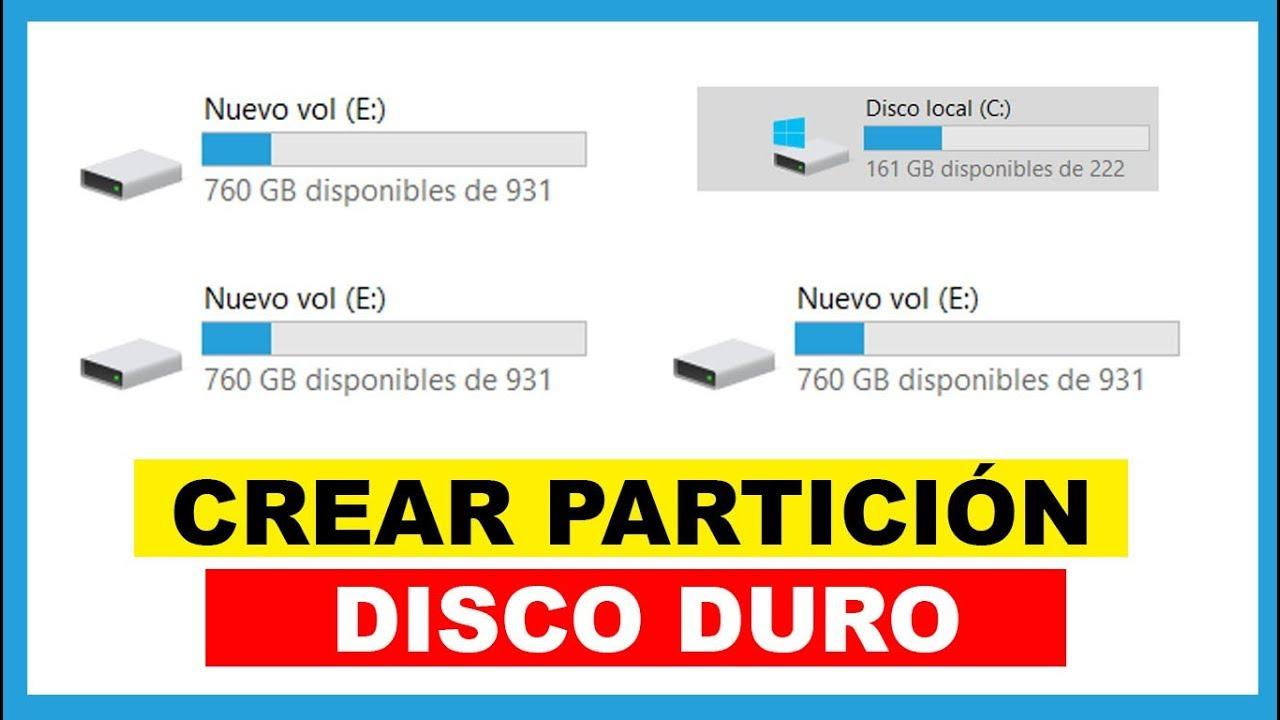
AOMEI Partition Assistant, for its part, offers very useful features for working with a 1 TB disk that is already full. The "Distribute Free Space" option allows you to remove megabytes from a partition with plenty of space and give them to another in just three steps, without having to perform several separate shrink and extend operations.
Another interesting tool from AOMEI is "Partition Splitting." If you have, for example, a disproportionately large C drive, you can split it into two smaller volumes without having to delete any data . Simply select the partition, specify the desired size for the new one, and confirm. However, it's always recommended to create a backup before modifying partitions, even with advanced tools.
In general, these programs are especially useful when:
- You need to reorganize a very full 1 TB disk without formatting, moving space between partitions.
- Do you want to clone or migrate the system to another disk? (for example, to an SSD) while maintaining partitions and data.
- You are encountering Disk Management restrictions, such as the impossibility of extending a volume because the free space is not contiguous.
- You work with large disks (1 TB, 2 TB or more) and want secure and fast operationswith more control over each change.
How to partition a 1 TB disk during Windows installation
Another common scenario is wanting to define the partitions on your 1 TB disk even before Windows is installed . This can be done during the system's installation wizard or by using the Diskpart command-line tool.
If you boot your PC from a Windows installation USB drive or DVD and follow the initial steps, you'll reach a screen where you can choose the destination disk. If you simply click "Next" at this point, Windows will create a large system partition occupying almost the entire disk , along with some small hidden partitions for booting and recovery. This isn't what you want if you're looking for a multi-partition system.
To take control, you have two options. The first is to use the installer's advanced options, where you can delete all existing partitions on the 1 TB disk, create a new one for the system specifying the size in GB, and leave the rest as unallocated space . Then, once Windows is installed, you can convert that unallocated space into new partitions using Disk Management or a third-party program.
The second option, slightly more technical but very powerful, is to use Diskpart. During installation, on the first screen where you can interact, press Shift + F10 to open the command prompt . Type diskpart and press Enter to launch the tool.
From there, the typical process would be:
- list disk to see the connected drives and locate the 1 TB one.
- select diskX, replacing X with the number of that record.
- create partition primary size=n to create the main system partition, specifying the size in MB (for example, 150000 for approximately 150 GB).
This way, you reserve the exact space you want for drive C and leave the rest as unallocated space. After installing Windows on that partition, you can then access Disk Management and create the remaining volumes (D:, E:, F:) with complete control.
If you intend to prepare the disk beforehand on another PC, some suites like AOMEI Partition Assistant allow you to create a bootable USB drive with their tool , from which you can partition the 1 TB disk even if it doesn't yet have an operating system. Then you would simply boot from the Windows installation USB and choose the partition you created for the system.
Partitioning external hard drives and large-capacity USB drives
The same principles apply if you want to partition a 1TB external hard drive or portable SSD , such as a USB 3.0 drive or a Crucial X6/X8 SSD. Windows treats these devices as disks, so you'll see them in Disk Management at their full capacity.
In the case of a new external hard drive, it will likely appear as "Unallocated" or with a single partition. From Disk Management or a third-party utility, you can create multiple partitions for different uses : one in NTFS for Windows backups, another in exFAT for sharing files with macOS and Linux, or even to leave room to experiment with other file systems.
The process is very similar to that of an internal hard drive: right-click on the unallocated space, select "New Simple Volume," choose the size, assign a drive letter, and select the file system . For USB drives, FAT32 or exFAT is usually recommended to ensure compatibility with televisions, game consoles, and other devices.
You can also partition an already formatted external drive using "Shrink Volume" to free up unallocated space and then creating new partitions. The result is a single physical device that, when connected, will appear as several separate drives in File Explorer , each with its own drive letter.
Practical tips and common questions when partitioning a 1 TB disk
A very common concern is whether it's safe to modify the C drive and create partitions from it . Technically, it is possible to shrink a system partition as long as it has enough free space, but it's not advisable to do so. Leaving Windows with very little space on C: can cause slow performance, problems with updates, or insufficient space errors.
Another common question concerns the time these operations take. Generally, creating, shrinking, or extending partitions usually only takes a few minutes on a 1 TB drive , provided it doesn't involve moving a lot of data. A quick partition format takes seconds, but a full format of a 1 TB drive can take considerably longer: around a couple of hours on a SATA-connected HDD, and much longer if you do it via USB 2.0.
It's also important to understand the issue of disk space usage. If your disk is already full of data and you want to create new partitions, the tool needs free space to "relocate" the information while it shrinks and reorganizes . If there are hardly any gigabytes free, your room for maneuver will be very small. In these cases, it's usually advisable to temporarily move some files to another external drive or delete unnecessary content before starting the partitioning process.
Regarding the recovery partition (the recovery partition that many computers come with from the factory), it's not a good idea to delete it lightly . This partition allows you to restore the system to its original state relatively easily. If you delete it, you'll still be able to reinstall Windows, but you'll need external media and you'll lose that quick recovery method.
If you use advanced utilities that convert a basic disk to a dynamic disk to extend non-contiguous partitions, keep in mind that dynamic disks offer more flexibility in managing volumes, but they aren't suitable as a boot disk in all cases . For most home users, keeping the system disk as a basic disk is the simplest and most compatible option.
The most important thing when dealing with a 1 TB hard drive is to carefully plan the partitioning scheme based on how you use your computer and always make a backup before making any significant changes. With today's tools, both those integrated into Windows and third-party applications, partitioning is no longer an operation reserved for experts, but it remains a delicate task where it's worth proceeding carefully.
