- Identifying common failures related to the absence of specific codecs and incompatible formats.
- Methods for repairing and resetting the application from Windows 11 and 10 settings.
- Advanced procedures for registering DLL files and using system troubleshooters.
- Software alternatives and preventative maintenance to avoid multimedia file corruption.
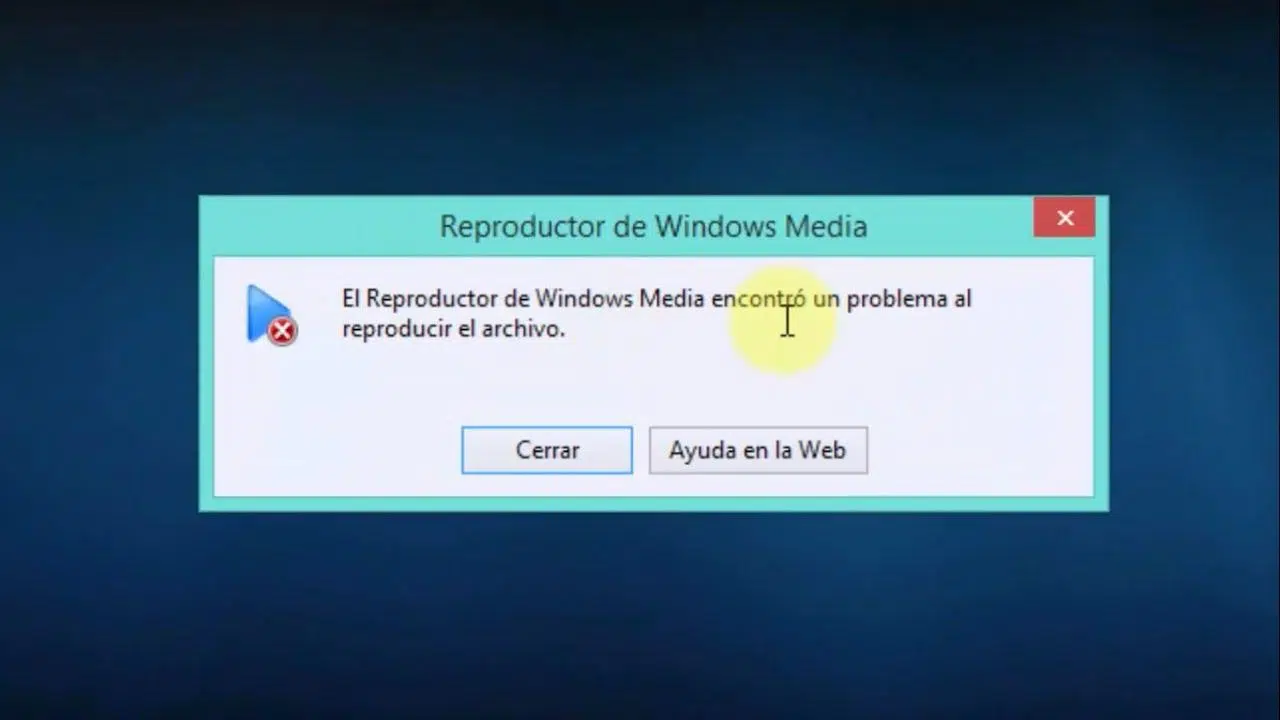
I'm sure it's happened to you before: you're about to watch a video or listen to your favorite music, and suddenly, Windows Media Player decides not to cooperate. These unexpected error messages can be a real headache, especially when you don't know if the problem lies with the file itself or the application you're trying to use.
The good news is that most of these problems are fixable, and you don't need to be a computer expert to resolve them. From codec issues to system registry errors, we'll break down all the possible ways to fine-tune your multimedia software so you can get back to enjoying your content without interruptions.
Common causes: Incompatible codecs and formats
When a program tells us it can't play a file because a codec is missing, it's essentially saying it doesn't know how to read the digital information in that video or audio file. Windows already includes compatibility with common formats like MP3, AAC, FLAC, WAV, and MPEG-4 (H.264), but there are cases where this isn't enough.

A very specific example is the AC-3 (Dolby Digital) codec . It was included in older versions of Windows, but starting with Windows 11 version 24H2, it is no longer integrated by default. If you have updated your system, you may lose the ability to play surround sound unless your computer manufacturer has previously installed it or you have correctly configured 5.1 sound in Windows.
If you encounter the error message that the format is not supported, especially with AVI or MOV files, the file may be encoded with a technology that the player doesn't understand. In these cases, the simplest solution is to install additional codec packs or, if the file is corrupted, use specialized repair tools to clean the video.
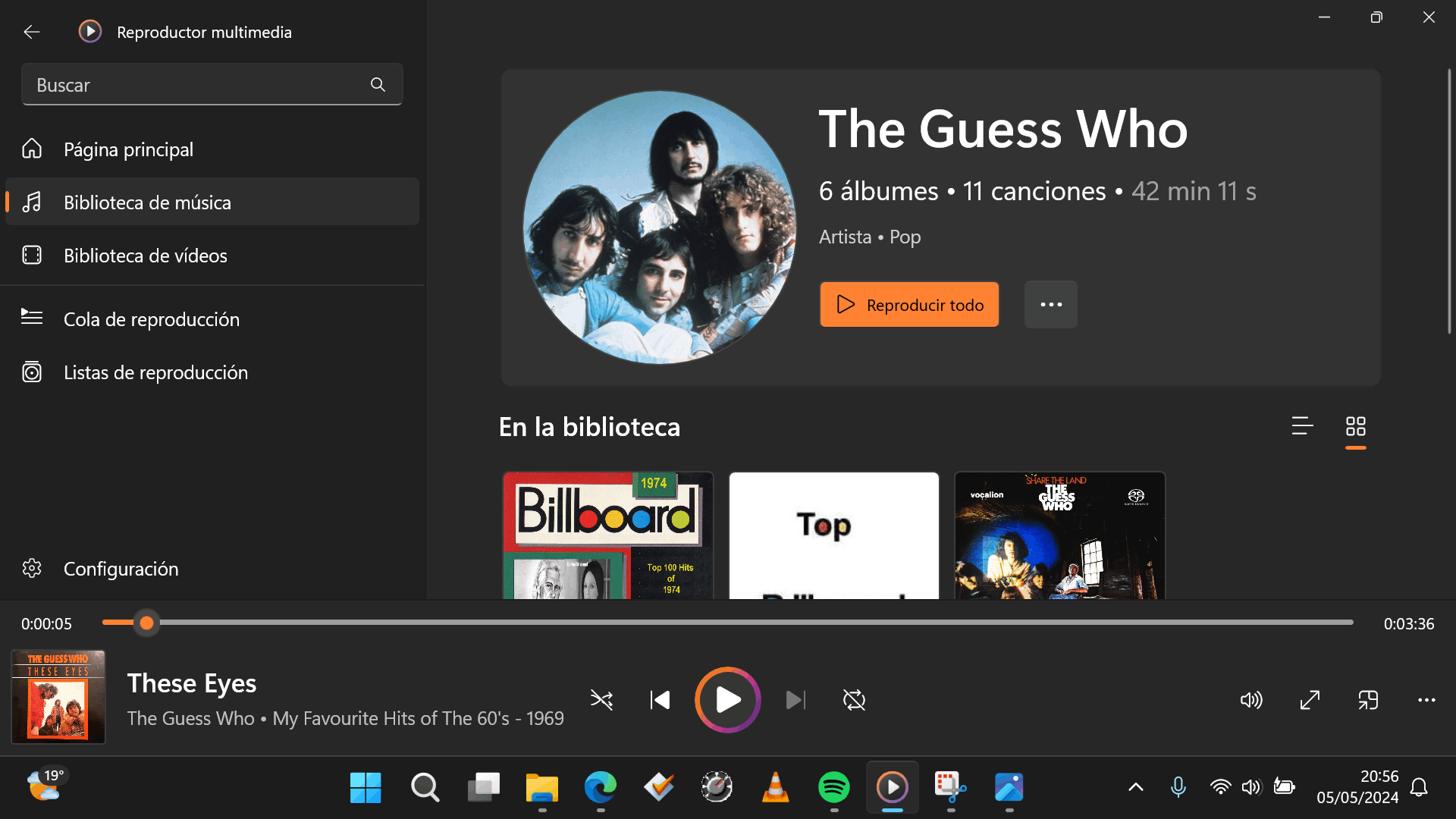
Step-by-step guide to repairing the application in Windows 11 and 10
If the app won't even open, gets stuck with the blue circle, or simply isn't responding, the best thing to do is try a quick system repair . There's no need to blindly delete anything; Windows has built-in options to refresh the app.
To begin, go to Settings, then to Apps, and find the list of Installed Apps . Locate the Media Player, tap the three dots on the right, and select Advanced options. Here you'll see a button called Repair ; try this first, as it won't delete your data. If this doesn't work, the Reset button is usually the final solution, restoring the app to its original state.

For those using earlier versions or Windows 10, the process is similar, but the player may be an optional feature . If you can't find it, go to Control Panel, then Programs and Features, and check the Media Features section to enable or disable Windows Media Player, which will force the system to reinstall it from scratch.
Advanced solutions for persistent errors
Sometimes the problem is deeper and requires us to delve a little deeper into the computer's inner workings. One very effective technique is to run the problem solver using the command msdt.exe -id WindowsMediaPlayerConfigurationDiagnostic in the Run dialog box (Windows + R). This analyzes the configuration and applies the fixes automatically.
If the program continues to cause problems, there may be unregistered DLL files. To fix this, open Command Prompt as administrator and type the commands regsvr32 vbscript.dll , regsvr32 jscript.dll , and regsvr32 wmp.dll one by one. Restarting your PC should resolve the runtime errors, allowing you to use other Windows tricks to get the most out of your PC.
Another useful trick is clean up the media libraryTo do this, stop the Windows Media Player Network Sharing Service in services.msc Then delete the files with the .wmdb extension located in the user's AppData folder. This removes corrupt databases which often cause the application to crash on startup.

Tips to avoid mistakes and recommended alternatives
To prevent this from happening again, it's essential to keep your system updated and avoid converting videos from one format to another unnecessarily, as this can alter the file header and corrupt it. It's also advisable to run antivirus software regularly to ensure that no malware is damaging your media libraries.
If, after all your efforts, the native player still fails or displays a black screen (which sometimes occurs due to graphics card incompatibility ), don't despair. There are free and powerful alternatives like VLC Media Player , or you can even delve deeper into the tutorials and complete guide for the Kodi media player , which is famous for playing virtually any format without needing to install external codecs.
Keeping your sound and video drivers up to date is the final key step. An outdated driver can cause full-screen mode to freeze or audio to become out of sync with the image, negatively impacting the overall user experience.
In short, most problems with Windows Media Player can be resolved by reinstalling the app, updating the necessary codecs, or clearing temporary library files. If built-in repair methods and DLL registration don't work, using external software like VLC or video repair tools is the quickest and most effective way to continue enjoying your media files without further issues.
