- Importance of verifying the physical and electrical compatibility of all components before purchase.
- Performance optimization through proper installation of RAM in Dual Channel and activation of XMP/EXPO profiles.
- Cruciality of efficient thermal management, avoiding forgetting protective plastics and ensuring proper airflow.
- Need to use quality power supplies and heavy graphics card supports to avoid structural damage.
Building your own computer might seem like a simple task if you've watched a couple of videos online, but the reality is that a small oversight can prevent your machine from starting or result in terrible performance. Whether it's your first time or you've already built a few systems, there are always details that slip through the cracks and can lead to a major scare or an unexpected expense.
In this guide, we'll cover all the common mistakes, from those made by beginners to those errors that advanced users often make due to haste or overconfidence. The goal is to ensure your build goes smoothly, that you don't have to return parts because they don't fit, and above all, that you don't damage anything by carelessly handling the heatsink plastic.

Hardware Planning and Compatibility
Disaster can start even before you touch the first screw. Buying parts that don't fit is a classic mistake. There's electrical incompatibility , where components physically fit but have different power requirements, or form factor incompatibility , like when you buy a huge graphics card for a mini-ITX PC case or tower and it turns out it won't fit at all.
To avoid problems, it's essential to check the motherboard's Qualified Vendor List (QVL) , which is essentially a list of memory and SSDs that the manufacturer has already tested and guarantees will work. Not using an online configurator could lead you to buy a CPU that requires a newer BIOS version than the one it came with, forcing you to use features like Flash BIOS to update it without having the processor and RAM installed.
Another critical point is system balance. Pairing a low-end processor with a top-of-the-line GPU will create a significant bottleneck , preventing you from getting the most out of your investment. Ideally, you should allocate your budget wisely, prioritizing the graphics card in gaming systems and ensuring the motherboard isn't too cheap , as poor VRMs will limit your processor's performance.
RAM Memory and its Configuration
A very common mistake is installing RAM modules in any slot. If you have four slots and put two modules right next to each other, you'll be running in single channel , losing approximately half the bandwidth. To activate dual channel and maximize performance, it's common to use slots 2 and 4 (A2 and B2), although it's always a good idea to check the motherboard manual for the types of DIMM RAM modules it supports.
But having the RAM properly installed doesn't guarantee it will perform at its full potential. Many users leave the memory at its default BIOS settings. To achieve the advertised speeds, it's essential to enable the XMP or EXPO profile , which automatically adjusts frequencies and latencies. Without this step, you'll be wasting FPS and processing speed.
Be careful with the CPU and Thermal Management
If there's one mistake that causes nightmares, it's forgetting to remove the protective plastic film from the base of the heatsink or NVMe SSD. That little piece of plastic acts as a brutal thermal barrier, raising temperatures by 30 to 40 degrees Celsius in a matter of seconds. It's a silly mistake, but it happens more often than we'd like to admit.

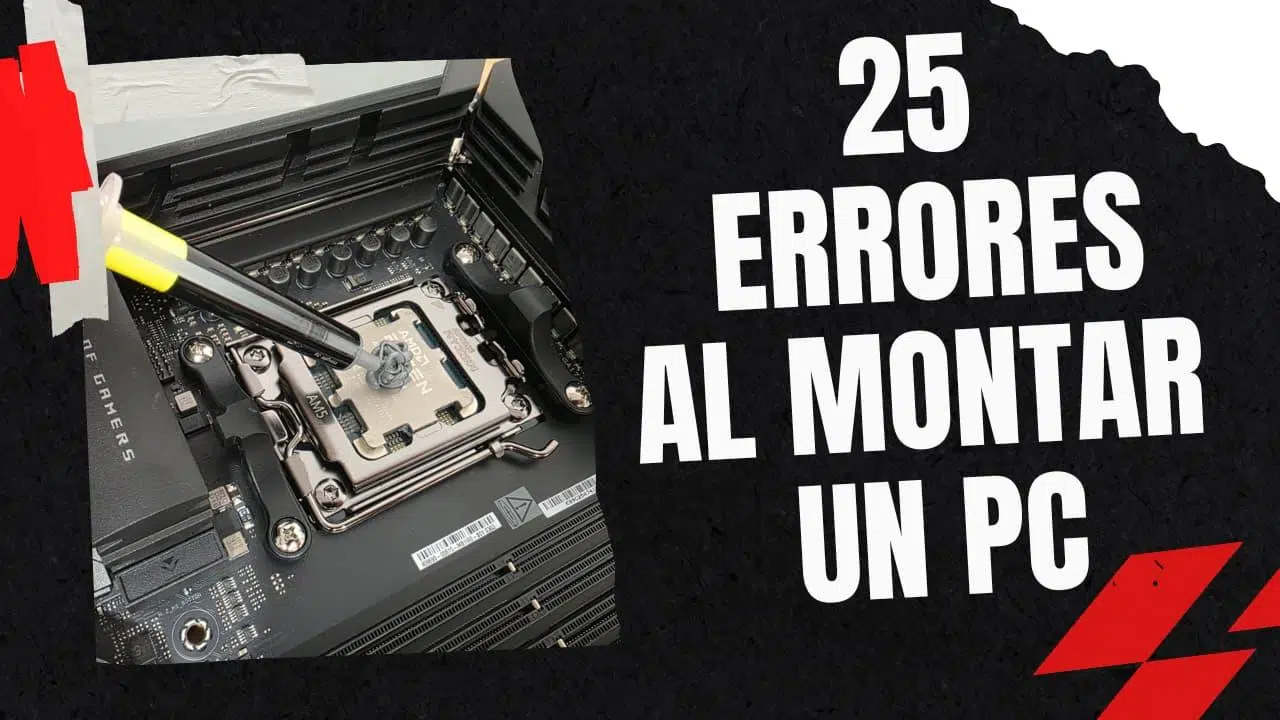
In addition to this, incorrect application of thermal paste can also be a problem. Don't apply too much so that it overflows onto the socket, nor so little that it leaves gaps. For square processors, a single drop in the center is sufficient; for modern rectangular processors, such as recent Intel Core processors, two parallel lines are better . Also, remember that thermal paste degrades, so it's advisable to replace it every one or two years using isopropyl alcohol for cleaning.
Regarding the physical assembly, extreme care must be taken with the pins on the socket and the CPU . Bending even one pin can render the motherboard unusable. A tip for AM4 socket users is to warm the processor slightly before removing the heatsink, as removing it cold can cause the processor to stick to the cooler and potentially pull the entire socket off.
Power Supply and Electrical Connections
The power supply is the heart of your PC, and skimping on it is like playing Russian roulette. A poor-quality or underpowered power supply can cause unexpected restarts or, in the worst-case scenario, burn out other components. It's advisable to calculate your total power consumption and allow a 25% safety margin , always looking for reliable certifications such as at least 80 PLUS Bronze.

When connecting cables, it's very common to forget the 8-pin EPS connectors that power the CPU at the top of the motherboard. Likewise, pay attention to the front panel; incorrectly connecting the power button or reset pins is a typical mistake that can be easily fixed by carefully reading the manual. For peripherals, it's preferable to use the rear USB ports , as they tend to be more stable than the front ones on the case.
Airflow and Chassis Optimization
Mounting fans backwards is a classic mistake. Remember that the "pretty" side usually draws air in, while the side with the support structure exhausts it. Incorrect airflow will cause hot air to accumulate, causing temperatures to spike. It's crucial to decide whether you want positive or negative pressure and orient your PC gaming fans according to the arrows on the frame.
For modern graphics cards, which are often quite bulky, using an anti-sag bracket is crucial . Excessive weight can warp the GPU PCB or damage the PCIe slot over time. Also, be sure to connect the video cable (HDMI or DisplayPort) directly to the dedicated graphics card and not the motherboard, to avoid accidentally using the integrated graphics.
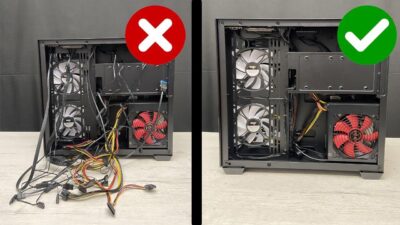
Don't forget the final details: install the motherboard standoffs to prevent short circuits with the chassis metal, position the I/O shield before screwing in the motherboard, and manage the cables neatly . A tidy interior isn't just about aesthetics; it greatly improves airflow and keeps your system running cool.

Once everything is assembled and the PC boots up, don't consider the job done. Updating the BIOS is highly recommended to improve stability and compatibility. Finally, run some stress tests and monitor temperatures to ensure everything is running smoothly before you start pushing it to its limits with your games or work programs.
Considering the compatibility of the parts, not skipping cleaning the protective plastics, configuring the RAM in dual mode, and choosing a quality power supply are the pillars for your computer to perform at its best without putting the hardware at risk.
