- Wine acts as an essential compatibility layer that translates Windows instructions so that Linux can understand them.
- Tools like Bottles and PlayOnLinux simplify Wine management through optimized profiles for games and utilities.
- Winetricks allows you to solve dependency problems by installing Microsoft-specific DLL libraries and fonts.
- Virtualization is the most compatible alternative but requires significantly higher resource consumption.

Making the leap from Windows to a Linux distribution is an exciting decision, but it's normal to feel apprehensive about leaving behind the specific software we use every day. You don't have to resign yourself to losing your favorite tools; there are various technical solutions that allow the open-source ecosystem to run .exe files seamlessly.
The truth is, although we are creatures of habit and find it hard to let go of what we know, Linux has advanced tremendously. Today, thanks to compatibility layers and virtualized environments , we can have the best of both worlds without having to perform a cumbersome dual-boot or sacrifice the stability of Ubuntu or Mint.
Wine: The fundamental bridge

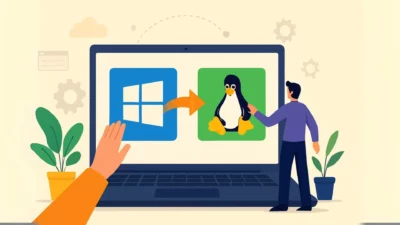
When we talk about running Microsoft software on Linux, the name that always comes up is Wine. It's not an emulator in the strictest sense, but rather an implementation of the Windows API that translates program calls into a language that Linux understands. Essentially, it acts as a real-time interpreter so that the application believes it's still in its native environment.
This tool is incredibly versatile, supporting both 32-bit and 64-bit architectures and running versions from Windows 95 to Windows 10. It also integrates DirectX support, opening the door to gaming, and works well with sound drivers like PulseAudio and ALSA. However, it's important to understand that not all software works perfectly on the first try; some very closed programs or those with aggressive protections might cause problems.

Installation and commissioning
If you're using Ubuntu or a similar base, the first thing to do is enable the 32-bit support with the command sudo dpkg --add-architecture i386To get the latest version, it's best to use the official WineHQ repository, adding your security key and choosing the stable branch to avoid any issues, although development and staging versions are available for the more adventurous. test experimental functions.
Once installed, it is vital to run winecfgThis not only configures the environment, but also offloads critical components such as Wine-Monkey and GeckoThese are necessary for applications that depend on .NET or use web rendering to function correctly. From this panel, you can trick the program into thinking you're on Windows 7 or Windows 10, depending on the app's needs.
Enhancing the experience with Winetricks and Bottles
Sometimes Wine alone falls short and throws errors about missing libraries. This is where Winetricks comes in, a script that allows us to automatically install Microsoft fonts and specific DLLs (like those for Visual C++). It's the perfect tool for rescuing applications that would otherwise receive a low rating in the WineHQ database.
If you prefer something more modern and visual, Bottles has become the preferred option. Its magic lies in creating isolated environments based on usage: you can choose a "Game" preset that already includes Proton (Valve's gaming-optimized version) or a "Utility" preset for office software, preventing one configuration from breaking the other.

PlayOnLinux: The veteran specialist
For those seeking a more guided interface, PlayOnLinux remains a solid option. Its main advantage is its database of scripts that already know exactly which version of Wine and libraries a given program needs. Instead of wrestling with the terminal, you simply choose the application from the list, and the wizard does all the heavy lifting for you.
If you have an .exe file that isn't listed, PlayOnLinux lets you create a separate virtual drive . This is essential for keeping your system clean and avoiding conflicts between software versions that require different parameters.
Gaming and the Proton revolution

The world of video games has been revolutionized by Steam and its Proton technology. This Wine-based layer allows most Windows titles to run almost natively on Linux. The Steam Deck is a prime example of this, demonstrating that with proper optimization, performance can be identical to or even better than the original.
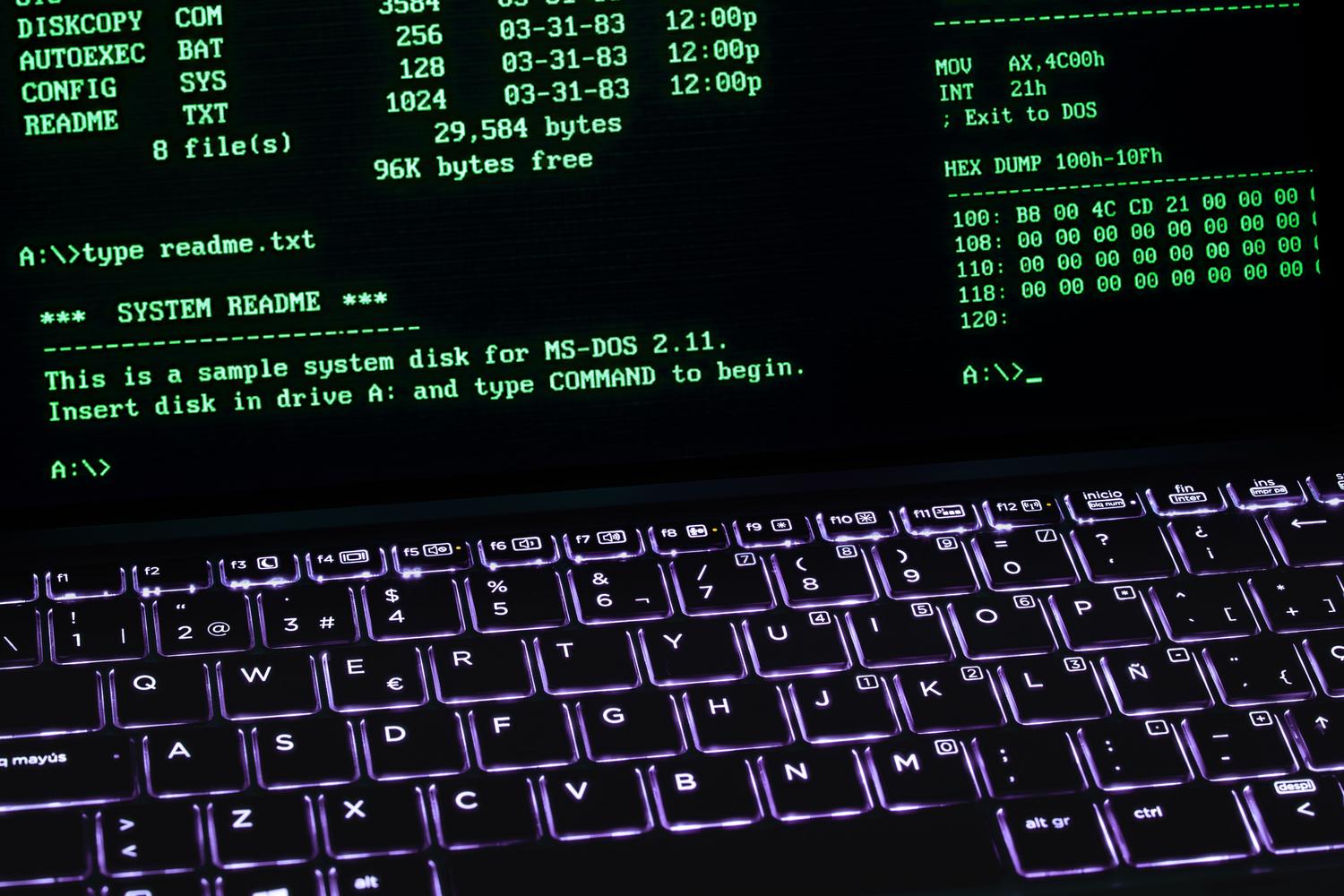
For games that are not on Steam, you can use DOSBox if they are relics from the MS-DOS era, or configure specific profiles in PlayOnLinux to manage DirectX versions without interfering with other games, or use gaming alternatives to Windows.

Alternatives: Virtualization and ReactOS

When compatibility is nonexistent (as is the case with some printer drivers or software with very aggressive anti-cheat systems), virtualization is the safe route . Using VirtualBox or VMware, you install a complete Windows environment within a window. The advantage is 100% compatibility, but the cost is massive RAM and CPU usage.
On the other hand, there's ReactOS, an ambitious project that aims to create a Windows-compatible operating system from the kernel, eliminating the need for a translation layer. While it shares code with Wine, it takes a different approach, focusing more on replacing the OS than on coexisting with Linux.
Safety and maintenance
One point we can't overlook is that running an .exe file opens the door to potential Windows malware. Even though Linux is very secure, a virus running through Wine could compromise your personal files. Therefore, it's advisable to use Wine prefixes to isolate each application in its own folder.
If Wine starts to malfunction or become unstable, the simplest trick is to rename or delete the hidden folder. .wine in your home directory. This forces the system to regenerate all settings from scratch, eliminating any registry errors or corrupted libraries that are causing the problem.
Any user can get their Windows tools working on Linux by combining the power of Wine with the simplicity of Bottles or PlayOnLinux. While these compatibility layers are more than sufficient for everyday tasks and gaming due to their low resource consumption, for critical or professional software that doesn't work with Wine, a virtual machine remains the ultimate solution to ensure everything runs smoothly.