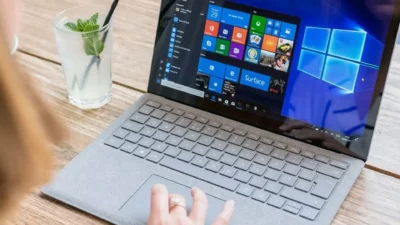
- Implementation of native settings to choose between small, large or automatic sizes in the start menu.
- Ability to simplify the interface by hiding sections such as Recommended, Pinned, or the full list of applications.
- Use of advanced tools and specific updates to force resizing in versions where the option does not appear.
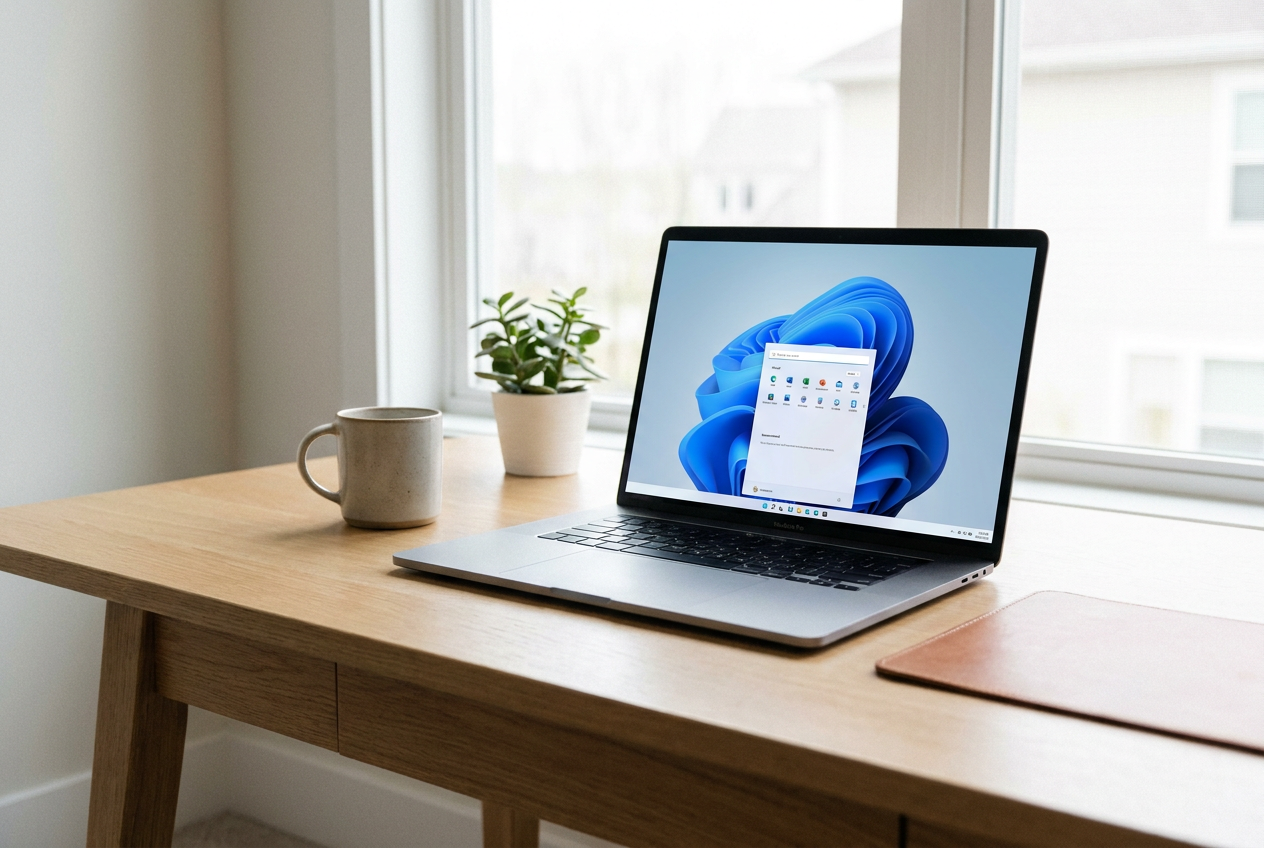
If you've noticed that the Windows 11 Start menu has become a bit cumbersome and takes up almost the entire screen , you're not alone. After several redesigns, many users, especially those using 13- or 14-inch laptops, feel that the interface is overwhelming the desktop, leaving very little room to work comfortably.
The good news is that there are several ways to tame this menu and customize it to our liking , whether by taking advantage of the latest official Microsoft updates, tinkering with the personalization settings, or using some tools for more adventurous users who want total control.

Microsoft has responded to the complaints by releasing an update (specifically KB5120998 ) that allows users to manage vertical space. Now, instead of the system deciding for you, you can go to the customization section and choose between three modes: Small, Large, or Automatic . The latter is the one that often causes problems by expanding too much at lower resolutions.
To activate this, it's best to keep your system up to date through Windows Update. If you already have the correct version, simply go to Settings > Personalization > Start . This is where the magic happens, and you can select the size that best suits your workflow, achieving that minimalist and clean aesthetic that so many of us have been missing.
How to clean up the interface and remove clutter

Sometimes it's not just the size, but everything inside that overwhelms us. To reduce visual clutter, Windows lets you hide entire sections . You can turn off the Pinned, Recent (formerly Recommended), and All apps switches . If you remove what you don't use, the menu automatically collapses and stops being an obstruction.

Additionally, for those who stream or record their screen, there's a very useful option to hide their name and profile picture , thus protecting their privacy. If you want to go a step further, you can organize your apps into folders simply by dragging one icon onto another, which helps manage space much more efficiently.
Advanced methods for forcing reduction
If you've checked your settings and don't see the size options, it's likely that Microsoft's gradual rollout hasn't reached your PC yet. In this case, there's an alternative for those who don't want to wait: using ViVeTool . This open-source tool allows you to activate features that are already present in the system but remain dormant.
The process involves downloading the correct version for your processor (Intel/AMD or ARM), opening Command Prompt as administrator, and running specific commands such as vivetool /enable /id:61161244,61754985 . After a restart, the size settings should magically appear in the Control Panel, allowing you to manually resize the Start Menu without relying on the official rollout.
Customizing the Taskbar and Account Area
The Start menu isn't isolated; it works in conjunction with the taskbar. Options to move the taskbar to the sides or top have recently been tested , breaking its central dominance. This is especially useful if you prefer a vertical organization where window labels don't overlap, making it easier to switch between applications and allowing you to customize the Windows 11 context menu for greater efficiency.
You can also optimize quick access to your personal folders. In Startup settings, you can choose which directories (such as Downloads, Documents, or Pictures) appear right next to the power button. This avoids having to navigate through the entire file explorer, making navigation much smoother and more direct.

Guide for administrators and OEM deployments
For those who manage system images professionally, it's possible to predefine the layout using the LayoutModification.json file . This file allows you to configure exactly which applications will appear in the pinned section and which in the recommendations section, even before the user turns on the computer for the first time.
Using keys like primaryOEMPins or secondaryOEMPins , you can pin UWP or Win32 applications, and even direct web links. This ensures a productive work environment from the start, controlling the number of visible items based on the device's screen size to prevent the menu from becoming cluttered.
Making Windows 11 comfortable involves taking advantage of these resizing and cleaning tools, whether by installing the latest Microsoft patches, organizing icons into folders, or using external software to unlock hidden features, thus achieving a clean desktop and an interface that adapts to the user and not the other way around.