- Using the open-source tool RemoveWindowsAI to disable Copilot, Recall, and AI services.
- Ability to block the automatic reinstallation of AI components through Windows Update.
- Option to replace modern AI-saturated applications with classic versions of Windows.
- Reversion methods and backups to restore the system in case of errors.
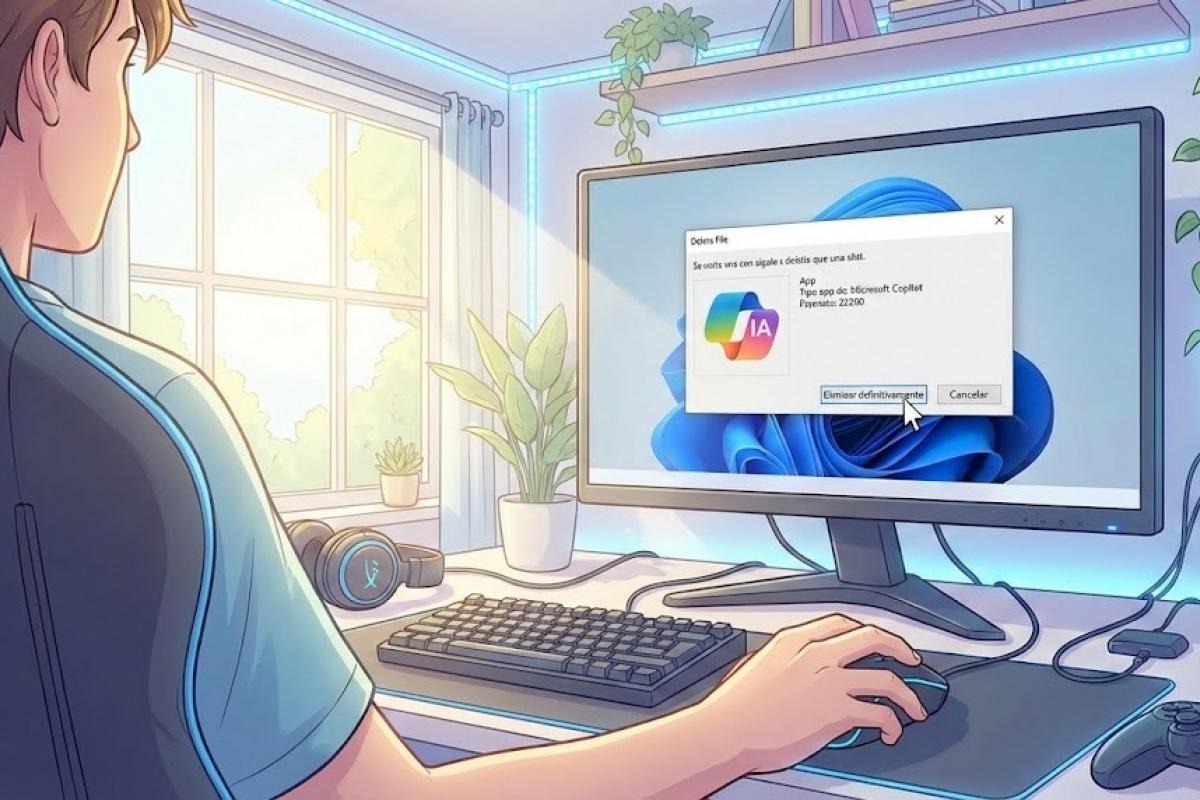
I'm sure it's happened to you: you turn on your computer and find that Microsoft has once again crammed some artificial intelligence feature where nobody asked for it. From Notepad to Paint, AI seems to be creeping into every corner of Windows 11, and while some may find it useful, for most it has become a resource-guzzling nuisance that raises privacy concerns.
The general feeling is one of weariness. Many of us miss the days when the operating system was simply a stable and robust tool, without intrusive buttons or background processes that slow down the computer . If you feel that your PC is no longer under your complete control and you want to cleanse the system of these forced functions, you've come to the right place.
The definitive solution: RemoveWindowsAI
To avoid manually battling with the system, an open-source tool called RemoveWindowsAI, developed by zoicware , has emerged . It's a powerful PowerShell script that automates the removal of almost all the AI components that Microsoft has integrated into the latest versions of Windows 11.
What's interesting about this script is that it not only disables the features, but also prevents Windows Update from reinstalling them . It achieves this through a "trick" that fools the system into thinking that newer versions are already installed, thus blocking the automatic download of these troublesome packages.
What exactly does this script remove?
The cleanup is quite thorough and covers virtually everything that could be considered "smart" and disruptive. Among the features removed are the deactivation of Copilot and its integration into the Microsoft Edge browser, as well as the complete elimination of the controversial Recall system and its scheduled tasks.
- Elimination of AI Fabric Service and the system's AI actions.
- Deactivation of the image creator in Paint and AI in the search for adjustments.
- Suppression of Input Insights and the collection of data from what we write.
- Disabling voice access and AI-based sound effects.
- Elimination of the rewrite function smart in Notepad.
Step-by-step guide to running the script
If you want to clean your system, the process is quite simple, although it requires running commands with elevated privileges. First, you need to search for Windows PowerShell in the Start menu , right-click on it, and select the option to run it as administrator. It's crucial to use version 5.1 and not the standard Terminal or PowerShell 7 to avoid errors.
Once the blue console is open, simply copy and paste the following code and press Enter: & ([scriptblock]::Create((irm "https://raw.githubusercontent.com/zoicware/RemoveWindowsAI/main/RemoveWindowsAi.ps1")))
When you run it, a graphical interface will appear where you can select which functions you want to remove. Once you've selected everything you don't need, click the green Apply button and restart your computer for the changes to take effect. Your antivirus software might flag it; don't worry, this is a common false positive when deep registry keys are modified.
Advanced options and automation
For those who prefer not to use the interface or need to clean multiple computers at once, there are specific commands. If you want to apply absolutely all options You can use the parameter without the program asking you anything. -nonInteractive -AllOptions at the end of the download code.
If you're a more cautious user, you can choose specific modules. For example, if you're only interested in Remove AI Appx packages and Copilot policies, you can run the command by specifically indicating -Options DisableRegKeys,RemoveAppxPackages,DisableCopilotPolicies.
How to go back and recover classic applications
Sometimes, when we remove the modern version of Paint or Notepad, we're left without the necessary tools. The RemoveWindowsAI script solves this by allowing install the classic versions (without AI) of these applications. For this, the command with the parameter is used. -InstallClassicApps followed by the names of the apps like mspaint, notepad o photoviewer.
If at any point you regret it or something stops working, the developer has included a reversal modeFor it to work correctly, it is ideal to have previously activated the -backupModeOnce this is done, run the script with the parameter -revertMode will return the system to its original state.
Additional tips for manual cleaning
If you don't trust scripts and prefer to do things your own way, there are some settings you can manually adjust. For example, in Notepad, you can access the settings gear and turn off Copilot directly from there to prevent the context menu from suggesting text pitch changes.
On Copilot+ PCs, the AI is even more intrusive because it uses the local NPU. It's recommended to check the Xbox Game Bar settings to unlink the AI from games and go to System > Sound to disable webcam studio effects, such as fake eye contact or artificial blurring.
For those seeking a completely AI-free experience, the best option is to replace Microsoft software. Browsers like Vivaldi or Firefox are far more user-friendly alternatives to Edge, and tools like Notepad++ make Notepad look like child's play in terms of usability and user experience.
Getting rid of telemetry and unnecessary processes involves not only deleting files, but also managing group policies and the system registry. Ultimately, it's about restoring a smooth working environment where the computer is a tool under our control, not a showcase for cloud services that consume RAM and CPU without our consent.