- First, check if the problem is coming from the operator or your local network by checking the router, lights, and any other issues.
- Isolate the problem by testing with multiple devices, both wired and Wi-Fi, and verifying the IP assignment.
- Use ping, DNS change, driver update, and antivirus/VPN check to rule out software blocks.
- If nothing works, check your hardware (router, cables, network card) and consider resetting your network or router to factory settings.
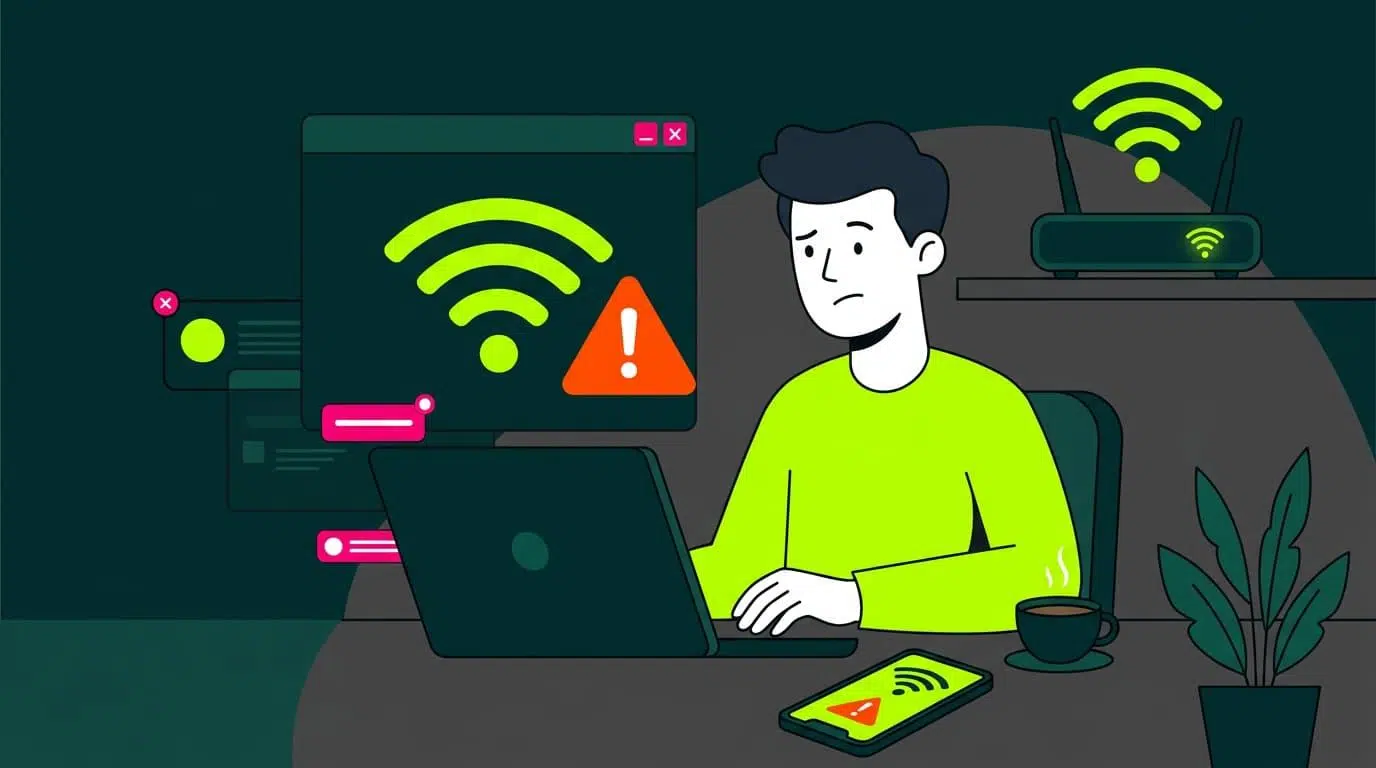
You're working, watching a series, or playing an online game, and suddenly Internet stopped working It's one of the most frustrating things that can happen to us at home. Often we don't even know where to begin, whether it's the router, the computer, the phone, or the internet provider, and we just keep fiddling with things blindly without much success.
The good news is that, with a little method, you can diagnose why you don't have an internet connection and fix it yourself in most cases. In this comprehensive guide, we'll go through all the possible checks step by step: from the most basic (router, cables, Wi-Fi) to advanced settings for IP, DNS, drivers, antivirus, VPN, and hardware failures.
First of all: understand exactly what is going wrong

The first thing is to determine if the problem is in your local network (Wi-Fi or cable) or on the Internet connection that your operator provides. Wi-Fi and the Internet are not the same thing: Wi-Fi only connects your device to the router; it is the router (or modem) that connects to the Internet "highway".
When you see messages like "connected, but without internet access" or similar, usually means that your mobile phone or computer communicates well with the router, but the router cannot reach the Internet or there is something in the configuration that prevents it.
A good starting point is to ask yourself if the problem is something specific or recurringIf this happens constantly, it's probably a configuration, hardware, or even an issue with your internet service provider. If it's very sporadic, it could be a temporary outage on the provider's end or a temporary router freeze.
It's also important to be clear about whether the connection is completely down, very slow, or cuts out intermittentlyIt's not the same to be unable to open any website as it is to notice that everything loads with agonizing slowness or that micro-cuts occur when watching streaming video.
First filter: Is it a problem with your operator or your home?
Before you drive yourself crazy with computer settings, it's worth checking if the problem is external. Often the issue lies with the... internet service provider (ISP) And you won't be able to do anything but wait.
Start by looking at the router or modem lightsMost models have an LED that indicates the Internet connection: if it is solid green, everything is fine; if it is orange, red, off or flashing strangely, it is a sign that the router is not synchronizing properly with the operator's network.
Each company interprets its LEDs in its own way (for example, on a Movistar router, a solid red light on “Internet” usually indicates a hardware or firmware failure; on some Vodafone models, a flashing red light can indicate PPPoE authentication problems), so yours is Consult the manual or online guide for the specific model..
If you suspect a general outage, access (using mobile data) websites such as Downdetector or similar platforms to see if other users are reporting problems with your carrier or even with a particular website or app. You can also check your company's customer area or their social media, where they often post service outage notices.
Alternatively Call or chat with your operatorThey can check if there's an outage in your area, if your line appears to be down in their system, or if maintenance is being carried out. If the problem is with the network, there's little you can do at home except be patient.
Narrowing down the problem: try with multiple devices
One of the quickest ways to find out what's going on is to check if Does one device fail or does everything at home fail?If your computer isn't browsing, try using your mobile phone, tablet, or any other device connected to your Wi-Fi.
If all the computers lose internet access, the problem is almost certainly with yours. router, your local network or the operator itselfIf, on the other hand, the rest of the devices browse normally and only one device is having problems, then the fault lies with that specific device (network card, configuration, antivirus, operating system, etc.).
When using another device, try to do various tests: open several well-known websites, use an app that uses the internet (for example, YouTube or Spotify) and even run a speed test to see if the connection is stable.
Don't forget that you can have an intermediate scenario: A wired PC fails But the rest of the devices work perfectly via Wi-Fi. In that case, it could be a problem with the Ethernet cable itself, the router port, or the PC's network card.
Basic check of the router, cables and local network status
If you're already sure the problem is at home, the next step is to check the your local network infrastructure: router, possible switches, cabling and access points.
Double-check the LEDs on the router and any switchThe LAN light being on indicates a physical connection to wired devices. The Wi-Fi light being on means the wireless network is broadcasting. If the Internet light is off or an error color, the problem is with the router's outgoing connection.
Take a few minutes to look at all the Ethernet and fiber/coaxial cablesMake sure they aren't badly bent, pinched by furniture, frayed, or have a broken clip. A cable that "looks fine" can cause micro-cuts or speed losses. If you have another cable at home, try it.
Beware of a fairly common mistake: connecting both ends of the same cable to the router itself on two different LAN ports. This creates a loop that can completely mess up your network: you'll see Wi-Fi, the router will appear to be on, but you won't be able to browse the internet. If you see a cable going in and out of the router itself, unplug it and restart.
If everything seems fine but problems persist, it's a good idea Restart the router completelyTurn it off using the power button or unplug it, wait at least 30 seconds, and then plug it back in. First, let the modem/ONT (in fiber installations with separate equipment) boot up, and then the router. This power cycle resolves many internal process errors or firmware crashes.
Are you connecting via Wi-Fi or cable? How to rule out physical problems
To make a good diagnosis, it is vital to know if the problem occurs via Wi-Fi, by cable, or bothIdeally, whenever possible, critical tests should be performed using a direct cable connection to the router.
If your computer has an Ethernet port, connect it to the router with a network cable and look for the connection icon in the taskbar (on Windows) or menu bar (on macOS). The screen symbol with a cable indicates a wired connection; the waves indicate a Wi-Fi connection.
In Windows, by entering Control Panel > Network and Sharing Center By clicking on the "Ethernet" connection, you can see its status. If "Speed" shows 100 Mbps, 1 Gbps, or something similar, the physical connection is working. If it says "cable disconnected" or there is no connection, check the cable and port.
If you can't use a cable because your computer doesn't have an Ethernet port or you don't have a cable available, focus on the Wi-Fi signal status: coverage bars, changes when you get closer to the router, areas of the house where the signal disappears or becomes unstable.
Keep in mind that routers have an ideal location: a more or less central, elevated area without major obstacles Metal surfaces, concrete walls, or closed cabinets. If you have it hidden in a corner, inside a piece of furniture, or next to microwaves and other appliances, the signal will suffer.
Check if your network card is receiving a correct IP address
A classic cause of “I have Wi-Fi but no Internet” is that the device not receiving a valid IP address from the router. Without a private IP address on the local network, there is no functional connection.
In Windows, from the network connection status, click on DetailsYou should see an IP address like 192.168.xx, a subnet mask (usually 255.255.255.0) and a default gateway (usually 192.168.0.1, 192.168.1.1 or similar).
Even faster: open the Start menu, type cmd, enter the console and run ipconfigYou will see the IP configuration of all interfaces: check that the active one has the correct private address, mask, and gateway.
If you see an IP address like this 169.xxxThat means the device has self-configured via APIPA because It has not received an IP address from the DHCP server. (usually the router). In other words: your router isn't assigning an address, or the DHCP server has crashed.
In that case, try reboot the routerIf you're still getting IP address 169.xxx, there may be a serious problem with the router's DHCP settings or advanced network configuration. In some cases, this can be resolved by restoring the router to factory settings (using your ISP's username and password).
Ping the router, the internet, and a domain: key tests
Once you have a correct IP address, it's time to verify the step-by-step connectivityThe ping command is perfect for this, both on Windows and macOS or Linux.
First, ping the Default Gateway (your router). On Windows: open cmd and run something like ping 192.168.1.1 (replace with your router's actual IP address, which you saw earlier in Details or with ipconfig).
If the ping to the router does not respondThere is a connection problem between your device and the router: cable, network card, Wi-Fi, local firewall, or an incorrect IP configuration. If it responds with low latency and no dropouts (low latency), your local network works.
The next step is to ping a Internet server by IP, for example ping 8.8.8.8 (Google's public DNS server). If this fails but the ping to the router works fine, it means the router is not connecting to the internet (operator down, fiber cable disconnected, incorrect WAN configuration, etc.).
If pinging 8.8.8.8 works without problems, finally try pinging a domain, for example ping www.google.es o ping www.redeszone.netIf it works by IP but not by domain, the problem lies with the DNS serversYour computer or router is not resolving names correctly.
DNS problems: change servers and clear cache
When you can browse by IP address but websites won't open by name, there's almost certainly a problem. DNS failureOften the operator's own DNS servers go down or are slow, and simply switching to others is enough to solve the problem.
On Windows you can go to Settings > Network & Internet > Change adapter optionsRight-click on your network, select Properties, then select “Internet Protocol version 4 (TCP/IPv4)” and in Properties check “Obtain IP address automatically” and, if you want, manually set DNS servers such as 8.8.8.8 and 8.8.4.4 (Google) or 1.1.1.1 (Cloudflare).
It is also important to empty the local DNS cachewhich may be corrupted. In Windows, open cmd and run ipconfig /flushdnsOn macOS, open Terminal and use a command like sudo dscacheutil -flushcache; sudo killall -HUP mDNSResponder (depending on the macOS version, the command may vary slightly).
On smartphones, the DNS cache is easily cleared when turn airplane mode on and off or by restarting the device. On Android, you can also clear certain caches from Chrome by going to chrome://net-internals/#dns and clicking on “Clear host cache”.
If everything returns to normal after changing DNS and clearing the cache, then you know the problem was with the previous serversNot on your line. You can keep the new DNS settings permanently to avoid similar problems.
Troubleshooters for Windows and macOS
Current operating systems include tools for automatic network diagnostics While they are not magic, they do solve many common cases without having to manually enter commands.
In Windows 10 and 11 you can go to Settings > System > Troubleshoot > Other troubleshooters and run the specific one for “Network and Internet”. This wizard checks for misassigned IP addresses, missing drivers, disabled adapters, or key services that are not running.
On macOS, hold down the Option key and click the Wi-Fi icon in the menu bar to open Wireless diagnosisThis utility can analyze the connection, log recurring problems, and suggest changes to the channel, configuration, or location of the router.
If the connection works on the computer but It only fails on the mobile phoneLook in your smartphone settings for "Network Diagnostics" tools or similar, or check specific guides for Android and iPhone, because sometimes the problem lies in battery savers, permissions, or misconfigured VPN profiles.
Although these tools do not replace manual analysis, they are a quick way to detect typical errors and apply automated solutions without the need for advanced technical knowledge.
Antivirus, firewall and VPN: when security leaves you without internet
Often the "culprit" behind your lack of connection is not the router or the operator, but something else misconfigured security softwareAn overly aggressive antivirus or firewall can block all network traffic without you even noticing.
If you suspect this because the problem started right after installing or updating a security suite, try the following: Temporarily disable your antivirus and firewall (just for a few minutes) and see if the connection comes back to life.
If everything works after disabling them, then it's time to check your detailed configurationFirewall rules, network mode (public/private), protection of unknown connections, etc. Ideally, you should find a middle ground between security and usability; don't have such a high wall that even you can't access the internet.
Something similar happens with the VPNThey are very useful for encrypting traffic, avoiding geographical blocks, or protecting yourself on public networks, but if the server you connect to is down, overloaded, or misconfigured, your device may remain "connected without internet."
To rule out VPN issues, disconnect it completely and try browsing without it. If everything works fine without the VPN, try other servers within the app, check your DNS settings, and disable options like the "kill switch" while you're testing.
Advanced configuration: IP, gateway, subnet mask, and IPv6
Once you've checked the basics and are still having problems, it's time to look at more advanced network settings, especially if you've ever configured static IP addresses or messed with things on the router.
In home networks, the most practical approach is to let the router assign IPs. DHCP automaticallyIf you have a static IP address on any device, make sure it is within the allowed private ranges (10.xxx, 172.16.xx – 172.31.xx or 192.168.xx), that the subnet mask is correct, and that the default gateway matches the router's IP address.
In Windows, if you suspect that something has become corrupted in the network stack, you can do a TCP/IP reset From the console. Open cmd as administrator and run:
netsh winsock reset
netsh int ip reset
Then restart your PC for the changes to take effect. This usually fixes persistent problems with addresses, gateways, or unusual configurations that have become "stuck."
Many routers and operating systems also work with IPv6On home networks that still rely almost entirely on IPv4, having IPv6 enabled on older devices or outdated routers can cause unusual conflicts. If you experience strange outages, you can try disabling IPv6 in your network adapter settings to see if it improves stability.
Wi-Fi: signal, channels, bands and device saturation
If you're sure that everything works reasonably well via cable, but The Wi-Fi connection is unstable, slow, or keeps cutting out., then the problem lies in the wireless part of the network.
The first thing is to assess the signal strengthIf the bars rise when you approach the router and everything suddenly works, it is likely that in your usual location you are out of optimal coverage or there is a lot of interference (thick walls, appliances, neighboring networks, etc.).
Most routers broadcast on two bands: 2,4 GHz and 5 GHzThe 2,4 GHz band has a longer range but is much more congested (and is affected by microwaves, Bluetooth, etc.). The 5 GHz band is faster and more stable at short distances, but has less penetration through walls. If you're experiencing dropouts, try switching between bands or using different SSIDs if your router allows it.
Within each band there are Wi-Fi channelsIn buildings with many neighbors, several routers may be broadcasting on the same channel, causing overlaps that degrade the connection. With Wi-Fi analyzer apps (on Android) or macOS's Wireless Diagnostics, you can see which channels are the cleanest and manually configure them on your router (for 2,4 GHz, channels 1, 6, and 11 are usually the best).
Don't forget to check out the list of devices connected to your Wi-Fi from the router's control panel. If many devices are streaming video, downloading games, or backing up to the cloud, the bandwidth The bandwidth gets split and everything slows down. Some routers even limit the maximum number of simultaneous clients.
If you detect any unknown devices, delete or block them and change your Wi-Fi password to a strong one (WPA2/WPA3). A hacked router or an open network can cause performance problems and, even worse, security issues.
Network drivers, quick startup, and system updates
Another common source of failures are the network card driversEspecially on Windows. After a system update, an outdated driver can start causing problems and lead to disconnections, Wi-Fi errors, or the adapter simply disappearing altogether.
To check it, open the Device administratorExpand "Network adapters", right-click on your network card (Wi-Fi or Ethernet) and click "Update driver". If Windows doesn't find anything, visit the website of your motherboard, laptop, or network card manufacturer and download the latest specific driver.
In more serious cases, it is advisable uninstall the device From Device Manager (by checking the box "Attempt to remove the driver for this device"), restart your computer so Windows can automatically reinstall the driver. Before doing so, it's a good idea to download the correct driver to a USB drive, just in case.
On some PCs, the function of Windows Quick Start (which hibernates part of the system to boot faster) can prevent certain network services from starting up properly after a shutdown. Disabling it from Control Panel > Hardware and Sound > Power Options > Choose what the power buttons do can restore connection stability.
On macOS it's also advisable to check the starting items In System Settings > General > Startup Items and Extensions, remove or disable unnecessary applications that may interfere with the network when starting up.
Check the hardware: network card, router, and cabling
Not everything can be fixed with software: sometimes the problem is purely technical. faulty hardwareAn old router, a network card that's starting to fail, or a damaged Ethernet cable can be responsible for a chaotic connection.
If you suspect your PC's network card, a very clear test is to use a USB to Ethernet network adapterIf the connection works perfectly with the USB adapter, everything points to the integrated network port (or the internal Wi-Fi module) being damaged.
Also note the Ethernet port LEDs From the router and the computer itself: if no light comes on when you plug in the cable, it means there's no physical connection. Try a different cable and a different port on the router to rule that out.
Routers also have a lifespan. Models older than 5-6 years, which only support older standards (Wi-Fi 4 / 802.11no and even earlier), can struggle with multiple modern devices connected simultaneously, especially if you're streaming 4K, working remotely with video calls, or playing online games.
If your network equipment has become obsolete, consider upgrade to a router that supports Wi-Fi 5 or Wi-Fi 6And if you use wired internet, make sure your modem supports recent standards such as DOCSIS 3.0 or 3.1 (on wired connections).
Resetting the network: the “nuclear button” when nothing else works
When you've tried everything reasonable and still haven't found a solution, you can resort to more drastic measures such as reset the router to factory settings or completely reset the computer's network settings.
To reset the router, use a paperclip or similar object to hold down the button. physical reset button (usually hidden in a small hole) for 10-30 seconds, until the lights change. This erases all custom settings: Wi-Fi name and password, open ports, guest networks, etc.
Before doing so, have the following written down: router login credentials And, if your operator has given it to you pre-configured, check on their website how to return it to how it was (sometimes it's automatic, other times you have to enter a username and password for PPPoE, VLAN, etc.).
In Windows you can perform a network reset Go to Settings > Network & Internet > Status > Network reset. This will erase all Wi-Fi profiles, restart adapters, and restore settings to their initial state. Have your network passwords handy, as you will need to re-enter them.
On macOS, you can remove the Wi-Fi service from Settings/System Preferences > Network (using the "-" button) and add it again using the "+" button. Alternatively, you can forget the current network and reconnect from scratch, as if it were the first time.
With all this guidance, from checking lights and cables to tweaking DNS, drivers, Wi-Fi, antivirus, or advanced IP settings, you should be able to locate where your internet connection breaks down and apply the most appropriate solution. Ultimately, it's about going step by step: checking if it's an issue with your internet service provider, narrowing down the problem to a single device, verifying that your local network is working, confirming that you have internet access, and ensuring that no faulty software or hardware is blocking the connection. With a little organization and patience, you should be able to restore the stable connection you need for work, study, or simply enjoying your online leisure time.

Table of Contents
- First of all: understand exactly what is going wrong
- First filter: Is it a problem with your operator or your home?
- Narrowing down the problem: try with multiple devices
- Basic check of the router, cables and local network status
- Are you connecting via Wi-Fi or cable? How to rule out physical problems
- Check if your network card is receiving a correct IP address
- Ping the router, the internet, and a domain: key tests
- DNS problems: change servers and clear cache
- Troubleshooters for Windows and macOS
- Antivirus, firewall and VPN: when security leaves you without internet
- Advanced configuration: IP, gateway, subnet mask, and IPv6
- Wi-Fi: signal, channels, bands and device saturation
- Network drivers, quick startup, and system updates
- Check the hardware: network card, router, and cabling
- Resetting the network: the “nuclear button” when nothing else works