- The perception of slow internet is usually due to WiFi problems, device overload, or outdated equipment rather than the fiber itself.
- Testing first with a direct cable to the router allows you to isolate whether the fault is in the operator's line or in your home network.
- Optimizing router location, WiFi security, cables, drivers, and download control resolves most cases without changing providers.
- If the speed remains consistently low over cable, it's time to document evidence and complain to your provider or consider switching.
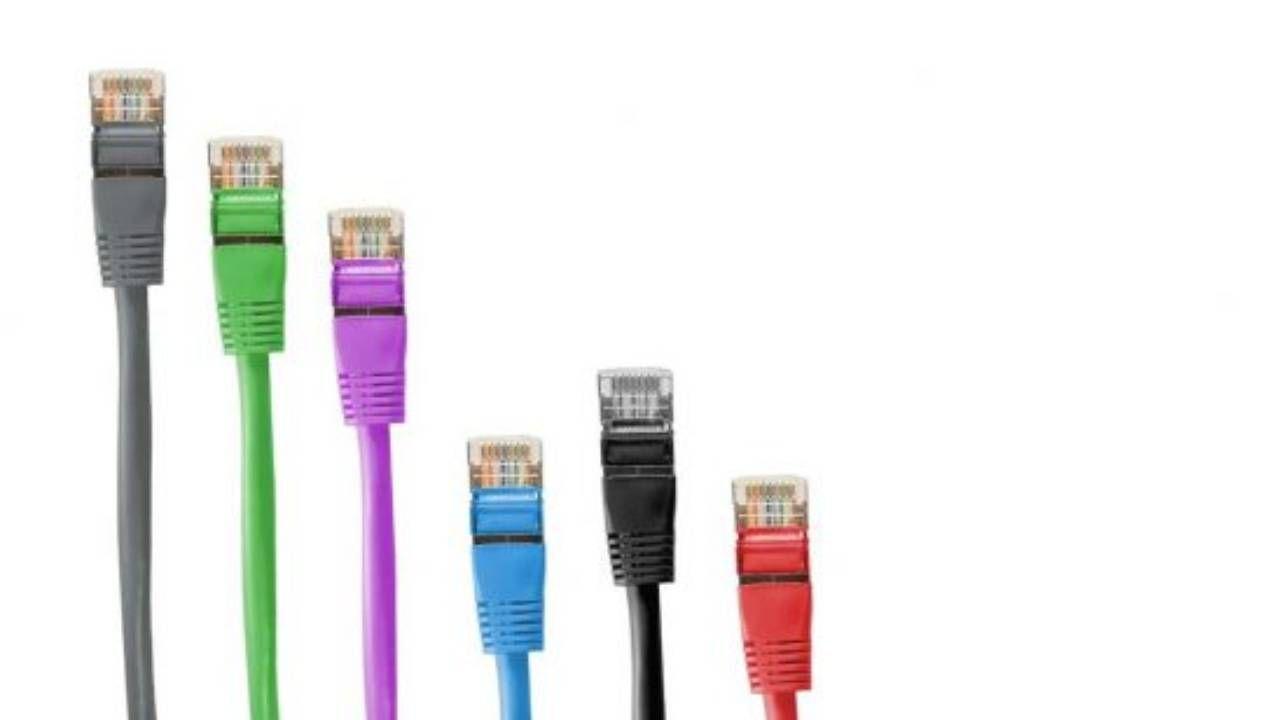
I'm sure you've often thought your internet was slow for no apparent reason : websites loading in fits and starts, videos freezing, online games lagging, or downloads taking forever. And all this, even with a fiber optic connection and, in theory, a good speed.
The reality is that your actual connection speed depends on many factors: router, Wi-Fi, cables, equipment, software, internet service provider , and even the website you're visiting. If any of these components fail, the experience suffers. Below, you'll find a clear and organized list of all the common reasons for slow internet and what you can do in each case , from the most basic to the most technical.
How to check if your internet is really slow
Before you drive yourself crazy fiddling with settings, it's a good idea to confirm that the connection is actually slower than it should be . We often mistake impatience for genuine slowness.
The most reliable way to check your speed is to run a speed test . To do this, connect a computer to your router via Ethernet cable (no VPN, no downloads, and no one else using the network) and run a test on a trusted speed tester. You'll get download and upload speeds, ping, and jitter readings , and you can use a DNS checker to verify name resolution. If the wired result is close to your contracted speed, your fiber optic connection is performing well; if it's significantly lower, there may be a network or service provider issue.
Next, repeat the test from several rooms over Wi-Fi to detect differences between rooms, between 2,4 GHz and 5 GHz , and see if the bottleneck is only on the wireless side. This comparison between wired and Wi-Fi tests is key to narrowing down whether the problem lies with the line or your internal network.
Connection types and physical speed limits
Not all internet access technologies offer the same speed or stability. The type of connection you have clearly limits what you can expect, no matter how optimized your local network is.
Fiber optic connections (FTTH or fiber to the home) offer the best performance today: low latency, high speeds, and very stable connections. Below them are coaxial cable and ADSL connections , with clear upload speed limitations and greater sensitivity to distance and the condition of the cabling.
In some places, they talk about FiOS or fiber-to-the-home networks , where the main segment is optical and the final segment to your home is still copper. This is an improvement over traditional ADSL, but it doesn't achieve the stability of a full fiber-to-the-home connection.
If you connect via 4G or 5G , your actual speed will depend heavily on coverage, antenna congestion, and radio conditions. While these technologies can be very fast, they are less stable than a fixed fiber connection , especially during peak hours or indoors with poor coverage.
Poor WiFi coverage, interference, and router location
The most common reason why your internet seems slow is actually because the Wi-Fi is slow . The connection between your device and the router is weak, even if the fiber optic connection is working perfectly.
When you're far from the router, or there are several thick walls, concrete floors, furniture, or metal objects in the way, the signal weakens and your device reduces its speed to maintain the connection. The same thing happens if you place the router inside a piece of furniture, in a corner, on the floor, or next to electrical appliances that generate interference, such as microwaves or 2,4 GHz cordless phones.
Furthermore, neighboring networks using the same channels (especially at 2,4 GHz) cause congestion and interference . If you live in an apartment building, it's very likely that your Wi-Fi is competing with several networks simultaneously, resulting in slower speeds and frequent disconnections.
To improve this, place the router in an area that is as central and high as possible , avoid enclosed furniture and heat sources, properly orient the antennas and, if possible, use the 5 GHz band for nearby devices and leave 2,4 GHz for those that are far away or are old.
Too many connected devices and network saturation
Today, homes aren't just filled with phones and computers: they also have smart TVs, game consoles, speakers, IP cameras, smart plugs, light bulbs, and other gadgets that all share the same bandwidth . Each one adds traffic, even if you don't see it directly.
If you have a fiber optic connection of, say, 300 Mbps, and at the same time there are several TVs streaming in 4K, someone uploading files to the cloud, automatic updates running, and online games , the router has to distribute and prioritize traffic as best it can. The slowest devices (especially older IoT devices on the 2,4 GHz band) consume a lot of bandwidth and can slow down the rest of the network.
In these situations, the typical feeling is that the connection runs out of steam right during peak times at home : in the evening, on weekends, etc. To alleviate this, review what's actually being used and disconnect or limit anything that isn't critical at that moment.
If, even with good management, your network still feels too small, it might be time to upgrade your speed plan or opt for a more powerful router (for example, with WiFi 6 or WiFi 6E) that can better handle many simultaneous devices with technologies like MU-MIMO and OFDMA.
Intruders on your WiFi and insecure networks
Another reason your internet might be slow is that, in addition to your own devices, there are unwanted guests connected to your Wi-Fi . A neighbor downloading excessively on your network can saturate your connection without you even realizing it.
If your network still uses the router's default password, or outdated and easily cracked encryption, it's relatively easy for someone to steal your connection. The more devices connected to your Wi-Fi, the less bandwidth is available to you and the greater the security risk.
The solution involves accessing your router's settings, checking the list of connected devices, and changing your Wi-Fi password to a long and strong one . Enable WPA2 encryption, or better yet, WPA3 if available. Disable WPS if you don't need it, and if you have frequent visitors, create a separate guest network to keep their devices separate from yours. If you suspect intruders, find out if hackers are using your internet connection and take appropriate action.
Background applications, downloads, and bandwidth abuse
Often the problem isn't your internet provider or router, but rather a program on your devices that's silently hogging your bandwidth . This could include cloud backups, automatic updates, P2P clients, photo or video syncing, and so on.
On a PC, you can open Task Manager (Windows) or Activity Monitor (macOS) to see which processes are using the most network bandwidth. If you're using Windows, see how to speed up Windows . It's common to find cloud storage services uploading files at high speed or download programs saturating the upload bandwidth, which increases latency (bufferbloat) and disrupts video calls and games.
It's advisable to limit the maximum upload and download speeds in applications that allow it, or at least schedule large downloads and backups during off-peak hours , such as at night. If you use QoS on your router, you can prioritize important traffic (video calls, streaming, gaming) over large downloads.
On phones and tablets, check which apps have permission to use data in the background and disable any that don't make sense. This will prevent an app you're not even using from hogging your bandwidth.
Viruses, malware, and programs that slow down your computer
An infected computer isn't just a risk to your privacy; it can also turn your internet connection into a real ordeal. Certain types of malware use the network to send spam, participate in attacks, or mine cryptocurrency , consuming bandwidth and CPU resources.
Typical symptoms include a sluggish computer, running fans, a slow browser, and network usage spikes even when you're not actively using it. Many unreliable toolbars, browser extensions, and add-ons also contribute to slow browsing.
To rule out this cause, run a full scan with a good antivirus program and, if possible, an anti-malware tool . If you're still unsure, consult guides on why your computer is running slowly . Remove anything suspicious, uninstall extensions you don't use, clean up temporary files, and make sure your operating system and browsers are up to date.
If the internet is only slow on one specific PC and works fine on all other devices, the problem is almost certainly with that computer (hardware or software) and not with your home internet connection.
Firewall, VPN and other misconfigured security programs
Interestingly, the programs designed to protect you can also slow down your internet speed if they aren't configured correctly . Firewalls, antivirus software with web filters, and VPNs add layers of inspection and encryption to your traffic.
An overly restrictive firewall, or antivirus software that scans all HTTPS traffic in real time, can introduce noticeable delays when opening pages or downloading files . A VPN with overloaded or distant servers will reduce your effective bandwidth and increase latency.
The key is to test: temporarily disable your VPN or switch servers, check your firewall settings, and adjust your antivirus's web scanning. If doing so restores a smooth connection , you've identified the bottleneck and can find a balance between security and performance (or switch tools if necessary).
Old, overheating, or broken router
The router is the heart of your home network and, like any device, it gets old or suffers wear and tear over time . Many models given away by internet providers have basic hardware and, over time, start to struggle when you connect many devices or use them intensively.
If you have a router with WiFi 4 (802.11n) or a very basic model, it's likely that it won't be able to take full advantage of a fast fiber optic connection or handle multiple simultaneous connections well . Furthermore, heat is a silent enemy: in summer, or if the router is placed on top of another hot device or near a window with direct sunlight, it can overheat, its performance decreases, or it may crash randomly.
It's a good idea to restart it occasionally (by turning it off and on again after 30 seconds) and see if this temporarily improves the speed or eliminates the interruptions . If you have to restart it frequently, it's a sign that it's at its limit or something is wrong.
In many cases, the best solution is to invest in a new, more powerful router with modern standards like WiFi 6 or even WiFi 7 , better QoS management, and good cooling. If your ISP lets you use your own, it's worth considering.
Faulty cabling and infrastructure
When you connect via cable, performance depends on the quality of the Ethernet cable, the connectors, and the ports on both the router and the device. A single subpar component can severely limit your performance.
Older category cables (CAT5 without the "e") only support up to 100 Mbps. If you have a 300, 600, or 1 Gbps connection and use one of these cables, you'll never see more than 100 Mbps in the speed test , even if the fiber optic connection is perfect. The same applies to Fast Ethernet network cards (100 Mbps) in very old PCs.
Furthermore, cables can be damaged over time, especially if they are bent too much, stepped on, chewed by pets, or overheated . Sometimes, they appear fine at first glance, but one of the internal pairs is cut, causing the link to drop to 100 Mbps or become unstable.
Check the category printed on the cable (ideally CAT5e or CAT6 at the very least ), avoid excessively long cables, make sure the connectors fit securely, and try replacing the cable with a different, higher-quality one to rule out any problems. You can also access your router's or operating system's interface and see what speed the Ethernet port negotiates (100 or 1000 Mbps).
Outdated network card and drivers
Your PC's network card (whether WiFi or Ethernet) can also be a bottleneck. If it's very old, or has outdated drivers , it might not make good use of the connection or might not work well with certain routers.
In Windows, you can use Device Manager to see the exact model of your network adapter, check if it negotiates at 100 or 1000 Mbps, and force a driver update . If Windows doesn't find anything new, you can go to the website of the motherboard, laptop, or network card manufacturer and download the latest driver; and if you're unsure, learn how to view your PC components.
On very old computers with a Fast Ethernet port, an inexpensive way to improve performance is to use a USB-to-Gigabit Ethernet adapter ; however, be sure to connect it to a USB 3.x port to avoid speed limitations. On Macs, macOS updates usually include the necessary drivers, so keeping your system up to date is generally sufficient.
Internet provider (ISP) problems and external congestion
Sometimes it's not you, it's your internet provider. Even with a flawless home network, there can be issues with the provider's network, network congestion at a node, maintenance work, or partial outages that cause some websites to malfunction or others to not load at all.
During peak usage times (evenings, major events, game times, etc.), certain infrastructures become overloaded and speeds may drop significantly for a while . It's also possible that the ISP will apply throttling policies to certain types of traffic or after high data consumption.
If you repeatedly get speeds significantly lower than your contracted speed when connecting to the router via cable, run several speed tests at different times of day and save the results. Check social media or incident monitoring sites to see if other customers are reporting problems.
The website or service you are accessing is slow
Sometimes your connection is perfect, but the website or service you're using is incredibly slow . This could be due to overloaded hosting, a server located on the other side of the world, poor optimization, or a sudden spike in traffic.
If only one specific site is malfunctioning while the rest of your websites load perfectly, the problem is most likely on the server side. In these cases, there's little you can do except be patient, try again later, or, if the service offers it, use an alternative version hosted in a different region.
On mobile devices, some browsers offer data-saving or basic browsing modes, which load content through their own servers. This can, in some cases, speed up the loading of large websites served remotely.
Even with a good connection, a overloaded computer can give the impression that the internet is slow simply because everything is slow . If the system has little free RAM, the hard drive is almost full, or many programs are open, the browser will struggle.
Browser cache also plays a role: when it's full of old data, cookies, and corrupted files , it can cause some pages to load incorrectly or very slowly. Additionally, too many extensions or plugins add overhead and can seriously slow down your browsing experience.
To improve performance, close programs you don't need, clear your cache and browsing history regularly, review any extensions you no longer use, and ensure your browser is updated to the latest version. On older computers, adding more RAM or upgrading to an SSD can make a huge difference in overall smoothness.
Practical strategy to diagnose and accelerate your connection
With so many possible causes, it's important to follow a logical order to avoid wasting time guessing . A useful sequence could be:
- Try it direct cable to the router with reliable equipment, speed test and comparison with the contracted speed.
- If it works fine via cable, focus on the WiFi: router location, bands (2,4/5 GHz), channels, interference and dead zones.
- Check background traffic on your devices, downloads, backups, and streaming services.
- Check that there are no network intruders, change password and improve WiFi security.
- Update router firmware and network driversand scan the devices for malware.
- Test with other cables, other ports, and, if you can, with another router or access point to rule out faulty hardware.
- If after all this it still doesn't work well via cable, document the tests and Open a support ticket with the operator.
In many homes, a few simple adjustments (repositioning the router, changing the channel, closing resource-intensive applications, replacing a couple of old cables) are enough to restore the connection to the speed and stability that fiber can offer , avoiding the constant feeling of browsing "at a snail's pace".
