- A hacked router allows your connection to be used for DDoS attacks, illegal downloads, and traffic spying, compromising all your devices.
- Signs such as slow browsing without a clear cause, strange redirects, router changes, and unknown devices point to intrusions.
- Checking who is connected, resetting and updating the router, and strengthening passwords and encryption cuts off attackers' control.
- Protecting your IP address with a VPN, an updated firewall, and good habits reduces the risk of your network and identity being used in future attacks.
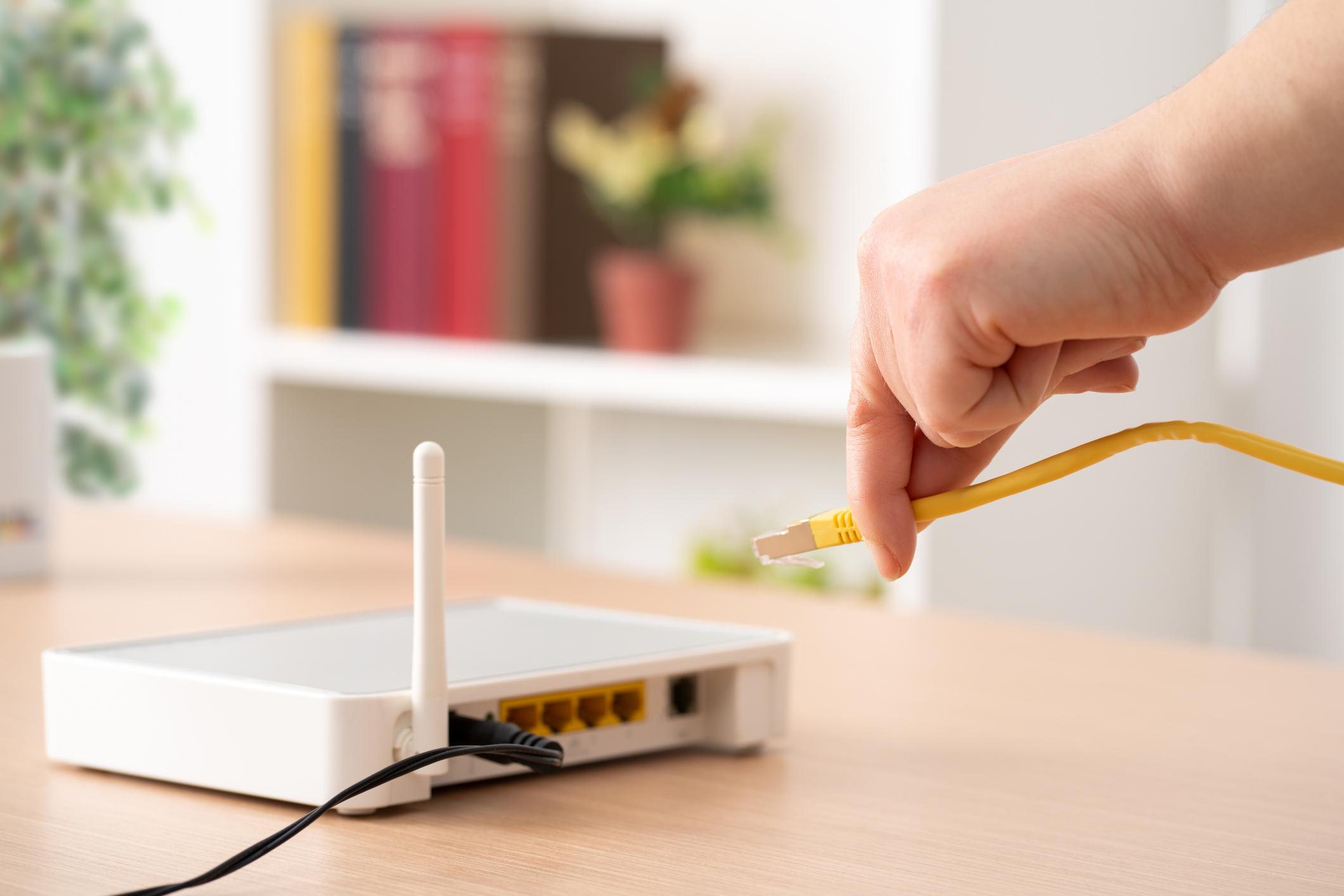
Are you worried that someone is using your connection to attack websites, launch DDoS attacks, or infiltrate your devices? It's not such an uncommon concern: a compromised router can turn your home into a small base of operations for cybercriminals, and often the owner won't even realize it. From strange browser redirects to a sluggish internet connection, the signs are there… if you know where to look.
In this comprehensive guide, you'll see, step by step, how to detect if your router or devices have been hacked, what attackers can do with your Wi-Fi and even your IP address, how to check who is connected to your network, and what specific measures you should take to secure your router. Everything is explained in standard Spanish (Spain), without unnecessary technical jargon, but with the level of detail needed to avoid being taken in.
What can a hacker do with your WiFi and router?
When an attacker gains control of your router, the problem goes far beyond simply having your Wi-Fi stolen. The router is the gateway for all your devices to the internet, so taking control of it is, in practice, like having the keys to your digital home.
A hacked router can be used as a platform to attack websites and other networks using DDoS (distributed denial-of-service) attacks. In these attacks, thousands of infected routers form a botnet that floods the victim's servers with junk traffic until they crash. From the outside, all that traffic appears to come from normal users… like you.
Besides attacking websites, whoever controls your router can saturate your bandwidth to mine cryptocurrency, download illegal content, or stream massive amounts of data, leaving you with insufficient speed for your everyday activities. While sometimes this only affects you as slow internet, the underlying problem is serious: they are using your connection, your IP address, and your network infrastructure.
Another critical risk is network traffic spying. If someone gains access to your Wi-Fi or router itself, they can sniff unencrypted data: HTTP pages, misconfigured services, certain outdated protocols, and so on, collecting passwords, emails, or other sensitive information from anyone using that network.
To make matters worse, an attacker can create a complete map of all the devices in your home (computers, mobile phones, TVs, smart home devices, IP cameras, smart plugs, etc.) and start testing for vulnerabilities in each one. IoT devices are often the weakest link because almost no one updates their firmware or changes the factory password.

Signs that someone is using your internet to attack websites or do strange things
The most dangerous attacks are often silent, but they almost always leave traces in the form of strange behavior. There's no foolproof test, but if you detect several of these symptoms at once, the chances that your router or other devices have been compromised increase significantly.
It's normal for the internet to be slow occasionally, but not for it to be a constant problem with no apparent cause. Before blaming hackers, rule out the basics: too many connected devices, large downloads, Wi-Fi interference (microwaves, walls, other nearby routers), or a temporary outage from your provider.
If you rule out those reasons and the connection continues to experience drops, latency spikes, or frequent outages, someone may be hogging bandwidth: downloading illegal content, mining cryptocurrencies, or participating in DDoS attacks from your line.
2. Unknown devices connected to your WiFi
One of the clearest signs that your network is compromised is seeing unrecognized devices connected to your router. You can check this by accessing your router's settings panel (usually at 192.168.0.1, 192.168.1.1, or 10.0.0.1) and looking for the "Connected Devices," " DHCP , " or similar section.
If you see MAC addresses or names that don't match your mobile phones, computers, Smart TVs, or smart home devices, that's suspicious. To be sure, completely disconnect all your devices (turn them off or disable Wi-Fi) and check the router's lights: if they're still flashing with traffic, someone else is using your connection.
A very common sign of a hacked router is that it tries to redirect you to fake websites by changing the device's DNS settings. This is known as DNS hijacking: you type "yourbank.com" and end up on an identical copy controlled by the attackers to steal your credentials.
If you start seeing strange versions of your usual websites—without HTTPS, with certificate errors, or full of odd ads— it's time to be suspicious. The same applies if your searches are redirecting you to other pages or if your browser is opening pop-ups you didn't see before.
4. Downloads and programs you don't remember installing
Malware that sneaks in through your router often ends up installing junk software or outright malicious software on your devices. This can include browser toolbars, unsolicited "cleaning" programs, cryptocurrency miners, or Trojans that open a backdoor.
Carefully review the list of programs on your PC, the apps on your mobile device, and your browser extensions . If you see anything you don't remember installing, or any fake security tools from unfamiliar brands, uninstall them and run a good antivirus scan.
5. Ransomware messages, scareware, or fake antivirus alerts
If you suddenly see pop-up windows warning of "critical viruses" and force you to download their "miracle antivirus", it's almost certain that you're dealing with scareware: software designed to frighten you into installing another layer of malware.
Ransomware can also enter through a compromised router and encrypt your files until you pay a ransom. Never pay: there's no guarantee you'll get anything back, and you're only feeding the criminal enterprise. The correct course of action is to isolate your computer, restore from backups , and use ransomware removal tools.
6. Changes to the router settings without your authorization.
If your WiFi password has changed on its own, the network name is different, or you can no longer log in with your usual administrator account, it's possible that an intruder has taken control of the device and locked you out.
You should also be concerned if you discover that the DNS settings on your router are no longer those of your internet service provider or the ones you configured, or if remote administration is enabled without your permission. All of these point to deliberate tampering.
How to see who is connected to your WiFi (PC, mobile and router)
To find out if someone is stealing your Wi-Fi or using your network to attack websites, the first step is to have a clear inventory of everything connected to your router. You can do this from the router itself, your computer, or your mobile device.
Use the router to identify intruders
Access the router's administration panel by entering its IP address in your web browser (192.168.0.1, 192.168.1.1, or 10.0.0.1 are the most common). If you've never changed it, the username and password are often "admin / admin" or are printed on a sticker on the router itself.
Once inside, look for the list of connected devices or the DHCP server. There you'll see internal IP addresses, MAC addresses, and, hopefully, hostnames. Compare that list with your phones, computers, game consoles, TVs, and smart devices. Anything you don't recognize as yours is suspicious.
Some routers also include a traffic monitor where you can see which device is consuming the most bandwidth. If an unknown device appears hogging megabytes, it's very likely that your connection is being used for massive downloads or external attacks.
Check WiFi connections from Windows
In Windows, you can view network usage from the Task Manager (Ctrl + Shift + Esc). Go to the "Performance" tab and then to "WiFi" or "Ethernet" to check for unusual activity, even when you're not actively using the network.
Tools like Advanced IP Scanner allow you to scan your entire local network and display all connected devices, with their IP address and, in many cases, the network card manufacturer, helping you identify what each device is.
See who's using your WiFi on macOS
On a Mac, you don't have such a direct "Network Users" panel, but you can use "Wireless Diagnostics." Hold down the Option key, click the Wi-Fi icon, and select "Open Wireless Diagnostics." From the "Window" menu, you can access scanning tools that display channels, networks, and, depending on the model and version, useful information about Wi-Fi congestion.
Android and iOS apps to scan your network
On Android, many manufacturers already include a "Connected Users" or similar section in the Wi-Fi settings, where you can see a list, MAC addresses, and data usage for each device. To go even further, apps like WiFi Analyzer, Who's On My WiFi, or WiFiman offer advanced details, signal strength, coverage maps, and, most importantly, a very clear inventory of potential intruders.
On iOS, you can use apps like Fing, NetSpot, or Scany to perform professional network scans, view open ports, active devices, and potential vulnerabilities. These tools are widely used by both system administrators and home users who want to know what's happening on their Wi-Fi.
What they can do with your IP address (even if they don't access your WiFi)
Even if no one has hacked your router, if an attacker obtains your public IP address, they can still play their hand. It's not enough on its own to break a system, but it is an important piece of the puzzle.
Your IP address can reveal your approximate geographic location (country, city, sometimes postal code) and your internet service provider. From there, they can search for you on social media, combine data, create a profile, and, in extreme cases, expose personal information (doxing) such as your physical address if they find it linked to a website.
Your online activity can also be monitored and restricted. Your internet provider can use it to throttle (slow down your connection if it detects a lot of streaming, P2P downloads, etc.), and many websites use it to show you different prices or block content based on your country (geoblocking).
Using your IP address, it's possible to launch targeted DDoS attacks against you, flooding your connection with junk traffic until your line goes down or becomes so slow as to be unusable. These types of attacks are quite common in online gaming environments or against content creators.
A cybercriminal can also use port scanners against your IP address to see what services are exposed , check for misconfigured routers or vulnerable home servers, and, for example, identify exposed services such as DDNS , which make it easier to keep home servers accessible.
Finally, IPs and other associated data are bought and sold on the dark web in huge packages for phishing campaigns, identity theft, financial fraud, or account theft.
How to tell if your devices have been hacked and are collaborating in attacks
Not only can your router be hijacked; your PC, mobile phone, or tablet could be participating in attacks without you even noticing. Certain behaviors point to malware or someone using your device as a zombie.
Indicators on Windows computers
Excessive upload traffic when you're not doing anything : If you see the network icon constantly active with ADSL or a mobile connection, or your data meter indicates massive uploads for no reason, your computer may be sending spam, participating in a worm, or a DDoS attack.
Unusual hard drive activity at rest : disks working nonstop, storage LED lit when you're not touching anything… Many Trojans scan your hard drive looking for documents, files with passwords, cryptocurrency wallets, or email addresses to spread.
Firewall alerts about many blocked packets from the same IP : If your personal firewall shows you constant connection attempts from a specific address, someone is testing exploits against your exposed services.
Repeated detections of Trojans and backdoors by your antivirus software, even without any new installations, often indicate that someone is opening a remote access point to control your computer. For more information on these threats, consult guides about Trojans and backdoors.
Indicators in Unix / Linux systems
Unusual files in /tmp : Many Unix exploits and worms rely on this folder to store temporary binaries. If you see strange executables there, be suspicious and consider using Linux distributions that protect your security.
Modified system binaries (login, sshd, ftpd, etc.): This is typical of rootkits that replace critical tools with Trojanized versions that allow hidden access. They are only reliably detected by checking checksums or using integrity tools.
Key files such as /etc/passwd or /etc/shadow altered with new users that you did not create, or unexpected services added to /etc/inetd.conf or other network daemon configuration files, are a classic example of backdoors on servers.
How to clean a hacked router and regain control
If you seriously suspect your router has been compromised, it's best to act calmly but without procrastinating. The goal is to remove the attacker, eliminate any malware, and prevent them from getting back in.
1. Isolate the router from the Internet
Disconnect the cable that connects the router to the ONT or the internet connection (fiber, coaxial, etc.). If you have devices connected via network cable, you can also disconnect them for safety while you work.
2. Reset the router to factory settings
A factory reset erases all settings, including those set by the attacker, and in many cases removes malware from the router's memory. It's usually done by pressing and holding a "Reset" button with a paperclip for a few seconds; consult your router's manual for instructions.
Note: This isn't just a simple power cycle; it's a complete wipe of settings, so you'll need to reconfigure your WiFi, administrator account, etc. afterwards.
3. Immediately change the administrator credentials
When the router restarts, log in with the default username and password and change them to strong ones. This is the most critical step: if you continue using “admin / 1234”, any moderately savvy attacker will be able to gain access again at the first opportunity.
4. Configure a new SSID and a new WiFi password
Take advantage of the restart to change your network name and Wi-Fi password. Avoid names that reveal the router brand or other information about you, and create a password of at least 12-16 characters, mixing uppercase letters, lowercase letters, numbers, and symbols.
Configure the encryption to WPA2 or WPA3; never use WEP or old WPA because they are trivial to break nowadays.
5. Disable WPS and remote management
The WPS button and its associated PIN are easy targets for brute-force attacks, so disable them if your router allows it. Similarly, disable remote management via the internet unless you know exactly what you're doing and absolutely need it.
6. Update the firmware to the latest version
Go to the administration menu and find the firmware section to install the latest version. Many router attacks (like VPNFilter or GhostDNS) exploit vulnerabilities that have already been fixed in updates that almost no one installs.
7. Check and clean your devices
Even if the router originated the attack, it's very likely that your computers and mobile devices also contracted malware during the attack. Run a full scan with a trusted antivirus program, uninstall suspicious software, check your browser extensions, and remove any unfamiliar apps.
Measures to prevent your internet connection from being used to attack websites again
Once the fire is out, it's time to reinforce the house to prevent it from being occupied again. These are the practices that truly make a difference in the medium and long term.
Strengthens router security
In addition to changing passwords and updating firmware, check these security features:
- Integrated Firewall: Activate it and leave the default settings unless you know very well which ports and rules you need to open.
- NAT and access control: Avoid exposing internal services to the Internet unless absolutely necessary; if you open ports, do so only as much as is required.
- MAC Filtering: You can use whitelists so that only your devices can connect, although it is a complementary measure (the MAC address can be spoofed).
- Guest Network: Create a separate network for visitors and your less reliable IoT devices, so they don't touch your main network.
- Hide SSID: Making your net invisible adds a little extra layer; it's not foolproof, but it helps prevent the typical nosy neighbor from even noticing it.
To prevent them from tracking you, limiting you by country, or launching direct attacks against you so easily, it's a good idea to be a little careful about the exposure of your IP address.
Using a reliable VPN encrypts your traffic and hides your real IP address behind the VPN server's, making it harder for the provider to monitor you and for certain targeted attacks to occur. Avoid free VPNs of dubious reputation: many make their money by selling your data.
Keep your operating system firewall and any security suite you use up to date, and don't open ports on your router or PC if you're not clear on why and what for; if appropriate, also consider an IPS to block automated attempts.
Safe usage habits for the whole family
The best technology in the world is useless if someone in your household falls for a phishing email or installs something "free." Here are some basics you should remember:
- Do not reuse passwords And make sure they're all long and complex. A password manager makes life much easier.
- Enable two-step authentication in email, social media, online banking, and critical services.
- Do not click on links or open attachments from unexpected emails, even though they may appear to come from the bank, the operator, or a courier service.
- Only install apps and programs from official sources. (official stores, websites of well-known manufacturers) and always check the permissions they require.
- Keep operating systems, browsers, and apps always up to dateespecially on devices that handle the most sensitive data.
It's not science fiction that a hacker could use your internet connection to attack websites or commit crimes in your name, but it's not inevitable either. By understanding what they can do with your router and IP address, learning to detect early signs of intrusion, and applying a few common-sense and technical measures, you can greatly reduce the chances of your home network becoming a cybercriminal base of operations without your knowledge.
