- Xbox Cloud Gaming lets you stream Game Pass Ultimate titles to compatible consoles, mobile devices, browsers, and TVs.
- The games run on Microsoft servers, so you don't need powerful hardware, but you do need a stable connection of at least 40-60 Mbps.
- The service requires an Xbox Game Pass Ultimate subscription and a compatible controller, although some games offer touch controls on mobile devices.
- The new preview web experience is activated from xbox.com/play and supports sending feedback to improve the platform.
If you've ever dreamed of playing your Xbox games without installing anything and on almost any device, Xbox Cloud Gaming is exactly what you've been looking for. This cloud gaming service from Microsoft lets you take your Game Pass library with you wherever you go, as long as you have a good internet connection and a compatible controller.
In this guide, you'll find a complete explanation in Spanish (Spain) of exactly what Xbox Cloud Gaming is, how it works, what you need to use it, and how to play on your console, mobile device, browser, TV, or even in virtual reality. We'll also cover how to activate the new web preview experience and how to send feedback to Microsoft to help improve the service.
What is Xbox Cloud Gaming and how exactly does it work?
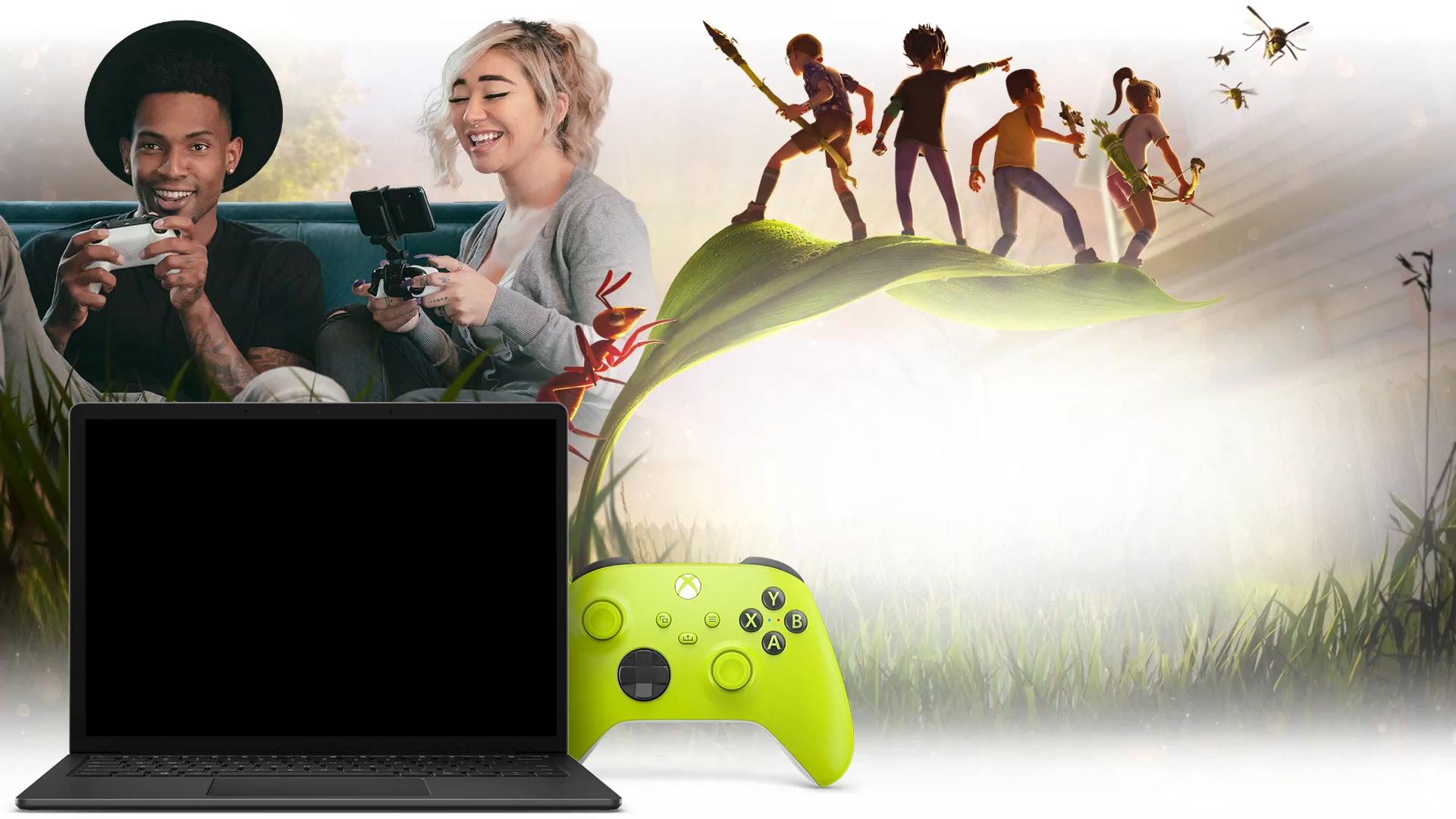
Xbox Cloud Gaming is the name of the cloud gaming service included with Xbox Game Pass Ultimate (a service similar to other platforms like Amazon Luna ). Instead of installing games on your console, PC, or mobile device, they run on Microsoft servers located in data centers, and you simply connect via the internet to stream the games.
In traditional use, a video game is installed directly on the device where you're going to play it : your Xbox, your computer, or your smartphone. This implies two important limitations: firstly, the game has to be compatible with the platform in question, and secondly, the hardware must be powerful enough to run it smoothly.
With Xbox Cloud Gaming, that approach changes completely, because all the processing is done in the cloud. The game runs on a server with optimized Xbox Series X hardware, and what you receive on your device is a real-time video feed of what's happening. In return, your console, mobile phone, tablet, TV, or browser sends your controller inputs to the server, also in real time.
In practice, all you have to do is open the compatible app or website, choose a game marked for cloud gaming, and press the Play button . If the title is enabled for Xbox Cloud Gaming, it will launch on Microsoft's servers, and in a few seconds, you'll be in the game without having downloaded a single gigabyte.
It's important to note that Xbox Cloud Gaming is part of Xbox Game Pass Ultimate ; it's not a separate subscription. To use cloud gaming, you need an active Xbox Game Pass Ultimate subscription (Game Pass for console or PC alone isn't sufficient). Once you have this, you can play any cloud-compatible game on various platforms.
The great advantage of all this is that you don't need a high-end gaming PC or a next-gen console to enjoy many demanding titles. You can play on much more modest devices (a basic laptop, a tablet, or even a mid-range mobile phone), since the processing power comes from the server, not your computer.
On the less pleasant side, the critical point is the connection. For a good experience, you need a fast and stable internet connection , and choosing a suitable DNS server is advisable to improve latency. Microsoft recommends, as a reference, a download speed of at least 40 to 60 Mbps and the most stable connection possible, preferably with 5 GHz Wi-Fi or an Ethernet cable for computers and televisions.
What you need to use Xbox Cloud Gaming
Before you start playing, it's a good idea to review the basic requirements for using Xbox cloud gaming , both in terms of your account and the devices and accessories you need. While it's quite flexible, there are certain minimum requirements you must meet for everything to work properly.
The first requirement is an active Xbox Game Pass Ultimate subscription . This is the most comprehensive version of Game Pass and includes access to Game Pass for console, PC, EA Play, and, of course, Xbox Cloud Gaming. Without this subscription, the cloud gaming option will not appear in your account.
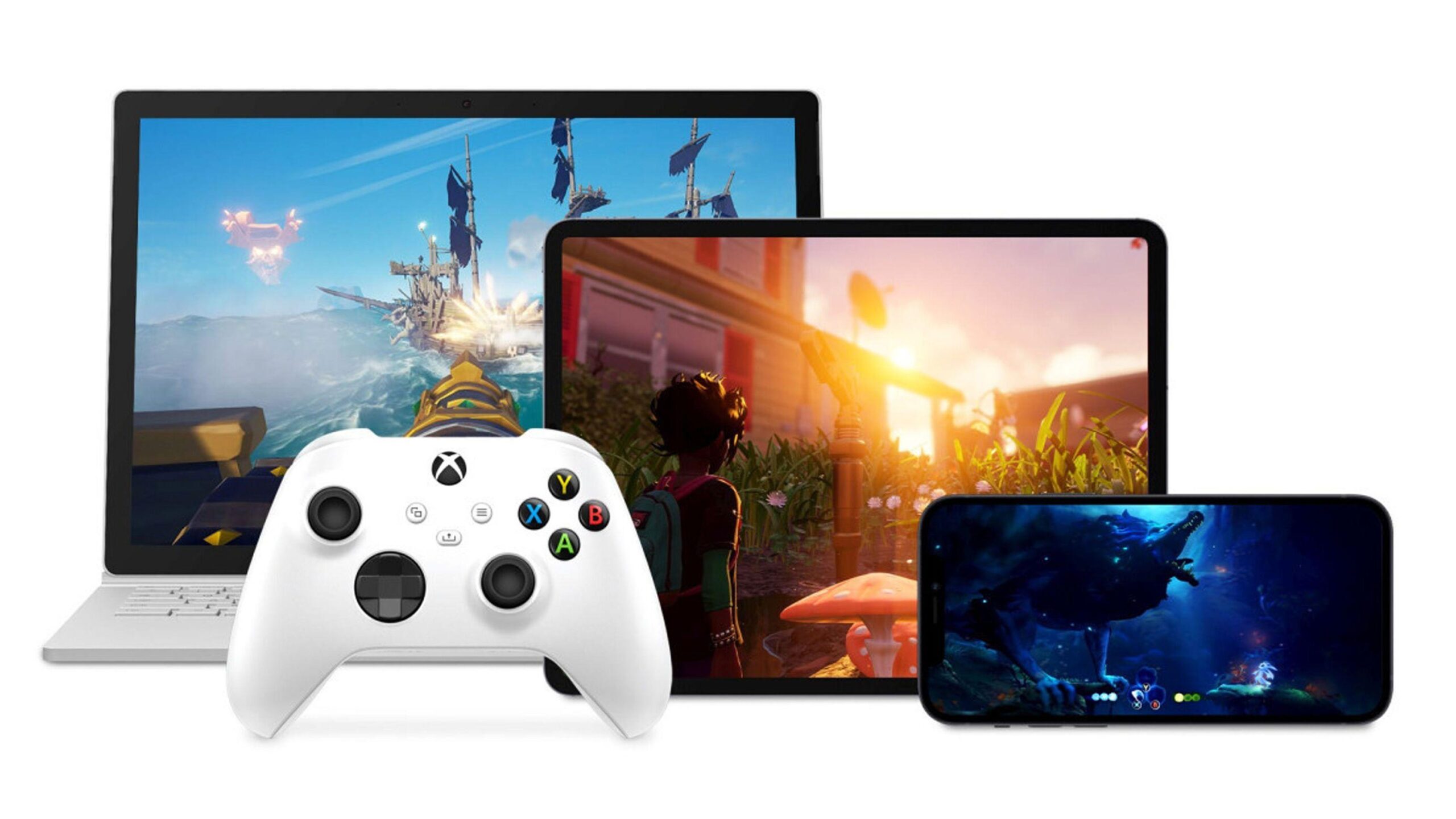
Regarding hardware, you can use Xbox One and Xbox Series X|S consoles, computers, mobile phones, and tablets , as well as some compatible TVs and streaming devices, whose operating systems may vary depending on the manufacturer (for example, Titan OS ). There is also support for certain virtual reality headsets where the Xbox app can be installed, acting as a giant screen to display the game stream.
Regarding controllers, the service offers broad compatibility. Officially, you can use Xbox wireless controllers, Sony DualShock 4 controllers, and other compatible Bluetooth controllers . Touch controls have been enabled in some games, allowing you to play directly on your mobile screen without connecting a physical controller, although the experience is generally better with a traditional gamepad.
As we've already mentioned, your internet connection is key. To play at an acceptable quality, a minimum download speed of 40-60 Mbps is recommended , although latency, stability, and network congestion also play a role. The better the connection, the less lag there will be between your actions and what you see on screen, which is exactly what you want in competitive or fast-paced games.
Finally, you'll need a modern, up-to-date browser (Edge, Chrome, Safari, or similar) that's compatible with the web version of Xbox Cloud Gaming. On Android devices, the ideal way is to use the Xbox Game Pass app, while on Apple devices, access is usually through a browser due to App Store policies.
Changing the way we play: advantages of cloud gaming
One of the biggest advantages of Xbox Cloud Gaming is that it lets you completely skip installations and endless downloads . If you want to try a new game, you just launch it from the cloud, without taking up hard drive space and without waiting hours for tens of gigabytes to download.
This is especially noticeable on Xbox One consoles, where you can play titles designed for Xbox Series X|S directly via streaming . This way, you can access next-generation games, such as Microsoft Flight Simulator and others released with the most powerful consoles in mind, without needing to upgrade your hardware.
Furthermore, cloud gaming transforms almost any device with a screen and internet connection into a kind of portable console. You can take advantage of downtime on the sofa, in bed, or even outside the house (as long as you have a good network connection) to continue your games. Your progress is synced to the cloud, so you can start a game on your console and continue it on your mobile device without missing a beat.
Another important advantage is that you don't need specific versions of the game for each platform . The same title running in the cloud works on all the different devices you connect from. There's no need to wait for the PC or mobile version to be released: everything runs on the server, and you simply stream it to yourself.
On the other hand, you should be aware that the experience is heavily dependent on the network. With unstable connections, dropouts, or congested Wi-Fi, you may encounter artifacts, reduced resolution, or even disconnections . It's not a perfect replacement for a local installation in all scenarios, but it is a very powerful and complementary alternative.
How to play Xbox Cloud Gaming on your Xbox console
If you already own an Xbox One or an Xbox Series X|S, using Xbox Cloud Gaming is a great way to save storage space and try out games on the go . On recent Microsoft consoles, the service is quite well integrated, so the process is very straightforward.
First, make sure you're signed in with the account that has your Game Pass Ultimate subscription . Then, open the Xbox Game Pass app on your console. This app is the central hub for managing your library and accessing cloud gaming.
Within the app, browse through the different games and you'll see that many of them offer several options. For cloud-compatible titles, you'll see the classic "Install" button, but also an additional button labeled " Play in the Cloud" or simply "Play ." That's the option you'll want if you don't want to download anything.
When you press the Play button on a game that supports Xbox Cloud Gaming, your console will connect to Microsoft's servers and start streaming the game directly . In just a few seconds, you'll be on the game's main menu and can play as if it were installed locally.
This feature is especially useful if your console is full and you're running out of disk space, or if you want to try a game before making room to install it . Simply launch it in the cloud, see if you like it, and if you do, you can decide later whether to install it to keep it locally.
How to play on mobile phones and tablets with Xbox Cloud Gaming
The best way to get the most out of Xbox Cloud Gaming outside the living room is to use it on your mobile phone or tablet. This is where many gamers discover they can carry their console games in their pocket , something unthinkable a few years ago without dedicated hardware.
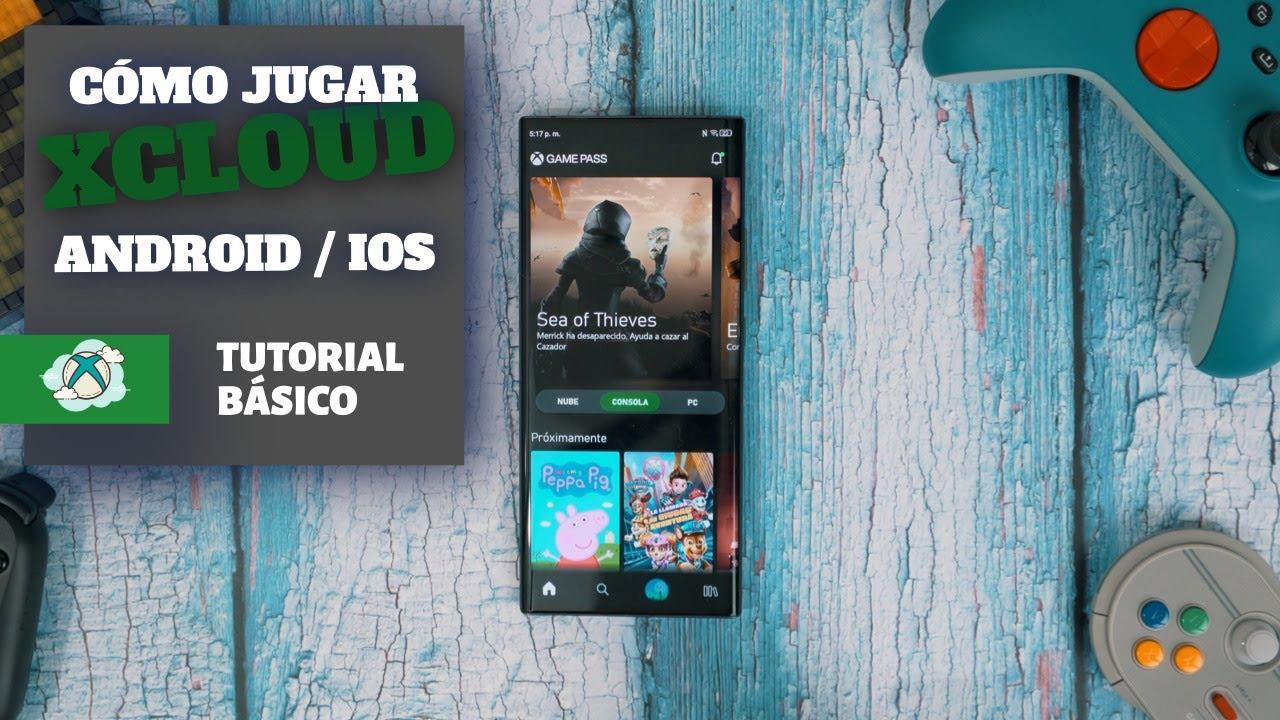
On Android devices, the process involves downloading the official Xbox Game Pass app from Google Play or the Galaxy Store , depending on your phone's brand. Once installed, sign in with your Xbox account that has an active Game Pass Ultimate subscription.
Within the app, you'll find a dedicated cloud section where you can see all the games available for Xbox Cloud Gaming . In that list, instead of just the option to install on your console, you'll see a Play button that starts streaming the chosen title to your mobile phone or tablet.
For a better experience, it's common to connect a wireless controller to your device. You can pair an Xbox controller via Bluetooth, a DualShock 4, or other compatible controllers . Once paired, the Xbox app will recognize it, and you can control the game just like on the console. Some titles even allow you to play with touch controls overlaid on the screen, although the precision is usually less than with a physical controller.
If, when you open the Xbox app on your Android device, you only see the option to install on your console, but no games are available to play on your phone , it could be due to several things: you might not have Game Pass Ultimate, your region might not yet support cloud services, the app might not be up to date, or you might be using a different account than the one associated with your subscription. Checking these details usually resolves the issue.
One of the most universal ways to access Xbox Cloud Gaming is through a web browser. This allows you to play from computers, Apple devices, and virtually any computer with a modern browser , without needing to install any additional applications.
To access, simply go to the official service website, which is xbox.com/play (also accessible in its localized version xbox.com/es-ES/play). Once on the website, sign in with your Xbox account that has Game Pass Ultimate, and the page will load your library and the catalog available in the cloud.
It works very simply: you choose the game from the cloud-compatible titles section and click the play button . The browser will establish a connection with Microsoft's servers and, after a brief loading time, the game will be streaming directly in the same tab.
In this web version, using a controller is practically mandatory, as playing with a keyboard and mouse is not supported in most cases . You will need to connect an Xbox controller or another compatible controller to the PC, laptop, or device you are using, either via USB cable or Bluetooth.
The browser experience is especially comfortable on computers not designed for gaming, such as office laptops or machines with limited graphics capabilities . As long as you have a good network connection and your browser is up to date, you can enjoy stunning visuals without putting a strain on your system.
Play on TVs and special devices with the Xbox app
In addition to consoles, mobile devices, and browsers, Microsoft has brought Xbox Cloud Gaming to a range of televisions and multimedia devices. This allows you to play without a physical console connected to your TV , using only the app and a wireless controller.
On some newer Samsung TVs, the Xbox app is available directly in the TV's app store . Similarly, certain Amazon Fire TV devices also offer the app, effectively turning your screen into a cloud-based gaming console.
The process is usually similar: you download the Xbox app, sign in with your Microsoft account, and if you have Xbox Game Pass Ultimate active, you'll see the cloud gaming section . From there, you can access the catalog of compatible games and launch the title you want using the same interface as on other platforms.
In these cases, it's essential to connect a compatible controller to the TV or streaming device, usually via Bluetooth. Xbox wireless controllers are the most recommended option , but other controllers supported by the system can also be used. Once paired, the game controls work just like on a console.
There are even virtual reality headsets where you can install the Xbox app, giving you a giant virtual screen that streams the game . It's not native virtual reality for the game, but rather a 2D projection within a VR environment, but it can be a fun and convenient way to take advantage of the cloud.
New Xbox Cloud Gaming web experience in preview
Microsoft is working on a new web experience for Xbox Cloud Gaming, currently in public preview. This is a major redesign of the browser interface, intended to improve navigation, refresh the visual appearance, and lay the groundwork for future features that will be added over time.
This updated version of the website doesn't yet replace the current interface; it coexists with it during the testing period . Users who sign up for this preview will notice changes in how the catalog is organized, in the menus, in the flow of accessing games, and in certain interface elements.
It's important to note that, as this is a preview, some features may be temporarily missing or behave differently than in the stable version. Microsoft makes it clear that this is a testing phase in which details will be refined and improvements enabled based on real-world use and community feedback.
To try this new web experience, you don't need to install anything extra, as everything is done directly through your browser. Simply go to the official Xbox Cloud Gaming website, sign in, and enable the preview features option , as we'll see in the next section. From there, it may take a few minutes for the system to apply the changes.
How to activate the new web experience step by step
If you'd like to experiment with this revamped interface, accessing the preview is quite simple and can be done in minutes. All you need is a compatible browser and your Xbox account with Game Pass Ultimate to try out the games.
The first step is to access the main address of the cloud gaming service, which is xbox.com/play . Do this from a modern browser, and when the page loads, sign in with your Xbox account if you haven't already. You'll see your profile in the top right corner once you're logged in.
Next, go to the Settings section of the website . There you'll find a switch labeled Preview Features. Turn this switch on to indicate you want to participate in the new web experience.
After enabling this option, the changes aren't instantaneous in all cases. Microsoft advises that it can take up to 10 minutes for the new interface to be applied . If you notice that time is passing and everything remains the same, one way to speed up the process is to log out of the website, log back in, and reload the page.
Once applied, you can access the new experience in two main ways: either by going back to xbox.com/play or by following the on-screen instructions. You can return to the classic interface at any time by going back to the same address without the preview, so you're not "stuck" in the new version.
How to send feedback and help improve the service
The preview phase isn't just about getting a sneak peek at new features; it's also about giving Microsoft real feedback from players about what works well, what's causing problems, and what could be improved. User feedback is a fundamental part of this platform's development.
From the Xbox Cloud Gaming website itself, you have at least a couple of ways to send your feedback. The most direct is to use your profile menu : click on the user icon in the upper right corner and select the "Give Feedback" option. This will open the corresponding channel where you can indicate what you want to highlight.
Another helpful way is to use the Xbox web guide integrated into the cloud experience . You can open this guide by clicking the Xbox logo icon in the top left corner of the screen, or, if you're using a controller, by pressing the Xbox button. Among the guide's options, you'll find another link to Give Feedback.
All reports submitted during this testing phase are used to fine-tune the platform before its final release . The more feedback players provide about bugs, slowdowns, interface issues, or improvement ideas, the more polished the final version will be before it's released worldwide.
Thanks to this direct communication system, the community has an active role in shaping the direction of the cloud gaming service, helping to define what the Xbox Cloud Gaming experience in browsers will be like in the coming years , both in terms of features and usability.
With all of the above, Xbox Cloud Gaming has established itself as an ideal platform for those who want to play major titles from almost any device without worrying about installations, storage space, or processing power . As long as you have a reliable internet connection and a compatible controller, you can switch from your console to your mobile device, laptop to TV, or web browser in seconds and continue enjoying your favorite Game Pass games with a flexibility that seemed like science fiction just a few years ago.
